

If you are selling a paid course or digital product, running a private blog, or managing premium content, you must be familiar with WordPress Post Visibility.
There are two popular options to choose from: Password Protection plugins vs Membership plugins.
Initially, both tools seem to perform the same role: hiding content until the right people view it. However, these plugins offer different capabilities and serve distinct use cases.
In this guide, I will break down how they work, their impact on WordPress post visibility, and help you choose the best one for your needs.
Let’s begin with an understanding of WordPress Post Visibility.
What is WordPress Post Visibility?
WordPress post visibility is a built-in feature that controls who can view your content and when it becomes available. Every post and page you create includes a WordPress visibility setting, allowing you to decide whether to make it publicly accessible, limit it to certain users, or hide it until you publish it.
Understanding these options helps you choose the right way to manage your content.
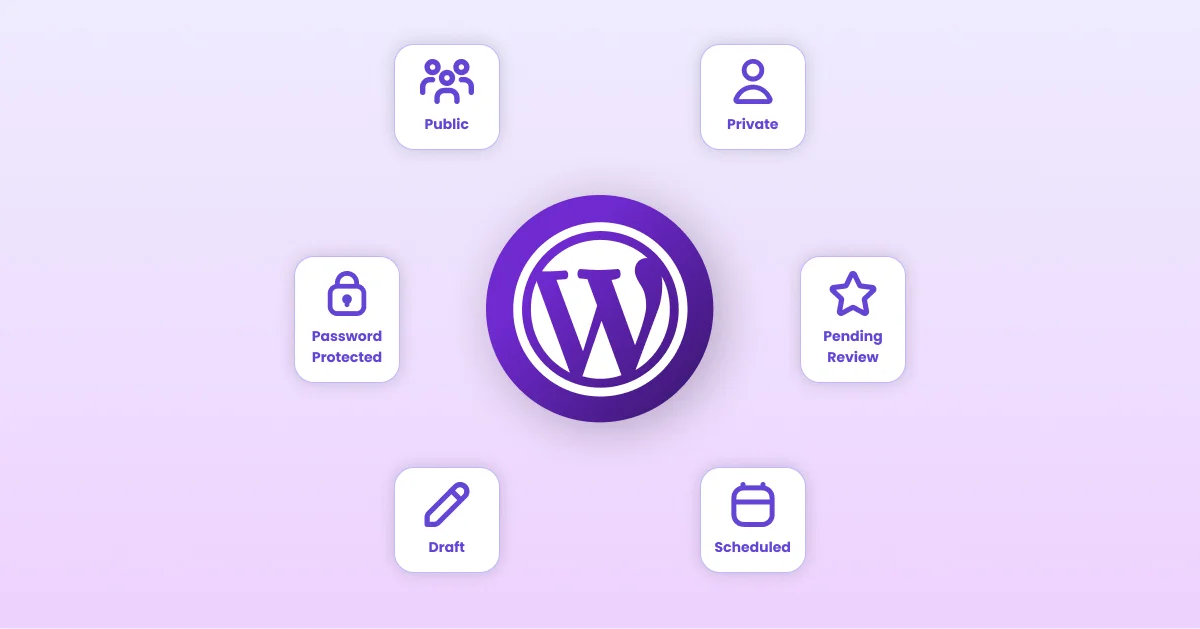
Here are the default WordPress post visibility options you should know.
Public
Public is the default visibility setting in WordPress. Anyone who visits your website can view a public post without logging in or entering a password.
Public posts can appear in search engine results, your blog archive, category pages, RSS feeds, and XML sitemaps, making them the best choice for content you want to reach the widest audience.
This option works well for:
- Blog posts
- Landing pages
- Product pages
- News articles
- Documentation
If your goal is to attract organic traffic, public visibility is usually the right choice.
Private
Only users with appropriate WordPress permissions, such as Administrators and Editors, can view a Private post. Public visitors cannot access the content, even if they have the direct URL.
Private posts are useful for internal documentation, editorial notes, company resources, or content that should remain accessible only to your team.
Unlike password protected posts, there is no password to share. Access depends entirely on a user’s WordPress account and role.
Password Protected
The Password Protected option lets you restrict access to an individual post or page by requiring visitors to enter a password before viewing the content.
This feature is included with WordPress, so you don’t need an additional plugin to use it. After setting a password, anyone with that password can access the protected content.
Password protection is commonly used for:
- Client reviews
- Event pages
- Temporary private content
- Family blogs
- Exclusive downloads
If you need more control, such as multiple passwords, password expiration, or category-level protection, a dedicated password protection plugin can extend the default WordPress functionality.
Draft
A Draft is an unpublished version of a post or page. Drafts are only visible to users who have permission to edit content in the WordPress dashboard.
This visibility status is ideal while you’re writing, editing, or collecting feedback before publication. Since draft posts are not publicly accessible, visitors and search engines cannot view them.
Many website owners keep articles in draft until images, SEO settings, and formatting are complete.
Pending Review
The Pending Review status is designed for websites with multiple authors or editorial teams.
When a writer finishes a post but doesn’t have permission to publish it, they can submit it for review. The content remains hidden from visitors until an Editor or Administrator approves and publishes it.
This workflow helps maintain content quality and ensures every article is reviewed before it goes live.
Scheduled
The Scheduled option allows you to publish a post automatically on a future date and time.
Once scheduled, WordPress stores the post until the selected publishing time. At that point, the visibility changes from unpublished to Public without requiring any manual action.
Scheduling is useful for maintaining a consistent publishing calendar, preparing seasonal content, launching announcements, or coordinating content with marketing campaigns.
Understanding these WordPress post visibility options makes it much easier to choose the right method for your content. If your goal is to restrict access rather than simply delay publication, the two most common approaches are password protection and membership plugins, which we’ll compare in the following sections.
What is Password Protection in WordPress?
Password protection in WordPress is one of the simplest ways to protect content from the public – in simpler terms, hide it. At its core, it works by placing a password login screen similar to the WP-admin login in front of a post, page, or even your entire website.
Visitors can only view the protected content after entering the correct password.
In WordPress, there are two ways to password protect your content:
- WordPress Built-In Feature
- Password Protection Plugins
You can utilize them both, but the WordPress Built-In Feature has limited capabilities compared to Password Protected, the leading Password Protection Plugin.
Here’s a better look at both.
WordPress Built-In Feature
WordPress actually offers a native password protection feature out of the box. When you edit any post or page, you can change its visibility setting to “Password Protected” and assign a password. It’s fast and doesn’t require any additional plugins.
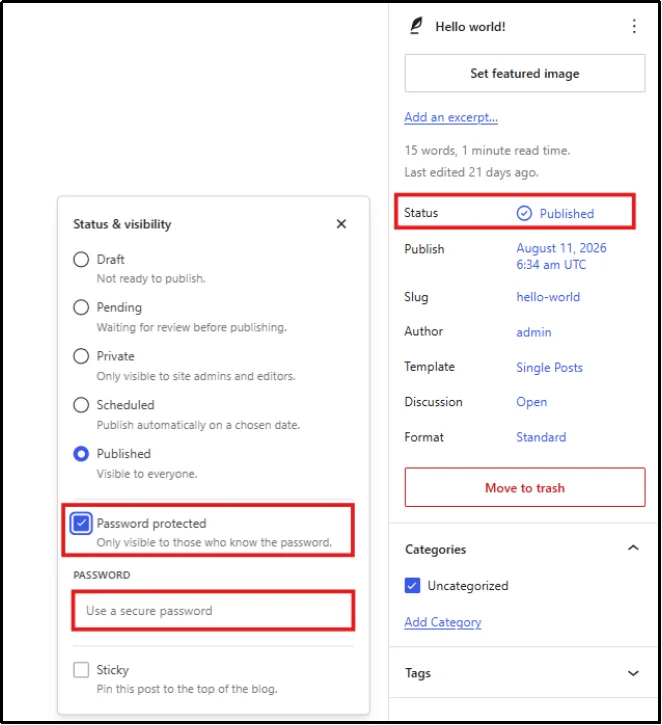
But while this works in a pinch, it’s quite limited:
- You can only assign one password per post
- There’s no way to manage who has access
- It doesn’t scale well for complex sites
Password Protection Plugin (Password Protected)
If you want more control over your password protected content, you have to use a password protection plugin. There are many plugins available for password protection. But the best WordPress content protection plugin is Password Protected. With over 300,000 WordPress installations, Password Protected sets the standard for users who password-protect their content daily.
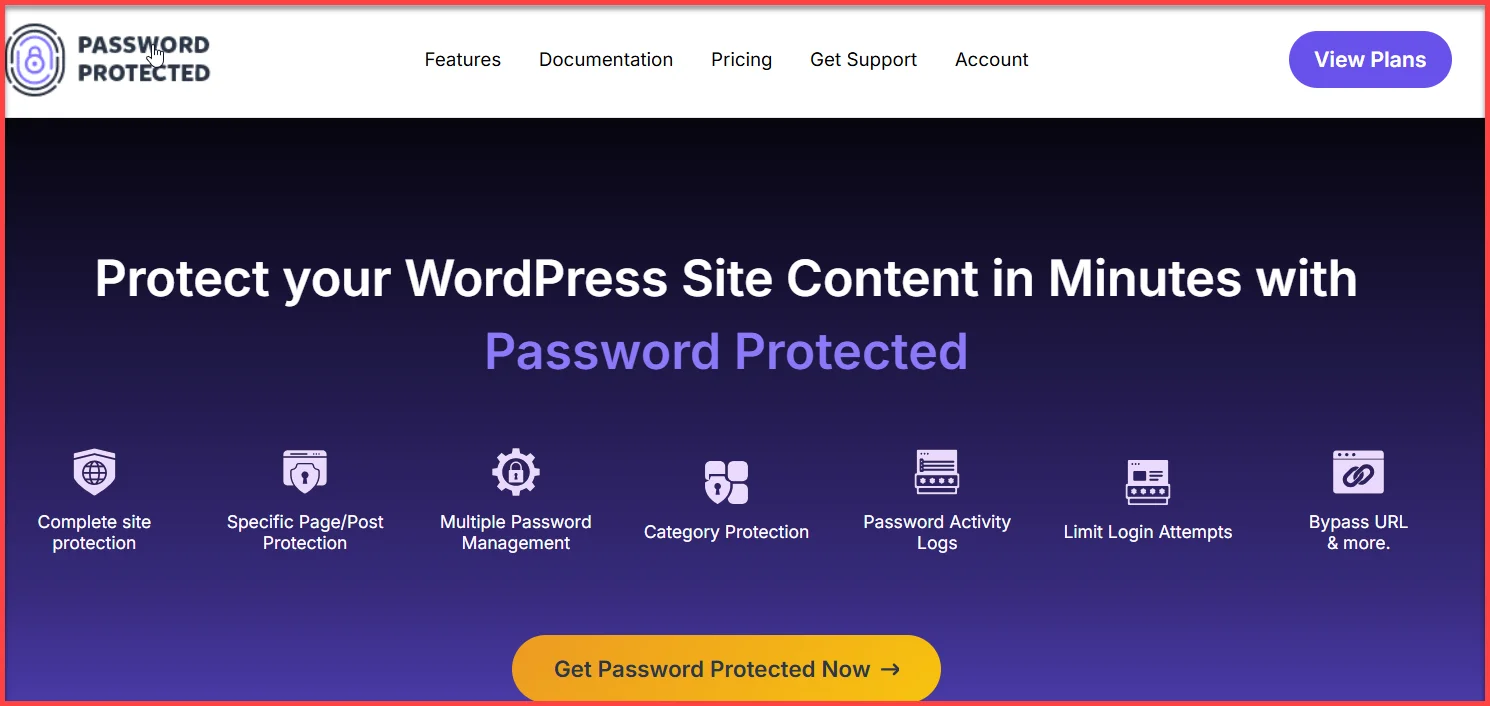
If you want even more flexibility, Password Protected Pro adds serious power – you can:
- Protect your entire WordPress website with a single password
- Restrict access to specific posts, pages, categories, or custom post types
- Create multiple passwords for the same protected content
- Set password expiration dates for temporary access
- Limit the number of times a user can use a password.
- Generate one-click bypass links for hassle-free access
- Allow visitors to request access through a built-in request form
- Improve security with login attempt limits and CAPTCHA integrations
- Exclude selected pages from password protection when needed
- Protect only specific sections of a page with partial content protection
- Control access based on WordPress user roles
- Monitor password usage with activity logs and reports
- Import and export passwords for easier management
- Customize the password screen to match your site’s branding
- Works seamlessly with Elementor, Gutenberg, Gravity Forms, and WordPress Multisite
- And more…
In other words, it provides password protection that actually works at any scale, without requiring users to create accounts.
Take a look at our guides:
👉 How to Password Protect Entire WordPress Site [2 Easy Methods]
👉 10 Proven Ways to Protect Your WordPress Admin Area (2026)
👉 How To Create Password Protected Pages in Elementor [Step-by-Step]
👉 How to Password Protect Categories in WordPress [Step-by-Step]
When Should You Use Password Protection?
Password protection is ideal when:
- You want to share something with a small group of people
- You don’t want the hassle of user accounts
- You’re working with temporary or time-sensitive content
- You’re building a portfolio, staging site, or private WooCommerce shop page
You get fast control over who can see what, without dealing with complex roles, login forms, or membership tiers.
What Are Membership Plugins?
Membership plugins turn your WordPress site into a gated community. Instead of sharing a password with your visitors, you create user accounts, assign roles, and control access to specific content based on membership levels.
It’s a deeper, more structured way to manage visibility, and it’s especially powerful for sites that offer premium content, courses, subscriptions, or paid communities.
How They Work
At the core of every membership plugin are user registration and content access rules. Here’s what you can typically do:
- Restrict pages, posts, or entire categories based on user role or membership plan
- Offer free or paid memberships
- Create subscription tiers (e.g., Silver, Gold, VIP)
- Accept payments via Stripe, PayPal, or other gateways
- Offer drip content that unlocks over time
- Track user activity and manage renewals or cancellations
Unlike built-in WordPress password protection (which is usually a one-password-for-all approach), membership systems let you assign access on a per-user basis.
Popular Membership Plugins

There’s no shortage of powerful options here. Some of the most widely used include:
- MemberPress: Known for its all-in-one setup and deep integration with payment gateways.
- Restrict Content Pro: Lightweight and developer-friendly, great for simple use cases.
- Paid Memberships Pro: Flexible and scalable for larger communities.
- WooCommerce Memberships: Perfect if you’re already running an online store.
Each of these plugins lets you build a structure around your content. Offering control over who can access your content and for how long.
When to Use a Membership Plugin
Your content strategy can benefit from a membership plugin when it involves:
- Recurring access to premium content
- User-specific content visibility
- Offering courses, digital products, or community access
- Handling payments, subscriptions, and renewals
Membership plugins provide long-term content gating and control, especially if monetization is part of your plan.
Key Differences: Password Protection vs Membership Plugins
Both password protection and membership plugins help you control access to your content, but they approach the problem from completely different angles. One is about speed and simplicity, the other is about structure and scalability.
Here’s a breakdown of how they compare:
| Feature | Password Protection | Membership Plugin |
| Setup Time | Setup is quick, just enter a password | Setup is longer and requires setting up user roles, plans, and possibly payments |
| User Accounts | Not required | Required for access control |
| Multiple Access Levels | Not built-in (unless using a separate plugin) | It is a core feature and can segment by plan, role, or tier |
| Content Control | Password on individual post/page or whole site | Rules-based access to content categories, post types, tags, etc. |
| Payment Integration | No | Built-in support for Stripe, PayPal, etc. |
| Content Dripping | Not available | Often included |
| Bypass Link Sharing | Available in Password Protected Pro | Not typically available (though some offer invite URLs) |
| Best For | Temporary locks, previews, quick access | Premium content, communities, user-specific access |
How Password Protection and Membership Plugins Affect WordPress Post Visibility (SEO + UX)
When deciding between password protection vs membership plugin, it’s worth considering more than just access control. The method you choose can affect your site’s search visibility, user experience, and long-term content strategy.
SEO Impact
Both options restrict access to content, but they handle search engine visibility differently.
Password Protection
- Search engines may index the page URL and title.
- Search engines cannot crawl or index the protected content itself.
- Protected pages have limited ranking potential because Google cannot access the main content.
- Some password protection plugins allow you to add noindex tags, keeping private pages out of search results entirely.
Membership Plugins
- Many membership plugins support teaser or preview content for non-members.
- Search engines can index the publicly available content while premium content remains restricted.
- You have greater control over what visitors and search engines can see.
- A good option for websites that rely on SEO while monetizing premium content.
User Experience (UX)
The right solution also depends on how you want visitors to access your content.
Password Protection
- Visitors enter a password without creating an account.
- You get a quick and simple setup with very little friction.
- Ideal for client projects, private events, temporary pages, or small groups.
- Advanced password protection plugins add features such as multiple passwords, password expiration, bypass links, and password request forms.
Membership Plugins
- Users register and log in before accessing protected content.
- They support personalized member-only content based on membership levels or subscriptions.
- Better suited for online courses, premium blogs, membership communities, and subscription websites.
- Requires more setup and ongoing user management than password protection.
Which Option Should You Choose?
At this point, you’ve seen how password protection and membership plugins stack up. But which one’s right for your site?
Here’s a practical way to determine this based on your goals, content type, and the level of control you want over users and visibility.
Choose Password Protection If…
- You want to hide content quickly without setting up user accounts
- You’re sharing a preview, draft, or staging site
- You’re running a private event or project with limited access
- You don’t need advanced SEO indexing or membership features
- You just want one (or a few) passwords to access specific content
This plugin provides lightweight control without transforming your site into a full-blown membership system.
Choose a Membership Plugin If…
- You plan to restrict access based on user roles or subscription levels
- You want users to log in and manage their own access
- You’re offering digital products, premium content, or courses
- You want recurring payments or drip content functionality
- You need deeper SEO and UX customization
These tools offer user registration, detailed access control, content segmentation, and payment integration – all the pieces you need to build a true membership experience.
Your Final Pick: Password Protection vs Membership Plugin?
The final pick is which one fits your content goals, user needs, and workflow preferences.
If you’re just trying to keep things simple, consider sharing a draft with a client or locking down a few sensitive pages; password protection is fast, clean, and effective.
And if you go with Password Protected Pro, you’ll still get advanced features like password expiry, bypass links, and partial content protection.
But if you’re building something such as a content library or a learning platform, then a membership plugin is what you need. It gives you control over user access, monetization options, and a personalized, scalable experience.
Frequently Asked Questions (FAQs)
Can Google index password-protected WordPress pages?
Technically, yes, the page title and URL can appear in search results. But search engines cannot see the content behind the password. If you want to block indexing completely, you’ll need to use a plugin or update your robots.txt file.
Is a password protection plugin secure enough for sensitive content?
For basic use, yes. It keeps casual visitors out. But if you’re protecting highly sensitive or paid content, membership plugins offer better control, tracking, and security features, such as user-based access and logged activity.
What’s the difference between password protected content and private posts in WordPress?
Password-protected posts require a password to view, and only those who have it can access them. Only logged-in users with editor or admin privileges can view private posts.
Can I use both a password protection plugin and a membership plugin on the same site?
Yes, but it depends on the plugins. Some setups work well together -for example, protecting certain pages with passwords while running a membership system for others. However, overlapping rules can confuse users, so use this combo carefully.
Will membership plugins slow down my website?
Some can, especially if you’re using lots of add-ons or running a large user base. But most premium membership plugins are optimized for performance. If speed is a concern, choose lightweight plugins like Restrict Content Pro or optimize with caching and CDN support.
What is the difference between password protected and private WordPress posts?
These two settings both restrict content, but they behave differently:
- Password Protected: Anyone with the correct password can view the content. You can share the link and password with anyone, like clients or team members.
- Private: Only visible to logged-in users with a specific role (usually Editor or Admin). It won’t appear on your blog, in search results, or in menus for regular visitors, even if they have the link.