

Every WordPress site eventually needs better control over who can access specific content, especially when managing private categories, member-only content, or restricted sections.
Whether you run a membership site, an online store, or a private blog, not every category should remain publicly visible. This is where category-level access control in WordPress becomes essential for managing content visibility and restricting access to entire sections.
By default, WordPress does not provide a built-in option for WordPress category password protection. While you can protect individual posts or make content private based on user roles, category-level protection requires additional methods or tools. This limitation often creates challenges for site owners who want to manage structured access to groups of content rather than individual pages.
Password protecting category pages helps you control content visibility, restrict unauthorized access, and secure entire sections of your website in one step. In this guide, we’ll explore how it works, why it matters, and the most effective ways to implement it.
Can You Password Protect Categories in WordPress?
You can password protect WordPress category pages using a content restriction plugin, role-based access control, or custom code that applies protection at the taxonomy level. The simplest and most reliable approach is using a WordPress content restriction plugin that supports category-level protection.
Can You Password Protect Categories in WordPress by Default?
No, WordPress does not support category-level password protection by default.
Out of the box, WordPress only allows you to:
- Password protect individual posts
- Set posts as private (visible only to logged-in users with specific roles)
This limitation means you cannot apply password protection to an entire category archive or restrict category-level access using default WordPress settings.
To protect categories, you need a plugin or custom code that enforces access rules at the taxonomy level rather than protecting content on a post-by-post basis.
Why Do You Need to Password Protect Categories?
Password protecting categories is a scalable way to control access, manage private content, and organize restricted sections without editing individual posts. Instead of locking individual posts one by one, you can secure entire sections of content at once, which is far more efficient as your site grows and improves overall WordPress category access control.
Here are the most common and high-impact use cases:
1. Membership Websites
If you run a subscription-based site, you likely have content meant only for paying users. Password protecting categories allows you to group premium articles, tutorials, or resources and protect blog categories with a password in WordPress and create secure, members-only content areas.
2. WooCommerce Stores
For eCommerce sites, especially B2B or wholesale stores, not all products should be publicly visible. You can use category protection to:
- Hide wholesale pricing from regular customers
- Create VIP or members-only product sections
- Control access to pre-launch or exclusive items
This approach works well when you need to restrict WooCommerce product categories, hide products from guests, or create private shopping experiences.
3. Private Blogs or Internal Content
Some websites are built for internal use or specific clients. In these cases, category protection helps you:
- Share company updates internally
- Provide client-specific resources
- Restrict sensitive information from public access
This is an effective way to limit category visibility in WordPress without affecting the rest of your site.
By securing categories instead of individual posts, you simplify content management while maintaining full control over visibility and access.
How to Password Protect Categories in WordPress Using a Plugin
Password protection may sound technical, but modern plugins make it simple to implement without coding. You can easily do it using a WordPress password protection plugin. These tools help you protect category archive pages and manage content access without complexity.
Step 1: Install and Activate the Password Protected Plugin
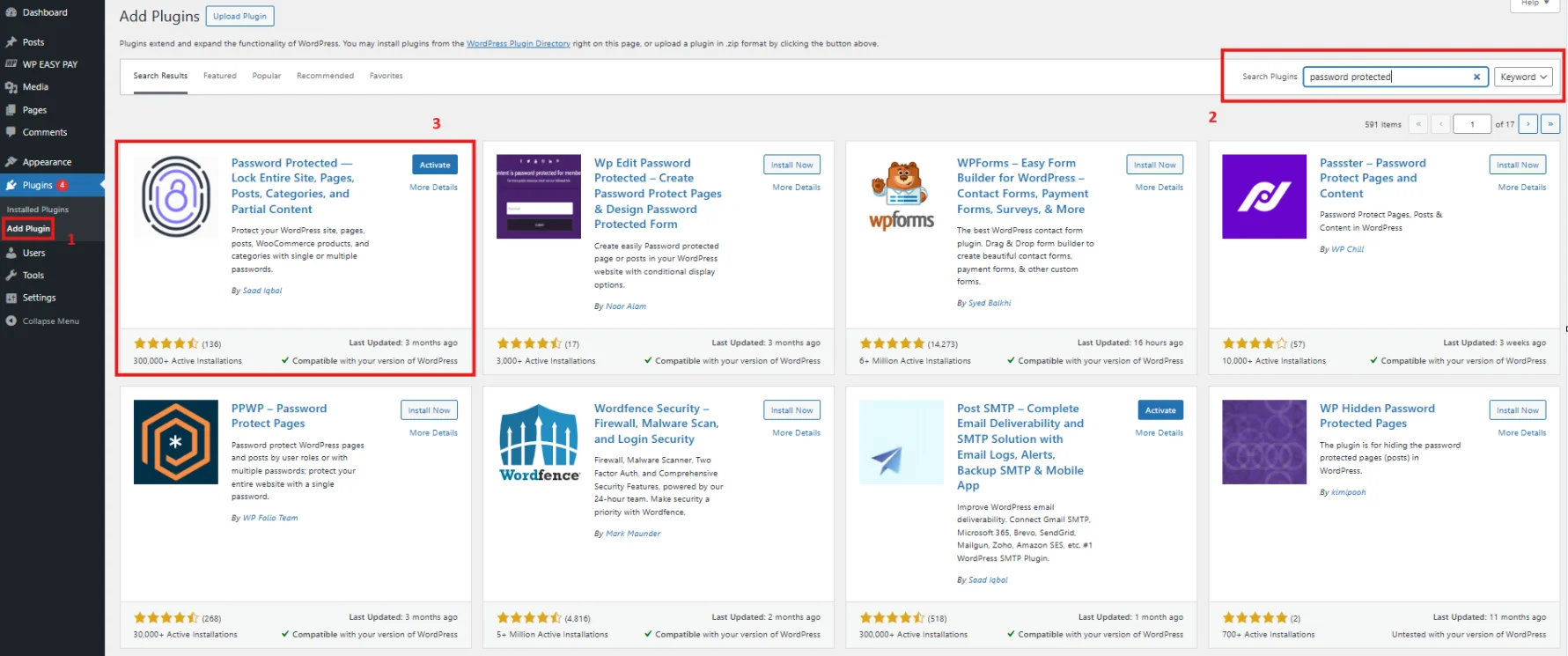
- Log in to your WordPress dashboard and go to Plugins → Add Plugin.
- Type Password Protected in the search bar on the right.
- Once you see this plugin, click Install Now, then Activate once installation completes.
Remember: Category protection requires Password Protected Pro.
To install the Password Protected Pro, follow the steps below:
- Visit Password Protected pricing page and purchase your desired plan.
- You will receive an email with the plugin ZIP file and a key after purchase.
- Download the ZIP file and copy the key.
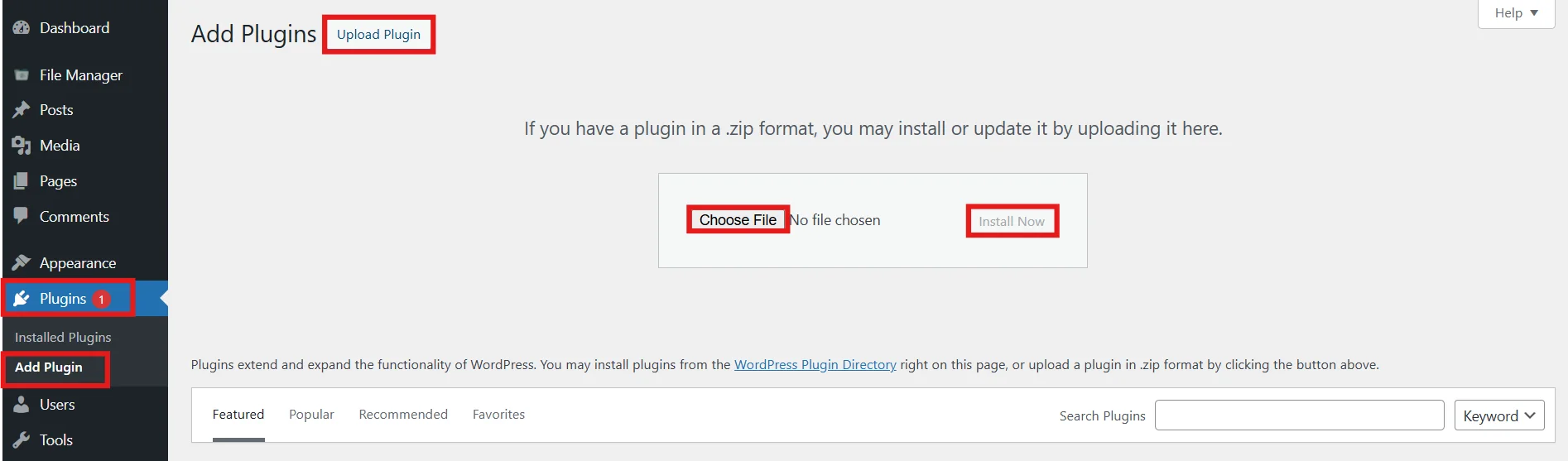
- Go to your WordPress dashboard, head to Plugins → Add New → Upload Plugin.
- Click on Upload Plugin, choose the file, and install now.
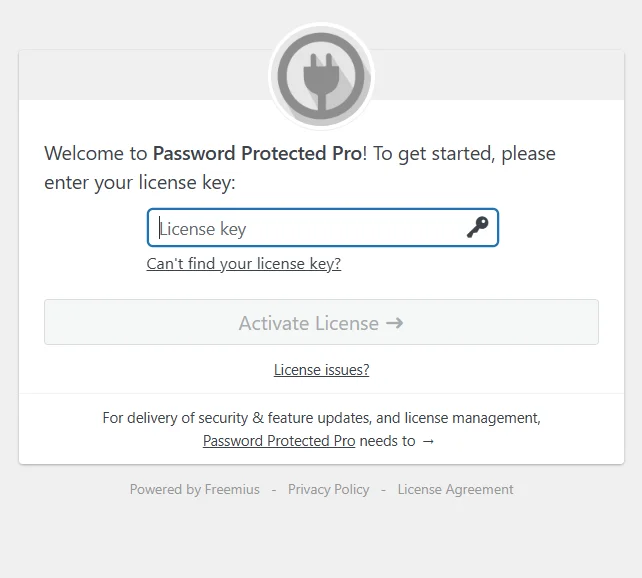
- You will be redirected to the activation page. Enter your key and click on Activate License.
- Once activated, you’ll see the plugin settings in your dashboard sidebar.
Step 2: Enable Categories Protection
Now you need to choose which type of content you want to restrict.
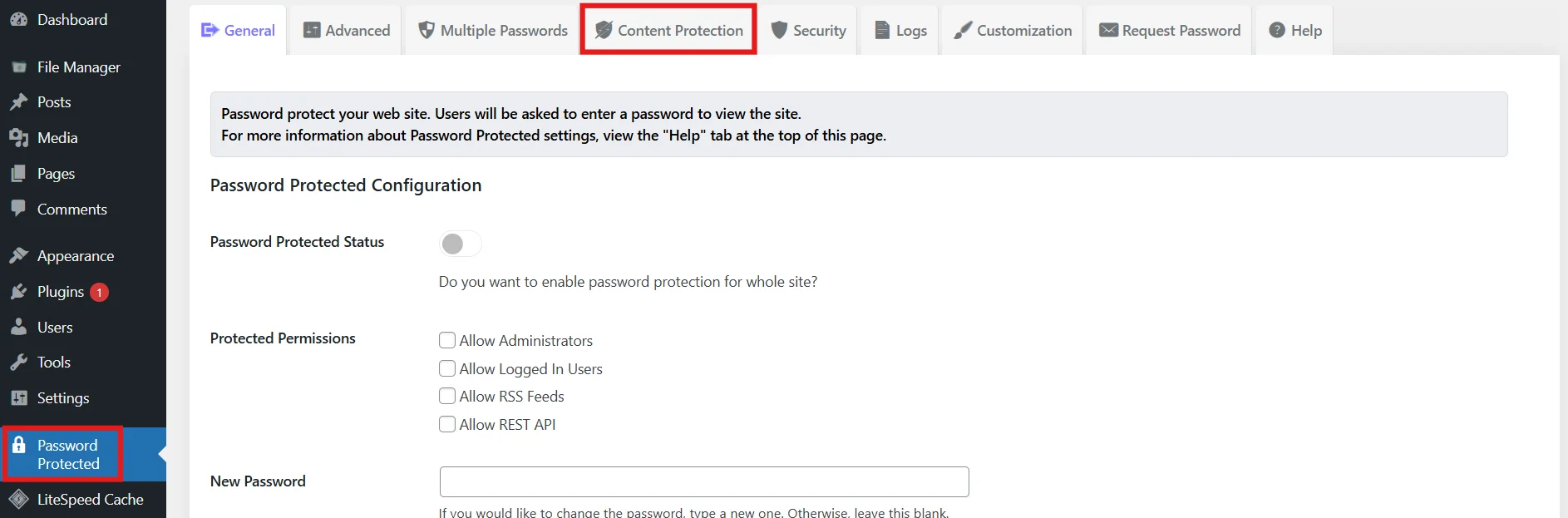
- Go to Password Protected → Content Protection.
- Open the Taxonomy Protection section. Enable protection for Categories.
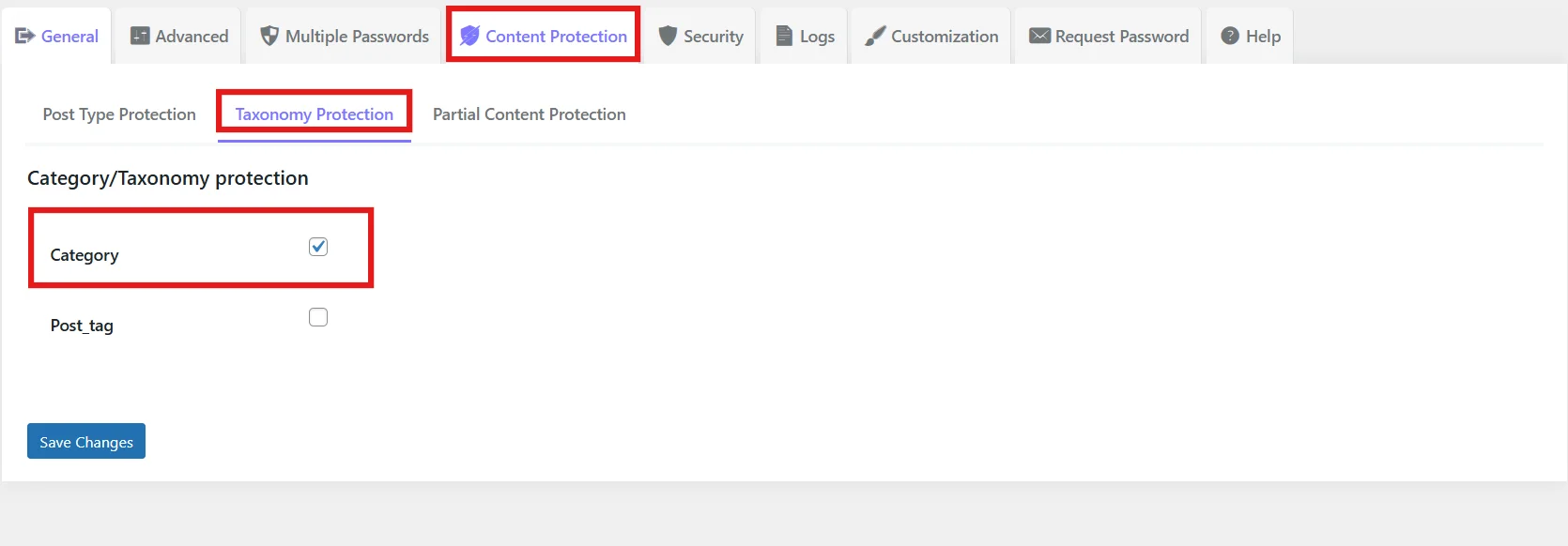
- Click on Save Changes.
This adds an option to protect categories while making a new one or editing an existing one.
Step 3: Select Categories for Protection
After enabling category content protection, you must select which category to restrict access to or protect.
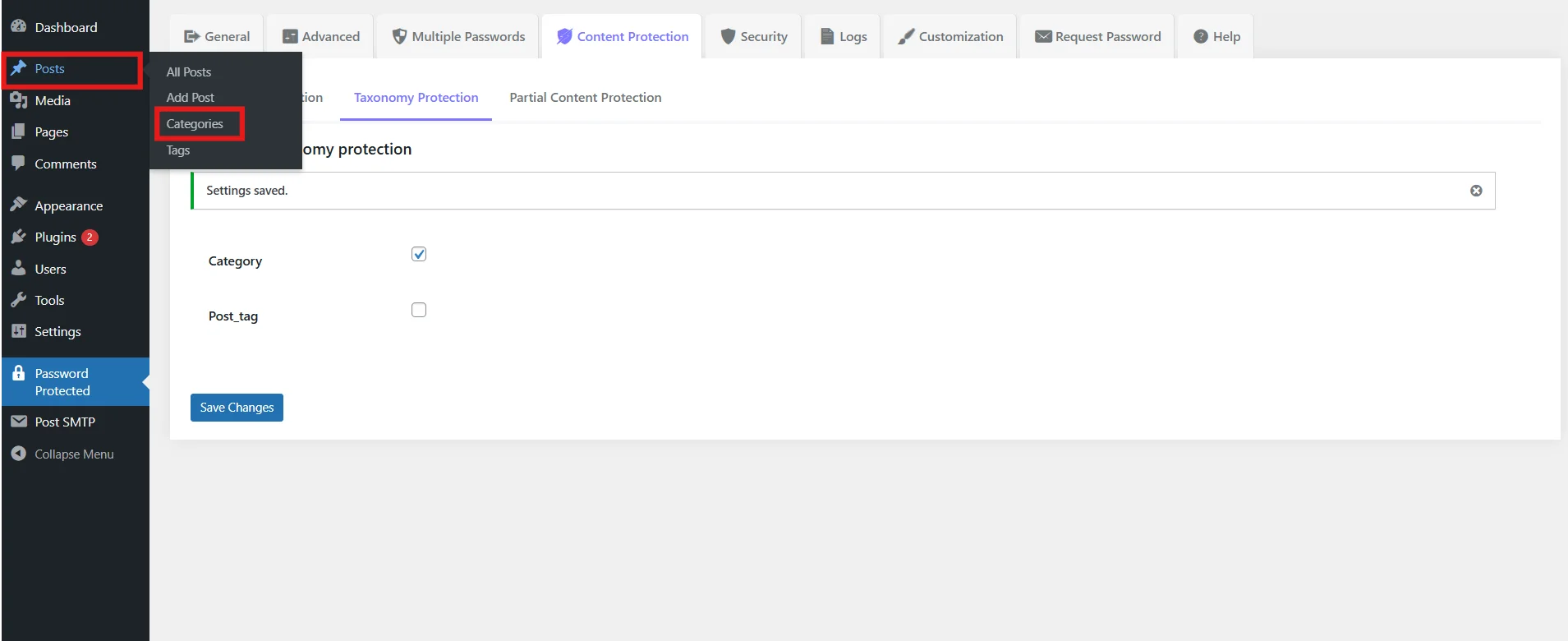
- In your WordPress dashboard, go to Posts → Categories.
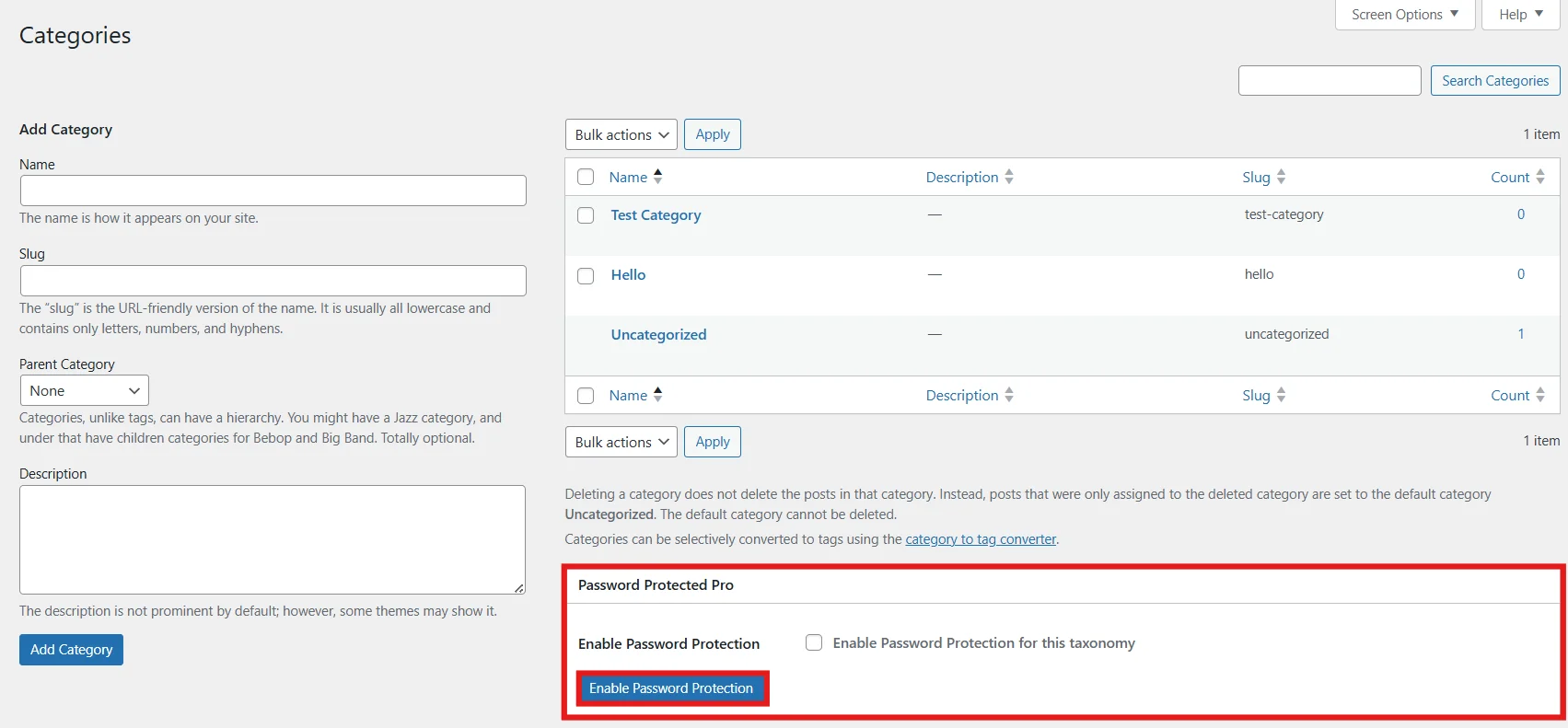
- You will find Password Protected Pro at the bottom right. Click on the checkbox to enable and press Enable Password Protection.
- After enabling, you will see the extended form.
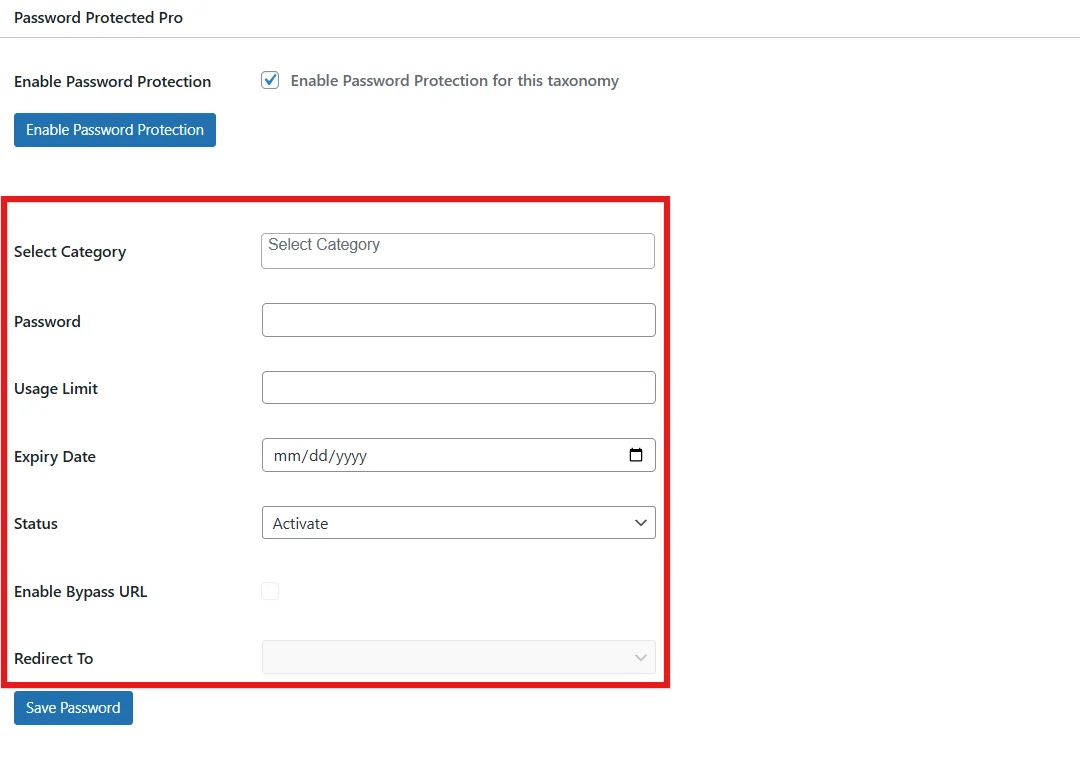
- Now select any category you want to protect, enter a password, set a usage limit and expiry date, choose a status (activate, deactivate, or expired), and enable the Bypass URL and redirection options.
- Take your time to choose your ideal settings, then click Save Password.
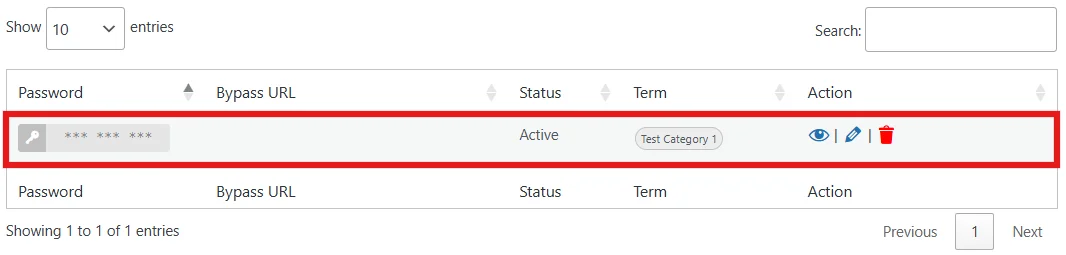
Your password has been created, and you can now access the restricted/protected category using this password.
Step 4: Test Category Access
Always test your category protection setup to ensure unauthorized users cannot access restricted content.
- Open your protected category URL in an incognito/private window
- Check that:
- The password prompt appears
- Unauthorized users cannot view posts
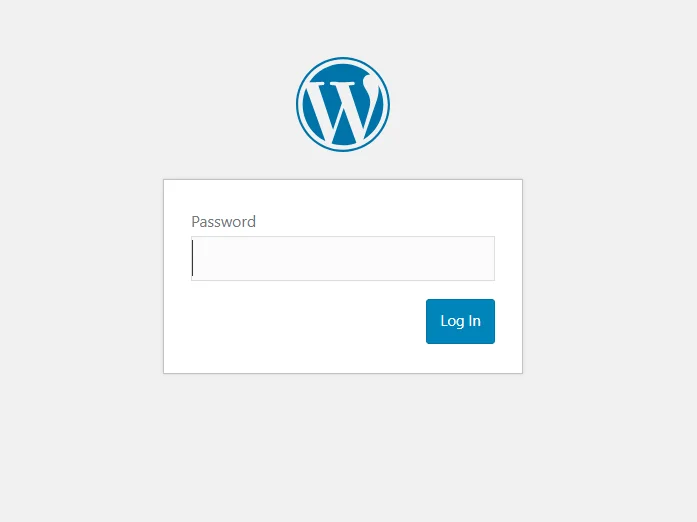
- Now enter the password, then click Log In to access the content.
Testing ensures your WordPress restricted category access setup works properly and prevents accidental exposure.
Congratulations on successfully password protecting categories in WordPress!
Common Problems in Category Protection and Their Fixes
Even with a solid setup, category protection in WordPress can run into a few practical issues. Most of these are easy to fix once you know what’s causing them.
Problem 1: Category is still visible after protection
If a protected category remains publicly accessible, caching issues are often the main cause. Clear your website cache and any CDN cache you may be using. Also, check for plugin conflicts as different security, caching, or SEO plugins can sometimes override restriction rules. You can identify the conflict by temporarily disabling other plugins.
Problem 2: Password not working
If users enter the correct password but still cannot access the category, session handling, or cookie restrictions may be causing the issue. Ensure your site is properly storing sessions and that cookies are not blocked by the browser or security settings. Testing in incognito mode can help diagnose this.
Problem 3: Logged-in users still blocked
If authorized users can’t access protected categories, check your role settings. Misconfigured permissions can prevent access even after login. Make sure the correct user roles are explicitly allowed in your protection settings.
Best Practices for Password Protected Categories
To make category protection both secure and user-friendly, follow a few proven practices.
- Use strong, unique passwords to secure protected categories and prevent unauthorized access.
- From an SEO perspective, apply noindex tags to protected categories to prevent search engines from indexing restricted content.
- Caches can also interfere with access control, so check them for any issues. Exclude protected categories from caching where necessary to ensure restrictions work consistently.
- Finally, always test the user experience. Make sure login prompts, redirects, and access flows work smoothly across devices and browsers.
You can also review our 8 best password protection practices.
Let’s Take Category Protection to the Next Level with Password Protected
Since WordPress lacks built-in category password protection, using a dedicated plugin like Password Protected gives you full control over category visibility, access rules, and content security.
This becomes especially valuable for sites where controlled access is essential. Whether you want to limit category visibility in WordPress, create member-only sections, or secure WooCommerce content, category restriction systems simplify the process.
If you’re serious about protecting content, improving user access control, and maintaining a professional experience, investing in the right plugin is the way forward.
Start protecting your categories today with Password Protected Pro and take full control of your content access.
FAQs
Which plugin is best for password protecting WordPress categories?
One of the best plugins for password protecting categories in WordPress is Password Protected. This plugin is designed to control access at different levels, including categories, which makes it ideal for this purpose.
Does password protecting categories hide them from Google search results?
Not automatically. To prevent this, you should configure your site to use the noindex tag for protected categories. This ensures that restricted content doesn’t appear in search results.
Can different users use different passwords?
Yes, but only with advanced plugins. Many modern restriction tools allow multiple passwords or even role-based access control. This is especially useful for membership sites, client portals, or courses where different users need different levels of access.