

Want to password protect your WordPress site or restrict access to specific pages, posts, products, or other content?
The right approach depends on what you’re trying to protect and who needs access.
WordPress powers 40.2% of all websites worldwide, according to W3Techs data from September 2026. Its widespread use makes WordPress security and access control important considerations for site owners.
But password protection isn’t the same thing as securing your entire WordPress installation.
You may need to protect administrator accounts, stop repeated login attempts, secure data in transit, or restrict access to private content; each problem calls for a different control, and using one method for everything can leave gaps.
In this guide, we’ll cover eight practical WordPress password protection best practices. You’ll also learn when WordPress’s built-in password protection makes sense and when a dedicated password protection plugin gives you more control.
Password Protection vs. Private Content vs. User Login
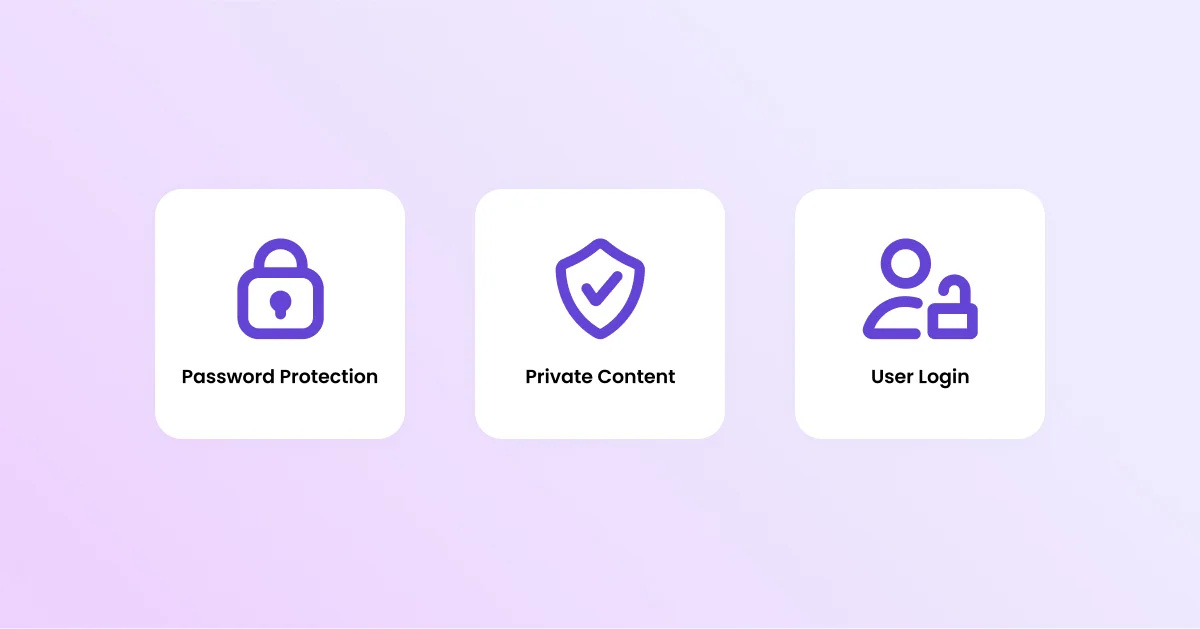
Before you choose a protection method, it’s worth knowing what each option actually does.
These approaches solve different access-control problems.
Password-Protected Content
Anyone who knows the shared password can access password-protected content, whether they’re logged in to WordPress or not.
WordPress includes a built-in Password Protected visibility option for individual posts and pages. A visitor needs the configured password before they can view the protected content.
A dedicated password protection plugin can extend this basic approach to other content types and broader site-wide access scenarios.
Private WordPress Content
Private content works differently.
WordPress restricts access based on user capabilities and roles rather than a shared password. Private posts and pages aren’t publicly visible, and users need the appropriate WordPress permissions to access them.
This setup works well when your site already uses individual WordPress accounts and role-based permissions.
User Login or Membership
A login system gives each visitor an individual account.
That’s useful when you need user-specific permissions, subscriptions, account management, or access records tied to individual users. A membership setup also lets you revoke one person’s access without changing the credentials used by everyone else.
Here’s the basic difference:
| Method | Best for |
| Password protection | Simple shared-password access to selected content |
| Private content | Restricting content to authorized WordPress users |
| User login or membership | Individual accounts, permissions, subscriptions, and user-specific access |
So, start with the access model.
Do you need one shared password, WordPress user permissions, or individual accounts?
That answer will guide the rest of your setup.
8 WordPress Password Protection Best Practices
Effective WordPress password protection involves more than creating a password and calling it a day.
Your site’s login security, software updates, HTTPS configuration, backups, and content access controls all play a role; when you combine these layers, you reduce the number of easy paths an attacker or unauthorized visitor can use.
Here are eight practical steps to follow.
1. Use Strong and Unique Passwords
Start with the basics.
Use a long, unique password for every privileged account and security-sensitive credential, including WordPress administrator accounts, hosting accounts, database credentials, and shared content passwords.
Don’t reuse passwords between services.
If an attacker obtains a reused password from one compromised service, they may try that same credential against your WordPress administrator account, hosting account, email account, or other services.
A password manager can make this much easier.
Use one to generate and store unique passwords instead of relying on memory or repeating familiar patterns.
You should also give each team member an individual WordPress account with only the permissions they need. Sharing an administrator account makes access harder to manage and gives you less control when someone leaves the team.
For shared content-protection passwords, change the password when you no longer trust everyone who has access to it or when the intended audience changes.
And don’t forget the principle of least privilege.
Give each user only the WordPress permissions they need to perform their job.
2. Enable Multi-Factor Authentication for Administrator Accounts
A password provides one authentication factor.
If someone guesses, steals, or obtains that password through phishing, they may gain access to the account.
Multi-factor authentication (MFA) adds another authentication factor before the user can complete the login; depending on the implementation, that second factor might use an authenticator app, security key, passkey, or another supported method.
Two-factor authentication (2FA) is a type of MFA that uses two factors.
For WordPress sites, start with administrator accounts and other privileged users who can publish content, install plugins, change settings, or manage users.
Authenticator apps can add meaningful protection beyond a password alone. Passkeys and hardware security keys can provide stronger resistance to phishing because they don’t work like a code that someone can simply trick you into revealing.
If your WordPress security setup supports WordPress 2FA or passkeys, consider enabling them for privileged accounts.
But MFA doesn’t make weak passwords acceptable.
Use both.
3. Limit Failed Login Attempts
Unlimited login attempts create an easy opening for password guessing.
Attackers can use brute-force attacks to repeatedly guess credentials. They can also use credential stuffing, which involves trying usernames and passwords exposed in unrelated data breaches, or password spraying, which tests common passwords against many accounts.
Rate limiting can slow these attacks down.
For WordPress login protection, consider a setup that can:
- Limit repeated failed login attempts
- Temporarily delay or block excessive requests
- Detect unusual login activity
- Record authentication events for review
- Reduce automated login traffic
The same idea can apply to shared content passwords when your protection method supports it.
A repeated password attempt against a protected page can create a separate brute-force risk, especially when many people know that the page exists.
WordPress login protection and content-password protection aren’t the same control. A limit on /wp-login.php doesn’t automatically protect a custom password form that unlocks restricted content.
That’s an important distinction.
4. Keep WordPress Core, Plugins, and Themes Updated
Outdated software can expose known vulnerabilities.
Security researchers regularly discover vulnerabilities, and developers release patches to address them. Your site benefits from those fixes only after you install the relevant updates.
Keep these components current:
- WordPress core
- Active plugins
- Active themes
- Security plugins
- Other software that interacts with your WordPress installation
Remove plugins and themes you no longer need, even if you’ve deactivated them.
Replace software that its developer no longer maintains, especially when it lacks recent compatibility or security updates.
For major changes, test updates on a staging site before applying them to production. You should also take a backup before significant updates so you have a recovery option if something breaks.
It’s routine maintenance.
It still matters.
5. Use HTTPS and Secure Your WordPress Login
HTTPS uses TLS to encrypt data between a visitor’s browser and your website.
That helps protect login credentials, session cookies, and passwords while they travel across the network.
Use HTTPS across the entire website, not just the WordPress login page.
You should:
- Install a valid TLS certificate
- Keep the certificate current
- Force HTTPS across the site
- Fix mixed-content issues
- Check that protected pages load over HTTPS
- Make sure login forms don’t submit credentials over HTTP
HTTPS protects data in transit.
It doesn’t fix vulnerable plugins, weak passwords, compromised accounts, or poor access controls.
And changing the default WordPress login URL doesn’t replace HTTPS either. A custom or hidden login URL can reduce automated login traffic in some situations, but it works as an additional layer rather than your main security control.
Use strong passwords, MFA, rate limiting, updates, and other security controls alongside it.
6. Protect Your Site With a Web Application Firewall
A web application firewall (WAF) filters HTTP traffic and can block or challenge requests that match known malicious patterns.
Depending on the WAF, it may help filter SQL injection attempts, exploit attempts, malicious bots, and other unwanted traffic.
There are different ways to deploy a WAF.
A cloud-based or reverse-proxy WAF can filter traffic before it reaches your hosting server. A WordPress-level security tool can inspect requests within the application environment.
The important part is understanding what a WAF does.
Password protection controls access to content by asking visitors for a password. A WAF filters potentially malicious traffic aimed at your application.
They’re different controls.
A well-secured WordPress site can use both as separate layers.
7. Back Up Your WordPress Website Regularly
Backups give you a recovery path after a hack, failed update, human error, or hosting failure.
Don’t rely on a single backup.
Your backup plan should include:
- WordPress database backups
- WordPress files
- Media uploads
- Plugin and theme files when appropriate
- Multiple recent restore points
- Off-site backup storage
- Regular restore tests
Automate backups whenever possible.
You don’t want your recovery plan to depend on someone remembering to click a button every Friday.
A commonly used approach is the 3-2-1 backup strategy: keep three copies of your data, use two different types of storage, and keep one copy off-site.
Think of it as a useful guideline rather than a WordPress-specific requirement.
Most importantly, test your backups.
A backup that you can’t restore isn’t much of a recovery plan.
8. Password Protect Sensitive WordPress Content
The first seven practices focus mainly on your accounts and WordPress installation.
This one focuses on content access.
You may want to control who can view a page, post, product, category, custom post type, or an entire WordPress site; in those cases, password protection can give you a simple access gate without requiring every visitor to create an account.
Common use cases include:
- Client website previews
- Pre-launch websites
- Staging or temporary pages
- Internal company resources
- Private client documents or reports
- Exclusive or premium content
- Temporary campaign pages
- Event pages
- Unpublished drafts shared for feedback
- Protected categories
- Custom post types
- WooCommerce products
WordPress’s built-in password protection works well when you need to protect individual posts or pages.
But broader requirements call for more control.
A dedicated WordPress password protection plugin can extend protection to areas such as the entire site, categories, custom post types, WooCommerce products, partial content, multiple passwords, and role-based bypasses.
WordPress Built-In Password Protection vs. a Dedicated Plugin
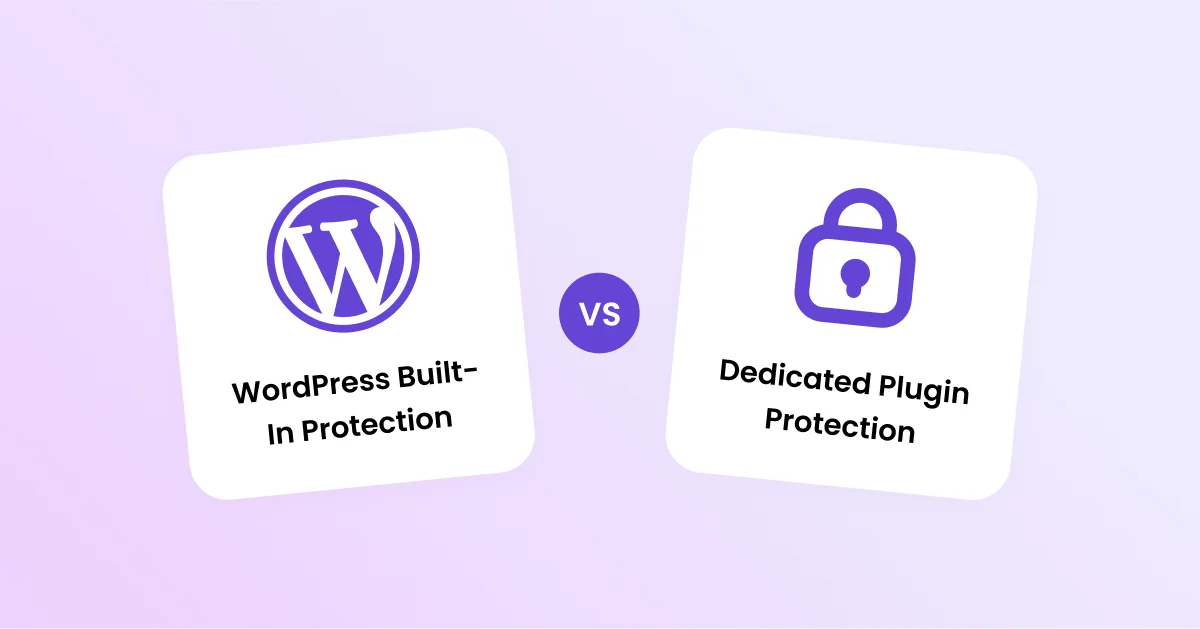
WordPress already gives you a simple way to password protect individual posts and pages.
You don’t need a plugin for that.
When your requirements go beyond individual posts and pages, however, a dedicated password protection plugin can provide additional access-control options.
| Feature | WordPress Built-In | Password Protected Plugin |
| Protect individual posts | Yes | Yes |
| Protect individual pages | Yes | Yes |
| Protect entire site | No | Yes |
| Protect categories and taxonomies | No native visibility setting | Yes |
| Protect custom post types | No native visibility setting | Yes |
| Partial content protection | No | Yes |
| Multiple passwords | No | Yes |
| Allow selected WordPress roles to bypass protection | No native password-bypass feature | Yes |
| Limit repeated password attempts | No native feature | Yes |
| WooCommerce product protection | No native feature | Yes |
When Should You Use a Dedicated Password Protection Plugin?
Use WordPress’s built-in option when you simply need to protect an individual post or page.
A plugin makes more sense when you need broader content protection or additional controls.
For example, you might want to:
- Protect your entire WordPress website
- Protect categories and taxonomies
- Protect custom post types
- Password protect part of a post or page
- Protect WooCommerce products
- Use multiple passwords for different audiences
- Let selected WordPress roles bypass protection
- Limit repeated password attempts
The choice depends on your access requirements.
Don’t install a plugin simply because WordPress already provides the feature you need.
Use the native option when it does the job.
Choose a dedicated solution when you need capabilities that WordPress core doesn’t provide.
What WordPress Password Protection Doesn’t Protect
Password protection controls access to the content you’ve configured.
It doesn’t automatically protect every resource connected to that content.
For example, a downloadable file may remain accessible through its direct URL if you don’t protect the file or the system serving it. Media files, CDN resources, cached pages, and third-party services can also follow different access rules.
Check direct URLs.
Test downloads from a logged-out browser. Look at how your caching system handles protected pages, too; a poorly configured cache can sometimes serve content without showing the expected password prompt.
This matters most when you’re protecting private documents, client materials, paid resources, or other sensitive content.
Does Password Protection Remove Content From Google?
Password protection and search engine indexing are separate concerns.
If a page was publicly available before you added protection, search engines may already have discovered or indexed its URL.
Don’t treat password protection as an instant deindexing mechanism.
If you need to keep content out of Google Search, review your indexing and access-control setup separately.
Also check whether other public URLs expose the same information.
For example, protecting one page won’t automatically protect a downloadable PDF hosted elsewhere on your site.
Common WordPress Password Protection Mistakes
Using the Same Password Everywhere
Reusing one password across your WordPress administrator account, hosting account, email, and content protection creates unnecessary risk.
If someone obtains that credential, several systems may become exposed.
Use unique credentials instead.
Treating Password Protection as Complete Security
Password protection controls access to protected content.
It doesn’t patch WordPress vulnerabilities or stop malicious requests.
Your site still needs software updates, strong authentication, HTTPS, backups, and appropriate security controls.
Using Weak Passwords
Don’t protect sensitive content with an easy-to-guess password.
A password like preview123 provides little protection against someone who knows or guesses your naming patterns.
Use a long, unique password instead.
Forgetting Related Resources
Protecting a page doesn’t automatically protect every file, image, or direct URL associated with it.
Check downloadable resources separately.
Not Testing the Protected Experience
Test the page as a logged-out visitor.
Then try the wrong password.
Try the correct password.
Check mobile browsers, private browsing, direct URLs, and your caching setup.
Cached content can create problems when you don’t configure the system correctly.
Ignoring Password-Sharing Risk
Shared passwords make access simple, but they also make individual access difficult to track.
If ten people know the same password, you can’t reliably tell which person accessed the content based on that password alone.
When individual identity and access tracking matter, use a user-account or membership system instead.
Which WordPress Protection Method Should You Use?
The simplest option isn’t always the right one.
Start with what you’re trying to protect.
| Your goal | Suitable approach |
| Protect one WordPress post | Built-in Password Protected visibility |
| Protect one WordPress page | Built-in Password Protected visibility |
| Restrict content to selected WordPress users | Private content and user permissions |
| Give each visitor an individual account | User login or membership system |
| Protect an entire WordPress website | Dedicated password protection plugin |
| Protect categories or taxonomies | Dedicated content-protection solution |
| Protect custom post types | Dedicated content-protection solution |
| Use different passwords for different audiences | Multiple-password solution |
| Track individual user access | Individual user accounts |
| Protect sensitive downloads | Content protection plus direct-resource controls |
So, think about the audience first.
If everyone should use one shared password, password protection may fit. If every visitor needs their own permissions, individual accounts make more sense.
And if you’re preparing a site for launch, site-wide password protection can save you from protecting pages one at a time.
Final Thoughts on WordPress Password Protection
WordPress password protection is useful when you need to control access without creating individual accounts for every visitor.
But it’s only one piece of the puzzle.
Strong passwords protect accounts. MFA adds another authentication factor. Rate limiting can reduce repeated login attempts. Updates address known software vulnerabilities. HTTPS protects data in transit. Backups give you a recovery path.
Content protection solves a different problem.
If you only need to protect an individual WordPress post or page, the built-in Password Protected option may be enough. When you need site-wide protection, category protection, custom post type protection, WooCommerce product protection, partial content protection, multiple passwords, or role-based bypasses, a dedicated password protection plugin can give you more control.
Password Protected can help you manage those broader access-control needs without requiring you to configure each page individually.
It’s a practical option for client previews, pre-launch websites, private resources, temporary campaigns, and other situations where you want to restrict public access without creating individual user accounts.
If WordPress’s built-in password protection doesn’t cover your use case, explore Password Protected to see which content-protection options fit your website.
Frequently Asked Questions
What is the difference between password-protected and private WordPress content?
Password-protected content uses a shared password. Anyone who knows that password can access the protected content.
Private WordPress content works through user permissions and capabilities instead. Visitors need an appropriate WordPress account and permissions to access it.
Does WordPress have built-in password protection?
Yes. WordPress includes a native Password Protected visibility setting for individual posts and pages. You can configure the setting from the editor without installing a separate plugin.
WordPress doesn’t provide the same native content-protection controls for an entire site, categories, custom post types, or other broader access scenarios.
Can I password protect an entire WordPress website?
Yes, but WordPress core doesn’t provide a native site-wide password gate.
A dedicated WordPress password protection plugin can add this functionality and let you restrict public access across the website.
Can I password protect a WordPress page or post?
Yes. You can use WordPress’s built-in Password Protected visibility setting for individual posts and pages. A dedicated plugin can give you additional controls if you need broader protection.
Is WordPress password protection secure?
Password protection can provide an effective access-control layer for the content it protects.
But it doesn’t replace broader WordPress security measures. Use strong passwords, MFA, software updates, HTTPS, backups, and appropriate security controls alongside content protection.
Does password protection replace WordPress security best practices?
No. Password protection controls access to content. Software updates address vulnerabilities, MFA strengthens account authentication, rate limiting reduces repeated login attempts, and backups provide a recovery option.
Each control solves a different problem.
Can I password protect WordPress categories?
WordPress core doesn’t provide a native Password Protected visibility setting for categories.
A dedicated content-protection plugin can extend password protection to categories and other content structures.
When should I use a password protection plugin instead of WordPress’s built-in option?
Use the built-in feature when you only need to password protect individual posts or pages.
Consider a dedicated plugin when you need site-wide protection, category protection, custom post type protection, WooCommerce product protection, partial content protection, multiple passwords, role-based bypasses, or password attempt limits.
What’s the difference between password protection and a membership plugin?
Password protection usually uses a shared password.
A membership plugin gives each user an individual account and can assign different permissions to different people.
Use individual accounts when you need to identify users, manage access separately, or track access by user.
Can password-protected WordPress content still appear in Google?
Password protection and search indexing aren’t the same thing.
If search engines discovered a URL before you protected it, they may already have information about that URL. Don’t rely on password protection alone when your goal is to control indexing or remove an existing search result.
Review your indexing and access-control settings separately.
Can I password protect WooCommerce products?
Yes, but WordPress core doesn’t provide native password protection specifically for WooCommerce products.
A dedicated content-protection plugin can extend password protection to WooCommerce products and other content types.