

Want to know how to password-protect your entire WordPress site from prying eyes? Whether you’re building a new website, launching a private members-only area, or keeping your work hidden until it’s ready, WordPress password protection gives you an easy way to control access.
WordPress powers more than 40% of all websites worldwide, making it the most popular content management system on the planet. However, WordPress sites also face an average of 90,000 attacks per minute. That’s why learning how to password-protect a WordPress site can help restrict access to your content and improve privacy.
In this guide, we’ll show you how to password-protect your entire WordPress site, explore different methods, and configure your site for private access.
Why You Need to Password Protect Your WordPress Site
Before we get into the how-to, let’s talk about why you might want to make your WordPress site private in the first place.
Common use cases for password protection include:
- Development and staging sites – Keep unfinished websites hidden from the public while you build and test
- Private family blogs – Share photos, videos, and updates with relatives without worrying about privacy
- Client portfolios – Showcase your work to potential clients without making it publicly accessible
- Exclusive content – Offer premium articles, e-books, or reports to subscribers only
- Invite-only events – Create password-protected pages for virtual events with unique passwords for each participant
- Members-only WooCommerce products – Restrict access to specific products or categories
The Security Reality
The threat landscape for websites continues to evolve. Attackers use automation and AI-assisted techniques to create more convincing phishing campaigns, develop malicious code, and automate attacks against weak credentials.
Plugins and themes account for the vast majority of security vulnerabilities in the WordPress ecosystem. This constant stream of new vulnerabilities means that even a well-maintained site can be targeted. Password protection adds an access-control layer that can restrict unauthorized visitors from viewing protected content, but it does not replace other WordPress security measures.
Method 1: Password Protect Your WordPress Site with a Plugin (Recommended)
The easiest and most user-friendly way to password-protect your entire WordPress site is by using a dedicated plugin. Among the available WordPress password-protection plugins, Password Protected provides a straightforward way to protect an entire site and manage additional access-control settings.
Why Choose Password Protected?
The Password Protected plugin is a WordPress password-protection solution with more than 300,000 active installations. It empowers you to password-protect the entire WordPress site, posts, pages, categories, WooCommerce products, the WordPress login page, and even partial content with ease.
Key features include:
- Complete site protection – Lock your entire WordPress site with a single master password
- Passwordless admin access – Administrators can bypass the password screen automatically
- IP address whitelisting – Allow specific IP addresses to access protected content without a password
- Google reCAPTCHA and Cloudflare Turnstile support – Block automated bots and spam
- Custom lock screen – Brand the password entry screen with your logo and colors
- Partial content protection – With Password Protected Pro, you can lock specific sections of pages or posts using supported shortcodes and page builders such as Elementor, Beaver Builder, and the WordPress block editor.
- Category and taxonomy protection – Password protect entire categories and tags
- And much more, which we will discuss later in the article.
Step-by-Step Guide: How to Password Protect a WordPress Site with Password Protected
Let’s walk through the process of setting up site-wide password protection using the Password Protected plugin.
Step 1: Install and Activate the Plugin
- Log in to your WordPress dashboard
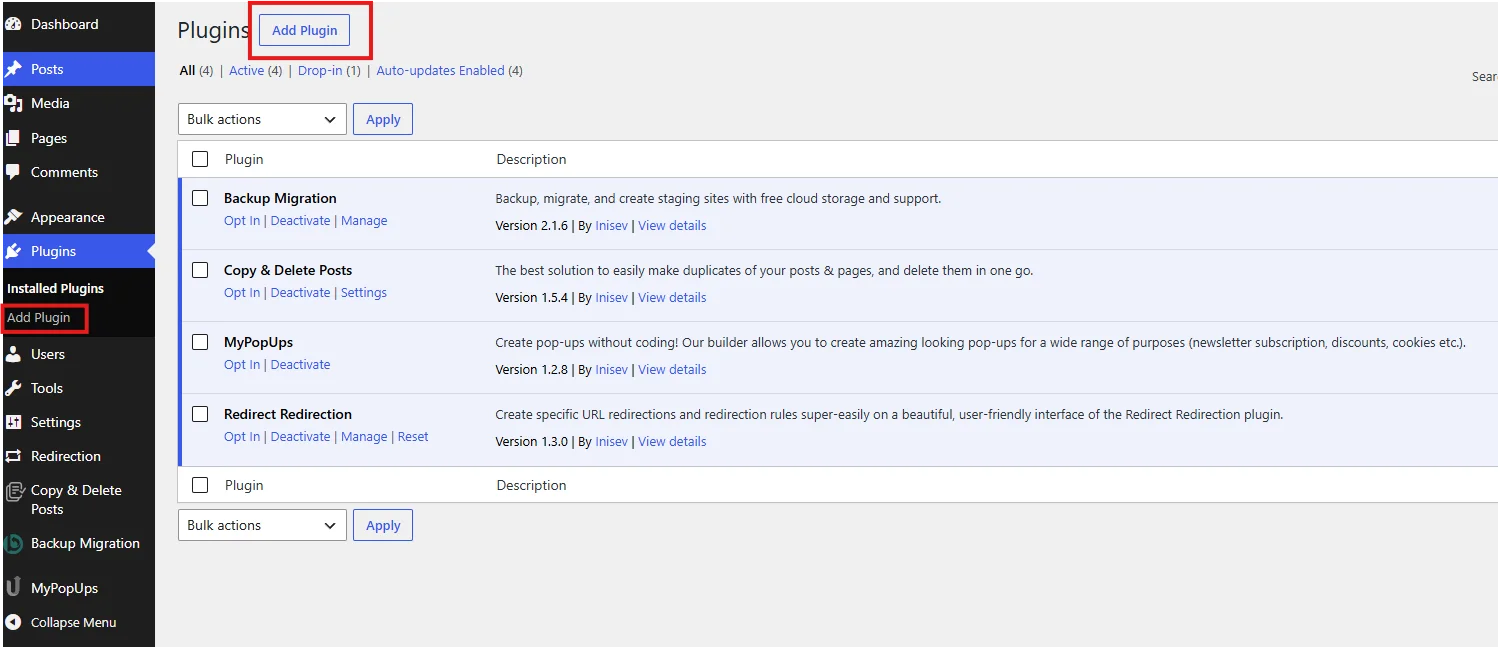
- Navigate to Plugins → Add Plugin
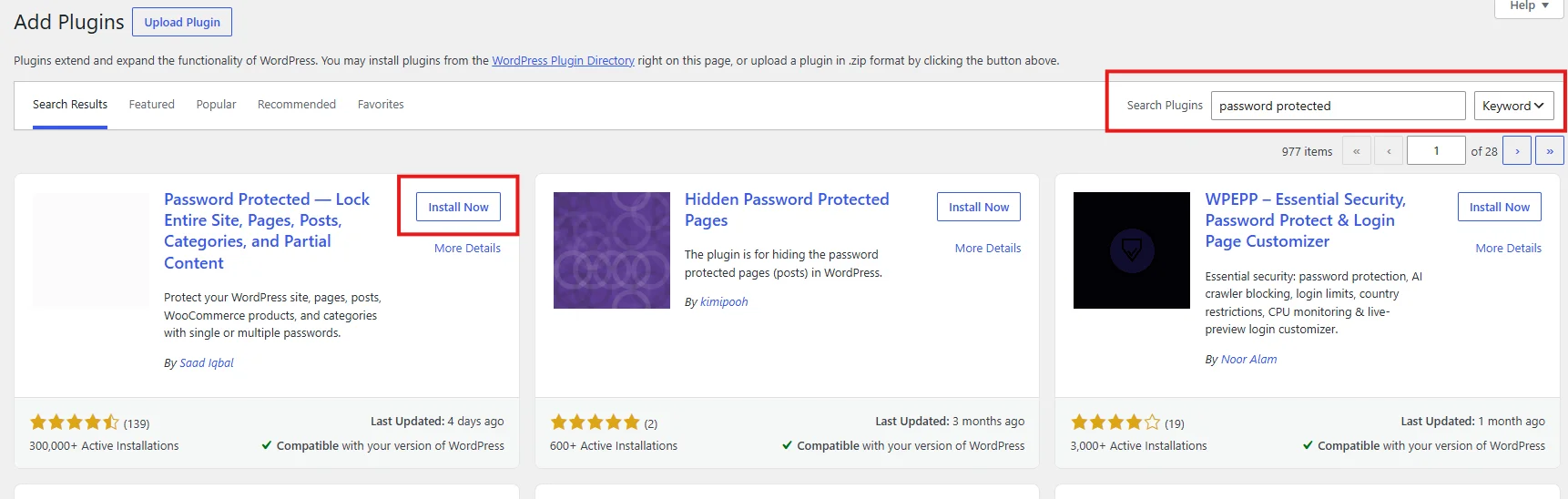
- Search for Password Protected
- Find the plugin developed by WPExperts and click Install Now
- Click Activate
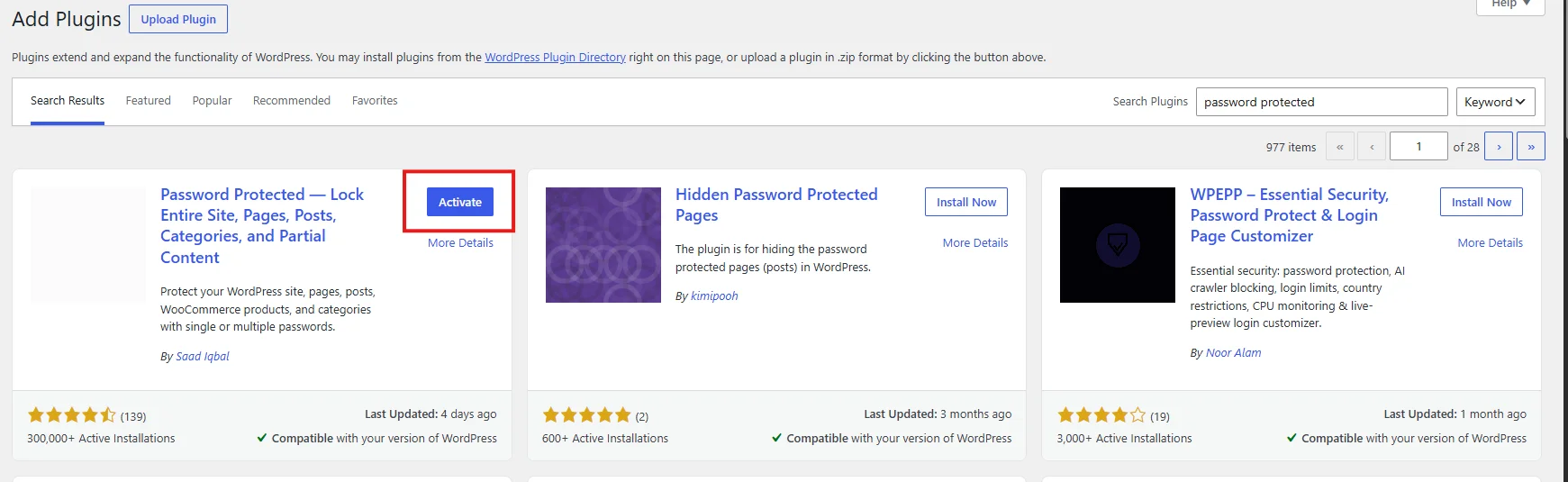
NOTE: Your website will not be password-protected by default after activation. You need to configure the settings first.
Step 2: Configure Site-Wide Password Protection
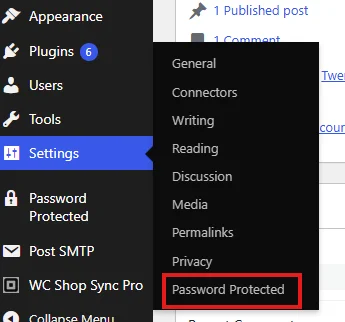
- Go to Settings → Password Protected
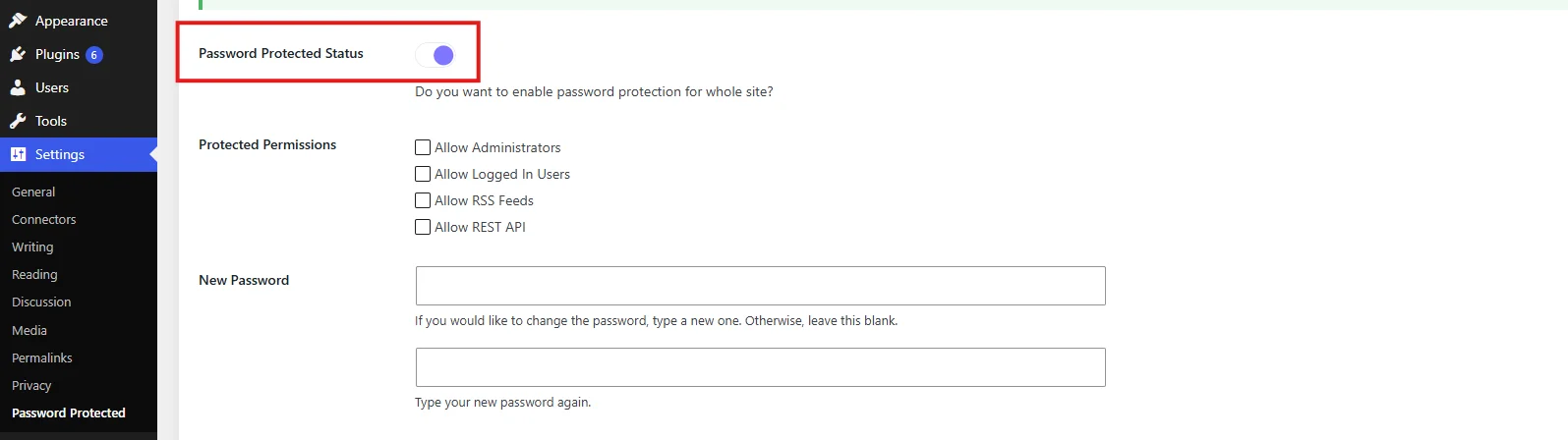
- Toggle the Password Protection Status button to enable protection
- Enter a secure password in the New Password field (and confirm it)
- Click Save Changes
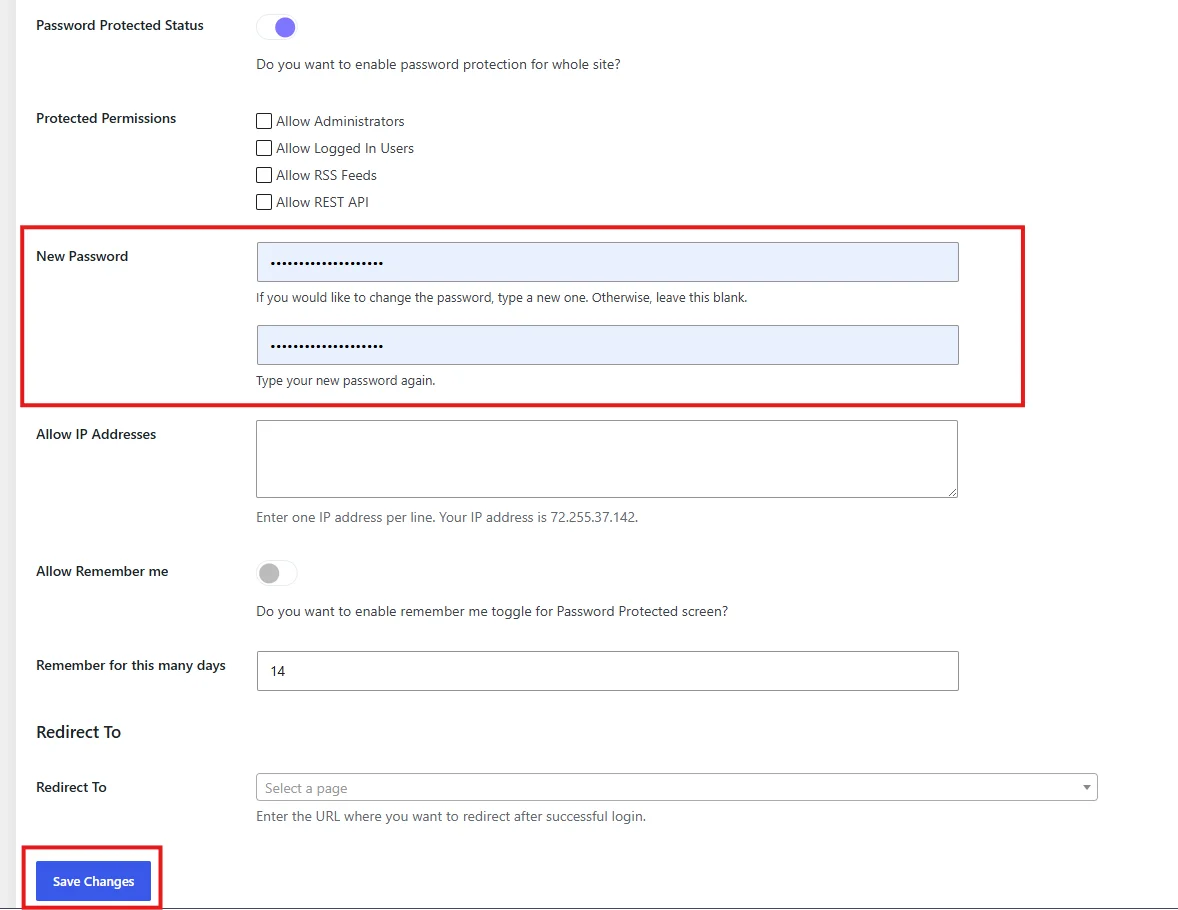
That’s it! Your WordPress site is now protected by the password settings you configured.
Please note: When you enable password protection, it locks all WordPress pages, posts, products, and other custom post types. However, it does not protect media files like images, PDFs, and videos in your upload folder. For file protection, consider additional plugins like Prevent Direct Access.
Step 3: Test Your Password Protection
- Clear your website cache and browser cache
- Visit your website’s frontend in an incognito or private browser window
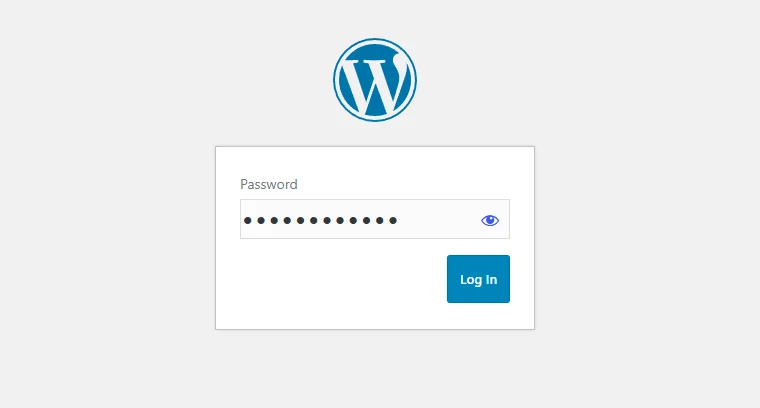
- You should see a password entry screen
- Enter the password you set and verify that you can access the site
Advanced Configuration Options
The Password Protected plugin offers several advanced settings to fine-tune how your WordPress password protection works.
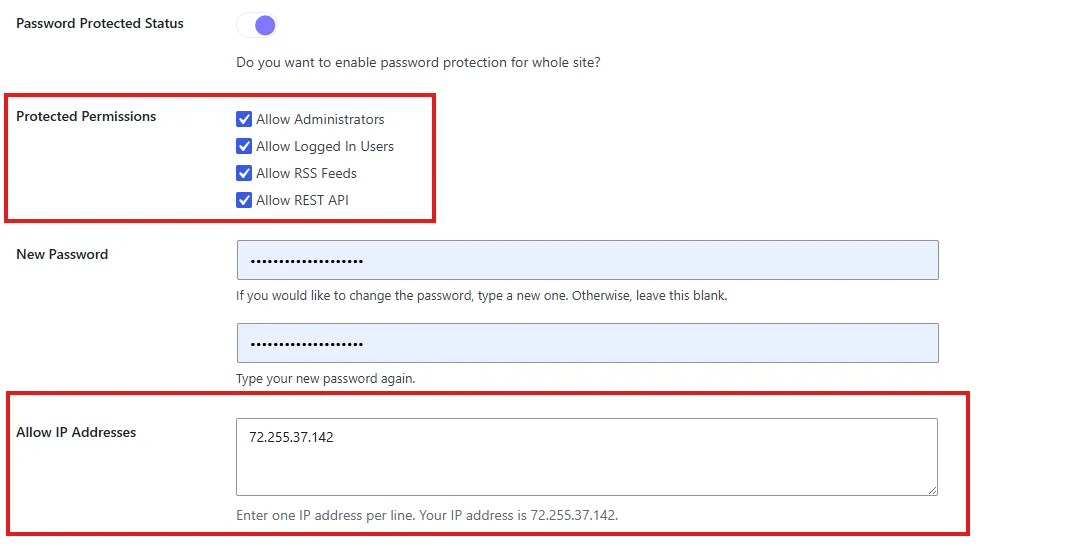
Protected Permissions
You can configure who can bypass the password protection:
- Allow Administrators – WordPress admins don’t need to enter the password
- Allow Logged-In Users – Extends passwordless access to all logged-in WordPress users
- Allow RSS Feeds – Let RSS feed readers access your content
- Allow REST API – Enable REST API access for integrations
- Allow IP Addresses – Whitelist specific IP addresses so users from those locations don’t need a password
Customizing the Lock Screen
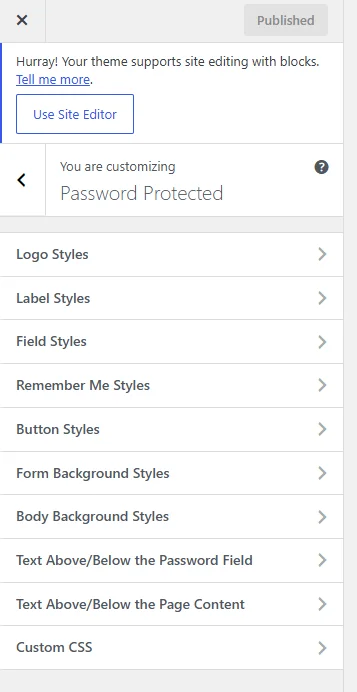
You can make your password-protected screen more attractive and professional by customizing its appearance:
Click on the “Customize” tab at the top of the Password Protected Settings.

You will be redirected to the customization tab where you will have the following options:
- Upload your logo
- Customize background colors
- Adjust button styles
- Match your branding
Remember Me Feature
Enable the “Remember Me” option from the settings and set the number of days the cookie should last. This way, returning visitors don’t have to re-enter the password every time.

Method 2: Password Protect a WordPress Site with HTTP Basic Authentication
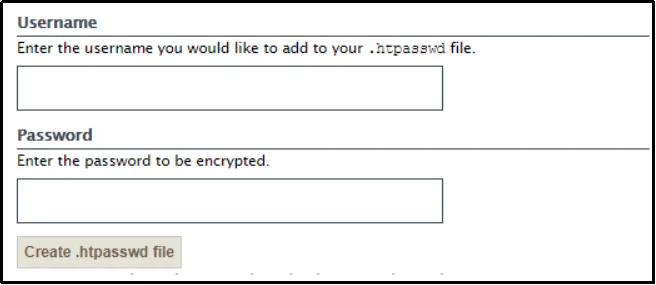
For developers and staging environments, HTTP Basic Authentication adds a password layer at the web-server level before WordPress processes the request. On Apache servers, you can commonly configure it using an .htpasswd file.
How It Works
With HTTP Basic Authentication, visitors see a browser-level username and password prompt before they can access the site. This method works well for password-protecting a WordPress staging site or development environment.
Pros:
- Works at the server level, before WordPress loads
- Requires no WordPress plugin
- Adds a server-level authentication layer when configured correctly over HTTPS
Cons:
- Doesn’t provide a custom, branded password page
- Less user-friendly than a WordPress-based password screen
- May require additional configuration with CDNs, reverse proxies, or caching layers
Many hosting providers offer a simple way to enable HTTP Basic Authentication through their control panel.
Best Practices for WordPress Password Protection
To strengthen access control on your password-protected WordPress website, follow these best practices:
1. Use Strong, Unique Passwords
Create a long, unique password or passphrase that is difficult to guess, and avoid common words, predictable patterns, and personal information.
2. Enable Two-Factor Authentication (2FA)
Two-factor authentication (2FA) adds another verification factor to the login process, so an attacker needs more than a password to access the account.
3. Update Passwords Regularly
Change the password if you suspect it has been exposed, shared with an unauthorized person, or compromised.
4. Use reCAPTCHA or hCaptcha
Add an extra layer of protection to your password screen with Google reCAPTCHA, hCaptcha, or Cloudflare Turnstile. These tools can help reduce automated bot activity and password attempts.
5. Monitor Password Activity
Monitor password attempts to identify unusual access patterns. Password Protected Pro provides activity logs that let you review successful and failed password attempts.
6. Whitelist Trusted IP Addresses
Add your own IP address and those of trusted clients to bypass the password prompt when you need passwordless access from known networks. Review the allowlist regularly and remove addresses that no longer need access.
7. Clear Caches After Configuration
After setting up password protection, clear both your website cache and browser cache to ensure the changes take effect.
Password Protected: Features That Go Beyond Basic Protection
While the free version of Password Protected provides site-wide password protection, the Pro version adds advanced access-control features for individual content, custom post types, categories, passwords, and partial content.
Premium features include:
- Specific Post/Page Protection – Protect individual posts and pages with unique passwords
- Partial Content Protection – Lock specific sections within a page or post using shortcodes
- Custom Post Type Protection – Password protect portfolios, testimonials, news, and more
- Category/Taxonomy Protection – Protect entire categories with multiple passwords
- Multiple Password Management – Create and manage multiple passwords for different access groups or protected content.
- Password Activity Logs – Track successful and failed password attempts
- Bypass Links – Generate temporary links that bypass password protection
- Elementor, Beaver Builder & Gutenberg Support – Lock sections right inside your favorite page builder
- hCaptcha and Cloudflare Turnstile – Add alternative bot-protection and challenge mechanisms to your password-protection screen.
- And much more.
Use Cases for Password Protected Pro
The premium version of the plugin is versatile enough to handle a wide range of scenarios:
- Premium content subscriptions – Give private access to categories, posts, and pages for subscribers
- Client portfolio sharing – Protect your portfolio and generate unique passwords for each client
- Unfinished site previews – Keep pages private while you work, with temporary passwords
- Private family blogs – Share family photos, updates, and other content with people who have the password.
- Exclusive virtual events – Create password-protected event pages with unique participant passwords
- WooCommerce member products – Restrict access to selected products or product categories for specific groups.
Check out all the WordPress Password Protection use cases here.
Troubleshooting Common Issues
1. The website is still accessible after enabling password protection.
Clear your browser and website caches. Check that you clicked Save Changes in the plugin settings. Verify that you’re not logged in as an administrator if you enabled passwordless admin access.
2. Media files are still accessible.
The Password Protected plugin protects WordPress content but does not automatically restrict direct access to media files in your WordPress uploads directory. For file protection, consider using a plugin like Prevent Direct Access.
3. Caching plugins are causing issues.
Caching can interfere with password-protected content if a cache serves a previously generated response to visitors who should see the password screen. Purge your existing caches after enabling protection and configure your caching plugin, CDN, or reverse proxy to handle protected content correctly.
Conclusion
Knowing how to password-protect an entire WordPress site gives website owners a practical way to restrict access to their content. Whether you’re building a development site, creating a private members-only area, or simply want to keep your work hidden until launch, WordPress offers multiple solutions to meet your needs.
Password Protected provides site-wide password protection along with advanced options for protecting individual content, categories, custom post types, and specific sections.
With more than 300,000 active installations, it offers features ranging from site-wide protection to advanced options such as partial content protection, multiple password management, and activity logs.
The free version provides site-wide password protection, while the Pro version adds advanced access-control features such as individual content protection, multiple passwords, partial content protection, and activity logs.
Need to keep your WordPress site private while you build, test, or share it? Install Password Protected to put your site behind a password and control who can access your protected content.