

WordPress pages are the building blocks of your website. They help you create important sections such as your homepage, About page, Contact page, services pages, and legal documents. Unlike blog posts, pages are designed for evergreen content that stays relevant over time.
In this guide, you’ll learn what WordPress pages are, how they differ from posts, how to create and organize them, and how to protect pages when you need private access.
What Are WordPress Pages?
A WordPress page is a static, standalone piece of content designed for evergreen information such as company details, service offerings, landing pages, legal documents, and conversion-focused website content.
In simpler words, pages exist entirely outside the blogging structure. They don’t use categories or tags, don’t emphasize publication dates by default, and don’t appear in your site’s RSS feed.
A page is meant to sit at a fixed spot on your site, easily reachable from the navigation menu, for as long as that information stays relevant.
WordPress pages are one of the default content types built into WordPress core, alongside posts, attachments, revisions, and custom post types.
Common Examples of WordPress Pages:
- Homepage – the front door visitors land on first.
- About – who you are or what your business does.
- Contact – a form or contact details.
- Services or Products – what you offer.
- Privacy Policy and Terms & Conditions – legal and compliance information.
- FAQ – answers to recurring visitor questions.
Why WordPress Pages Are Important
Pages create the structural foundation of a WordPress website. They help visitors navigate important information such as services, contact details, company information, and legal policies without relying on blog content.
Without pages, a site is just a stream of dated blog posts with nowhere permanent for visitors to find your services, your contact details, or your policies.
Pages matter for three reasons.
- Navigation backbone: Pages form the structure of your site’s navigation menu, since menus are built almost entirely from pages rather than posts.
- Credibility signals: Pages like About, Contact, or Privacy Policy show visitors that a real, accountable business is behind the site.
- SEO weight: Pages often target high-value commercial and informational keywords because they remain published for long periods and accumulate authority through internal links and backlinks.
WordPress Pages vs Posts: What’s the Difference?
Understanding pages becomes much easier when you compare them directly with WordPress posts, the other primary content type available in WordPress.
A WordPress post is a dynamic, time-stamped piece of content used for blog entries, news updates, and anything meant to be read in chronological order.
Posts are organized using categories and tags, display an author and publish date, usually allow comments, and feed into your site’s RSS feed.
Key Differences Between Pages and Posts
| Feature | Pages | Posts |
| Content type | Static, evergreen | Time-sensitive, chronological |
| Organization | Parent/child hierarchy | Categories and tags |
| Date and author shown | Usually hidden | Usually shown |
| Comments | Usually disabled | Usually enabled |
| RSS feed | Excluded | Included |
| Navigation menu | Added manually, common | Rare, usually accessed via a “Blog” page |
| Typical use | About, Contact, Services, Homepage | Blog articles, news, tutorials |
The main question is: When Should You Use a Page Instead of a Post?
Use a page when the content is meant to be permanent, reachable from your menu, and not tied to a publish date; your homepage, Contact page, Services pages, etc., all qualify.
Use a post when the content is time-relevant or meant to be grouped by topic using categories and tags.
A simple test: if you’d be uncomfortable seeing “Published 3 years ago” stamped on it, it’s a page.
Why Use WordPress Pages
WordPress pages help you organize important website content and make it easier for visitors to find information. Here are some of the biggest benefits of using pages.
- Evergreen content: Content that stays relevant for long stretches, like About, Services, or Pricing.
- Navigation clarity: Fixed URLs anchor menus, giving visitors predictable access to key info.
- Consistent branding: Stable content reinforces brand identity.
- Custom hierarchy: Parent/child structures allow deeper navigation.
- Access control: Password protection enables private client areas or gated resources.
- Conversion focus: Ideal for landing pages, service descriptions, and lead-generation content.
- Reduced clutter: Keeps evergreen content separate from chronological blog feeds.
- Integration flexibility: Serves as anchor points for plugins like e-commerce or booking systems.
- Search visibility: Well-optimized pages often rank for commercial-intent keywords and serve as important entry points in organic search.
- Internal linking opportunities: Pages help distribute authority throughout your site by linking related content together.
Common Types of WordPress Pages
Not all WordPress pages serve the same purpose. Some help visitors learn about your business, while others focus on generating leads, driving sales, or meeting legal requirements. Understanding the most common types of WordPress pages can help you build a website that is both user-friendly and search-engine friendly.
Homepage
The homepage is often the first page visitors see when they arrive on your website. It introduces your business, highlights your key offerings, and guides users toward important sections of your site. A well-structured homepage improves user experience and helps visitors quickly understand what your website is about.
About Page
An About page tells visitors who you are, what your business does, and why they should trust you. It can include your company story, mission, experience, team members, and achievements. A strong About page helps establish credibility and supports Google’s EEAT principles by demonstrating expertise and trustworthiness.
Contact Page
A Contact page gives visitors a way to reach you. Most websites include a contact form, email address, phone number, business address, or social media links on this page. Making it easy for visitors to contact you improves trust and can increase inquiries, leads, and customer engagement.
Service Pages
Service pages explain the products or services your business offers. Each service should ideally have its own dedicated page that outlines its features, benefits, pricing information (if applicable), and calls to action. Well-optimized service pages often target commercial-intent keywords and can become important landing pages for organic search traffic.
Landing Pages
Landing pages are designed for specific marketing goals, such as generating leads, collecting email subscribers, promoting special offers, or driving product sales. Unlike standard website pages, landing pages typically focus on a single objective and include clear calls to action that encourage visitors to take the next step.
Legal Pages
Legal pages help your website comply with privacy and consumer protection regulations. Common examples include a Privacy Policy, Terms and Conditions, Disclaimer, and Cookie Policy. These pages explain how your website collects and uses data, defines user responsibilities, and helps build trust with both visitors and search engines.
By combining these page types strategically, you can create a clear site structure, improve website navigation, support your SEO efforts, and provide visitors with the information they need at every stage of their journey.
How to Add a New Page in WordPress
Creating a new page in WordPress takes only a few minutes. Here’s the full process:
- Sign in to your WordPress dashboard.
- Hover your mouse over Pages, then select Add Page.
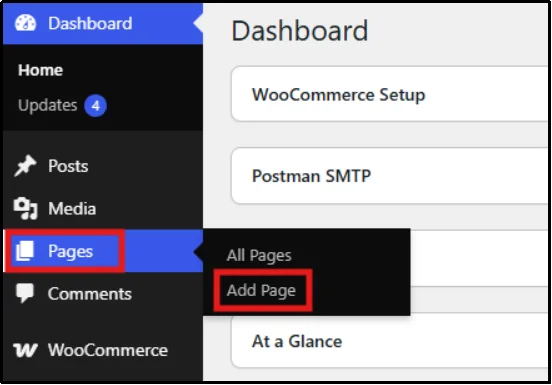
Alternatively, you could:
- Head to Pages → All Pages.
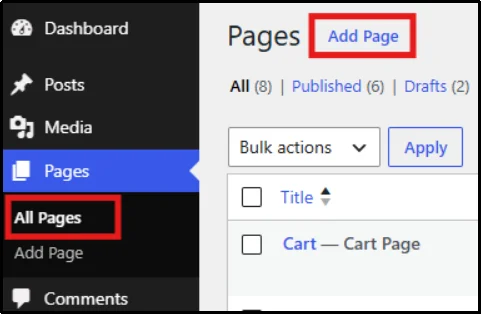
- Click on Add Page.
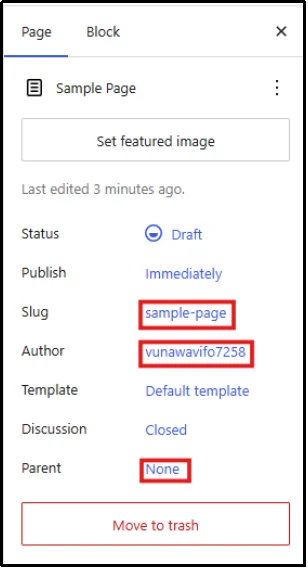
At this stage, WordPress creates the page draft. Before publishing it, configure key settings such as the URL slug, page visibility, author assignment, and parent-page relationship.
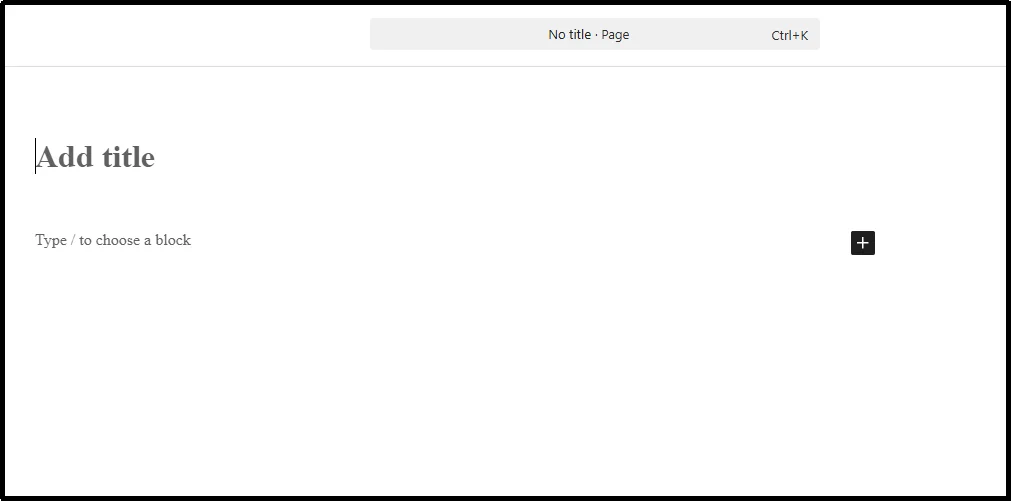
But this step doesn’t end here. You have to perform some basic tasks to complete the process of a proper WordPress page.
- Enter a title based on your preference.
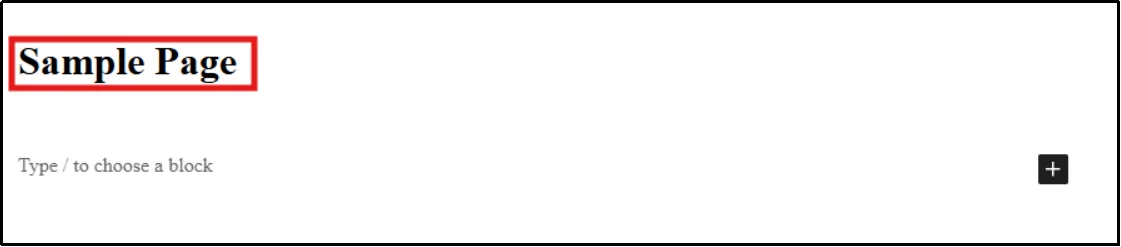
- Depending on your WordPress configuration and user permissions, you may also be able to assign a page author.
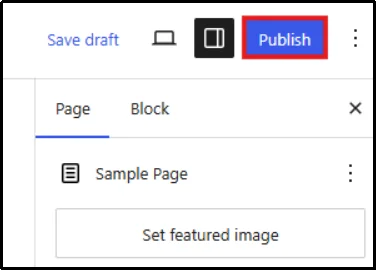
- Now, on the top right, you can click the Publish button to make the page live. (If you want to schedule it, select the date by going to the Publish setting – in the right box – as shown in the above image).
You have successfully added a complete WordPress page.
How to Edit an Existing WordPress Page
You can easily edit any existing page on WordPress. For instance, if you want to edit the name, page title, URL slug, content, parent page, template, or other page settings, it’s super easy to do so. Follow the steps below.
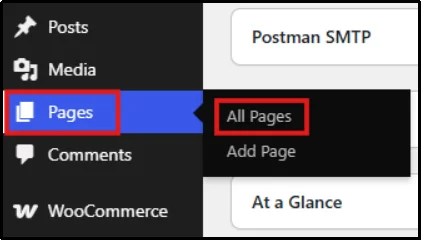
- In your WordPress dashboard, go to Pages → All pages.
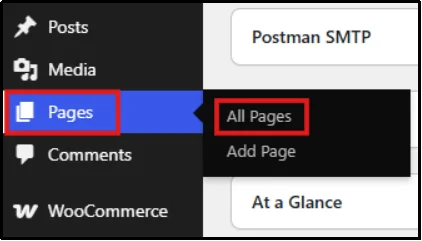
- Whenever you hover over the page you want to edit, you will see multiple options appear.
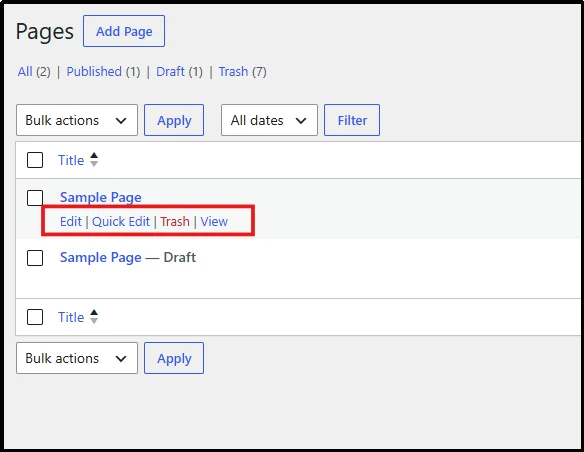
- Click ‘Edit,’ and the page will open. You can edit anything you want, from the page contents to its attributes.
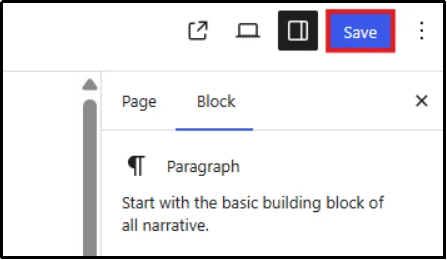
- Once you have edited all the necessary information, click on Save to publish the changes.
Note: WordPress automatically saves a revision history each time a page is updated. To restore an earlier version, open the page editor, click the Page tab in the sidebar, and select Revisions. This opens a slider that lets you compare and restore any saved version.
How to Delete a WordPress Page?
We’ve talked about adding and editing a page, but if you want to delete a WordPress page, here’s how:
- Go to Pages → All Pages.
- Hover over the page you want to delete, and you will see the Trash button.
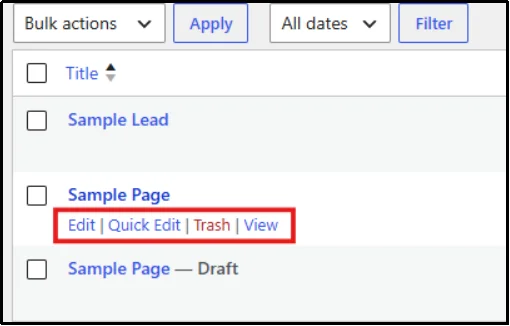
- Click Trash to remove the WordPress page.
How to Set a WordPress Page as Your Homepage?
You have finally created a WordPress page, but it isn’t appearing as your homepage. You don’t have to panic; it’s super easy to set a page as your homepage. Follow along for the best execution:
- Go to your WordPress dashboard.
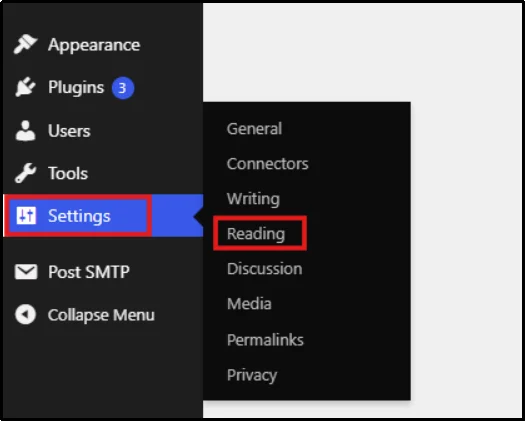
- Head to Settings → Reading.
- First, select “A Static Page”, then from the drop-down, select your desired page as the homepage.
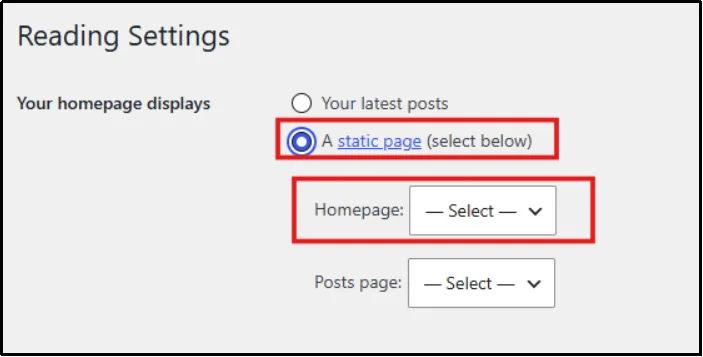
- Now press Save Changes to push those changes to the live website.
How to Organize WordPress Pages
As your website grows, keeping pages organized becomes increasingly important. There are several strategies to help you structure, sort, and manage pages so users can find information quickly.
Before organizing your pages, it helps to understand how WordPress page hierarchies work.
- Parent and Child Pages
A parent page is a top-level page under which other related pages can be nested as child pages, creating a structured hierarchy rather than a flat list.
For example, a “Services” parent page might have “Web Design,” “SEO,” and “Hosting” as child pages, each living at a URL like /services/web-design/, signaling to both visitors and search engines that these pages are related and subordinate to the broader Services topic.
- How to Create a Page Hierarchy
Open the child page you want to nest and find the Page Attributes panel in the right-hand sidebar.
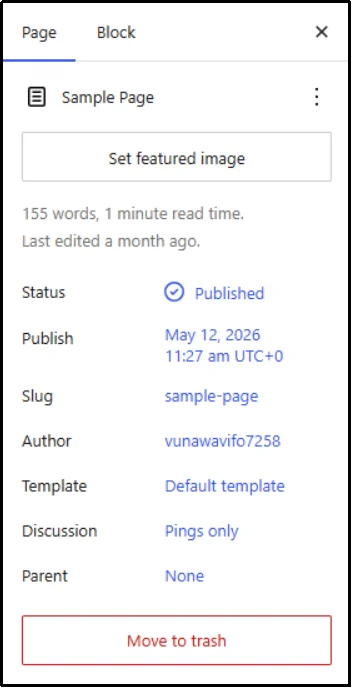
Click on Parent to open the dropdown.
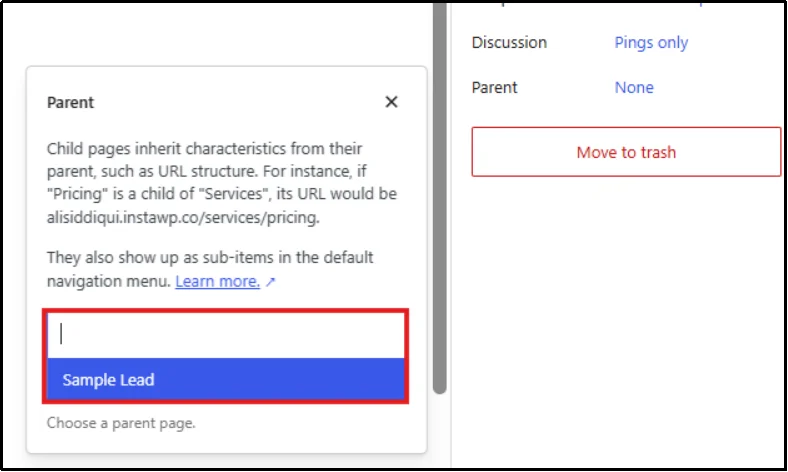
Select the appropriate parent page. In this example, the parent page is “Sample Lead.”
Now, on the top-right, click Update to save.
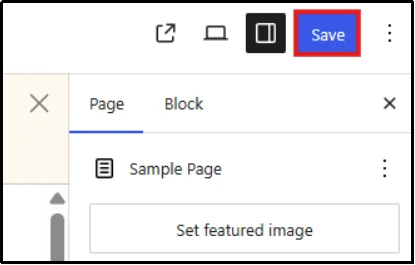
WordPress automatically updates the URL structure for most themes and permalink configurations. However, custom permalink settings or SEO plugins may affect the final URL.
Best Practices for Organizing Pages
- Keep the hierarchy shallow – ideally no more than two levels.
- Organize pages by user needs, not internal departments.
- Structure content around what visitors are looking for.
- Give every parent page meaningful content.
- Avoid parent pages that only serve as containers for child pages.
Essential Pages Every WordPress Website Should Have
If you are planning to make your first WordPress website, you should know that there are some essential pages that each website should have. Missing such pages can negatively affect search engine optimization and the audience, too.
Your site must include:
- Home Page: Your homepage is the first impression for most visitors, so it should clearly state what you do and where to go next.
- About Us Page: The About page builds trust by explaining who’s behind the site, your story, your team, and why you chose you.
- Contact Page: Ways to reach you – a contact form, an email address, a phone number, and a physical address if relevant.
- Privacy Policy Page: This page explains how you collect, use, and store visitor data and is legally required in many regions if your site collects any personal information.
- Terms and Conditions Page: Outline the rules for using your site or purchasing your products to help protect your business from disputes and clarify expectations upfront.
- FAQ Page: An FAQ page answers your most common visitor questions in one place, reducing repetitive support requests.
- Services or Product Pages: Describe your products or services, key benefits, and how visitors can take the next step.
Common Mistakes to Avoid When Creating WordPress Pages
When dealing with WordPress pages, it is important to avoid common mistakes, as they can negatively impact your SEO and visibility. Let’s have a look at the common WordPress page mistakes:
- Using vague titles: Titles like “Page 1” or “Untitled” confuse visitors and search engines. Always use descriptive titles.
- Too many top-level pages: Overloading the main navigation with unrelated pages overwhelms users. Group related pages under parent pages.
- Ignoring SEO basics: Skipping title tags, meta descriptions, or proper heading structures wastes easy ranking opportunities, especially for commercial-intent pages.
- Forgetting mobile optimization: A page that looks fine on desktop but breaks on mobile loses most visitors. Always preview on mobile before publishing.
- Not updating key pages: Treating evergreen content as untouchable results in stale information (outdated pricing, outdated team photos, broken links), which undermines trust.
Now that we have identified the common mistakes, it’s important to highlight best practices for WordPress pages.
SEO Best Practices for WordPress Pages
Everyone wants to rank at the top of search results, and that’s only possible if you follow the best SEO practices. In this case, SEO for WordPress pages. Here’s how you can stand out.
- Use descriptive titles: Include your target keyword naturally and clearly describe the page’s purpose instead of vague labels like “Our Company.”
- Optimize page URLs: Keep slugs short, lowercase, and keyword-relevant. Remove filler words like “the” or “and.”
- Add internal links: Connect related pages (e.g., Services → Case Studies, Homepage → Product Pages) to improve navigation and SEO.
- Use proper heading structure: One H1 per page (usually the title), followed by H2 and H3 in logical order. Avoid skipping levels or using headings only for styling.
- Optimize images: Add descriptive alt text, compress files before upload, and use meaningful filenames instead of “IMG_xxxx.jpg.”
- Improve page speed: Compress images, minimize heavy plugins, streamline page builder elements, and use caching or a performance-optimized host.
- Use Structured Data Where Appropriate: Add structured data to relevant pages whenever possible. Schema markup helps search engines better understand your content and may improve search visibility through rich results.
How WordPress Pages Affect User Experience
Well-structured pages help visitors find information quickly, understand what your business offers, and navigate your website without confusion. Clear page hierarchies, logical navigation, and consistent page layouts improve usability and reduce friction throughout the customer journey.
When You Need to Restrict Access to WordPress Pages
While most WordPress pages are public, some situations require restricted access. For example, you may want to share client resources, internal documentation, course materials, or members-only content.
When that happens, you need a way to protect certain pages while leaving the rest of your website accessible. A plugin like Password Protected makes this possible without requiring a full membership platform.
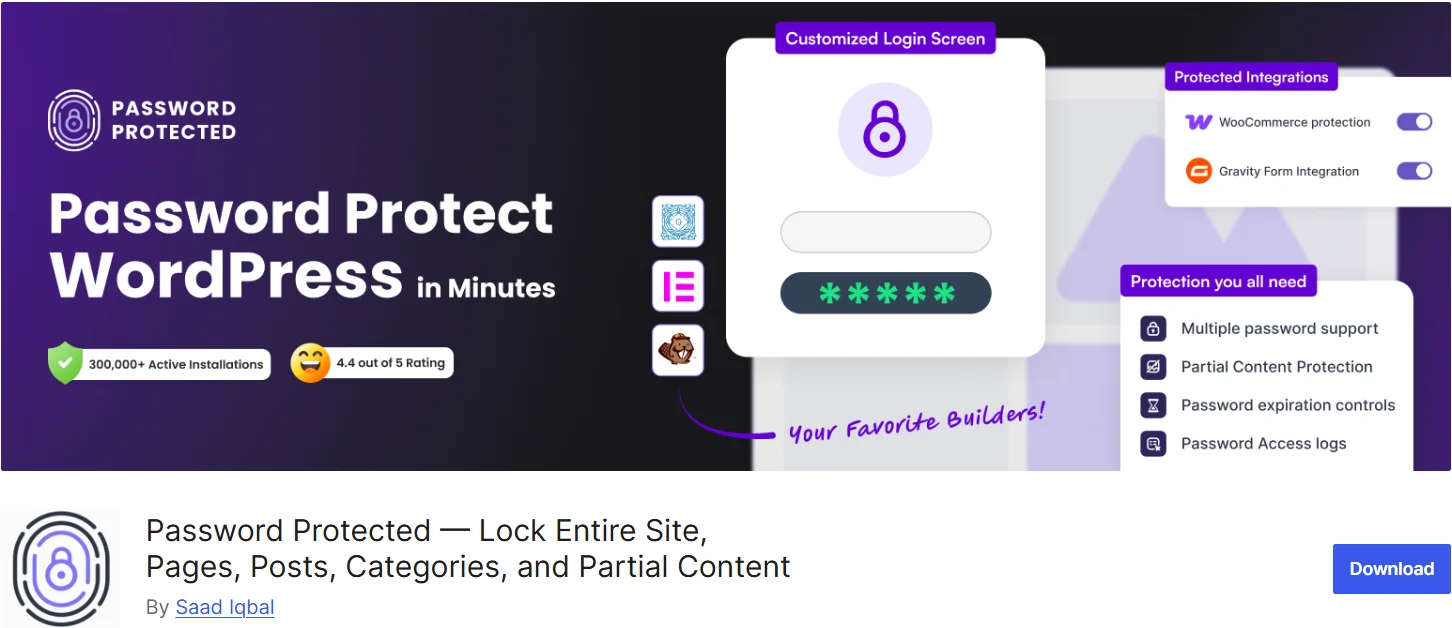
Rather than creating user roles, registration workflows, and account management systems, you can quickly password protect individual WordPress pages and control who can access them.
Benefits of Protecting WordPress Pages:
- Secure sensitive or private information
- Create exclusive content areas for clients or members
- Keep internal resources hidden from public visitors
- Protect individual pages without changing your site’s navigation
- Avoid the overhead of managing user accounts
This solution is ideal for businesses and website owners who need simple page-level protection without adding unnecessary complexity to their WordPress setup.
Key Takeaways for WordPress Pages
Pages are a part of WordPress that’s easy to overlook because they’re so simple to create, but getting them right is what separates a site that feels structured and trustworthy from one that feels like a loose collection of blog posts.
Start with the essentials: a clear homepage, an About page, a Contact page, and whatever legal pages your site needs.
Build a logical hierarchy as you add more pages and update the navigation menu as soon as possible.
If a page is still under development or contains private information, consider restricting access until it is ready for public viewing. WordPress includes basic password protection, while dedicated plugins offer more advanced control.
Once everything is in place, you can make it live by removing the password protection or keeping it for members-only access. There is an easy way to do this: get Password Protected Pro and secure your WordPress pages.
Frequently Asked Questions
What Is the Difference Between a WordPress Page and a Post?
Pages are static, evergreen content used for permanent site sections like Home, About, and Contact, while posts are time-stamped, chronological content used for blog entries and news, organized with categories and tags.
Can I Duplicate a WordPress Page?
WordPress does not include page duplication by default. However, plugins like Duplicate Page allow you to clone existing pages and reuse layouts or content.
How Do I Create a New Page in WordPress?
Go to Pages → Add New, add a title and content using the block editor, configure settings like the URL and visibility in the sidebar, then click Publish.
Can a WordPress Page Have Categories?
Pages do not use categories or tags by default. If you need taxonomy-based organization, WordPress posts are usually the better choice, although some plugins can add categories to pages.
Can I Password Protect a WordPress Page?
Yes. WordPress includes a built-in password option under Status & Visibility in the page editor, and plugins like Password Protected offer more flexible, branded protection across multiple pages or your entire site.
What Is a Parent Page in WordPress?
A parent page is a top-level page that other related pages can be nested under as child pages, creating a structured hierarchy reflected in both the URL and the navigation menu.
How Do I Add a Page to My Website Menu?
Go to Appearance → Menus, select the pages you want to include from the Pages panel, click Add to Menu, arrange them as needed, and click Save Menu.