

Most WordPress sites start the same way: a few posts, no clear structure, and everything dumped into the default “Uncategorized” category.
As your content grows, this lack of structure quickly turns into a navigation and SEO problem.
If you’re building a new WordPress website or restructuring an existing one, categories play a critical role in shaping your site hierarchy, content silo structure, and internal linking strategy. They organize your content, improve site navigation, and help search engines understand your topical authority and semantic structure.
In this guide, you’ll learn what WordPress categories are, how they work, and how to use them strategically to improve content organization, site structure, and SEO performance.
What Are WordPress Categories?
A WordPress category groups related blog posts under a shared topic and forms a structured taxonomy system that WordPress uses to generate archive pages, improve content discoverability, and strengthen internal linking signals.
Without categories, a WordPress blog behaves like an unstructured archive of posts with no clear content hierarchy or navigational logic.
In WordPress, categories are hierarchical. You can create subcategories (also known as child categories) or assign a parent category to an existing one.
Large content-driven websites use hierarchical category structures to build content silos that improve crawl depth, topical clustering, and semantic relevance across related pages.
Why WordPress Categories Matter
WordPress uses categories as part of its built-in taxonomy system, designed to help organize content at scale and improve both user navigation and the efficiency of search engine indexing.
- Navigation for visitors: Categories improve clarity by allowing users to access content grouped by category rather than relying on reverse-chronological archives.
- Content structure: Categories keep your blog organized and focused around core topics.
- Search engine context: Categories help search engines understand your site’s topical relevance.
The right category depends on the topic the WordPress site covers.
For instance, a fitness blog might use categories like Strength Training, Cardio, Nutrition, and Recovery, and a law firm’s blog might use categories like Contract Law, Employment Law, and Family Law.
Better Content Organization
A blog without categories is a list of posts in reverse chronological order. The most recent post sits at the top, and everything older goes down.
A visitor who arrives on your site and finds a clear set of topic categories can navigate directly to what they care about, without scrolling through posts that are not relevant to them.
Improved User Experience
Categories reduce the effort a visitor has to make to find useful content. When someone visits a blog post on how to do keyword research and sees a category label like SEO, they would know that there is more content like this on the site. One click takes them to the SEO category archive, where they can browse everything in that topic area.
This discoverability keeps visitors on the site longer and increases the chance they will interact more.
SEO Benefits of WordPress Categories
WordPress categories directly influence SEO by defining your site’s topical structure, internal linking pathways, and content clustering signals used by search engines to evaluate relevance.
First, they help search engines understand how your content connects across topics. A well-organized category structure signals topical authority and improves crawlability.
Category archive pages can rank for broad, non-branded keywords when optimized with unique descriptions, internal links, and sufficient content depth, turning them into SEO landing pages. When optimized with descriptions, internal links, and relevant content, these pages act as powerful SEO landing pages.
Categories strengthen internal linking architecture by grouping related posts under a shared taxonomy, improving link equity distribution and crawlability.
WordPress Taxonomy Explained
A taxonomy in WordPress is a structured system for classifying content into logical groupings that improve site hierarchy and content discoverability. WordPress has two built-in taxonomies: categories and tags. Both are ways of grouping posts, but they work differently and serve different purposes. If needed, you can also restrict access to specific taxonomies to control how your content is displayed and accessed.
- Categories: Used to organize posts into broad topics, every post must have at least one category, and WordPress assigns the default “Uncategorized” category if you don’t choose one. They improve content discoverability and reduce navigation friction across related posts. Categories can also have parent and child relationships for better organization.
- Tags: Used to describe specific details or topics covered in a post, and they are optional. Tags help create cross-category semantic relationships between posts, improving internal discovery. Unlike categories, tags do not have a hierarchy.
- Custom Taxonomies: Custom ways to organize content based on your website’s specific needs. They are useful for websites with unique content types, such as events or products. Developers and plugins can create them to build more advanced content structures.
How to Create Categories in WordPress
Creating categories in WordPress takes only a few steps:
- Sign in to your WordPress dashboard.
- Hover your mouse over Posts, then select Categories.
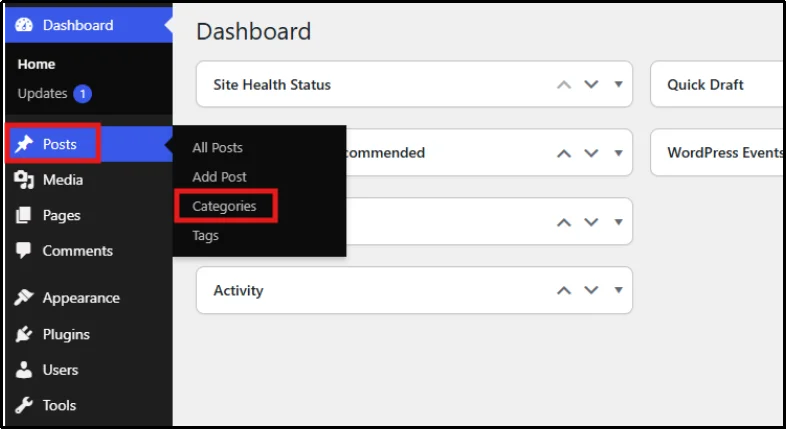
In the Categories section, you’ll see a form on the left for adding a new category, where you define a name, slug, and optional description for each category. While the right side displays a list of your existing categories along with their post counts. If you haven’t created any categories yet, only the default “Uncategorized” category will appear.
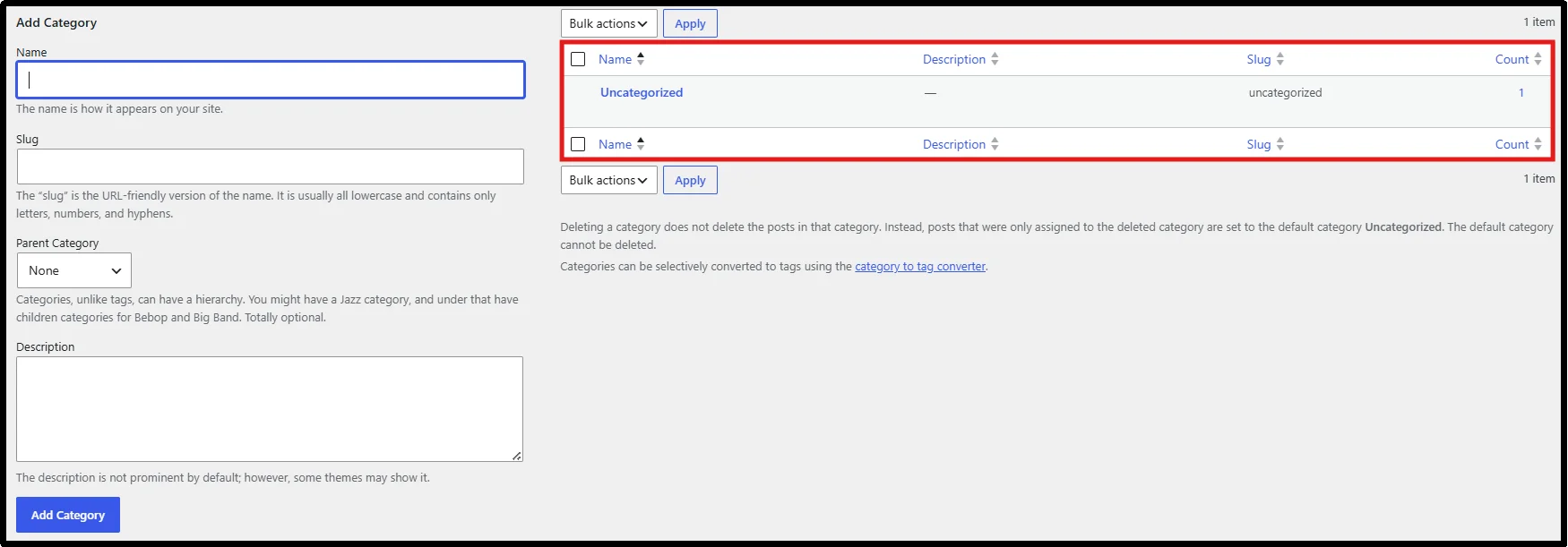
- Enter your category name, URL slug, and description for your reference.
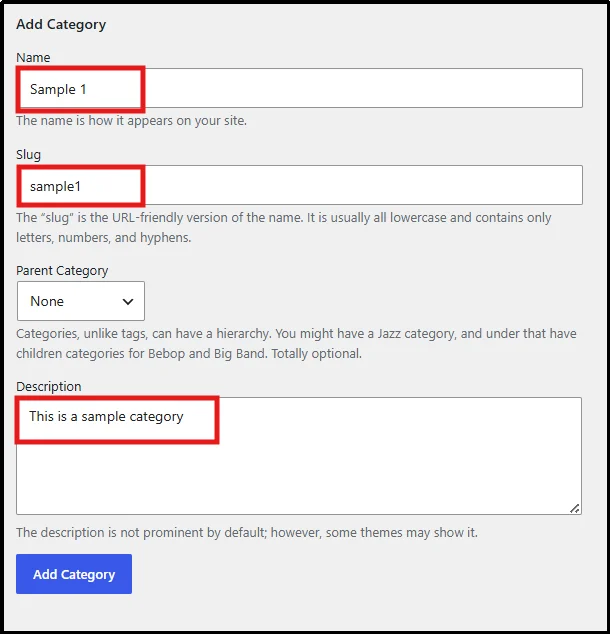
- Now, if you want to make a hierarchy, you can select a parent category from existing ones. Click the dropdown menu and select a parent category.
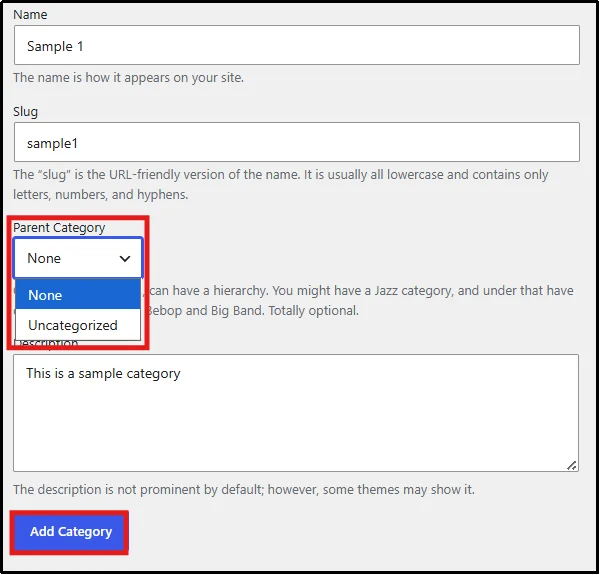
- If you have created a category before, you will find it in the same drop-down. Once you are done, click on Add Category.
Congratulations! You have successfully created a category.
How to Edit WordPress Categories
If you need to update an existing category’s name, slug, description, or parent category, you should follow these simple steps below.
- Sign in to your WordPress dashboard.
- Go to Posts → Categories.
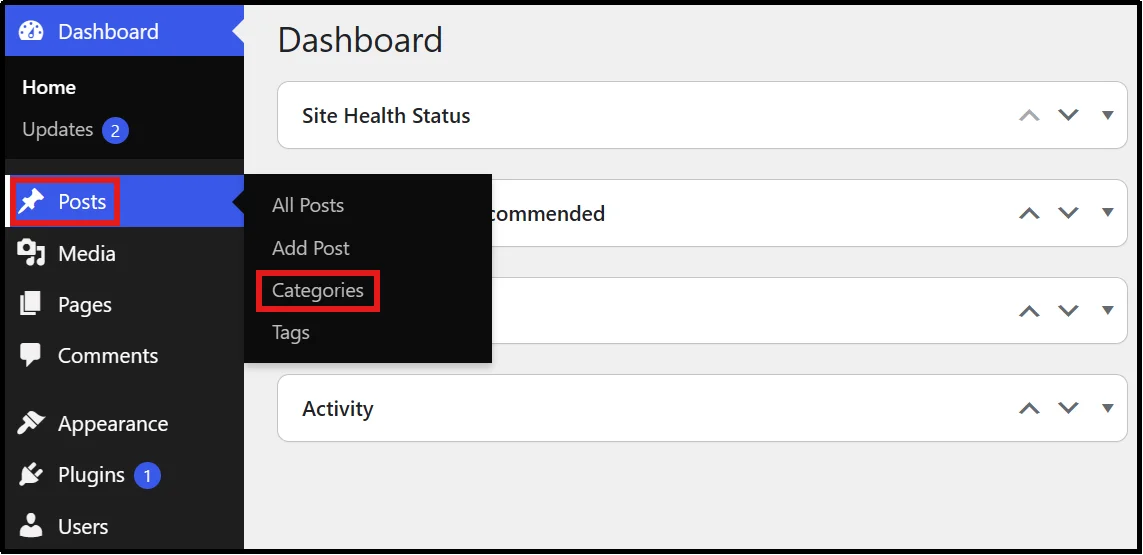
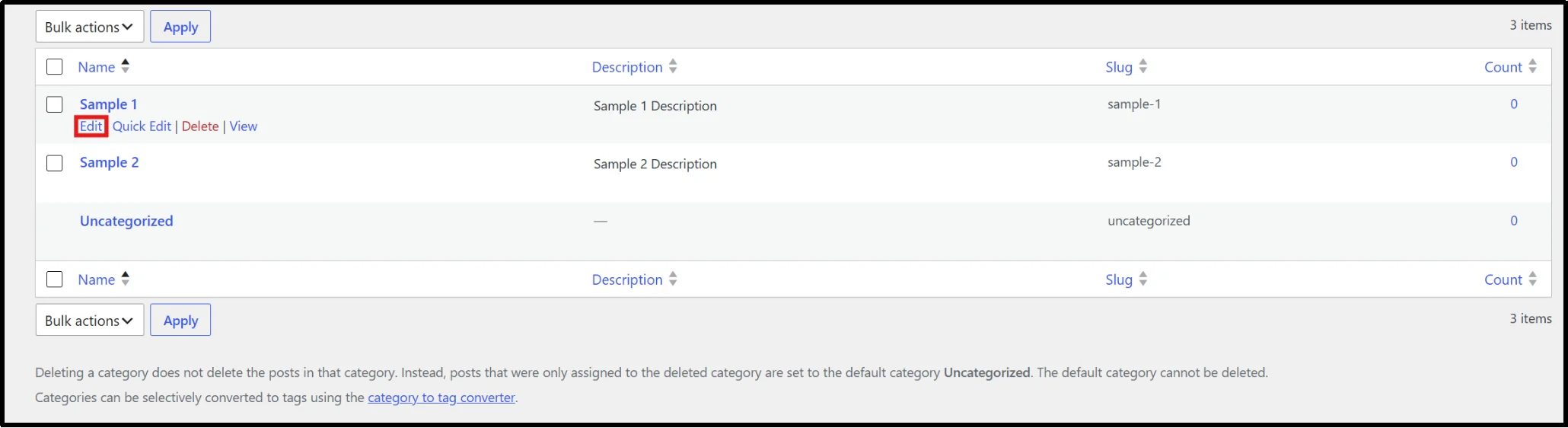
- On the Categories page, you’ll see a list of your existing categories on the right side. Hover your cursor over the category you want to update, then click on Edit.
- Now edit the category fields accordingly, then click Update to save changes.
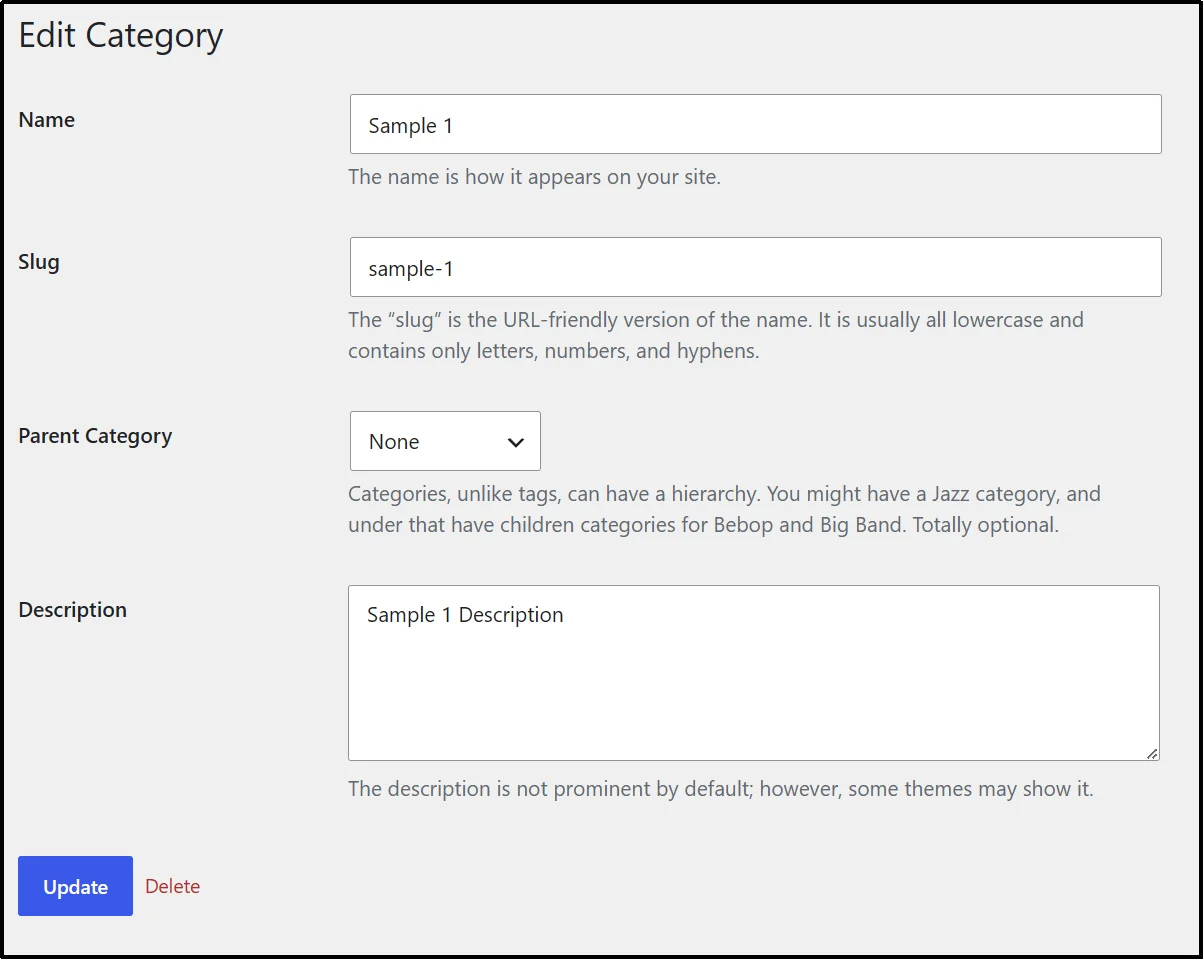
Congratulations! You have learned how to edit WordPress categories easily.
How to Display WordPress Categories
WordPress offers several ways to display categories on your website. You can:
- Add categories to a sidebar or footer using the Categories widget/block.
- Display categories in your site’s navigation menu.
- Show category lists within posts or pages using blocks.
- Use theme-specific features or custom code to display categories in different locations.
Here are the 2 easiest methods for beginners using the Categories widget and plugin.
Method 1: Display Categories Using the Categories Block (Block Themes)
- Log in to your WordPress dashboard.
- Go to Appearance → Editor.
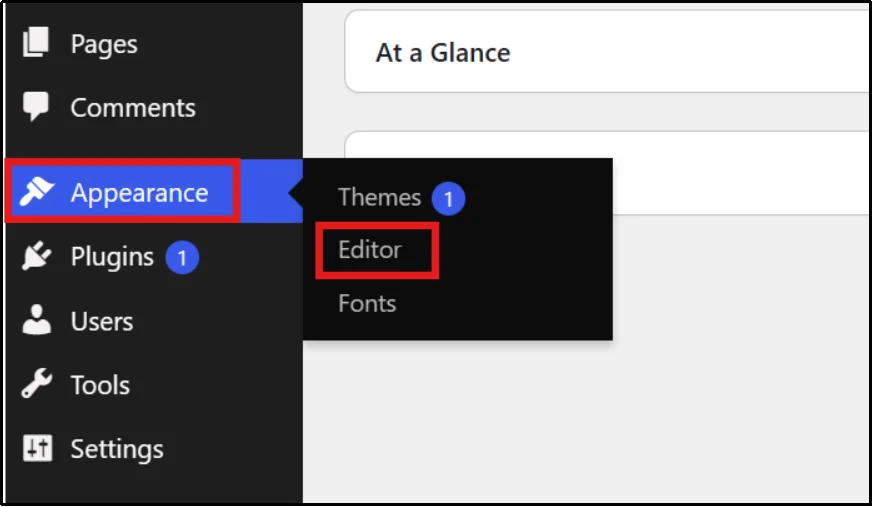
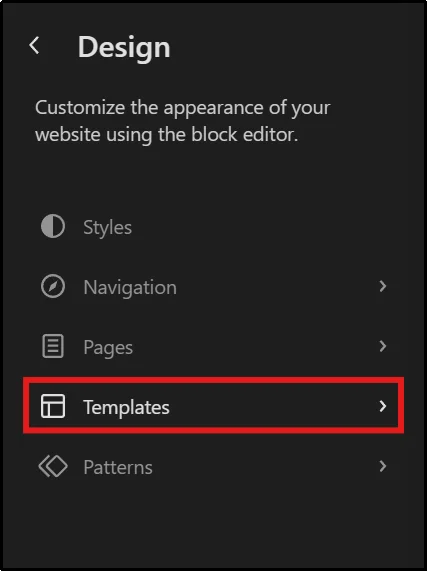
- Open Templates and select any one of the templates.
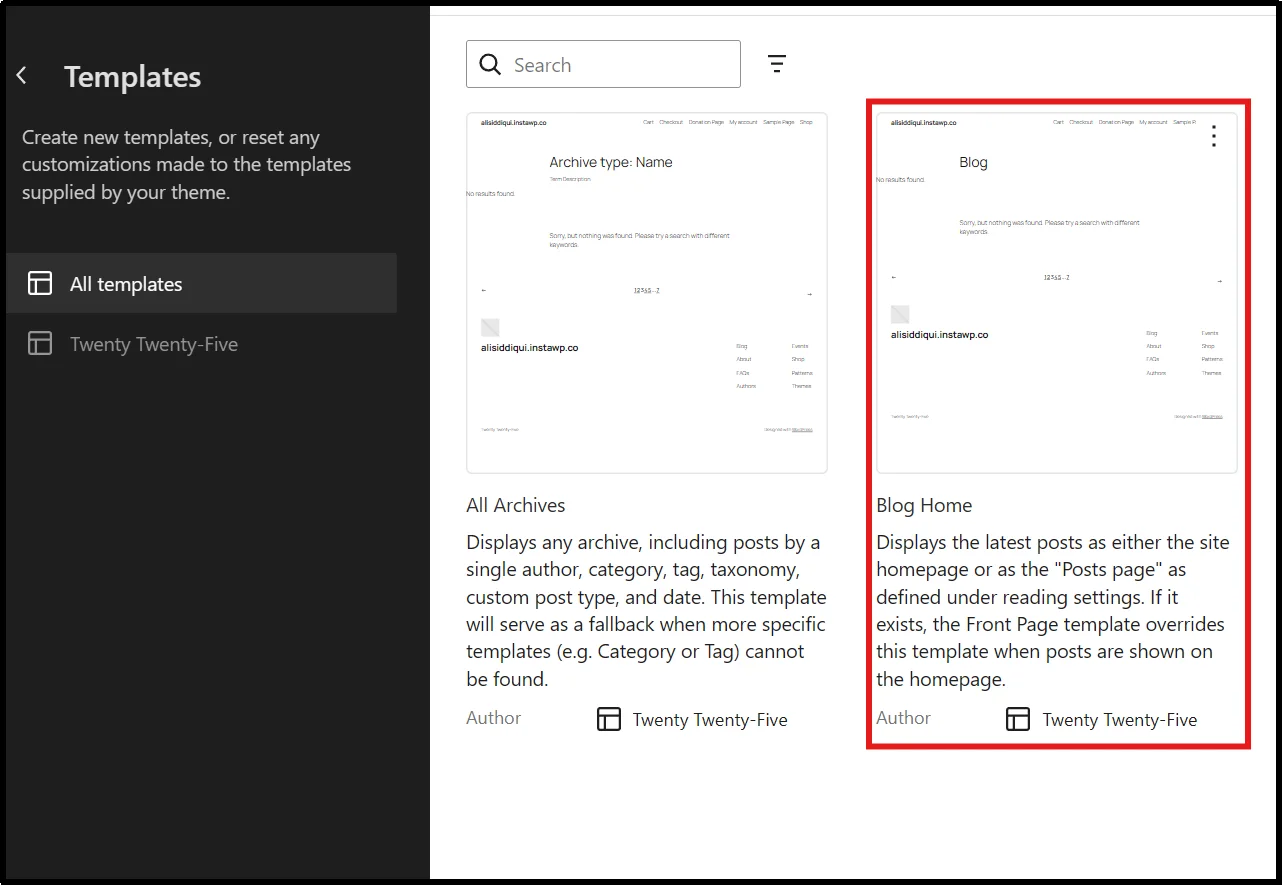
- From the list of templates, click on the block you want to display categories – in our case, let’s pick Blog Home.
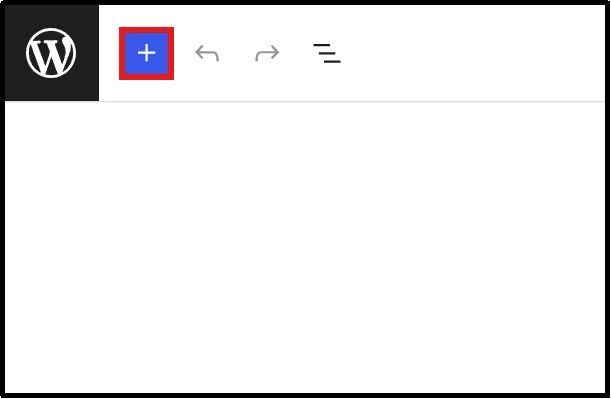
- Click the + (Add Block) button on the top left.
- Search for Categories List and select the block.
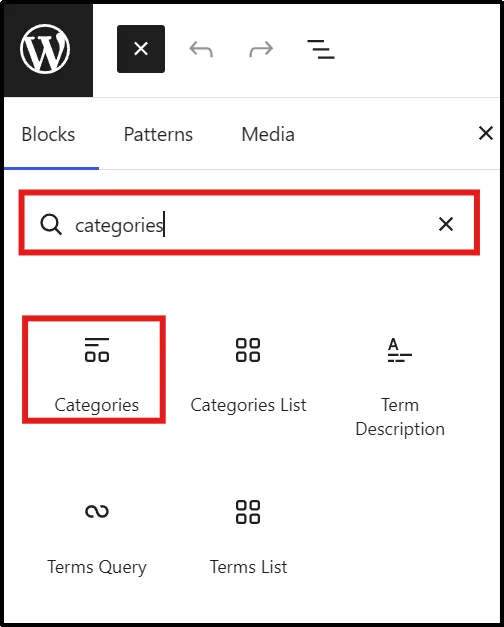
- Drag and drop it wherever you like, or click to insert it into the selected block.
- Click Save on the top right to apply your changes.
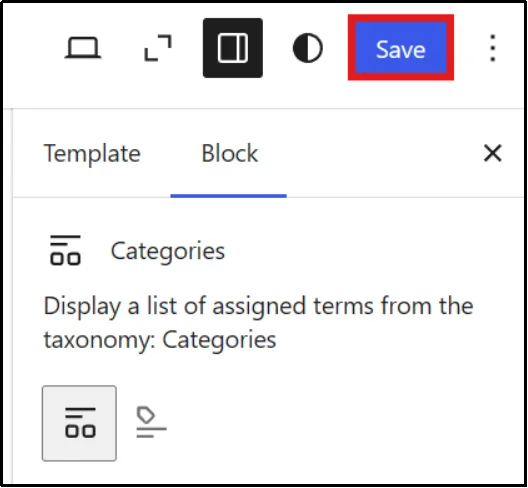
Visit your website to confirm the categories are displayed correctly.
Method 2: Display Categories Using a Plugin
Note: You must use a WordPress theme that supports a sidebar (widget area) to complete this method. If your theme does not include a sidebar, the Widgets menu will not appear, and you won’t be able to add the Categories widget.
- In your WordPress dashboard, go to Plugins → Add Plugin
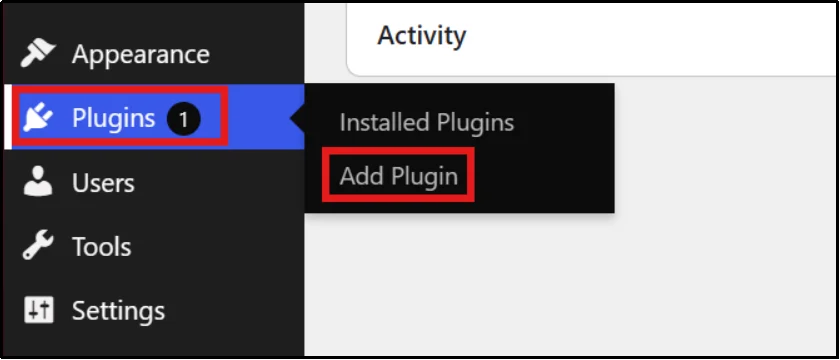
- In the search bar, enter “Categories Widget”.
- Click Install Now on WP Categories Widget, followed by Activate.
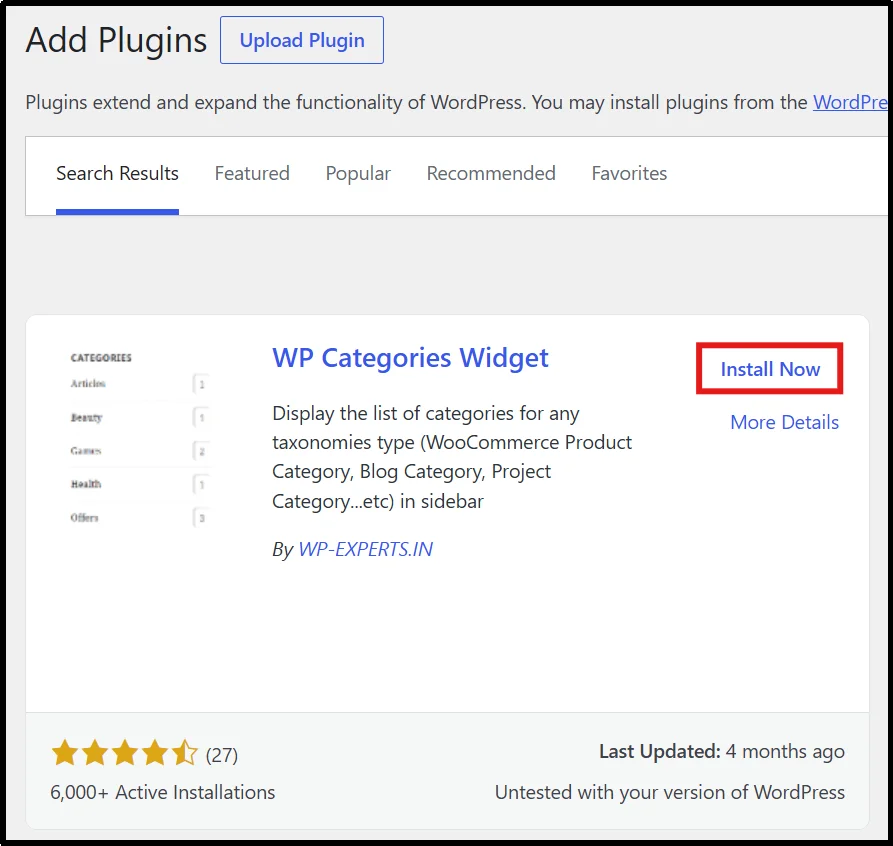
- Now head to Appearance → Widgets.
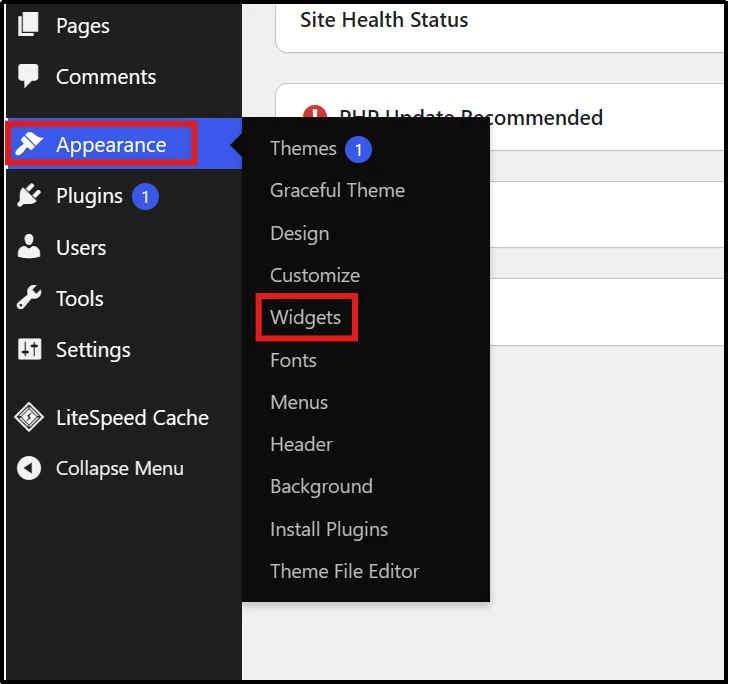
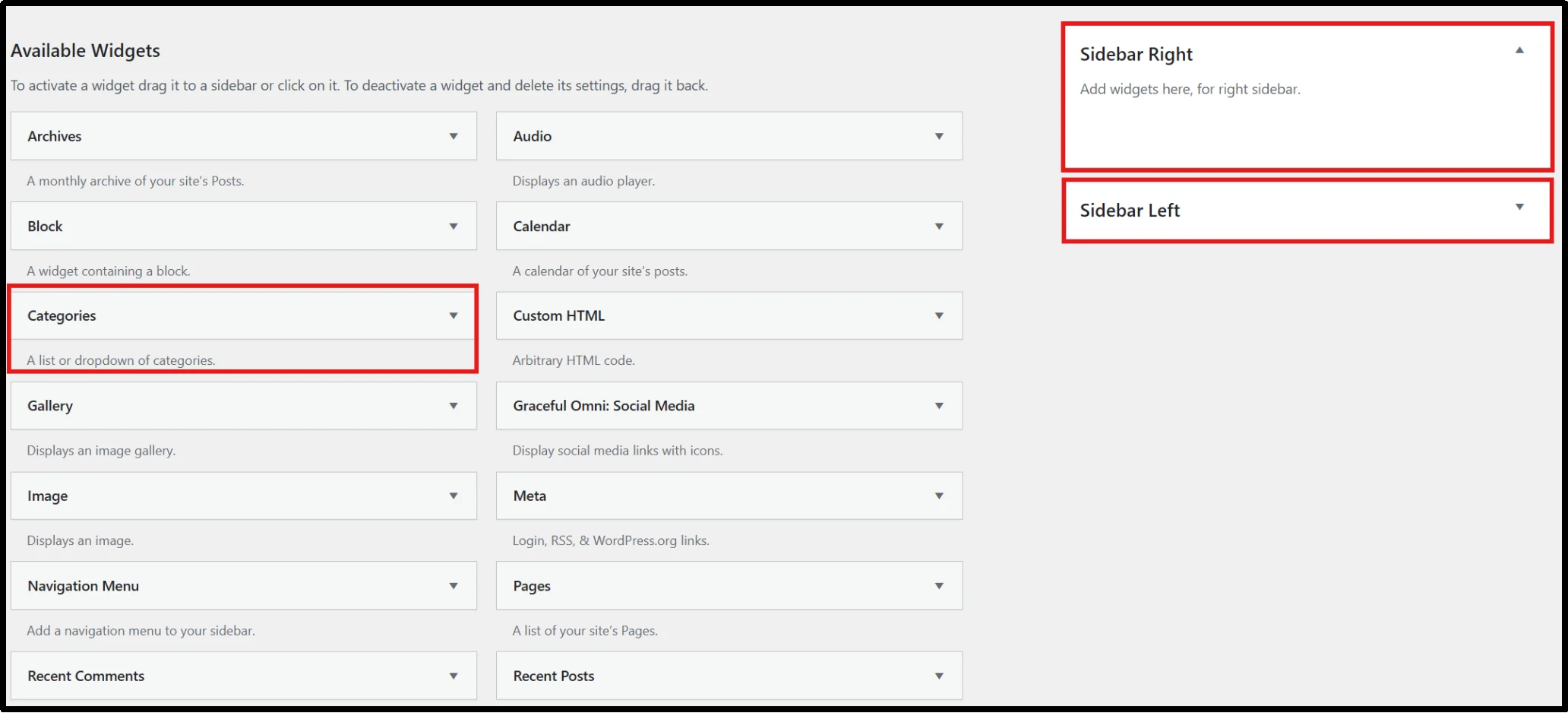
- Drag the Categories box to your desired sidebar location.
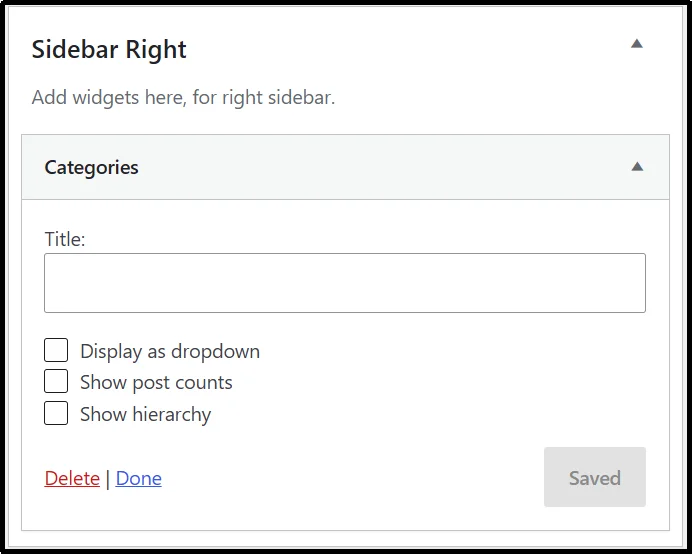
- Enter any title for the categories widget, and select the checkbox according to your needs.
- Save these widget settings.
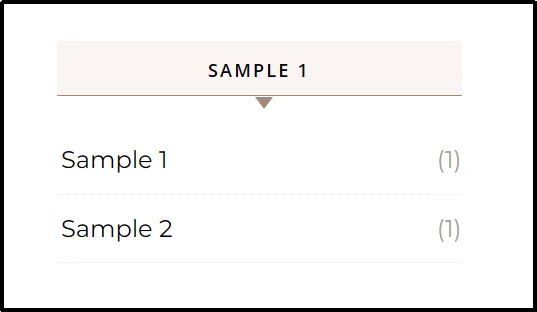
You have successfully displayed categories in your WordPress site’s sidebar.
WordPress Category Hierarchy & Subcategories
WordPress allows you to nest categories inside other categories. The outer category is called the parent; the inner one is called the child or subcategory. A parent category covers a broad topic. A child category narrows it down.
You should use subcategories when a parent category becomes too broad and requires better content segmentation for usability and SEO clarity. If a category has only a few posts, subcategories add unnecessary complexity. However, once a category grows beyond 40–50 posts, subcategories help users navigate content more efficiently.
Expert Tip: A good rule of thumb: only create a subcategory if it will consistently have at least 5 to 10 posts assigned to it.
WordPress Categories vs Tags
The simplest way to understand the difference is this: categories organize your site, and tags describe your posts.
| Categories | Tags |
| Hierarchical structure with parent-child relationships | Flat structure with no hierarchy |
| Required for every post | Optional for posts |
| Represent broad topics | Represent specific details |
| Usually limited (around 5–15 per site) | Can be large in number (often hundreds) |
| Part of main site navigation and structure | Usually used as supplementary content discovery pages |
To wrap it up, use categories for primary site structure and tags for cross-linking related topics across different categories.
How to Organize WordPress Blog Posts Properly: 4 Effective Tips
One of the most important uses of WordPress categories is to organize content. These are some effective tips to utilize categories to the fullest:
- Plan categories before publishing content: Before you start publishing, define a clear category structure so your content stays organized from the beginning. This improves your overall WordPress navigation structure.
- Build topic clusters: Group related posts under a central topic and link them together to create strong content clusters. A pillar page connected with other content pages in tree structure helps search engines understand your content better and improves internal linking.
- Keep navigation simple: Keep a simple and clear navigation structure, it’s okay to have fewer items in the menu.
- Update old categories regularly: Review your categories regularly and/or remove outdated ones. Keeping your structure updated ensures your blog remains organized and SEO-friendly over time.
Common WordPress Category Mistakes to Avoid
When you are working with WordPress categories, it is crucial you avoid some basic mistakes as they may have a negative impact on your SEO and visibility. Take a quick look at the following common mistakes:
- Creating duplicate categories: Duplicate or overlapping categories weaken your content silo structure, confuse search engines, and dilute topical authority. Keep your categories clear and distinct so both visitors and search engines understand your content better – a good silo structure is recommended for better rankings.
- Using one post in too many categories: Adding a post to too many categories can dilute its relevance and make navigation harder. Stick to one primary category and only add another if it genuinely fits.
- Leaving posts uncategorized: Uncategorized posts signal poor site structure and reduce crawl efficiency and the clarity of content classification. Always assign a relevant category to keep your content organized. It’s best to remove the “Uncategorized” category to maintain a clean and professional site structure.
- Creating categories with only one post: Categories with a single post often create thin, low-value pages. It’s better to group related content into broader categories for better usability and SEO.
- Ignoring category URLs and slugs: Poorly structured URLs can hurt SEO. Use short, keyword-focused slugs for better rankings.
- Confusing categories with tags: Categories and tags serve different purposes, but mixing them up can weaken your site structure. Use categories for broad topics and tags for specific details within a post.
When You Need to Restrict Access to WordPress Categories
As your WordPress site grows, you need to set limited access to specific sections. For example, you might want to limit access to client resources, premium blog posts, internal documentation, or member-only content.
This is where a plugin like Password Protected becomes useful if you want to restrict category access without restructuring your site.
Instead of using complex membership systems, you can control access to specific parts of your content without affecting your overall site structure.
What Password Protected Helps You Do:
- Restrict access to selected areas of your WordPress site
- Protect private or client-only content
- Maintain your existing category structure without disruption
- Control access to specific content without requiring full user account management
This approach works especially well if you want to hide your content for your paid members.
Key Takeaways for Using WordPress Categories Effectively
WordPress categories define your content architecture, internal linking flow, and topical relevance signals, all of which influence how search engines crawl, index, and rank your website. When you use them strategically, you turn a collection of blog posts into a well-organized content system that supports both SEO and user experience.
Start with a clear category structure, keep it simple, and build content around it consistently. Over time, this approach improves navigation, strengthens topical authority, and drives sustainable organic traffic.
If your site includes content that shouldn’t be publicly accessible, there’s a practical way to do that. Get Password Protected Pro to secure your WordPress categories.
FAQs
How many categories should a WordPress site have?
There’s no fixed number. Your primary focus should be on organizing content into clear topics rather than creating too many categories. If you’re wondering how many categories a WordPress site should have, the goal is quality over quantity and an easy to navigate structure.
Are WordPress categories good for SEO?
Yes, WordPress categories are good for SEO when used correctly. They help search engines understand your site structure, improve internal linking, and make it easier for users to navigate related content.
Should every post have a category?
Yes, every post should have at least one category. Avoid leaving posts in the default “Uncategorized” category, as it doesn’t add any SEO or usability value.
Can a post belong to multiple categories?
Yes, a post can belong to multiple categories, but it is not advised. Assigning too many categories can confuse both users and search engines. It’s best to stick to one primary category and only add another if it’s highly relevant to the content.
What is the difference between categories and tags?
Categories and tags both organize content, but they serve different purposes. Categories define broad topics and structure your website, while tags describe specific details within a post.
Can I change categories later?
Yes, you can change categories at any time in WordPress. However, changing slugs can affect your SEO. To avoid issues, set up proper redirects so you don’t lose traffic.
Can I password protect WordPress categories?
WordPress doesn’t offer built-in category protection, but you can password protect WordPress categories using Password Protected or similar plugins. This is useful for restricting access to private or members-only content.