


WordPress includes a built-in option for password-protecting individual posts. You can use it to share private articles, client content, subscriber resources, or other information without asking visitors to create an account.
It’s simple.
But the built-in option has limits; it gives you one shared password and doesn’t include features such as password expiration, usage limits, multiple passwords, or activity logs.
So, if you need more advanced access control, a password protection plugin can give you additional options without requiring custom code.
In this guide, you’ll learn how to password protect a WordPress post with and without a plugin. We’ll also explain the difference between password-protected and private posts, show you how to test your setup, and cover important limitations around files and search indexing.
Quick Answer
You can password protect a WordPress post without a plugin. Open the post in the WordPress Block Editor, go to Status & Visibility → Visibility, select Password Protected, enter a password, and click Update.
WordPress will then show visitors a password form before it displays the protected post content.
If you need multiple passwords, expiration dates, usage limits, activity logs, partial content protection, or other access-control features, you can use a dedicated WordPress password protection plugin such as Password Protected.
Password-Protected vs. Private WordPress Posts: What’s the Difference?
WordPress offers both Password Protected and Private visibility settings, but they solve different access problems.
Password-Protected Post
A password-protected post stays published, but WordPress asks visitors to enter the correct password before it displays the post content.
Visitors don’t need a WordPress account.
This makes password protection useful when you want to share content with people outside your website, such as:
- Clients who need access to a private project page.
- Subscribers who need access to exclusive content.
- Reviewers who need to preview an article before publication.
- Customers who need a private report, guide, or resource.
You can share the password directly with the people who need access.
Private Post
A private post uses WordPress user permissions instead of a shared password. Only authorized, logged-in users with the required permissions can view the content.
Private posts work better for internal content, such as:
- Editorial notes for your content team.
- Internal documentation.
- Draft material for authorized staff.
- Site content that shouldn’t appear as normal public content.
And there’s an important distinction here: a private post and a password-protected post aren’t interchangeable.
The key difference: Password protection lets anyone with the password access the post, while private visibility relies on WordPress user permissions.
WordPress documents these visibility options separately, so choose the one that matches how you want to control access.
Which WordPress Password Protection Method Should You Use?
The right method depends on how much control you need.
| Feature | Built-in WordPress | Password Protected |
| Protect individual posts | Yes | Yes |
| Shared password | Yes | Yes |
| Multiple passwords | No | Yes |
| Password expiration | No | Yes |
| Usage limits | No | Yes |
| Activity logs | No | Yes |
| Password attempt limits | No | Yes |
| Partial content protection | No | Yes |
| Custom post type protection | No | Yes |
| User role whitelisting | No | Yes |
| Bypass links | No | Yes |
| Protection screen customization | Limited | Yes |
The built-in WordPress option works well when you need a simple shared password for a post.
If you need features such as multiple passwords, expiration dates, usage limits, activity logs, or partial content protection, Password Protected gives you more ways to manage access.
Method 1: Password Protect a WordPress Post Without a Plugin
You don’t need a plugin for basic post protection.
WordPress includes the feature in the Block Editor, so you can protect an individual post directly from its visibility settings.
How to Password Protect a WordPress Post Using the Block Editor
Follow these steps to protect a single WordPress post:
- Open the post you want to protect in the WordPress Block Editor.
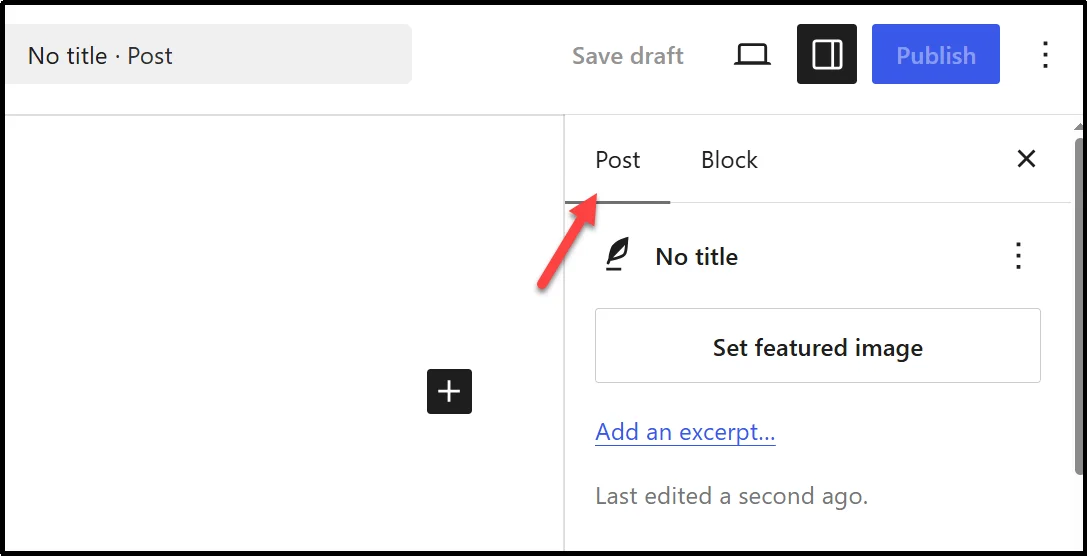
- In the right-hand settings sidebar, open the Post tab.
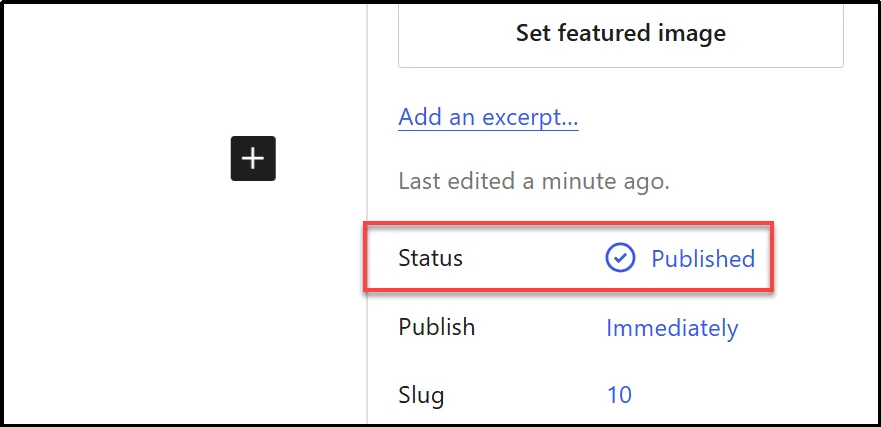
- Find the Status option, where you’ll see the post set to Published by default.
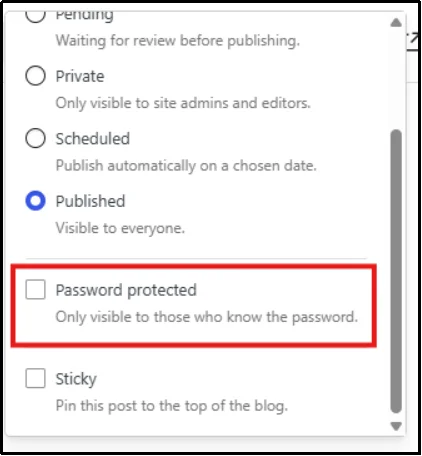
- Click Published and select Password Protected.
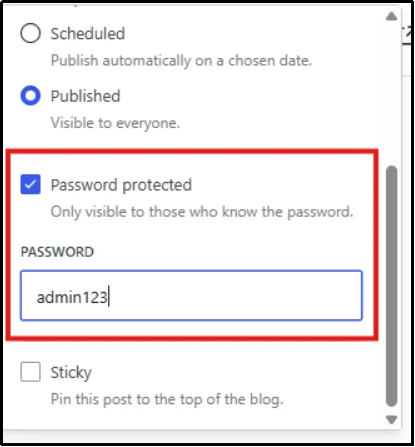
- Enter the password visitors must enter to access the post.
- Click Save in the top right to update your changes.
- Open the post on the front end to confirm that WordPress displays the password form.
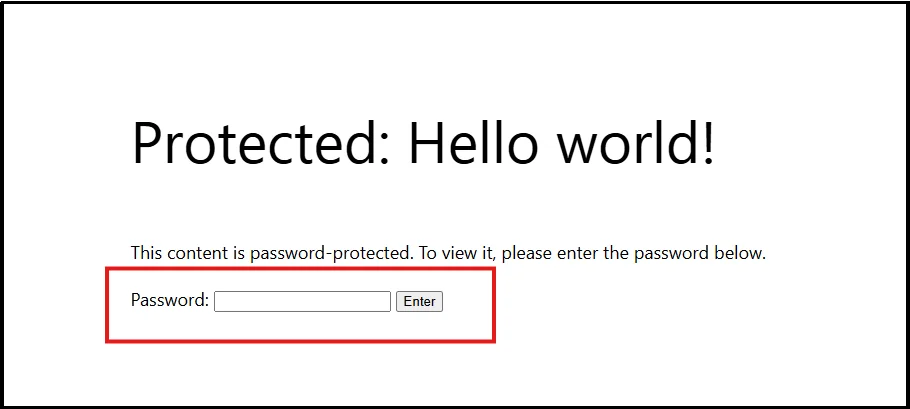
Once you enter the correct password, WordPress displays the protected content.
Limitations of WordPress’s Built-In Password Protection
The native WordPress feature handles basic access control well, but it doesn’t provide the advanced password management options that some websites need.
Here are the main limitations to keep in mind:
- One shared password: You can assign one password to a password-protected post through the native visibility setting.
- No built-in activity logs: WordPress doesn’t provide a dashboard for reviewing password attempts or access activity.
- No password expiration: The password remains active until you change or remove the protection.
- No usage limits: You can’t use the native post setting to limit how many times visitors can use the password.
- No multiple-password management: You can’t create and manage separate passwords for different visitors or groups through the native setting.
- No partial content protection: The native visibility setting protects the post rather than specific sections within it.
- Limited access management: The native feature doesn’t provide options such as role-based access rules or password attempt limits.
- Direct media URLs need separate consideration: Password-protecting a post doesn’t automatically mean every image, PDF, video, or other file linked from that post has the same access restriction.
If you only need a shared password for a single post, these limitations may not matter.
But businesses, agencies, publishers, and membership sites often need more flexible access rules.
Method 2: Password Protect a WordPress Post With a Plugin
A dedicated WordPress password protection plugin can extend the native approach with additional access-control features.
Password Protected plugin supports options for protecting individual posts, pages, custom post types, and other content, while its Pro features add capabilities such as multiple passwords, expiration dates, usage limits, partial content protection, and more.
Some advanced features require Password Protected Pro.
How to Protect a WordPress Post With Password Protected
If you already installed and activated Password Protected Pro, skip to step 8.
Otherwise, follow these steps first.
- From your WordPress dashboard, go to Plugins → Add Plugin.
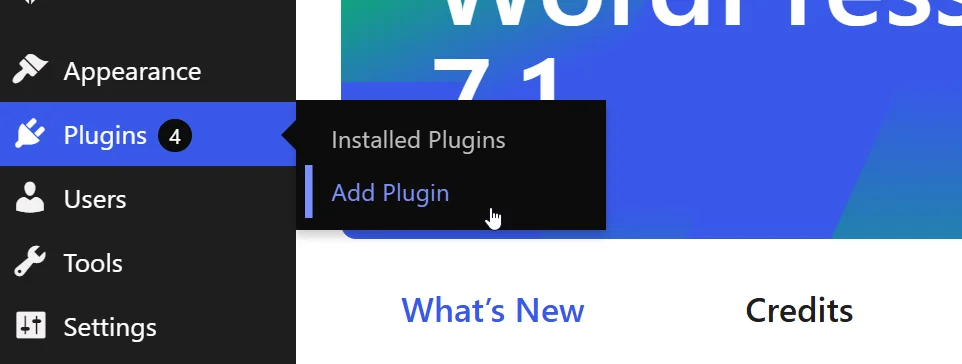
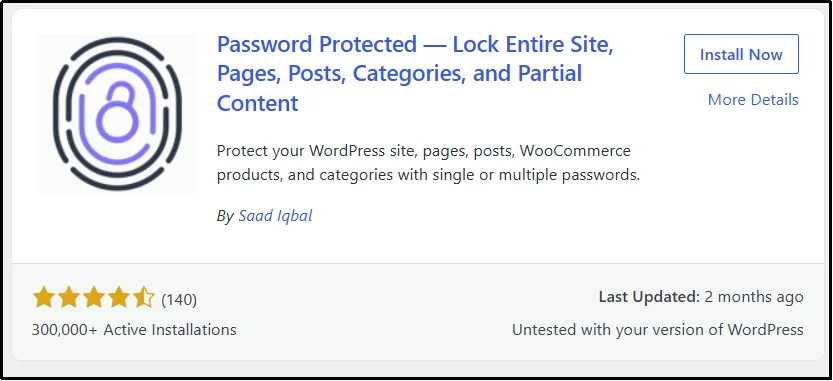
- Search for Password Protected, click Install Now, and then click Activate.
Note: Features such as individual post protection, individual page protection, category protection, and partial content protection require Password Protected Pro.
- If you need the Pro features described in this guide, purchase a Password Protected Pro plan from the official pricing page.
- After purchase, download the Password Protected Pro ZIP file and copy your license key from your purchase email or account area.
- Go to Plugins → Add Plugin → Upload Plugin.
- Click Choose File, select the Password Protected Pro ZIP file, and click Install Now.
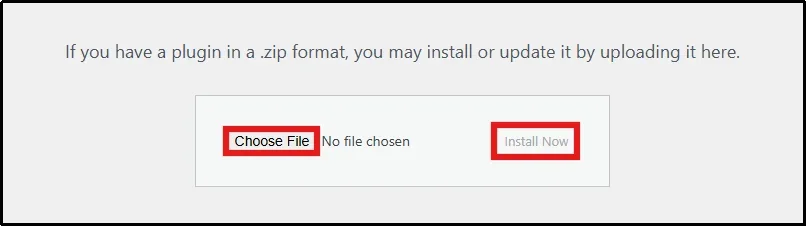
- Activate the Pro plugin and enter your license key.
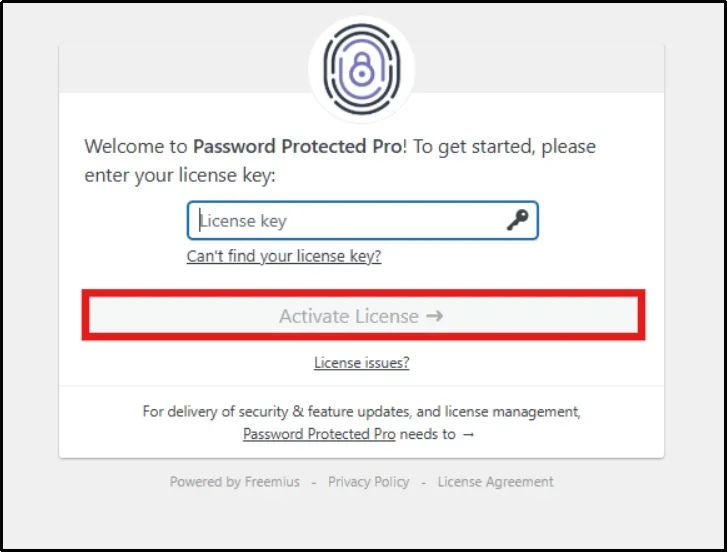
- From your WordPress dashboard, open Password Protected.
- Go to Content Protection → Post Type Protection.
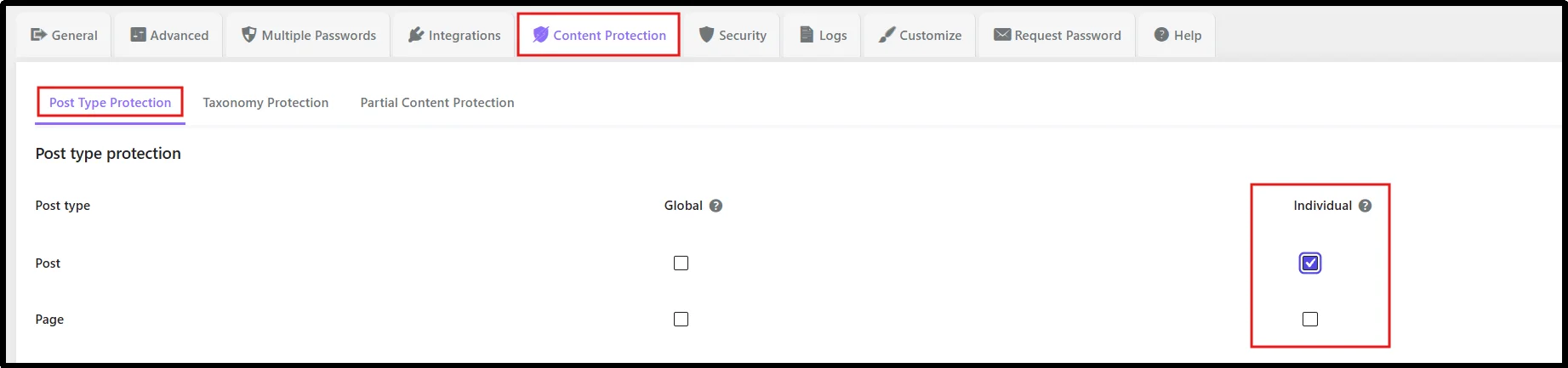
- Enable the appropriate Individual or Global post protection option, depending on whether you want to protect specific posts or all posts of that type.
- Open the post you want to protect and click Edit.
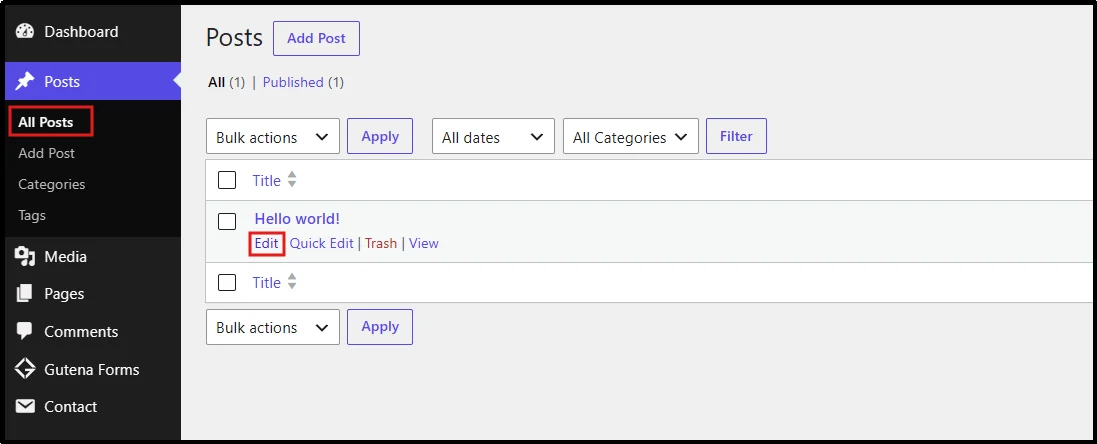
- Scroll to the Password Protected section and enable Enable Password Protection.
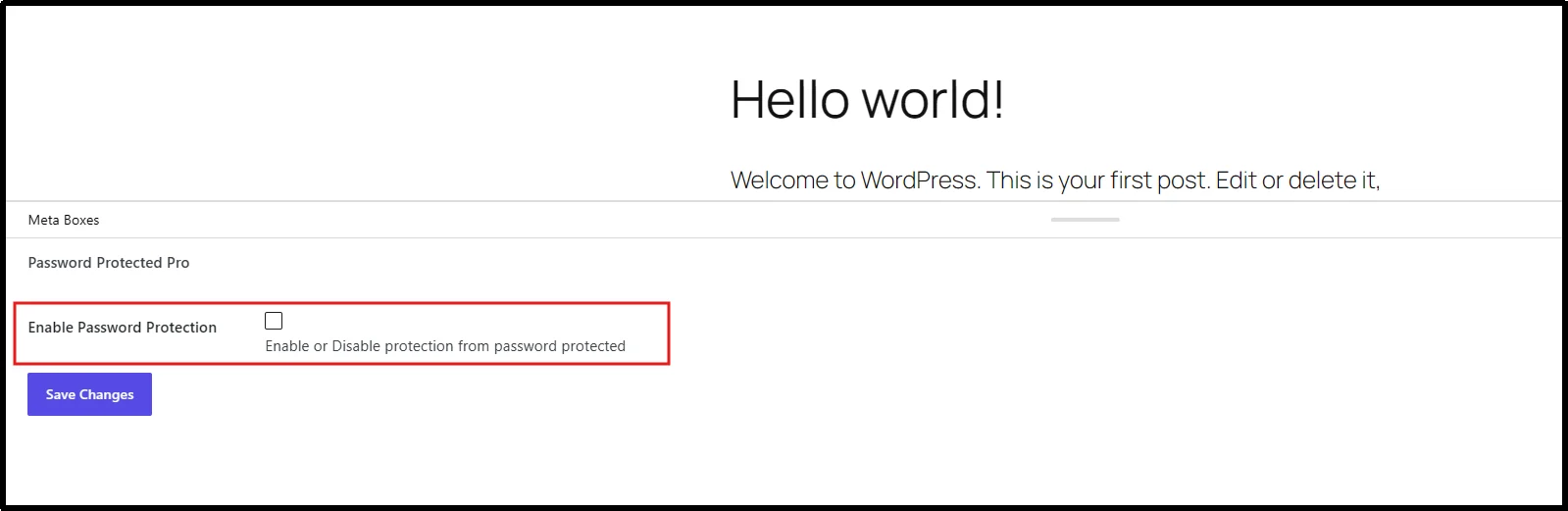
- Click Save Changes and configure the available password settings:
- Password: Set the password visitors must enter to access the protected post.
- Usage Limit: Set the number of times the password can be used when this option is available.
- Expiry: Set the date when the password should expire.
- Status: Choose whether the password should remain active, become inactive, or expire.
- Enable Bypass URL: Enable a password-free access link when you want to give someone access without requiring them to enter the password.
- Click Save Password to apply the protection.
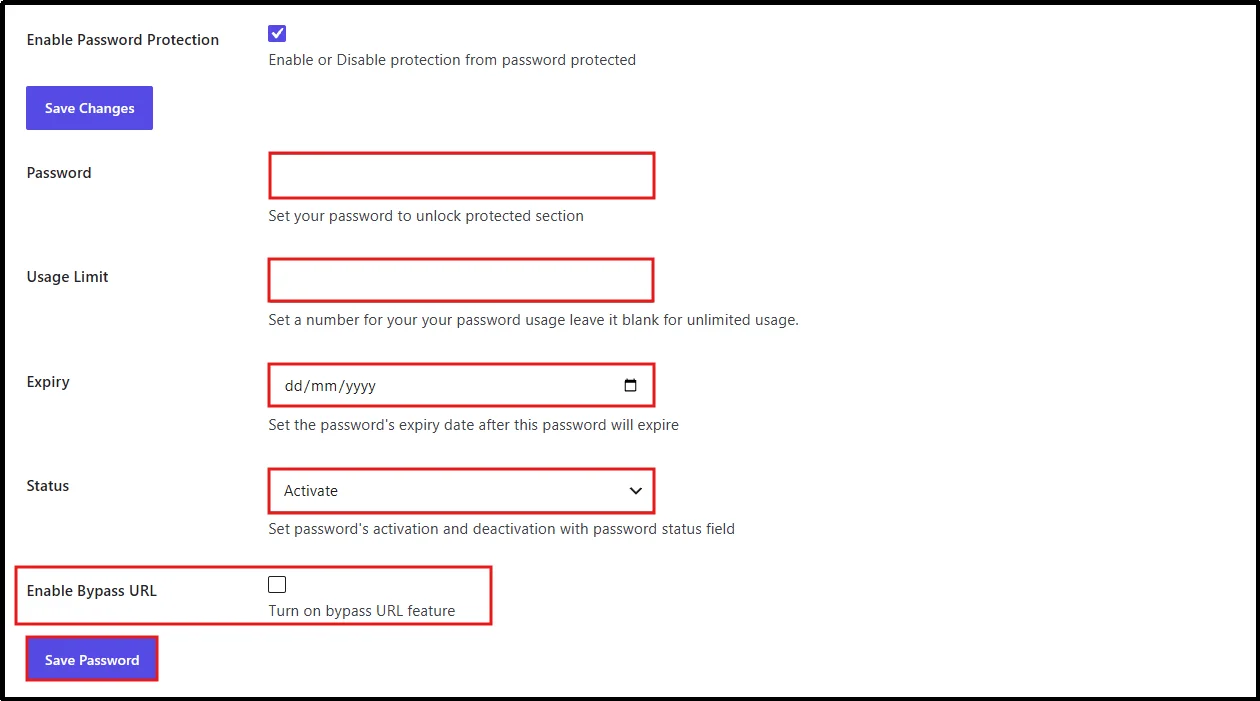
The exact labels and available settings can vary by plugin version, so check the interface shown in your installed version when following the steps.
Treat Bypass URLs Like Passwords
A bypass URL can make sharing protected content easier because the recipient doesn’t need to enter a password.
However, the link itself becomes a form of access credential.
Anyone who obtains the link may be able to access the protected content, depending on the link’s settings and expiration. Don’t post bypass URLs publicly, and avoid sharing them through channels where unauthorized people could easily obtain them.
How to Test a Password-Protected WordPress Post
Don’t skip the test.
A quick front-end check can catch incorrect settings, caching problems, broken password forms, or exposed downloads before you share the post URL.
Follow these steps:
- Open an incognito or private browser window.
- Visit the protected post URL.
- Confirm that WordPress displays the password form instead of the protected content.
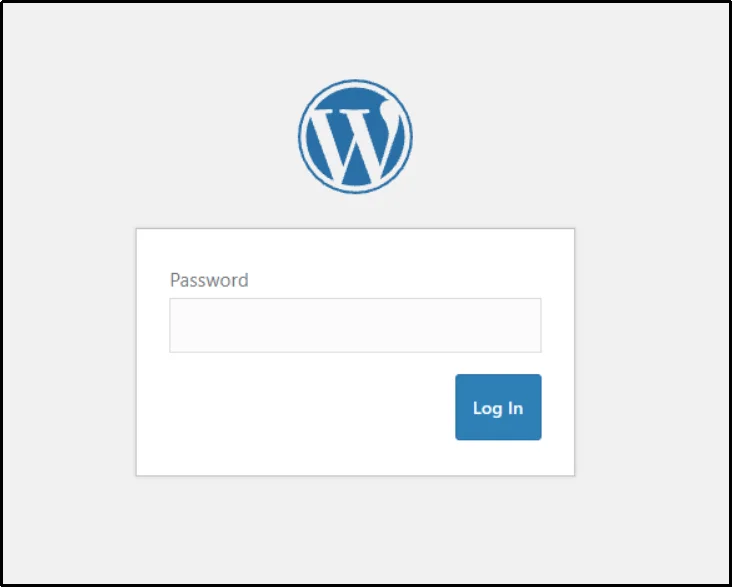
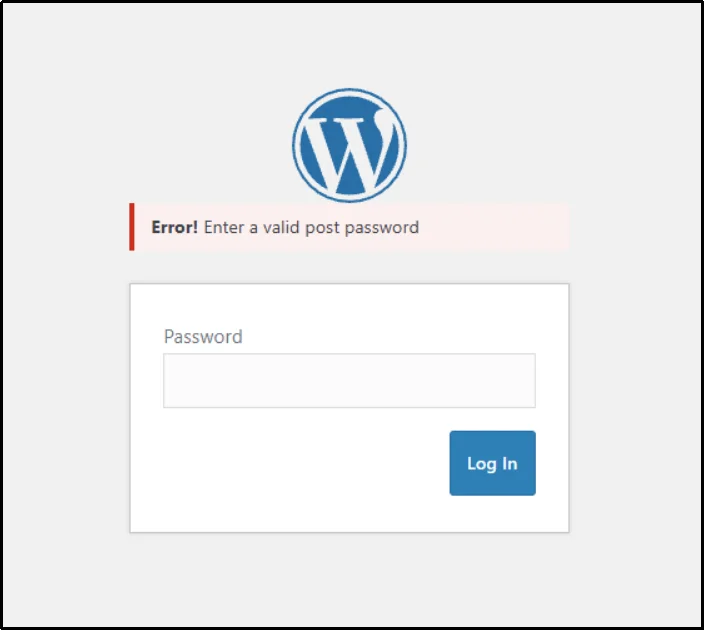
- Enter an incorrect password and confirm that access remains blocked.
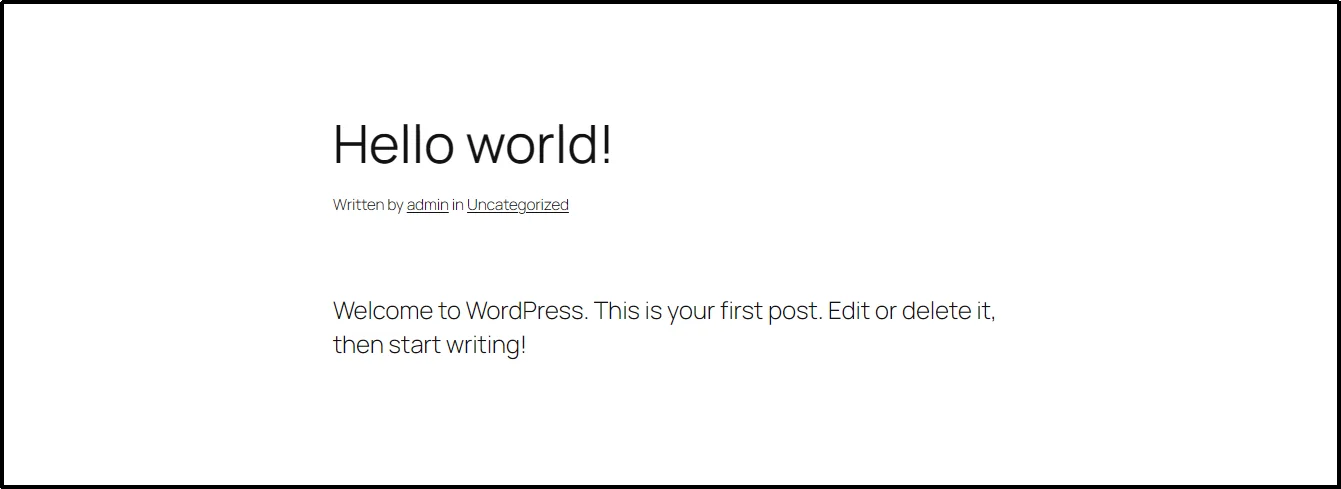
- Enter the correct password and confirm that the post content loads.
- Test images, PDFs, downloads, and other files separately if they contain sensitive information.
- Test the protected post on a mobile device if customers or clients will access it from mobile.
- If your website uses a caching plugin, CDN, or server-side cache, clear the relevant cache and test the post again.
That last step matters.
Caching can affect how visitors receive a page, so check the protected URL after you change its visibility or password settings.
When You Need More Than WordPress’s Built-In Password Protection
WordPress’s native feature works for basic shared-password access.
Password Protected adds additional options when your access requirements become more specific.
Multiple Passwords
Multiple Passwords (Pro): Create and manage multiple passwords for supported protected content when different people or groups need separate credentials.
Password Expiration and Usage Limits
Password Expiration and Usage Limits (Pro): Set a password to expire on a specific date or after a defined number of uses.
This can help when you’re sharing temporary content, private resources, client materials, or limited-access offers.
Partial Content Protection
Partial Content Protection (Pro): Lock specific sections of a post while keeping the rest of the content publicly accessible.
This approach works well when you want to show an introduction publicly but place the full resource, bonus material, or additional section behind a password.
Activity Logs
Activity Logs: Review password attempts with information such as IP addresses, dates, times, and password attempt status.
An activity log can help you understand how visitors interact with your protected content.
Keep in mind that an IP address doesn’t identify a specific person by itself.
Custom Post Type Protection
Custom Post Type Protection (Pro): Protect custom post types such as portfolios, testimonials, WooCommerce products, and other registered content types.
This gives you a way to apply password protection beyond standard WordPress posts and pages.
User Role Whitelisting
User Role Whitelisting (Pro): Allow selected WordPress user roles to access protected content without entering the password.
This can be useful when your site has both public visitors and logged-in users who already have permission to view the content.
Password Attempt Limits
Password Attempt Limits (Pro): Limit failed password attempts to help reduce repeated password-guessing attempts.
This adds another layer of control around password entry.
WordPress Password Protection vs. File Protection
There’s an important distinction between protecting a post and protecting the files that the post references.
Password-protecting a post doesn’t automatically mean that every PDF, image, video, or downloadable file associated with it has the same access restriction.
For example, you might protect a client-only post that contains a link to a PDF. If someone can access the PDF through its direct URL, protecting the post alone won’t solve the file-access problem.
So, if you’re protecting sensitive downloads, test their direct URLs separately.
For highly sensitive files, use a solution designed to control access to the files themselves rather than relying only on post visibility.
Does Password Protection Affect Google Indexing?
Password protection and search engine indexing are separate concerns.
A password-protected post requires a password before visitors can view its content, but you shouldn’t treat the password setting as a noindex directive.
If you don’t want a protected URL to appear in Google Search, configure an appropriate noindex directive through your SEO setup and verify the result in Google Search Console.
Also check related URLs, including attachment or download URLs, when your protected post contains sensitive files.
Don’t use robots.txt as a replacement for noindex; blocking a crawler from accessing a URL can prevent it from seeing the noindex instruction.
Is WordPress Password Protection Secure?
Password protection can restrict access to a WordPress post, but it shouldn’t replace your site’s broader security practices.
Use strong, unique passwords and keep WordPress, themes, and plugins updated. If you share bypass links, treat those links like credentials and don’t publish them where unauthorized visitors can find them.
For sensitive files, protect the files themselves rather than assuming that protecting the page that links to them will also protect the underlying file.
Ready to Password Protect Your WordPress Post?
WordPress’s built-in password protection is a straightforward option when you need to restrict a post with one shared password. It takes only a few clicks and doesn’t require another plugin.
If you need multiple passwords, expiration dates, usage limits, activity logs, bypass links, partial content protection, or custom post type protection, Password Protected adds those options to your WordPress site.
Choose the approach that fits your access requirements, then test the protected post from the front end. If the post contains sensitive files or downloads, test those URLs separately too.
Need more control over protected content? Try Password Protected to manage password-protected posts and other WordPress content.
Frequently Asked Questions
Does password protection affect other posts or pages?
No. WordPress lets you password-protect individual posts and pages without applying the same password protection to the entire website.
If you use a plugin’s global protection settings, however, the scope can be much broader, so check which protection mode you’ve enabled.
Can I password-protect a WordPress post without a plugin?
Yes. WordPress includes a built-in Password Protected visibility option for individual posts and pages.
Open the post in the Block Editor, go to Status & Visibility → Visibility, select Password Protected, enter a password, and click Update.
Can I use different passwords for different WordPress posts?
Yes. You can assign a password to each individual password-protected post through WordPress’s native visibility setting.
Password Protected also supports multiple passwords for supported protected content, which gives you more flexibility when different people or groups need separate credentials.
Can I use multiple passwords for one WordPress post?
Yes. Password Protected Pro supports multiple passwords for supported protected content.
This can help when you want to give different people or groups separate passwords rather than sharing one credential with everyone.
Can I make a WordPress post password expire?
WordPress’s native password protection doesn’t include a password expiration setting.
Password Protected Pro lets you configure expiration dates and usage limits for supported passwords.
Can I password-protect only part of a WordPress post?
Yes. WordPress’s native visibility setting protects the post as a whole.
Password Protected Pro also supports partial content protection, which lets you lock specific sections while keeping other content publicly accessible.
Can I track password attempts on a protected WordPress post?
WordPress’s native password protection doesn’t provide built-in activity logs.
Password Protected provides activity logs that can show information such as IP addresses, dates, times, and password attempt status.
These records show technical access information; they don’t necessarily identify the real person behind an attempt.
Does password protection prevent Google from indexing a WordPress post?
Not necessarily.
Password protection controls access to the content, but it shouldn’t be treated as a noindex directive. If you don’t want a URL to appear in Google Search, configure an appropriate noindex directive through your SEO setup and verify the result in Google Search Console.
Does WordPress password protection protect PDF files?
Not automatically.
Password-protecting a post doesn’t necessarily restrict direct access to a PDF or another media file linked from that post. If the file contains sensitive information, use a solution that protects the file URL as well.
Can I password-protect WooCommerce products or custom post types?
Yes. Password Protected Pro supports custom post type protection, including WooCommerce products and other registered custom post types.
This lets you extend content protection beyond standard WordPress posts and pages.