

You don’t need a full e-commerce store just to charge people for access to a WordPress page.
If you’re selling a premium guide, private report, course material, downloadable resource, or another type of digital content, you can build a simple paid-access system with Gravity Forms and Password Protected.
Gravity Forms handles the form and payment side; Password Protected locks the content and controls how customers get access after they complete the required action.
That’s the basic idea.
With the Gravity Forms integration, you can configure a form to generate a bypass URL after a form submission or payment, then send that link to the customer’s email through a Gravity Forms notification, while Password Protected applies the usage and expiry rules you’ve configured for the protected content.
This guide walks you through the complete setup, from installing both plugins to protecting your content, connecting the integration, adding a payment form, and sending customers their access link.
Can You Sell Password Protected Content with Gravity Forms?
Yes, you can.
Gravity Forms can collect customer details and payments through supported payment add-ons, while Password Protected handles access to the protected WordPress content.
Each tool has a separate job:
- Gravity Forms: Creates the form and handles submissions and supported payment workflows.
- Password Protected: Protects the WordPress page or post you want to sell.
- Gravity Forms integration: Connects the form to your protected content and can generate a bypass URL after submission or payment.
- Gravity Forms notifications: Sends the bypass URL to the customer’s email address.
So you don’t need to build a custom payment system just to sell access to one protected page.
And you don’t need to create a separate protected page for every customer; the same protected content can serve multiple buyers while the configured access rules control how the bypass link works.
💡 If you want to learn why protecting your WordPress content is important, check out our guide on Why Use WordPress Password Protection? Benefits, Limitations & Use Cases.
How the Payment-to-Access Workflow Works
The setup follows a straightforward sequence.
Here’s what happens.
- Protect the WordPress page or post containing your paid content.
- Create a Gravity Forms form.
- Add the payment fields and connect your payment add-on.
- Enable the Gravity Forms integration in Password Protected.
- Tell the form which protected content and password it should use.
- Configure the form to generate a bypass URL after submission or payment.
- Add the bypass-link merge tag to the customer notification.
- Test the complete purchase and access process.
The customer only sees the part that matters to them: the form, the payment step, and the access link.
Behind the scenes, Password Protected checks the bypass URL against the settings you’ve configured for the protected content, including its usage limit and expiry.
What You Need to Sell Password Protected Content
Before you start, you’ll need a few things ready.
1. A WordPress Website
Your website needs to host the protected page, Gravity Form, and payment workflow.
2. Password Protected Pro
You’ll need the premium version because the Gravity Forms integration is available with the Business Plan.
3. Gravity Forms
Gravity Forms powers the form and connects it with supported payment add-ons.
Gravity Forms is a premium plugin, so it doesn’t have a free version.
4. A Payment Add-On
Your payment method depends on the Gravity Forms add-on you choose. The exact setup can vary between payment services.
5. Content to Sell
You’ll also need the actual content you want customers to access.
That could be a premium article, PDF guide, report, training material, video, or another digital resource.
How to Sell Password Protected Content with Gravity Forms
Now let’s build the workflow.
The setup has several parts, but each one is fairly simple when you handle it in order.
Step 1: Install Password Protected
First, install the free Password Protected plugin on your WordPress website.
- Log in to your WordPress admin dashboard.
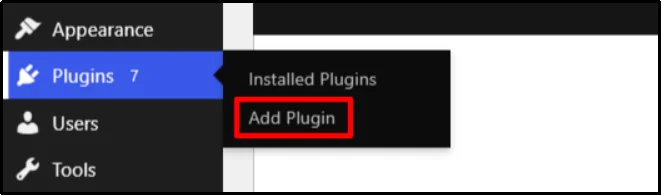
- Go to Plugins → Add Plugin.
- Search for Password Protected.
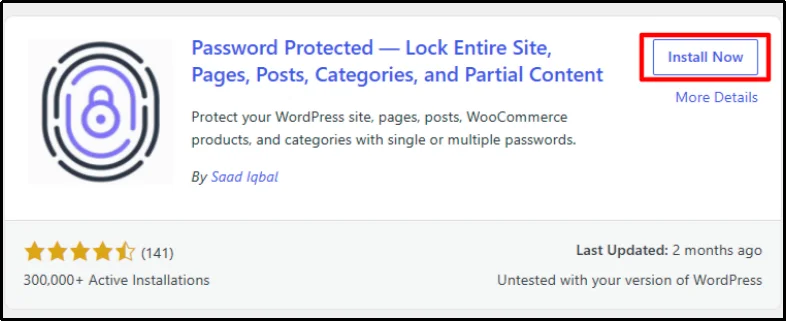
- Find the correct plugin and click Install Now.
- Once WordPress finishes the installation, click Activate.
Password Protected is now active.
But you’ll need the Pro version for the Gravity Forms integration.
Activate Password Protected Pro
Follow these steps:
- Visit the Password Protected Pricing page and purchase the Business Plan.
- Download the Password Protected Pro ZIP file from the email or account details provided after purchase.
- Copy your license key.
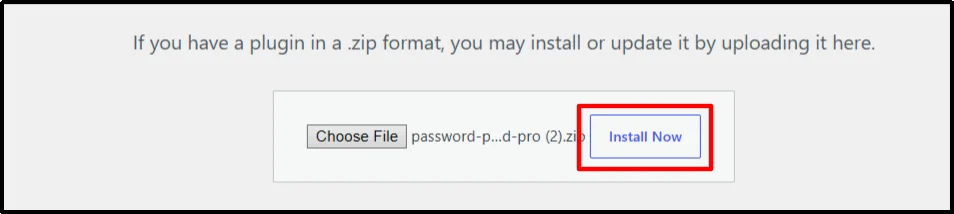
- Return to Plugins → Add Plugin → Upload Plugin.
- Click Choose File.
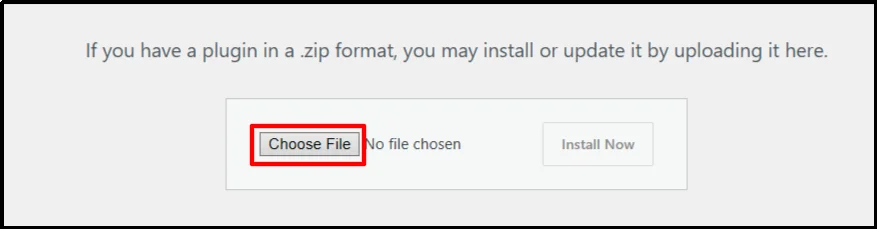
- Select the Password Protected Pro ZIP file.
- Click Install Now.
- Activate the plugin after WordPress finishes installing it.
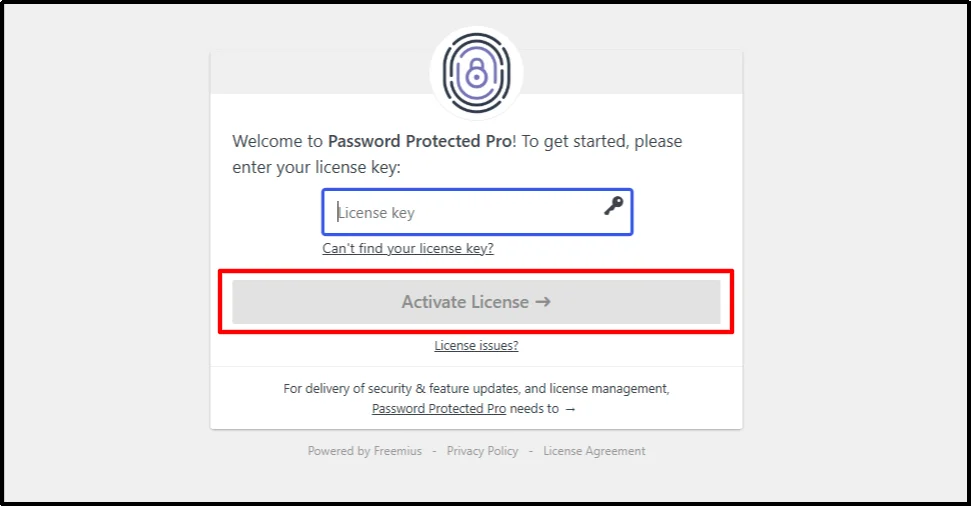
- Enter your license key on the activation screen.
- Click Activate License.
Password Protected Pro is now ready.
Step 2: Install and Activate Gravity Forms
Next, install Gravity Forms.
Note: Gravity Forms is a paid plugin and doesn’t offer a free version.
- Visit the official Gravity Forms website and purchase a plan.
- Log in to your Gravity Forms account.
- Open the Downloads section.
- Download the Gravity Forms plugin ZIP file.
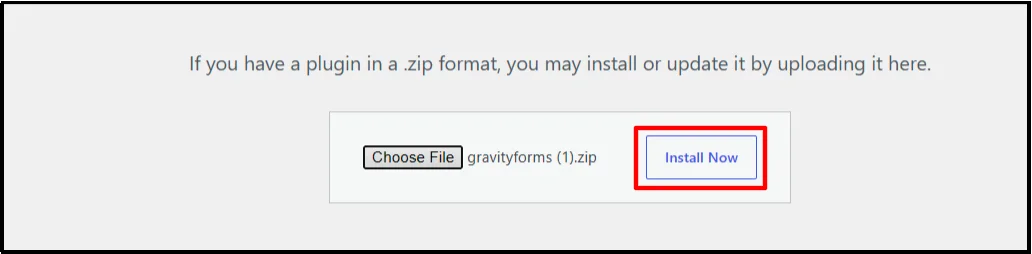
- In WordPress, go to Plugins → Add Plugin → Upload Plugin.
- Click Choose File and select the Gravity Forms ZIP file.
- Click Install Now.
- Activate Gravity Forms.
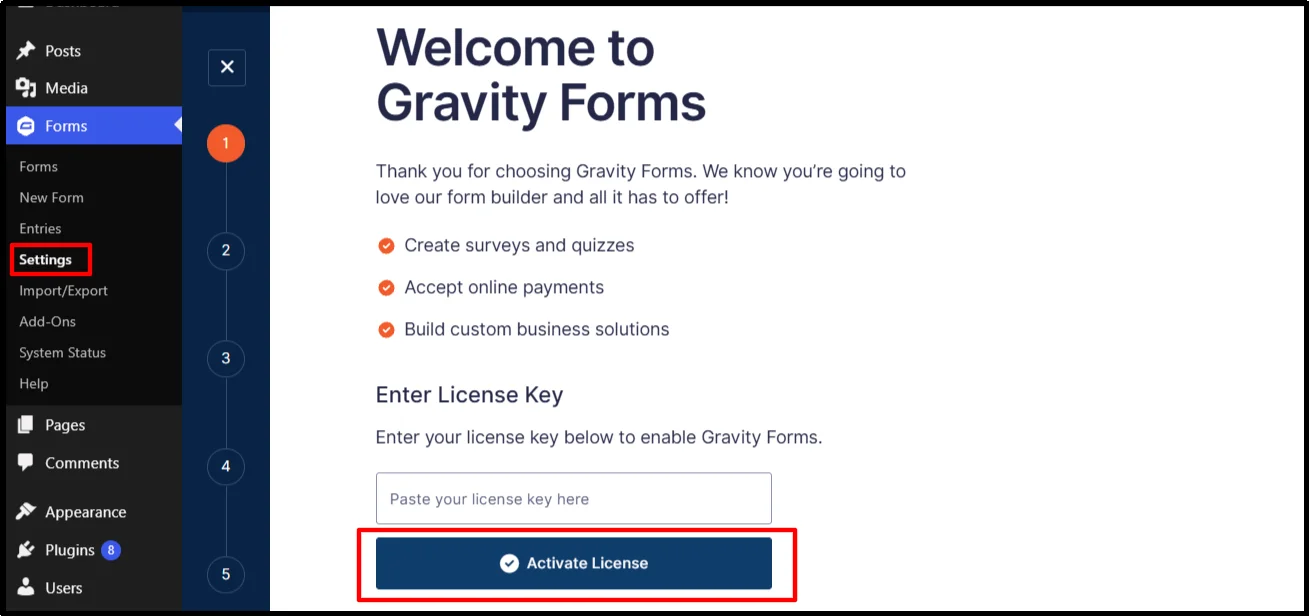
- Open Forms → Settings.
- Enter your Gravity Forms license key under Support License Key.
- Click Activate License.
Gravity Forms is now installed and connected to your account.
Add Your Payment Method
Before you build the payment form, install the Gravity Forms payment add-on you plan to use.
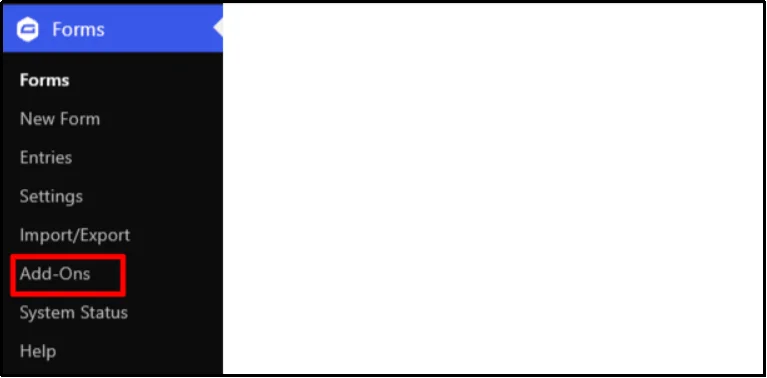
The exact add-on depends on the payment service you want to accept.
For example, you might use a supported payment add-on such as Square.
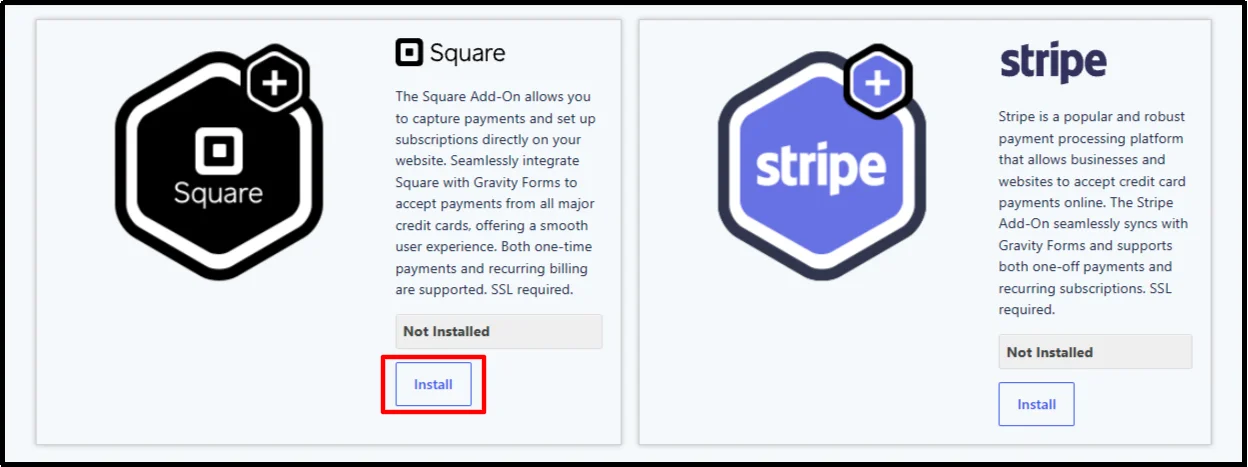
The steps can differ slightly between payment providers, so follow the setup instructions for the add-on you’re using.
Step 3: Protect the Content You Want to Sell
Now it’s time to lock the content.
Let’s say you’ve created a WordPress page containing a premium guide that customers should only see after they pay.
Here’s what to do:
- Go to Password Protected → Content Protection.
- Enable Page (individual) under the individual content protection options.
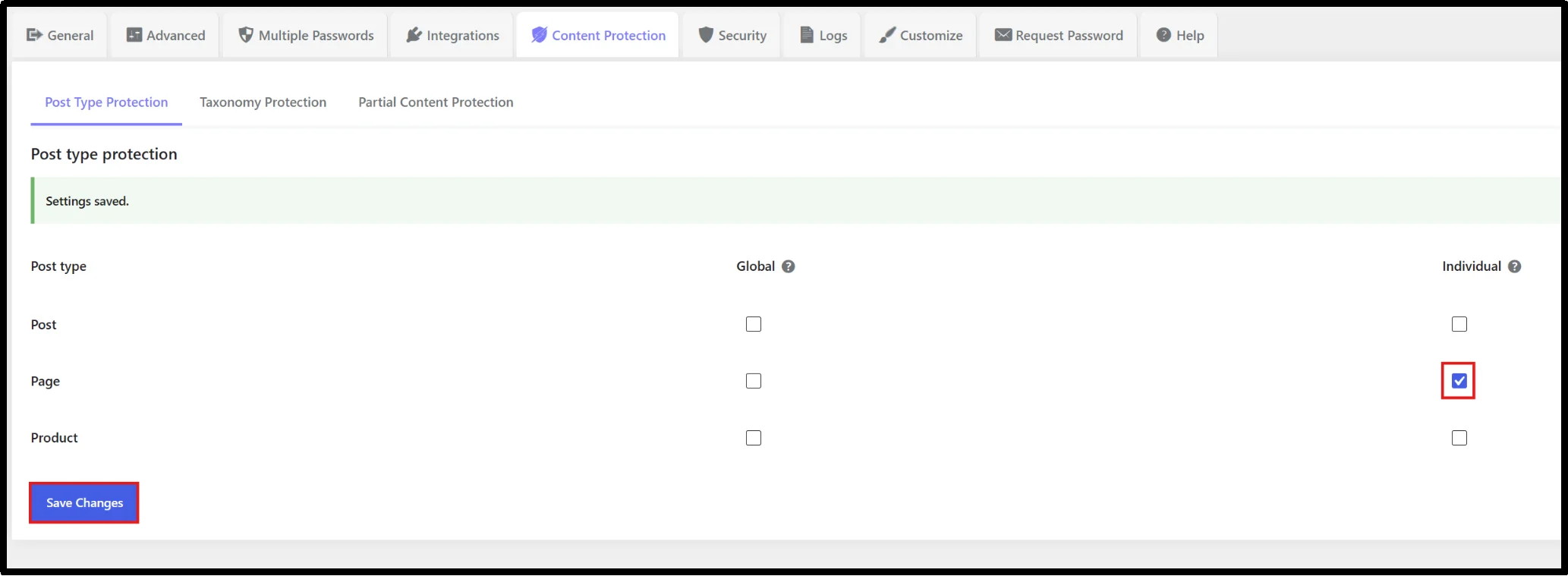
- Click Save Changes.
- Go to Pages → All Pages.
- Open the page containing your paid content.
- Enable Password Protection on the page.

- Click Save Changes.
You’ll now be able to configure the password for that protected page.
Configure the Password and Bypass URL
This part matters.
Set a password for the protected content, then configure its usage limit and expiry. After that, enable the Bypass URL option so eligible customers can open the content without entering the password manually.
Follow these steps:
- Set the password you want to use.
- Configure the password’s usage limit.
- Set the expiry criteria.
- Enable Bypass URL.
- Click Save Password.
- Save or update the protected page.
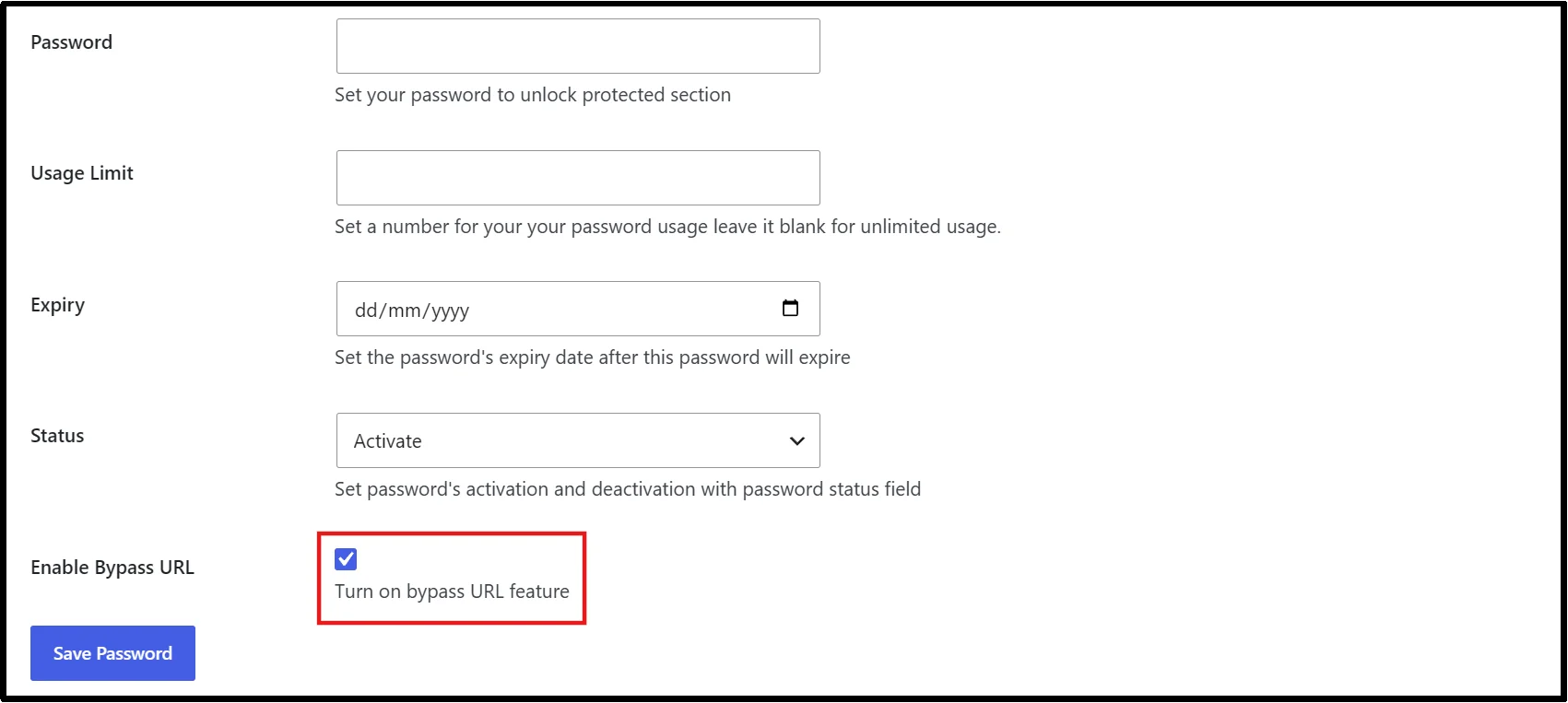
The bypass URL will use the access rules you’ve configured for that protected content.
So if you set an expiry date or usage limit, those rules will also apply when customers use the bypass link.
Step 4: Enable the Gravity Forms Integration
Now connect Gravity Forms to Password Protected.
This is what allows the form to work with your protected content.
- Go to Password Protected → Integrations.
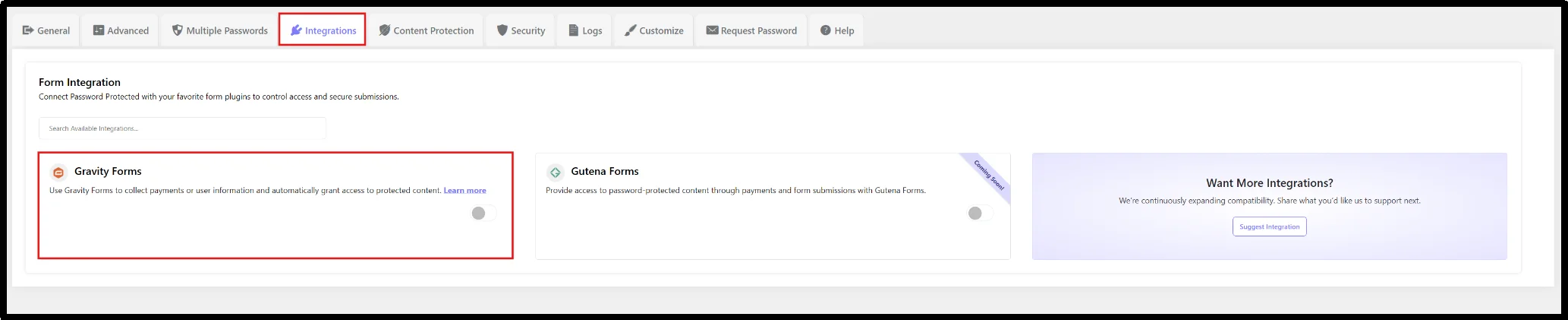
- Find the Gravity Forms integration.
- Turn the integration On.
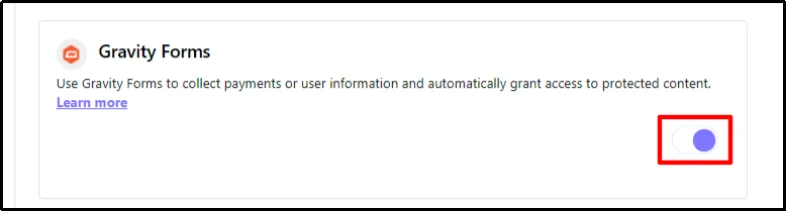
That’s it for the integration switch.
You’ll configure the actual form workflow from Gravity Forms.
Step 5: Create Your Gravity Forms Payment Form
Now create the form customers will use to purchase access.
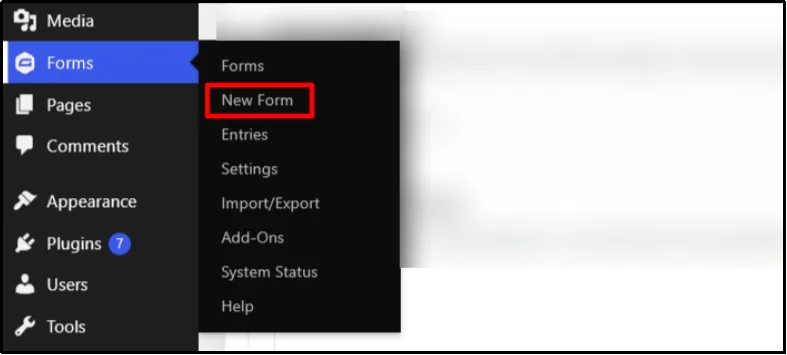
- Go to Forms → New Form.
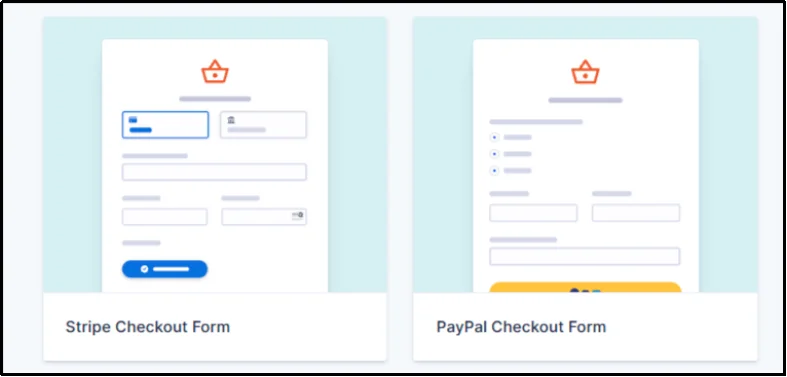
- Choose a suitable template or create a blank form.
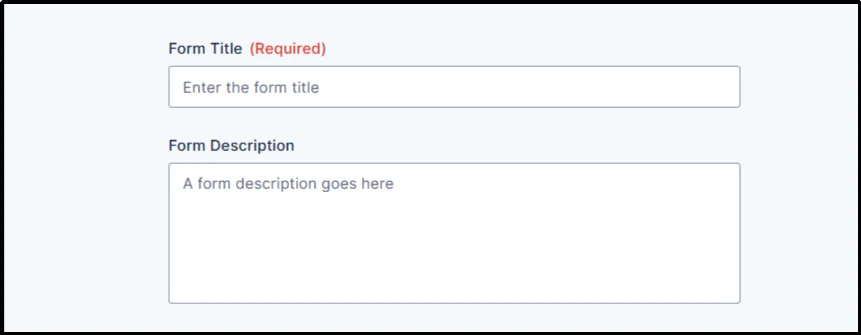
- Enter a form title and description.
- Add the fields you need, such as name and email.
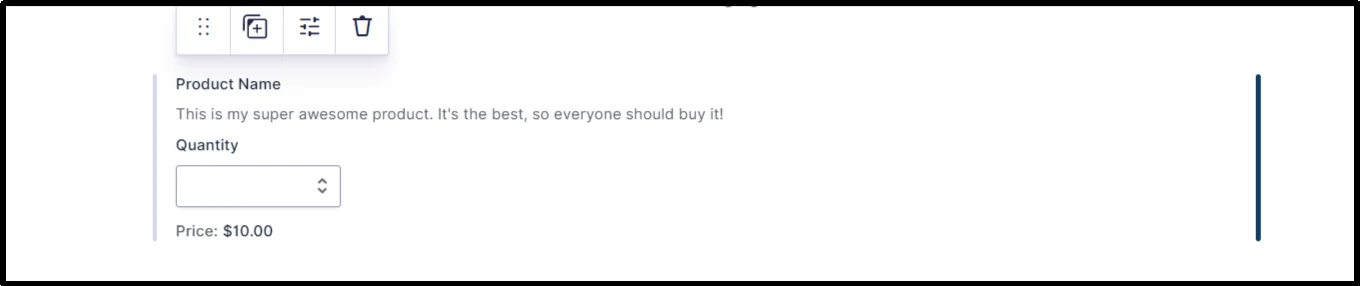
- Add your product field.
- Enter the amount you want to charge.
- Add the payment field required by your payment add-on.
- Configure the payment field, and mark required fields as needed.
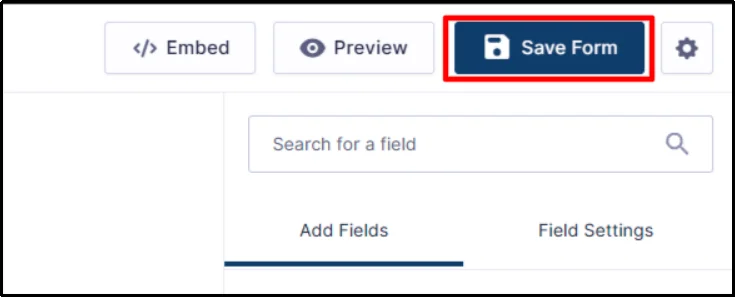
- Save the form.
Keep the form focused.
If someone only needs to buy access to one resource, don’t make them complete a long questionnaire first.
Connect Your Payment Add-On
Now configure the payment feed for your chosen payment service.
For example, if you’re using Square:
- Open the form settings.
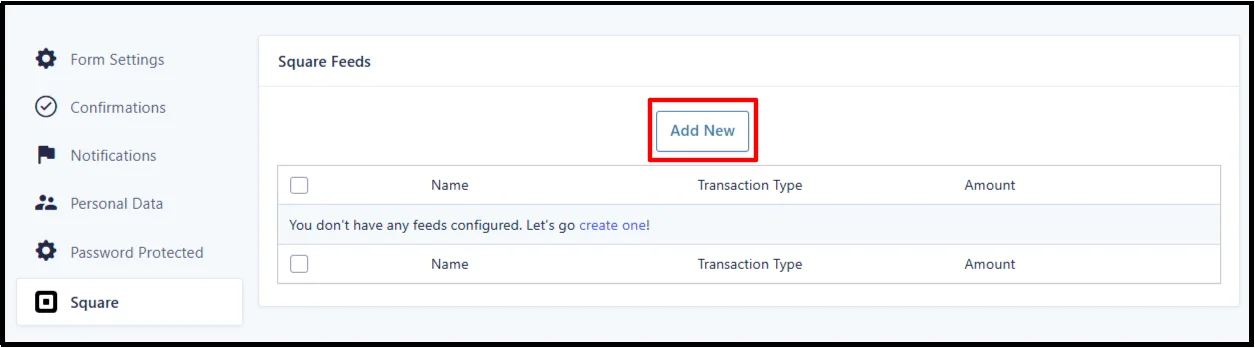
- Go to the Square settings or feed section.
- Add a new Square feed if one doesn’t already exist.
- Configure the transaction details.
- Set the payment amount and other required options.
- Save the feed settings.
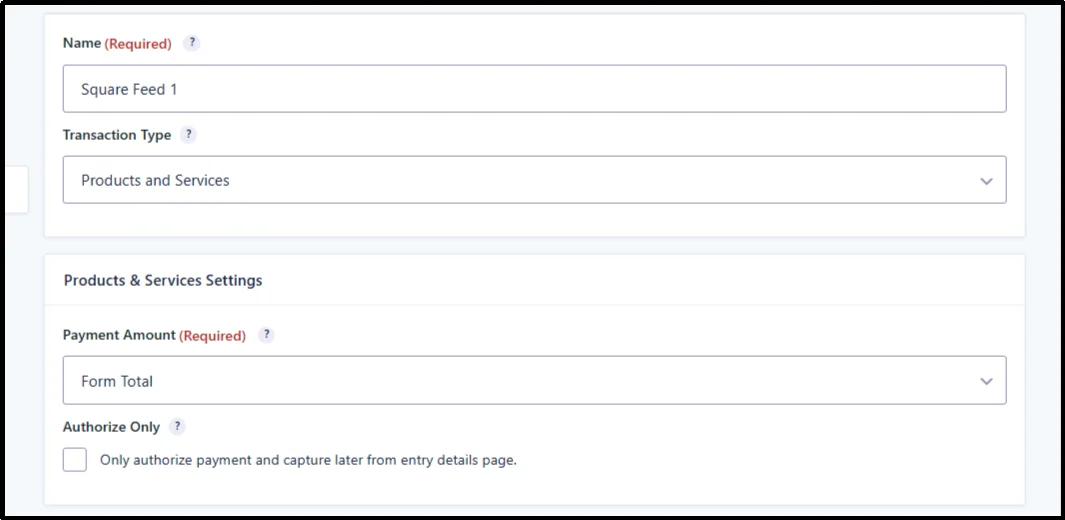
The exact fields you see depend on the payment add-on you’ve installed.
Step 6: Configure Password Protected for the Form
Now comes the part that connects the payment form to your protected content.
Open the Gravity Form you just created.
Then:
- Go to Form Settings.
- Open Password Protected.
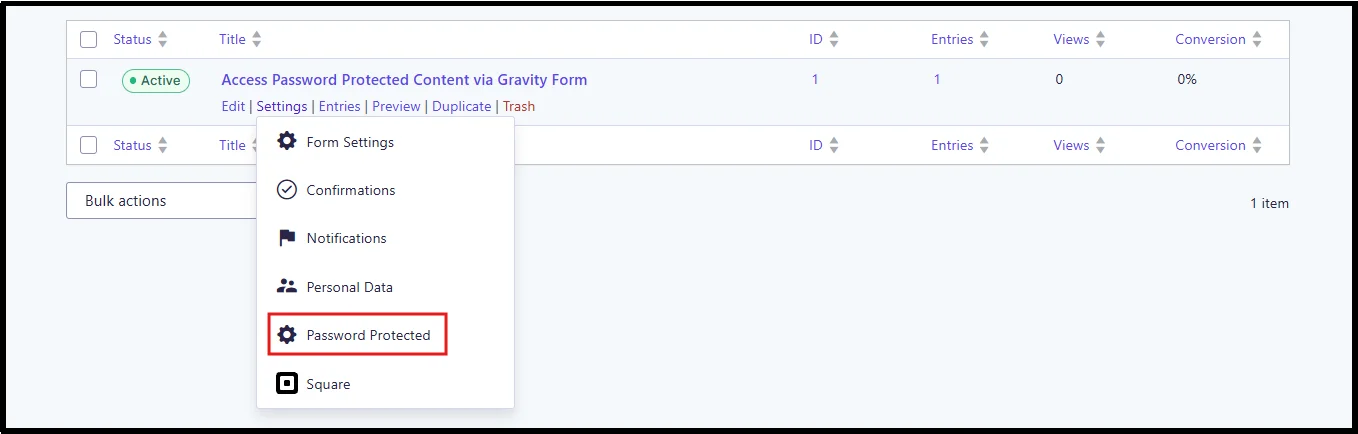
- Find the Form Action dropdown.
- Select Generate a Bypass URL after submission/payment.
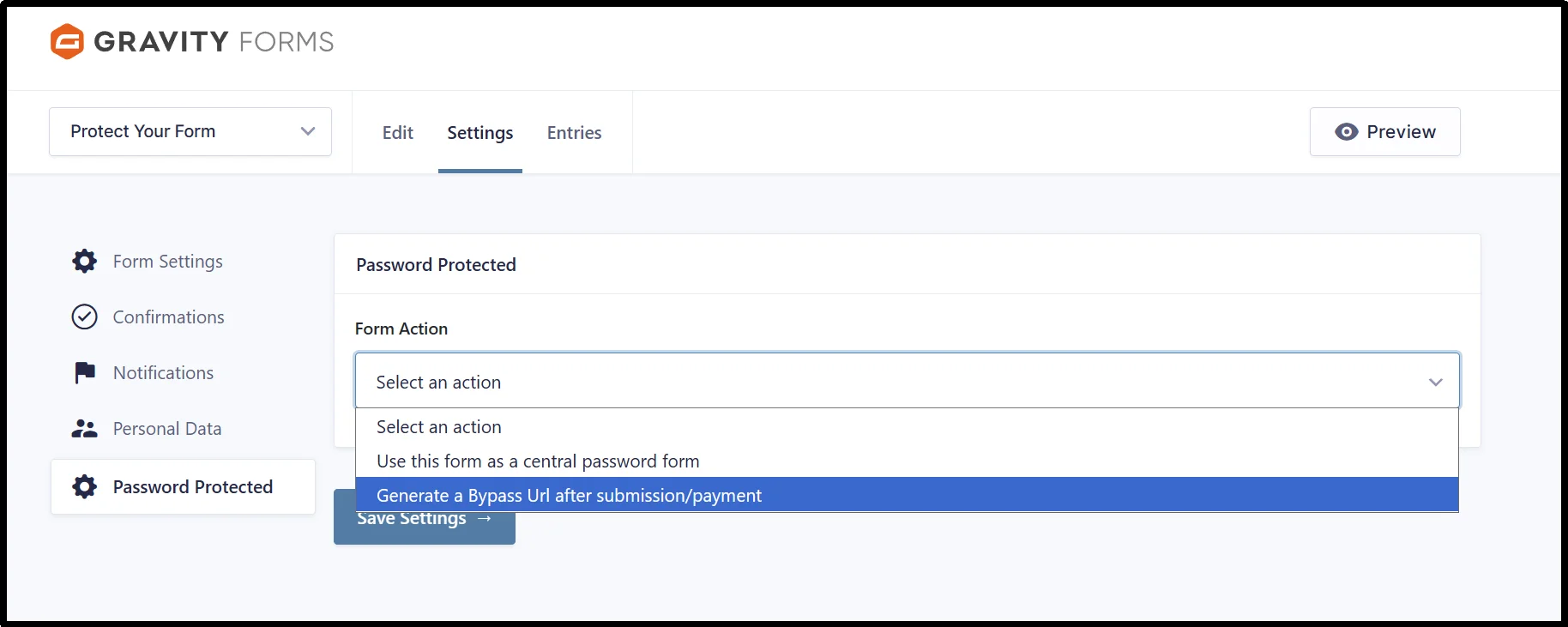
- Select the protected page.
- Select the password associated with that protected content.
- Save the settings.
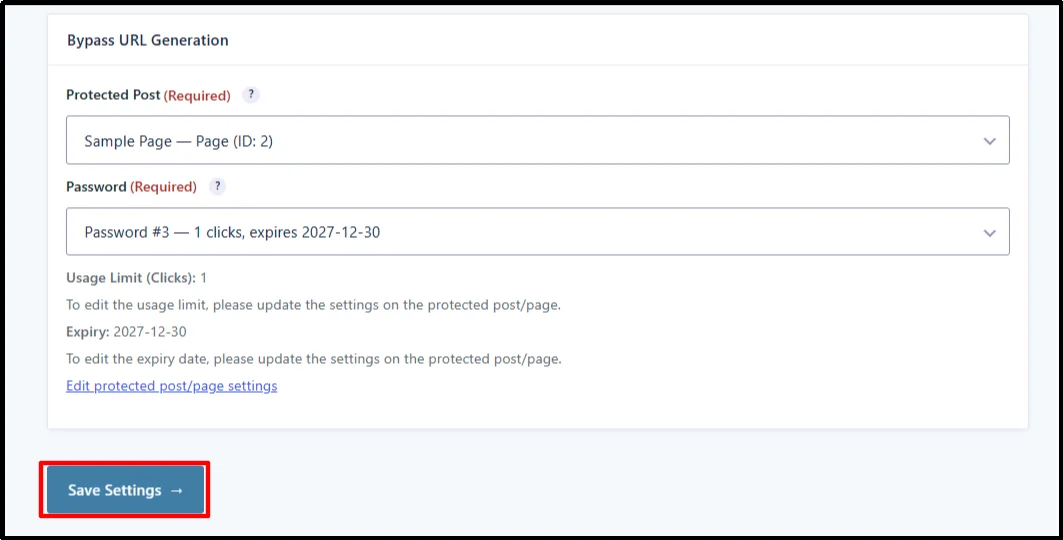
This tells Password Protected what should happen when the form reaches the configured submission or payment stage.
The important part is the action you select.
If you want customers to pay before receiving access, configure the payment workflow so the bypass URL is generated after the payment requirement is met.
Step 7: Send the Bypass Link to Customers
Generating the link is only half the job.
Customers need to receive it.
Gravity Forms notifications can handle that.
- Open your form.
- Go to Notifications.
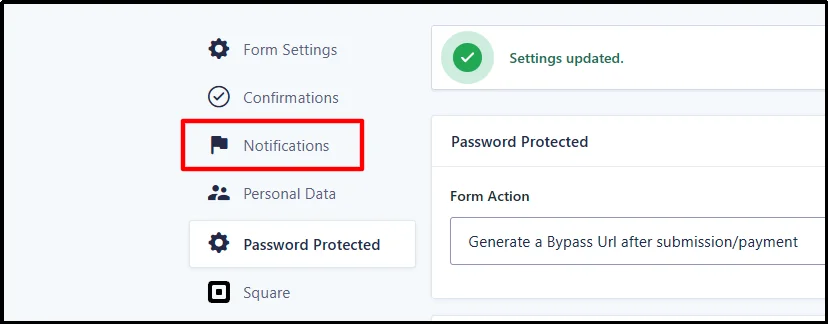
- Create a new notification or edit an existing one.
- Change Send To from Enter Email to Select a Field.
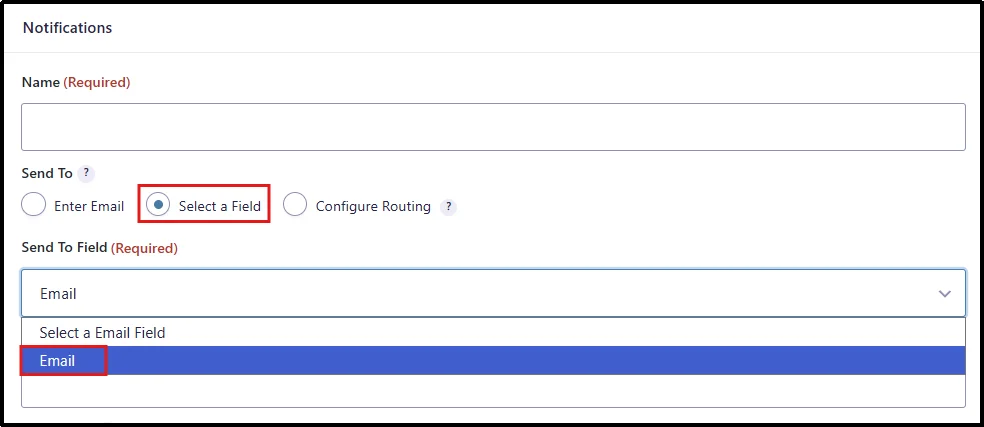
- Select the email field from your form.
- Write your customer-facing message.
- Add the {pp_bypass_link} merge tag to the email body.
- Save the notification.
The merge tag is important.
When Gravity Forms sends the notification, Password Protected replaces {pp_bypass_link} with the bypass link configured for the selected protected content.
The customer can then click that link to open the protected page without entering the password.
What Happens After the Customer Pays?
Here’s the flow from the customer’s perspective:
Customer submits the form → payment is completed → the configured notification is sent → the customer clicks the bypass link → Password Protected checks the link → the protected content opens.
Simple enough.
But there’s one detail you shouldn’t miss.
Password Protected doesn’t create a brand-new bypass URL for every form submission. Instead, it uses the existing bypass URL configured for the selected protected content and inserts that link into each eligible notification.
That means your usage-limit and expiry settings matter.
If you want tighter control over access, configure those settings before sending customers the link.
Step 8: Add the Gravity Form to a WordPress Page
Your customers need somewhere to complete the purchase.
You can place the form on a dedicated sales page.
- Go to Pages → Add Page.
- Add the Gravity Forms block.
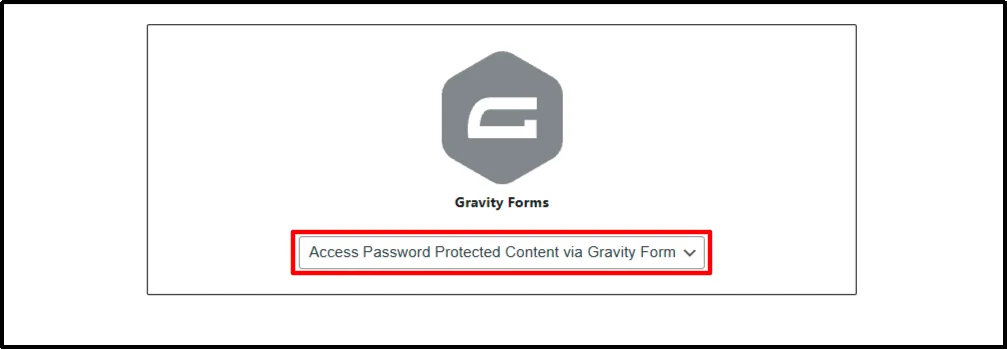
- Select the payment form you created.
- Add your sales copy, product details, pricing, and other information.
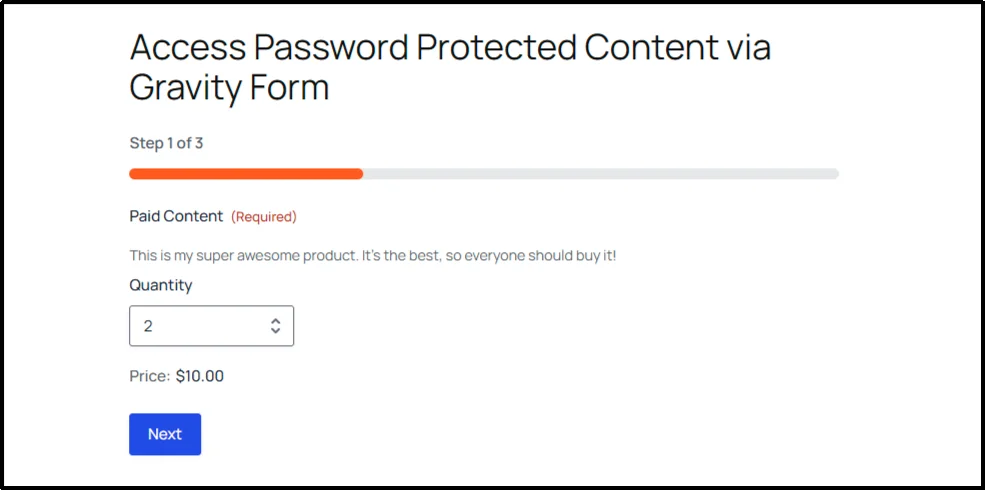
- Publish the page.
Now customers can visit the page, complete the form, make their payment, and receive the configured access link.
What Can You Sell Behind a Password Protected WordPress Page?
Quite a few things.
You don’t have to limit this setup to written articles.
Online Courses
You can sell access to protected course lessons, tutorials, or learning resources.
For advanced course features such as student accounts, progress tracking, quizzes, and structured learning paths, you’ll likely need a dedicated LMS.
Premium Articles
A protected WordPress page can work well for paid tutorials, specialist articles, industry research, and other premium written content.
Ebooks and PDF Guides
You can put a paid ebook or downloadable guide behind a protected page and give customers access after the payment workflow completes.
Reports and Research
Reports, whitepapers, research documents, and specialized resources can also sit behind a protected page.
Training Materials
Businesses can use protected pages for paid training resources, internal learning material, or customer education content.
Client Resources
You can also protect private project documents and other resources intended for paying clients.
Premium Videos
A protected page can contain paid video content, provided your overall video delivery setup supports the way you want to distribute it.
For straightforward paid content, this approach can be enough.
But if you’re building a large store with product catalogs, inventory, customer accounts, subscriptions, or complex order management, an ecommerce or membership platform may fit your requirements better.
How to Control Access to Paid Content
Selling access is only part of the job.
You also need to think about what happens after someone receives the link.
Password Protected gives you two important controls for the bypass URL: usage limits and expiry.
Usage Limits
A usage limit controls how many times the bypass link can be used.
For example, you can configure a limit based on the access requirements for your protected content.
Once the link reaches its permitted number of uses, Password Protected won’t allow access through that link.
Expiry
You can also configure when the access should expire.
Once the bypass link reaches its expiry condition, the customer can’t use that link to unlock the protected content.
These settings are useful when you’re selling content that shouldn’t remain available forever.
Also read: Password Protection vs Membership Plugins
Troubleshooting Paid Content Access
Payment workflows can involve several moving parts.
If something doesn’t work, check each part of the process instead of changing everything at once.
The Customer Paid but Can’t Open the Content
Start with the protected page.
Check the following:
- Password protection is enabled for the correct page or post.
- The selected protected content matches the page you want customers to access.
- The correct password is connected to the Gravity Forms action.
- The bypass URL option is enabled.
- The bypass link hasn’t expired.
- The link hasn’t reached its usage limit.
- The form uses the intended payment feed.
- The payment has reached the status required by your workflow.
Password Protected validates the bypass link before granting access.
An expired or exhausted link won’t unlock the protected content.
The Customer Didn’t Receive the Email
Start with your Gravity Forms notification.
Check that:
- The notification is enabled.
- The customer’s email field is selected as the recipient.
- The notification contains {pp_bypass_link}.
- The notification event matches the workflow you’ve configured.
- The payment has reached the required status.
If Gravity Forms generated the notification but the customer still didn’t receive it, check your WordPress email delivery setup as well.
Your payment workflow can be correct while WordPress email delivery causes the final step to fail.
The Bypass Link Doesn’t Work
Check the access settings first.
Look at the usage limit and expiry associated with the protected content.
If the link has expired or reached its allowed number of uses, Password Protected will deny access.
Also check that the notification contains the correct {pp_bypass_link} merge tag and that you’ve selected the intended protected page and password in the form settings.
The Payment Works but the Access Email Arrives Too Early
Check your notification and payment settings.
The Gravity Forms integration can generate a bypass URL after a form submission or after a payment, depending on the action and payment workflow you’ve configured.
If customers should only receive access after payment, make sure your payment setup and notification event reflect that requirement.
Best Practices for Selling Protected Content
A few small choices can make this setup much easier to manage.
Use a Strong Password
Even though customers may access the content through a bypass link, you should still use a strong password for the protected content.
Don’t use something obvious.
Set an Appropriate Expiry
Think about how long customers actually need access.
If you’re selling a one-time resource, you may want different access rules than you would use for an ongoing training program.
Set a Sensible Usage Limit
Don’t pick a limit at random.
Think about how customers will use the content and whether they need to revisit it.
Keep the Purchase Form Short
Ask for the information you actually need.
A shorter form usually makes the buying process easier for customers.
Test the Entire Workflow
Run a complete test before sending real customers to the purchase page.
Submit the form.
Complete the payment.
Check the notification.
Click the bypass link.
Then confirm that the protected content opens correctly.
Don’t stop after testing only the payment.
Check Your Email Delivery
Your notification can be configured correctly and still fail to reach the customer if your WordPress email delivery isn’t working properly.
Test your site’s email delivery before launching the paid-access workflow.
Gravity Forms vs. WooCommerce for Protected Content
You don’t always need WooCommerce.
If your main requirement is simple, Gravity Forms and Password Protected can handle a focused payment-to-access workflow without introducing a full ecommerce system.
Here’s the difference in practical terms:
| Requirement | Gravity Forms + Password Protected | Full Ecommerce Platform |
| Sell access to one protected page | Yes | Yes |
| Collect customer information | Yes | Yes |
| Accept supported payments | Yes | Yes |
| Send a bypass link | Yes | Depends on setup |
| Protect WordPress content | Password Protected | Usually requires an additional access solution |
| Product catalog management | Limited | Built for it |
| Inventory management | Not the primary purpose | Yes |
| Complex order management | Limited | Yes |
| Membership features | Limited | Depends on extensions |
| Large online store | Not the primary use case | Better suited |
The right choice depends on what you’re actually selling.
If you only need a payment form and controlled access to a few protected resources, a simpler setup can make more sense.
If you’re building a full online store with many products and ecommerce features, you’ll need a broader solution.
Start Selling Password Protected WordPress Content
Selling protected WordPress content doesn’t have to mean building a complicated ecommerce system.
The workflow can stay simple:
Protect your content → Create the payment form → Connect Gravity Forms → Generate the bypass URL → Send the access link → Test everything
Gravity Forms takes care of the form and payment workflow.
Password Protected handles the content access side.
And when you configure usage limits and expiry, you have additional control over how customers use the generated bypass link.
That’s useful for premium guides, reports, downloads, training resources, videos, and other digital content that you want to keep behind a payment step.
So if you only need a focused paid-access workflow, you can get started without adding a complete ecommerce platform.
Get Password Protected and connect it with Gravity Forms to start selling access to your protected WordPress content.
Frequently Asked Questions
Can I sell password protected content without WooCommerce?
Yes. You can use Gravity Forms to collect customer information and payments, then use Password Protected to protect the content and control access.
This works well for simpler paid-content workflows.
Can I sell digital products with Gravity Forms?
Yes. Gravity Forms supports payments through its supported payment add-ons.
You can then connect the form to protected WordPress content and provide customers with a bypass link after the configured submission or payment event.
Can I sell a course with Gravity Forms?
Yes, for relatively simple course setups.
You can use a Gravity Forms payment workflow to sell access to protected course pages.
However, advanced course requirements such as quizzes, progress tracking, student accounts, and structured course management may call for an LMS.
Does Gravity Forms protect WordPress pages by itself?
No. Gravity Forms handles forms, submissions, and payment workflows.
Password Protected handles access to the protected WordPress content.
The Gravity Forms integration connects those two parts.
Can I send customers a password after they pay?
You can send customers a bypass link instead.
With the Gravity Forms integration, you can add the {pp_bypass_link} merge tag to a notification, and Password Protected inserts the configured bypass link into the email.
Customers can then use that link without manually entering the password.
Can I generate a bypass link after payment?
Yes. The Gravity Forms integration supports generating a bypass URL after a form submission or after a payment.
Choose the appropriate action for the workflow you’re building.
Does every customer receive a unique bypass link?
No. Password Protected doesn’t create a new bypass URL for every form submission.
Instead, it uses the existing bypass link associated with the selected protected content and inserts that link into each eligible notification.
Can I limit how many times customers use the bypass link?
Yes. You can configure a usage limit for the protected content.
Once the link reaches its permitted number of uses, Password Protected won’t allow it to unlock the content.
Can I make the bypass link expire?
Yes. You can configure expiry settings for the protected content.
Once the bypass link expires, customers can no longer use it to access that protected content.
Can I sell protected PDFs and ebooks?
Yes. You can put download links for PDFs, ebooks, guides, reports, and similar resources inside a protected WordPress page.
Customers can then receive access through the configured Gravity Forms and Password Protected workflow.
Can I sell premium videos?
Yes. You can place video content inside a protected WordPress page and give customers access after they complete your configured purchase workflow.
Do customers need a WordPress account?
No. This workflow doesn’t require customers to create WordPress accounts.
They can complete the access method you’ve configured, such as submitting the form and completing payment, then use the bypass link they receive.
Can I use a payment service with Gravity Forms?
Yes. Gravity Forms supports payment services through its available payment add-ons.
The exact setup depends on the payment provider and add-on you’re using.
What happens if the bypass link expires?
Password Protected won’t unlock the protected content through an expired bypass link.
You’ll need to provide access through another valid method if the customer still needs access.
What happens when the bypass link reaches its usage limit?
Password Protected will deny access through that link after it reaches the configured usage limit.
Check the usage setting associated with the protected content if a customer reports that an otherwise correct link no longer works.
Can I use Gravity Forms with Elementor?
Yes. You can embed a Gravity Form on an Elementor-built page in the same way you would add the form to a supported WordPress page.
The Password Protected integration handles the access workflow separately.
Can I sell protected content without a membership plugin?
Yes, for simpler use cases.
If you mainly need to collect payment and give customers controlled access to specific protected content, Gravity Forms and Password Protected can handle that workflow without requiring a membership plugin.