

Imagine catching a virus by installing an antivirus.
Or imagine trying to delete a malicious file from your computer only to get even more malware.
As intricate as it may sound, that’s exactly what Scareware is.
This article explores this confusing cyberattack, including what it is, how it works, its types and consequences, and, in a nutshell, everything you need to know about it.
Let’s understand the attack first before moving on to its types.
What is Scareware?
Scareware is a cyberattack that exploits human fear of getting a virus to inject a virus. The word ‘Scare’ comes from its ability to scare people into downloading malicious software.
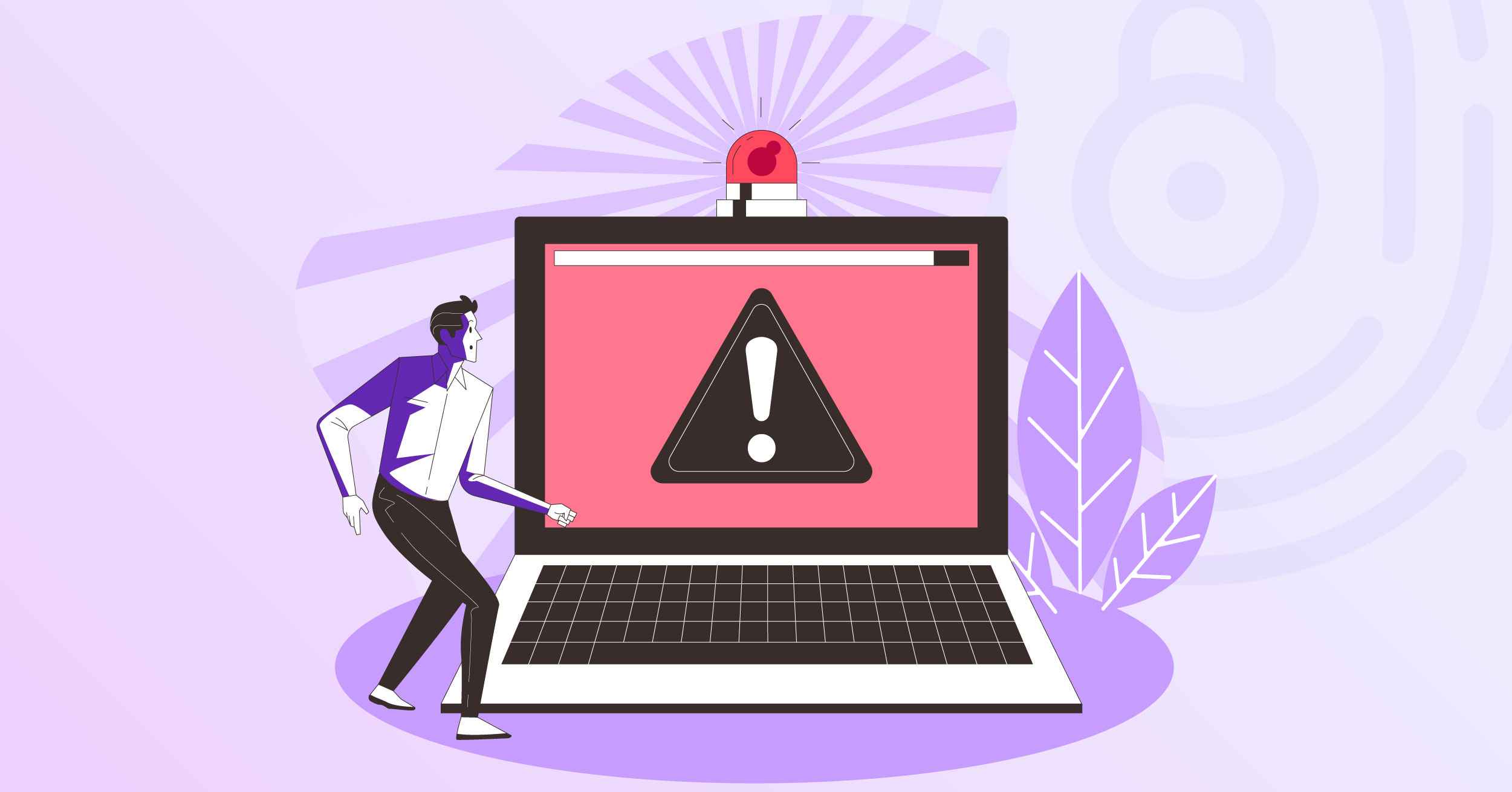
Scareware is designed to trick you into thinking something’s wrong with your device, like a fake virus alert or a system error pop-up. These pop-ups push the victim into downloading the very threat they were trying to avoid.
It preys on panic, making one believe that immediate action is necessary. Most of the time, that “action” is clicking a link, downloading an app, or paying for a fraudulent solution.
The scareware or the attack is not itself problematic unless one takes an action that the cyberthief wanted to. It only scares victims into downloading malicious software. We can say it is a gateway to other problems with hideous consequences. For example, hackers may scare the victim into downloading a Trojan horse virus, ransomware, or other deadly cyberattacks.
How Does Scareware Work?
As discussed, scareware is just a fake warning message or alert that can be sent using most communication mediums, including text messages, emails, or abrupt pop-ups. The primary purpose of these pop-ups is to scare victims about a virus or legal issues.
Hackers may also use logos or URLs of well-known companies to make the message appear more legitimate and believable. Bad actors also disguise bogus pop-ups as legitimate by naming them against popular companies or antivirus software, such as “Windows Defender has found 12 issues! Click “Allow” to remove them, or “Avast has detected a problem on your device!”
Once clicked “Allow,” one consents to give the cyberattacker complete access. Alternatively, clicking a file could initiate a malicious software installation that could reside in the depths of your computer, making it extremely difficult to spot and delete.
Both cases can lead to deadly consequences.
Due to its similar nature, this cyberattack is often confused with adware or ransomware. Although there are similarities, all these are fairly different.
Scareware vs. Adware vs. Ransomware: Key Differences
Here is how each one differs from the other.
Scareware, as we’ve seen, is a psychological trick. It scares the victims into making the wrong move. It doesn’t usually cause direct harm until one acts on a fake warning. Simply put, it doesn’t steal from you directly but manipulates you into taking your guard down so the other malicious attack can hit efficiently.
Adware, on the other hand, is more about money through annoyance. It floods your device with pop-up ads, banners, and petulant redirects to generate ad revenue for the attacker. While it can slow down your device and ruin your browsing experience, it typically doesn’t go as far as stealing sensitive data or locking files.
Ransomware just locks you out of your own files or device and demands a ransom to restore access. These payments can be huge and are often demanded in cryptocurrencies, such as Bitcoin or Ethereum.
For recap:
- Scareware scares the victim into action.
- Adware shows annoying ads for profit.
- Ransomware locks files and demands payment.
To learn more, you can also read: Ransomware vs Malware: What’s the Difference?
They may overlap in behavior, but the damage and delivery methods vary. Understanding these differences helps spot the threat early before one wrong click becomes a major breach. In the following section, you will learn to detect the attack.
How to Identify Scareware (Warning Signs To Look For)
Early detection of the threat is the first step to mitigating the impacts of the cyberattack. Thus, look for the following signs to identify if you are being attacked by scareware:
- Unreal pop-up ads. Real antivirus software never advertises using scammy pop-ups that emphasize taking quick action. The more threatening the advertisement is, the more likely it is to be a fake.
- Unsecure site. If you click the advertisement and it takes you to a site without the padlock icon next to its URL in the omnibar, that is a clear sign of a scareware taking you to a phishing site.
- Unprofessional structure or poor grammar. Legitimate ads are written and proofread by experienced professionals, leaving no room for basic spelling errors or bulky sentence structure. If the ad is poorly written, bouncing off is the better choice.
- Decreased performance. Malicious ads can take up the majority of processing power to bombard your screen with countless ads, which can cause slower performance or different software abruptly closing or misbehaving.
- Change in settings. Scareware can sometimes alter your computer’s settings. If you find your settings have abruptly changed, the culprit can be scareware.
- Persistent fake alerts. If you’re repeatedly getting alerts even after running legitimate antivirus scans that show nothing is wrong, you’re dealing with scareware. These fake alerts are designed to wear you down until you finally click.
- Requests for immediate payment. One of the most common scareware tactics is asking you to “upgrade now” or “buy full protection” to remove supposed threats.
What to Do If You Are Under a Scareware Attack?
Now that you understand how to detect it, here is what you can do if you have caught the scareware:
- Do not click anything. The entire purpose of scareware is to rush you into making a wrong move, so resist the urge to click, download, and especially, pay. Simply closing the pop-up as quickly as possible.
- Disconnect from the internet. Unplug your connection or turn off Wi-Fi to stop the scareware from communicating with its source. On WordPress, use Password Protected to lock it from the general public. This prevents further malicious downloads or remote access while you begin the cleanup process.
- Manually uninstall suspicious programs. Look for anything unfamiliar or recently installed without your knowledge. If something looks shady or has generic names like “PC Optimizer” or “Speed Cleaner,” remove it.
- Run a full scan using legitimate antivirus software. Using a trusted antivirus program, perform a full system scan. Let it detect and eliminate any threats.
- Clear browser cache and extensions. Sometimes, scareware hides inside your browser as a malicious extension or cached script. Clear your cache, cookies, and check your browser, and delete any extension that you don’t recognize or remember installing.
- Update your software. Outdated software often has security holes. Make sure your operating system, antivirus, and browsers are all up to date. These patches help fix vulnerabilities that scareware and other malware often exploit.
- Change passwords. It is also important to change passwords, because hackers can repeatedly attack if your password is leaked.
Best Practices to Avoid Scareware
As they say, better safe than sorry. Thus, it is better to keep your cybersecurity intact to prevent this attack from lingering near you. Here is what you can do:
- Avoid clicking suspicious ads. As obvious as it seems, not touching any shady ads can prevent scareware.
- Use pop-up blockers. Using reputable pop-up blockers, you can not only prevent scareware but also other cyberattacks that rely on direct pop-ups for execution, like malvertising.
- Keep software updated. Earlier, we learned about outdated software and the vulnerabilities they come with. These vulnerabilities can be exploited to gain unauthorized access or show scarring ads. Keeping the system updated can help prevent this.
- Close the browser in case of uncertainty. Some malicious pop-ups disguise parts of the ad to look like a close (X) button. If the button seems off or suspicious, it’s safer to close the entire browser rather than clicking it.
- Enable 2FA/MFA wherever possible. Multi-factor authentication prevents unauthorized access even if your password is hacked or leaked.
- Regularly change passwords. Changing passwords regularly is a vital part of cyber hygiene. Practicing it regularly will help prevent losing access to scareware or other cyber attacks.
- Install reputable antivirus software. A trusted antivirus program can detect and neutralize scareware before it causes damage. Make sure you buy or install it from the official source.
- Educate yourself and others. Awareness is a strong defense. Learning how scareware works can reduce the chances of falling for a psychological trap.
Be Vigilant! Cybercrime Is Escalating
With more cybercrimes happening every day, it is essential to be vigilant of every step you take or every click you make. There are shoulder surfers and hackers trying to profit from your clicks. Awareness is the best prevention strategy.
Along with that, it is also wise to be updated on cybersecurity best practices. Timely updating passwords, adding 2FA where possible, updating software, and avoiding nulled software can go a long way.
Lastly, do not forget to try Password Protected! It is loved worldwide and offers fantastic WordPress security features.
Frequently Asked Questions
How do I get rid of scareware?
First and foremost, avoid clicking on the malicious ad, and disconnect the device from the internet. Next, run an antivirus scan and eliminate all threats, suspicious applications, or files that you may find. Finally, clear your browser cache and extensions, and update your software before changing your passwords.
What is the difference between scareware and ransomware?
Scareware is a fake warning sign or fraudulent message that exploits fear and deception to lure users into accessing harmful websites, installing malware, or spending money on unnecessary items. On the other hand, ransomware is another type of malware that locks data and asks for a ransom to regain access.
What are the symptoms of scareware pop-ups?
Scareware pop-ups aim to evoke panic and urgency, utilizing large fonts, red colors, and a demand for immediate action.