


If your device is constantly bombarded with intrusive pop-up ads, you are likely dealing with adware. While ads are usually just a nuisance, some can pose serious security risks. Clicking on the wrong ad could lead to phishing scams, fraudulent websites, or even malware infections.
However, the real danger often lies in how these ads reach your device—which usually happens through adware.
Adware is a type of malware that aggressively delivers unwanted advertisements, slowing down your system and compromising your privacy. In this guide, we’ll break down what adware is, how it spreads, and the best ways to remove and prevent it.
Ready? Let’s get started!
What is Adware? — Definition
Adware, short for advertisement-supported software, is a malware software or program that floods your device with intrusive ads, pop-ups, and banners. It generates revenue for developers by displaying these ads, often without the user’s consent. Many adware programs come bundled with free software, tricking users into installing them unknowingly.
Beyond being an annoyance, adware can pose serious privacy risks. It tracks browsing activity to deliver targeted ads, and in some cases, developers sell this personal data to third parties. Some adware variants disguise themselves as legitimate programs or attach to other software, making them difficult to detect and remove.
How is Adware Different From a Virus?
If you are wondering, “Are viruses and Adware the same thing?” then remember that Adware and viruses fall under the category of malware, but they function differently. Unlike viruses, which replicate and spread across systems, adware does not self-replicate. Instead, it infiltrates devices through bundled software or deceptive downloads, displaying unwanted ads to generate revenue.
💡 Also Read: Malware vs Virus vs Worm: Key Differences and Protection Measures
While adware disrupts user experience and compromises privacy, viruses are more destructive, corrupting files and damaging system performance. Other malware types, such as trojan horse viruses and ransomware, also differ in behavior. Such as, trojans disguise themselves as legitimate software, while ransomware locks files for extortion. In some cases, cybercriminals bundle adware with these threats, making it even more harmful to your device and data.
How Does Adware Work?
Adware operates by silently embedding itself into your device, often bundled with free software or disguised as a legitimate application. Once you install the software, it aggressively displays pop-ups, banners, and redirects, hoping users will click on them. This generates revenue for developers through different models, such as:
- Pay-per-click (PPC): Developers earn money each time a user clicks an ad.
- Pay-per-view (PPV): Revenue is generated when an ad appears on the screen.
- Pay-per-install (PPI): Developers get paid when users unknowingly install bundled software.
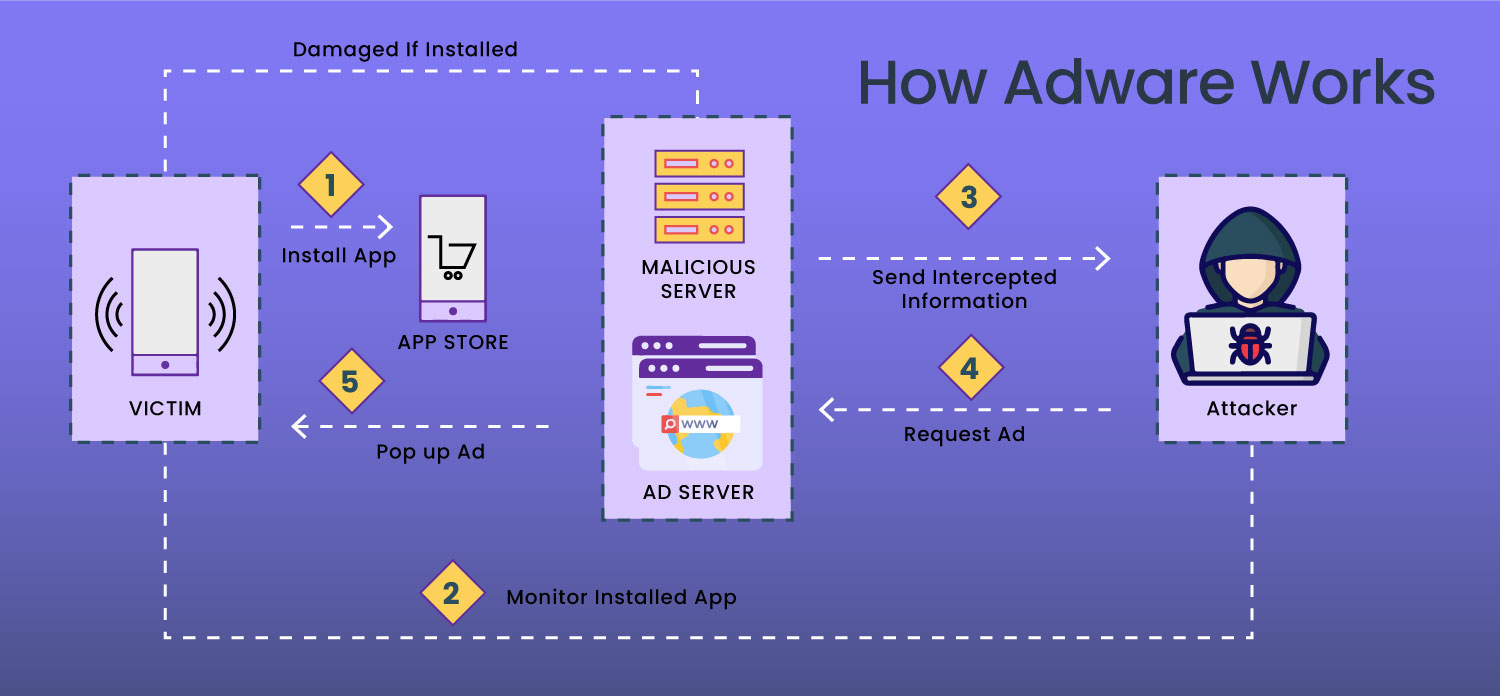
Beyond displaying intrusive ads, adware often tracks browsing activity, collecting data on search history and location. Some developers sell this information to third parties, which raises privacy concerns. While some adware is merely irritating, others redirect users to malicious sites, posing serious security threats.
Types of Adware
Adware comes in various forms, ranging from mildly intrusive to outright malicious. While some types serve legitimate purposes, others pose significant privacy and security risks. Here are the two major types of adware:
- Legitimate Adware
- Potentially Unwanted Applications (PUAs)
Let’s learn about them in more detail:
- Legitimate Adware
Developers often bundle legitimate adware with free software as a way to generate revenue. This type of adware displays advertisements but does not aim to harm users or steal data. Some applications use ad-supported models to offer free services while showing promotional content. Common examples include software that provides real discount deals, product activation prompts, or user notifications.
- Potentially Unwanted Applications (PUAs)
PUAs, also known as potentially unwanted programs (PUPs), install discreetly when users download other software. While some PUAs offer minor functionality, they primarily serve as unwanted bloatware, slowing down devices and compromising user experience. PUAs can be categorized into three main types:
- Legal Abusive Adware: This form of adware bombards users with excessive ads but does not contain malware. It typically appears as pop-ups, browser extensions, or embedded ads within certain websites. While being legal, it disrupts browsing experiences and can significantly slow down system performance.
- Legal Deceptive Adware: Unlike abusive adware, deceptive adware makes it difficult for users to uninstall the software or opt out of advertisements. It often manipulates users into clicking on misleading links or continuously reinstalling itself after removal. While this practice is deceptive, it remains within legal boundaries.
- Illegal Malicious Adware: This is the most dangerous type of adware, designed to distribute malware. It can disguise itself as a legitimate program, hiding harmful scripts within advertisements. Once installed, it may steal sensitive information, redirect users to malicious websites, or expose devices to further cyber threats. Since it actively spreads malware, it is illegal in many jurisdictions.
Understanding these types of adware is essential to identifying and avoiding potential threats. While some adware is simply an annoyance, others can seriously impact privacy and cybersecurity.
Now, learn what adware can do to your device.
What are the Dangers of Adware?
Adware might seem like a minor annoyance, but it can lead to serious security and performance issues. Some types of adware do more than just display ads. They can spy on your activities, slow down your device, or even expose you to cyber threats. Here are the key dangers of adware:
- Endless Pop-Ups and Intrusive Ads
Adware constantly bombards your screen with pop-ups, banner ads, and redirects. In many cases, closing one ad triggers another, making browsing difficult and frustrating. Some aggressive adware even hijacks your browser, opening multiple tabs filled with advertisements.
- Tracking and Spying on Your Activity
Some adware functions like spyware, monitoring your browsing history, search queries, and online behavior. It collects data to deliver targeted ads, but the risks don’t stop there. Developers can sell this information to third parties, compromising your privacy and security.
- Man-in-the-Middle (MitM) Attacks
Certain types of adware, like Superfish, intercept internet traffic to inject advertisements. This process involves redirecting traffic through the attacker’s system, potentially exposing sensitive data like login credentials and financial details. Even encrypted connections may not be safe from these attacks.
- Slowing Down Your Device
Adware consumes system resources by running multiple advertisements and background processes. This can cause noticeable slowdowns, lagging applications, and frequent crashes. Devices infected with adware often struggle with performance issues, affecting both browsing speed and overall usability.
- Consuming Excessive Data
Adware continuously downloads and displays advertisements, using up internet bandwidth and mobile data. On smartphones, this can lead to increased data charges and reduced browsing speeds. If you notice unusually high data consumption, adware might be the culprit.
Adware is more than just an inconvenience—it can harm your privacy, weaken your security, and degrade your device’s performance. Identifying and removing adware quickly can help prevent these risks.
How to Identify Adware Infection
Adware infections often reveal themselves through persistent and disruptive ads. While some advertisements come from legitimate free software, true adware floods your screen with excessive pop-ups, banners, and redirects. Recognizing the warning signs early can help prevent further damage.
If you wonder, “How do I know if I have adware?” Check out the following signs of potential adware:
Signs of Adware on Computers
If your computer is infected with adware, you may notice:
- Unwanted Browser Changes: Your homepage, search engine, or default settings change without your permission.
- Frequent Pop-Ups and Ads: Ads appear even when you’re not browsing the internet.
- Slow Performance: Your computer lags, freezes, or crashes unexpectedly.
- Unusual Internet Activity: Searches get redirected to unknown websites, or pages fail to load properly.
- New Toolbars or Extensions: Unfamiliar browser add-ons suddenly appear.
- Reduced Internet Speed: Web browsing and downloads become noticeably slower.
Signs of Adware on Mobile Devices
Adware can also affect smartphones and tablets. If your mobile device has caught adware, you might experience:
- Frequent Ads: Pop-ups appear even outside of apps.
- Slow App Performance: Apps take longer to load and sometimes crash.
- Unexplained Battery Drain: Background ad processes consume system resources.
- Unfamiliar Apps: You notice apps you don’t remember installing.
- Excessive Data Usage: Your phone consumes more data than usual, leading to higher bills.
Hidden and Malicious Mobile Adware
Some mobile apps, especially in categories like gaming and entertainment, disguise adware. They might initially seem harmless but later display aggressive ads or even conduct fraudulent activities in the background. More dangerous forms of adware can:
- Run Hidden Click Fraud: Apps click on ads in the background to generate revenue.
- Sign You Up for Paid Services: Some adware subscribes users to premium services without consent.
- Install Additional Malware: Certain adware can download and execute harmful files.
Adware infections range from mild annoyances to severe security threats. Identifying and removing them early helps prevent performance issues, privacy risks, and potential financial loss.
How to Remove Adware From Your Device
As of now, we understand that adware can slow down your system, flood your screen with pop-ups, and even compromise your security. Removing it promptly helps restore your device’s performance and protects your privacy.
Follow these steps to eliminate adware from your Windows, Mac, or mobile device.
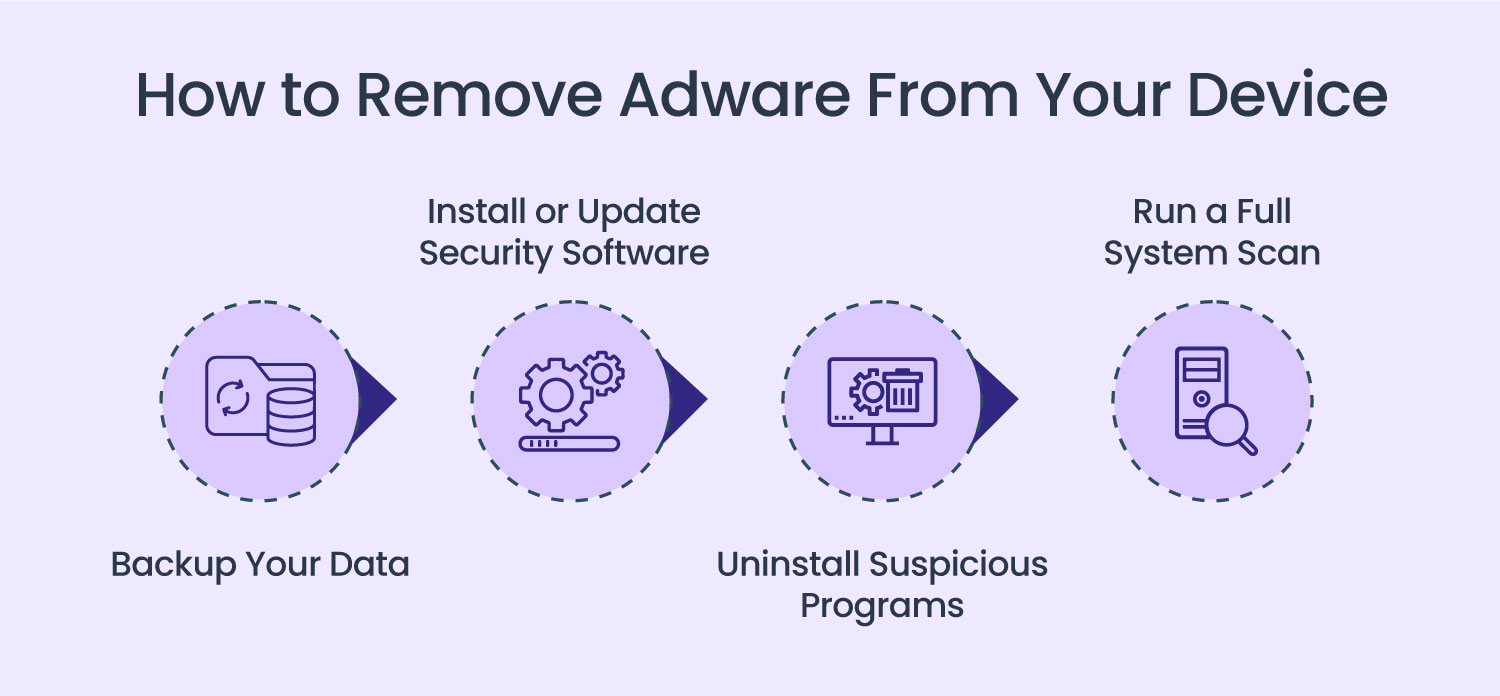
Step 1: Backup Your Data
Before removing adware, create a backup of your essential files. Copy important data to an external hard drive, USB stick, or cloud storage. This step prevents accidental data loss in case the removal process affects system files or personal documents.
Step 2: Install or Update Security Software
Use a trusted anti-adware or anti-malware tool to detect and remove adware. If you already have security software, update it to the latest version before running a scan. If your device is too infected to download a new program, use another computer to download the software and transfer it via an external storage device.
Step 3: Uninstall Suspicious Programs
Adware often hides in programs that were installed unintentionally. Go through your installed applications and remove any unknown or unnecessary software:
- Windows: Open the Control Panel, go to “Programs and Features,” and uninstall suspicious apps.
- Mac: Open “Finder,” go to “Applications,” and drag any questionable programs to the Trash.
- Mobile Devices: Check your app list for unfamiliar apps and uninstall them.
Restart your device after removing unwanted programs to prevent adware from running in the background.
Step 4: Run a Full System Scan
Use your security software to run a full scan on your device. The tool will identify and isolate adware, PUAs, and other hidden threats. Once detected, permanently remove the adware instead of just disabling it, as some adware can reinstall itself.
Following these steps will help you remove adware and prevent future infections. Regular system scans and cautious software installations can keep your device adware-free.
Best Practices to Prevent Adware in the Future
Adware can disrupt your browsing experience, slow down your device, and even compromise your privacy. Preventing it is the best approach, as new forms of adware constantly emerge. By following these best practices, you can reduce the risk of adware infections and keep your system running smoothly.
- Maintain Strong Digital Hygiene
Practicing good digital habits is crucial for keeping your device safe. Avoid downloading unknown software, regularly clean up unnecessary files, and use security tools to monitor threats. Keep your passwords strong and update them frequently to reduce the risk of unauthorized access.
- Keep Software and Operating Systems Updated
Outdated software can contain security vulnerabilities that cybercriminals exploit to install adware and other malware. Regularly update your operating system, applications, and browser plugins to patch security flaws. Many software providers release updates to fix these vulnerabilities, so staying current reduces your exposure to risks.
- Be Cautious When Browsing and Downloading
Treat unfamiliar websites, links, and downloads as potential threats. Hackers disguise malicious content as legitimate software, tempting users with free downloads or enticing ads. Before downloading a file or clicking a link, verify its source and check for user reviews to confirm its legitimacy.
- Read Installation Prompts Carefully
Many adware programs get installed because users rush through software installations without reviewing the terms. Pay attention to the installation process and uncheck any pre-selected boxes that authorize additional software. Avoid downloading applications bundled with extra programs that you didn’t intend to install.
- Avoid Freeware from Untrusted Sources
Pirated software and unofficial downloads often come with hidden threats, including adware. If an offer seems too good to be true, it probably is. Stick to reputable sources such as official app stores and verified websites to minimize the risk of downloading infected software.
- Watch for Fake Ads and Pop-Ups
Some ads trick users into clicking malicious links by mimicking close buttons or displaying urgent warnings. Be cautious of unexpected pop-ups, flashy advertisements, and deceptive download prompts. If a site bombards you with excessive ads, close it and avoid engaging with its content.
- Monitor Your Bank Statements
Adware can lead to unauthorized charges by subscribing users to premium services without their consent. Regularly check your bank and credit card statements for unexpected charges. If you notice any suspicious transactions, investigate and take immediate action to stop unwanted payments.
To Sum It Up
Adware may seem like a minor nuisance, but its impact on privacy, security, and device performance can be severe. It floods your screen with intrusive ads, slows down your system, and even tracks your online activities. The best way to protect yourself is through proactive measures.
Here’s a quick recap of how to stay safe from adware:
- Install reputable security software and keep it updated.
- Avoid downloading software from untrusted sources.
- Read installation prompts carefully to prevent unwanted programs.
- Keep your operating system and applications updated.
- Be cautious of fake ads, pop-ups, and suspicious links.
By staying vigilant and taking precautionary measures, you can minimize the risk of adware infections and keep your devices secure.
While you clean for Adware, don’t forget to protect your website with Password Protected.