

Have you ever wanted to hide parts of your WordPress site from public view? Whether you’re building a client preview, running a private blog, or managing premium content.
You have two popular options: Password Protection plugins vs Membership plugins.
At first glance, they might seem to do the same thing—keep content hidden until the right people can see it. However, under the hood, these tools are designed for different purposes, and selecting the wrong one can lead to headaches, broken workflows, or suboptimal user experiences.
In this guide, we will break down both approaches, compare their impact on WordPress post visibility, and help you determine which one best suits your site.
Let’s get started.
What is Password Protection in WordPress?
Password protection in WordPress is one of the simplest ways to hide content from the public. At its core, it works by placing a password gate in front of a post, page, or even your entire website.
Visitors can only view the content after entering the correct password. No need for accounts, no logins—just a single password field and an enter button.
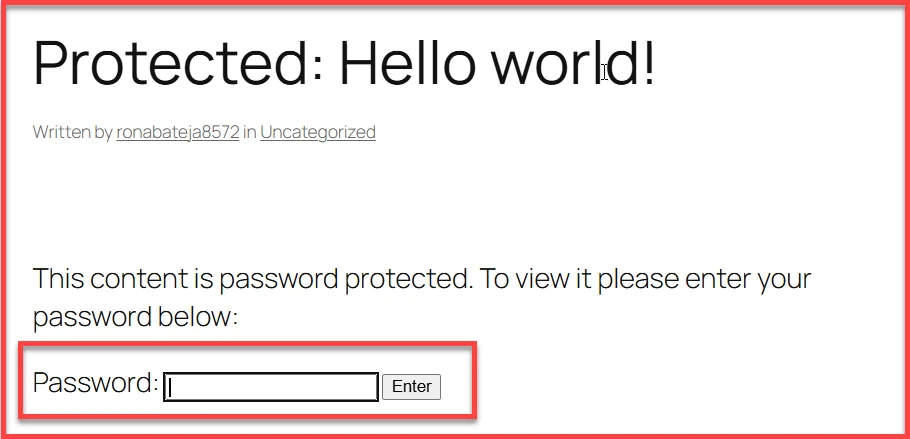
In WordPress, there are two ways to password protect your content:
- WordPress Built-In Feature
- Password Protection Plugins
Let’s discuss both in detail:
#1: Built-in WordPress Password Protection
WordPress actually offers a native password protection feature out of the box. When you edit any post or page, you can change its visibility setting to “Password Protected” and assign a password. It’s fast and doesn’t require any additional plugins.
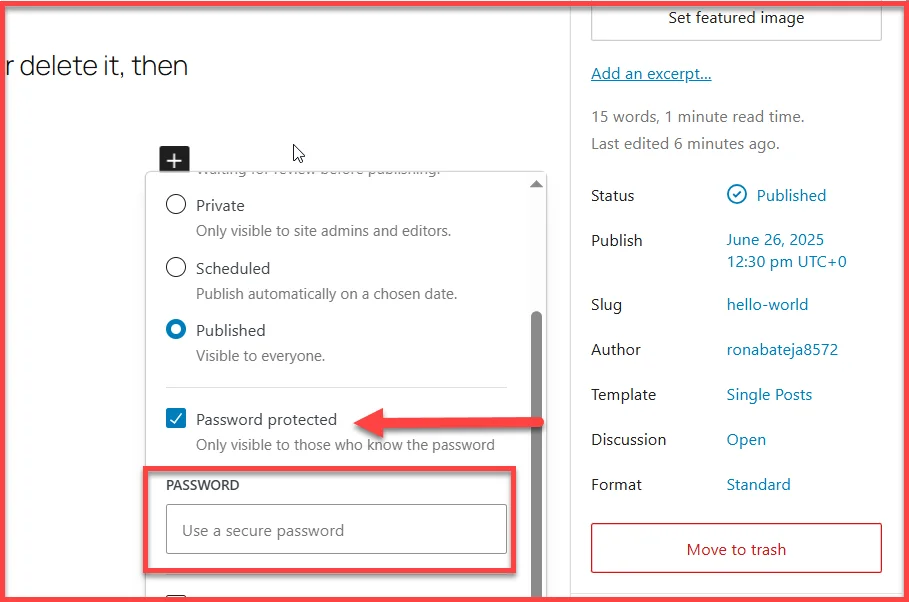
But while this works in a pinch, it’s quite limited:
- You can only assign one password per post
- There’s no way to manage who has access
- It doesn’t scale well for complex sites
#2: Plugin-Based Password Protection
If you want more control over your password protected content, then you have to use a password protection plugin. There are many plugins available for password protection. But, Password Protected by WPExperts is the best plugin for WordPress content protection, as over 300,000 WordPress users utilize it daily to password-protect their content.
This plugin takes the basic idea and levels it up. Instead of protecting individual posts manually, you can lock down your entire site with a global password. This is ideal for development sites, client previews, or content that isn’t yet ready for public viewing.
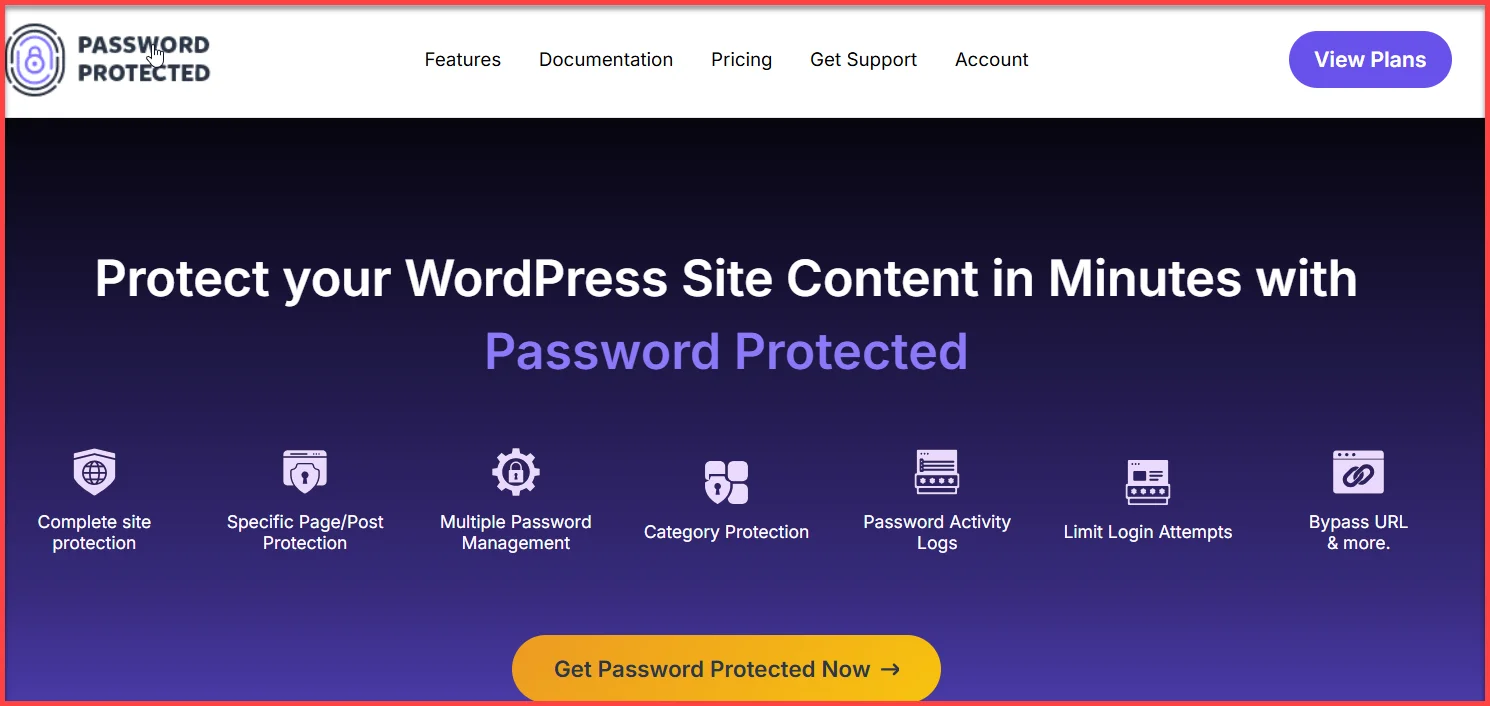
If you want even more flexibility, Password Protected Pro adds serious power:
- Set multiple passwords per page/post/category
- Protect WooCommerce products and product tags
- Add password expiry timers
- Allow access via one-click bypass links
- Let visitors request access via email
- And more….
In other words, it gives you password protection that actually works at scale, without needing users to create accounts.
When Should You Use Password Protection?
Password protection is ideal when:
- You want to share something with a small group of people
- You don’t want the hassle of user accounts
- You’re working with temporary or time-sensitive content
- You’re building a portfolio, staging site, or private WooCommerce shop page
You get fast control over who can see what, without dealing with complex roles, login forms, or membership tiers.
What Are Membership Plugins?
Membership plugins turn your WordPress site into a gated community. Instead of sharing a password with your visitors, you create user accounts, assign roles, and control access to specific content based on membership levels.
It’s a deeper, more structured way to manage visibility, and it’s especially powerful for sites that offer premium content, courses, subscriptions, or paid communities.
How They Work
At the core of every membership plugin is the idea of user registration and content access rules. Here’s what you can typically do:
- Restrict pages, posts, or entire categories based on user role or membership plan
- Offer free or paid memberships
- Create subscription tiers (e.g., Silver, Gold, VIP)
- Accept payments via Stripe, PayPal, or other gateways
- Offer drip content that unlocks over time
- Track user activity and manage renewals or cancellations
Unlike built-in WordPress password protection (which is usually a one-password-for-all approach), membership systems let you assign access on a per-user basis.
Popular Membership Plugins
There’s no shortage of powerful options here. Some of the most widely used include:
- MemberPress: Known for its all-in-one setup and deep integration with payment gateways.
- Restrict Content Pro: Lightweight and developer-friendly, great for simple use cases.
- Paid Memberships Pro: Flexible and scalable for larger communities.
- WooCommerce Memberships: Perfect if you’re already running an online store.
Each of these plugins lets you build a structure around your content. Offering control over who can access your content and for how long.
When to Use a Membership Plugin
Your content strategy can benefit from a membership plugin when it involves:
- Recurring access to premium content
- User-specific content visibility
- Offering courses, digital products, or community access
- Handling payments, subscriptions, and renewals
Membership plugins are built for long-term content control, especially if monetization is part of your plan.
Key Differences Between Password Protection and Membership Plugins
Both password protection and membership plugins help you control access to your content, but they approach the problem from completely different angles. One is about speed and simplicity, the other is about structure and scalability.
Here’s a breakdown of how they compare:
| Feature | Password Protection | Membership Plugin |
| Setup Time | Setup is quick, just enter a password | Setup is longer and requires setting up user roles, plans, and possibly payments |
| User Accounts | Not required | Required for access control |
| Multiple Access Levels | Not built-in (unless using a separate plugin) | It is a core feature and can segment by plan, role, or tier |
| Content Control | Password on individual post/page or whole site | Rules-based access to content categories, post types, tags, etc. |
| Payment Integration | No | Built-in support for Stripe, PayPal, etc. |
| Content Dripping | Not available | Often included |
| Bypass Link Sharing | Available in Password Protected Pro | Not typically available (though some offer invite URLs) |
| Best For | Temporary locks, previews, quick access | Premium content, communities, user-specific access |
How Each Affects WordPress Post Visibility (SEO + UX)
Controlling access is important, but what about its impact on your site’s visibility, particularly in search engines? If you’re hiding content, will Google still find it? And how do these tools affect the user experience?
Let’s look at how password protection and membership plugins compare in terms of SEO and usability.
Search Engine Visibility (SEO)
- Password Protection
By default, password-protected posts in WordPress are visible in your sitemap and can even appear in search engine results. But search engines can’t crawl the protected content. That means:
- The title and meta description might show up
- The content itself remains hidden
- You miss out on ranking opportunities for the actual body content
Some password protection plugins (like Password Protected) block search engine indexing entirely by adding ‘noindex,nofollow’ meta tag in the header of the protected post or page. This is useful for private content, but it also makes it invisible to Google, which can hurt discoverability if you’re hoping to drive traffic.
- Membership Plugins
Membership plugins give you more control over visibility. You can choose to:
- Show a teaser or excerpt to search engines
- Display a custom message to logged-out users
- Hide entire post types or taxonomies from public view
More importantly, many membership plugins allow you to decide what gets indexed and what remains private. This gives you the flexibility to maintain your SEO presence while still protecting sensitive or premium content.
User Experience (UX)
- Password Protection UX
It’s simple: users hit a locked screen, enter a password, and they’re in. No need to register, confirm an email, or remember login credentials.
But there are drawbacks:
- One shared password means zero personalization
- No way to track individual users
- If the user closes the tab, they may have to re-enter the password
Plugins like Password Protected Pro improve this flow by:
- Letting users request access directly from the lock screen
- Supporting auto-expiry for time-sensitive content
- Unique password for each user, etc.
Still, it’s best suited for quick access, not long-term engagement.
- Membership UX
Membership plugins offer a richer (but more complex) experience:
- Users sign up, log in, and can access their own dashboards or content libraries
- You can show/hide content based on membership plans or progress (in the case of courses)
- You can personalize greetings, track user behavior, and build deeper relationships
Of course, it comes with overhead:
- More setup time
- Potential login issues
- Higher drop-off if the process isn’t smooth
But for sites that rely on recurring visits or payments, this tradeoff is usually worth it.
Summary: SEO + UX Considerations
| Factor | Password Protection | Membership Plugin |
| Indexed by Google? | Title/URL only (content hidden) | Configurable |
| Ideal for SEO? | No (limited control) | Yes (more flexibility) |
| Quick Access? | Yes | No (requires login) |
| Personalized Experience? | No | Yes |
| Good for Repeat Visitors? | Not really | Absolutely |
So, if SEO and long-term UX are top priorities, membership plugins have the upper hand. But if you just need a short-term lock on content and don’t care about rankings, password protection will do the job without the complexity.
Which Option Should You Choose?
At this point, you’ve seen how password protection and membership plugins stack up. But which one’s right for your site?
Here’s a practical way to determine this based on your goals, content type, and the level of control you want over users and visibility.
Choose Password Protection If…
- You want to hide content quickly without setting up user accounts
- You’re sharing a preview, draft, or staging site
- You’re running a private event or project with limited access
- You don’t need advanced SEO indexing or membership features
- You just want one (or a few) passwords to access specific content
Recommended Tool:
Password Protected Pro — It extends the basic password gate with features like:
- Multiple passwords per page/post
- One-click bypass links
- Password expiry timers
- Request access forms
- Email-based reactivation links
This plugin provides lightweight control without transforming your site into a full-blown membership system.
Choose a Membership Plugin If…
- You plan to restrict access based on user roles or subscription levels
- You want users to log in and manage their own access
- You’re offering digital products, premium content, or courses
- You want recurring payments or drip content functionality
- You need deeper SEO and UX customization
Recommended Tools:
- MemberPress: Best all-rounder for most use cases
- Restrict Content Pro: Clean and lightweight option
- Paid Memberships Pro: Great for scaling up
- WooCommerce Memberships: Ideal for product-based sites
These tools offer user registration, detailed access control, content segmentation, and payment integration—all the pieces you need to build a true membership experience.
Final Thoughts: Password Protection or Membership Plugin?
Choosing between password protection and a membership plugin isn’t about which one is better overall — it’s about which one fits your content goals, user needs, and workflow preferences.
If you’re just trying to keep things simple, consider sharing a draft with a client or locking down a few sensitive pages; password protection is fast, clean, and effective. And if you go with Password Protected Pro, you’ll still get advanced features like password expiry, bypass links, and request access forms, without touching user accounts.
But if you’re building something bigger — a content library, a subscriber-only blog, or a learning platform — then a membership plugin is what you need. It gives you control over user access, monetization options, and a personalized experience that scales.
Frequently Asked Questions (FAQs)
Can password-protected WordPress pages be indexed by Google?
Technically, yes, the page title and URL can appear in search results. But the content behind the password won’t be visible to search engines. If you want to block indexing completely, you’ll need to use a plugin or update your robots.txt file.
Is a password protection plugin secure enough for sensitive content?
For basic use, yes. It keeps casual visitors out. But if you’re protecting highly sensitive or paid content, membership plugins offer better control, tracking, and security features like user-based access and logged activity.
What’s the difference between password-protected content and private posts in WordPress?
Password-protected posts require a password to view and can be accessed by anyone who has it.
Private posts are only visible to logged-in users with editor or admin privileges. They don’t appear to regular site visitors at all.
Can I use both a password protection plugin and a membership plugin on the same site?
Yes, but it depends on the plugins. Some setups work well together—for example, protecting certain pages with passwords while running a membership system for others. However, overlapping rules can confuse users, so use this combo carefully.
Will membership plugins slow down my website?
Some can, especially if you’re using lots of add-ons or running a large user base. But most premium membership plugins are optimized for performance. If speed is a concern, choose lightweight plugins like Restrict Content Pro or optimize with caching and CDN support.
What is the best password protection plugin for WordPress?
The best password protection plugin for most WordPress users is Password Protected Pro. It takes the simplicity of the free “Password Protected” plugin and adds powerful features like:
- Multiple passwords per post or page
- Auto-expiry timers for temporary access
- Bypass URLs for one-click entry (no password needed)
- “Request Access” form with email notifications
- Session reactivation from email links
If you’re looking for more control than WordPress’s built-in password feature but don’t want the complexity of a membership system, Password Protected Pro is your best bet.
What is the difference between password protected and private WordPress posts?
These two settings both restrict content, but they behave differently:
- Password Protected: Anyone with the correct password can view the content—no need to log in. You can share the link and password with anyone, like clients or team members.
Private: Only visible to logged-in users with a specific role (usually Editor or Admin). It won’t appear on your blog, search results, or menus to regular visitors, even if they have the link.