


Password protection has always been about controlling who gets in. But real-world use cases are not as simple; sometimes you want visitors to pay or share their details before they get access. Other times, you want to set a redirect by entering a custom URL for every password you create.
Neither was possible inside Password Protected until this release.
That’s why we’re excited to announce our new release, “Password Protected Pro v2.3.0: Gravity Forms Integration and Custom URL Redirects”. Together, it gives you far more control over how visitors unlock your content and where they end up once they do.
Let’s take a look at what you can expect from this release.
What’s Included in This Release?
This release adds Gravity Forms Integration and Custom URL Redirection to Password Protected Pro. Together, they give you more control over how visitors gain access and where they end up afterward.
Here’s a quick breakdown of what’s new in this Password Protected Pro (v2.3.0):
- Gravity Forms Integration
- Custom URL Redirection
Introducing Gravity Forms Integration
Gravity Forms Integration connects Password Protected directly with Gravity Forms, allowing you to turn any form into a password gate, unlock protected content after form submissions or payments, or automatically send users the associated bypass links.
👉 You can enable it from Password Protected → Integrations.
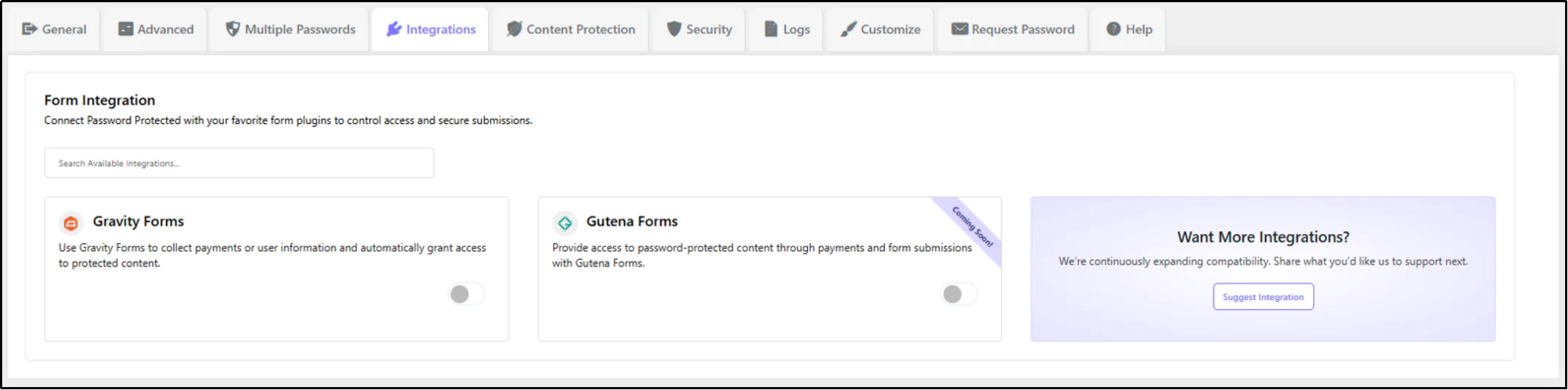
Once turned on, every Gravity Form gets its own Password Protected section inside its form settings, where you can choose how that form should behave:
- Use this form as a central password form → validates a password entered inside the form and unlocks the protected content.
- Generate a bypass Link after submission/payment → generates a secure bypass link once a form is submitted or a payment is completed.
To learn more about Password Protected Gravity Forms Integration, check out our detailed documentation.
Where you’ll use these most:
- Accepting payment through a form
- Gathering visitor details, taking payment, or both before unlocking a protected page
- Private downloads and reports
- Client portals and onboarding flows
- Course or membership access
- VIP or invite-only access delivered by email
Introducing Custom URL Redirects
Previously, redirecting visitors after a successful password entry meant picking a page from a predefined dropdown list. With Custom URL Redirects, you can now also skip the list entirely and enter the custom URL directly, sending visitors to any internal page you choose.
👉 You can find it right when creating or editing a password in the Multiple Passwords section.
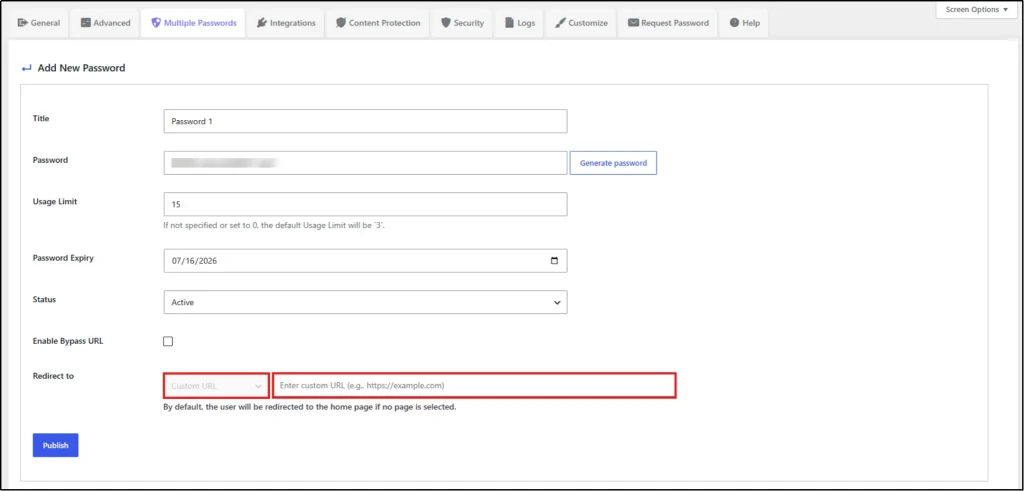
Once “Custom URL” is selected in the “Redirect To” section, an empty box appears right beside it, letting you enter exactly where visitors go after they enter the correct password:
- Select a predefined redirect option → sends visitors to the default destination already available for that password.
- Select Custom URL → reveals a URL field where you can enter any internal page you choose.
Where you’ll use these most:
- Sending different passwords to different landing pages
- Directing members straight to a dashboard or welcome page
- Pointing clients to project specific pages after entry
- Running multiple password-protected campaigns from one site
- Personalizing the protected data type access experience without custom code
Why You’ll Love This Release
Gravity Forms Integration and Custom URL Redirects together let you:
- Turn any Gravity Form into an access-control form.
- Automatically send secure bypass links after a payment or form submission, so paying customers get instant access.
- Collect visitor details, such as name and email, or obtain consent before granting access.
- Send different passwords to different destinations, so each audience lands in the right place.
- Catch broken or mistyped redirect URLs before they go live with built-in validation.
- Build more advanced access flows, like client portals, paid downloads, or campaign pages, all inside WordPress.
Update to Password Protected Pro v2.3.0 Today
If you are an existing Password Protected Pro user, what are you waiting for? Update your Password Protected Pro to v2.3.0 by doing as follows:
Go to your WordPress Dashboard → Plugins → Installed Plugins → Password Protected Pro → Update Now.
If you’re still using the free version, this is a great time to upgrade. Going Pro unlocks Gravity Forms Integration and Custom URL Redirects, along with other Pro features such as:
- Multiple Passwords
- Request Password
- Bypass Links
- Partial Content Protection
- Import/Export Passwords
- Real-Time Customizer
- …and more
👉 Install the free version first, then click the Get Pro tab inside your dashboard to upgrade.
Got Feedback? We’re Listening
We built Gravity Forms Integration and Custom URL Redirects because users like you asked for more control over access flows. Now we want to know if we got it right.
Try them out, then tell us what’s working and what’s still missing.
Thanks for continuing to trust Password Protected Pro with your WordPress content.