




Setting up a single password for a page is straightforward; there are situations where more flexibility is required.
Managing access to content in WordPress often goes beyond the default tools the platform provides.
WordPress offers several options that enhance password functionality, allowing you to control how visitors interact with protected content. However, every option has limitations.
Among these, which one is the most straightforward approach?
This article will walk through the process of adding multiple passwords to a single WordPress page. We will explore two methods: one through .htaccess and the other with a WordPress plugin.
But before that, let’s see the use cases of how and why you can use multiple passwords on a single WordPress page.
Why Use Multiple Passwords on a Single WordPress Page?
There are various scenarios where a single password is insufficient to manage access. Multiple passwords offer added flexibility, allowing for easier control over who sees what without the need for separate pages or complex user roles. Common use cases include:
- Client or Project Access: Agencies or freelancers can assign different passwords to clients while sharing the same project page, ensuring each client has unique access credentials. Clients also feel more secure knowing their password is not shared with others.
- Membership or Course Content: Educators and membership site owners may want different groups of users to access the same page with separate passwords for tracking or management purposes. This also helps in revoking or updating access for one group without disrupting others.
- Internal Team Collaboration: Organizations can distribute different passwords to departments or teams while keeping all shared resources on a single page. This ensures everyone has quick access to the same materials without needing complex user role assignments.
- Managing Temporary Access: If you hire a freelance designer for a short-term project, you can give them a unique password to access project resources. Once the project is done, you can remove their password without having to change the main one.
By setting up multiple passwords, you avoid the hassle of duplicating content and can tailor access more effectively. The flexibility also means you can adjust permissions on the go, without having to restructure your site.
WordPress offers a built-in password protection feature, but it only supports a single password per page or post. This limitation makes it inadequate for scenarios where different groups or individuals need their own credentials. If you want true flexibility, you’ll need to look beyond WordPress’s native option.
2 Easy Ways to Add Multiple Passwords to a Single WordPress Page/Post
The first one is developer-friendly and not a good choice for beginners or those not familiar with coding.
Method 1: Using .htaccess
The .htaccess file is a powerful configuration file used by Apache web servers to manage site-level settings. It can control redirects, restrict access, and secure content with passwords.
Because it operates at the server level, changes made in this file affect how your entire WordPress site functions.
This is a super sensitive file, and one wrong edit can cause your site to go down. Always create a full site backup before making any adjustments. If you’re not comfortable handling server files, it’s better to skip directly to the plugin method we’ll cover next.
To set multiple passwords for posts and pages using .htaccess, you’ll need to create or modify two files in your site’s root directory: .htaccess and .htpasswd.
The .htaccess file will define the rules that restrict access to your chosen page, while the .htpasswd file will store the usernames and passwords. Both files must be placed in the proper directory with the correct permissions to work correctly.
First, access your site’s root directory via FTP or a file manager.
Then create the .htaccess file and add the following snippet—adjust the file paths as needed.
| AuthType BasicAuthName “Restricted Content”AuthUserFile /home/yourusername/.htpasswdRequire valid-user |
AuthUserFile tells Apache where to look for the .htpasswd file.
Please remember that the path must be absolute (not relative), pointing to where you’ll place the .htpasswd file.
This code snippet works for pages, but to protect a specific post, you’d need to adjust the file path. For example, if you want to protect a post with the URL example.com/blog/my-secret-post/, your .htaccess file would look like this:
| <Files “my-secret-post”>AuthType BasicAuthName “Restricted Content”AuthUserFile /home/yourusername/.htpasswdRequire valid-user</Files> |
Again, replace /home/yourusername/.htpasswd with the absolute path to your .htpasswd file.
Next, in a secure, non-public directory, create a file named .htpasswd. Inside, add multiple usernames and passwords like this:
| user1:$apr1$Cz3fT7s.$w12kB3F7szZ6b1T7pNfCuuser2:$apr1$1hB9e2K.$Lh6a3pF9zTnHwX1WnYQqT |
Each line represents a unique username and its encrypted password. You can generate these hashed passwords using an online htpasswd generator or through the command line if you have shell access.
Also Read: What is Password Hashing and Why Is It Important?
Finally, save and test by uploading the files and visiting your protected page. You should now be prompted to enter a username and password. Any valid pair from your .htpasswd file will grant access.
While this method is effective, it can be perceived as technical and risky for beginners. A small mistake in file paths or syntax may lock you out of your site. For this reason, many WordPress users prefer the plugin approach, which achieves the same result with far less complexity.
Let’s explore a better way!
Method 2: Using Password Protected: The Best Security Plugin For WordPress Password Protection
If working with .htaccess feels too technical or risky, the Password Protected plugin offers a simpler way to achieve the same goal with added flexibility.
It allows you to create passwords and assign them to specific users. You can set how many times and for how long the password remains active.
To set up multiple passwords for a single WordPress page, you must install both the free and pro versions of the plugin. Here’s how you can do it:
- Navigate to your WordPress admin dashboard.
- Click the Plugins tab and select Add Plugin.
- Search for Password Protected using the search plugin input box.
- Activate and install the plugin.
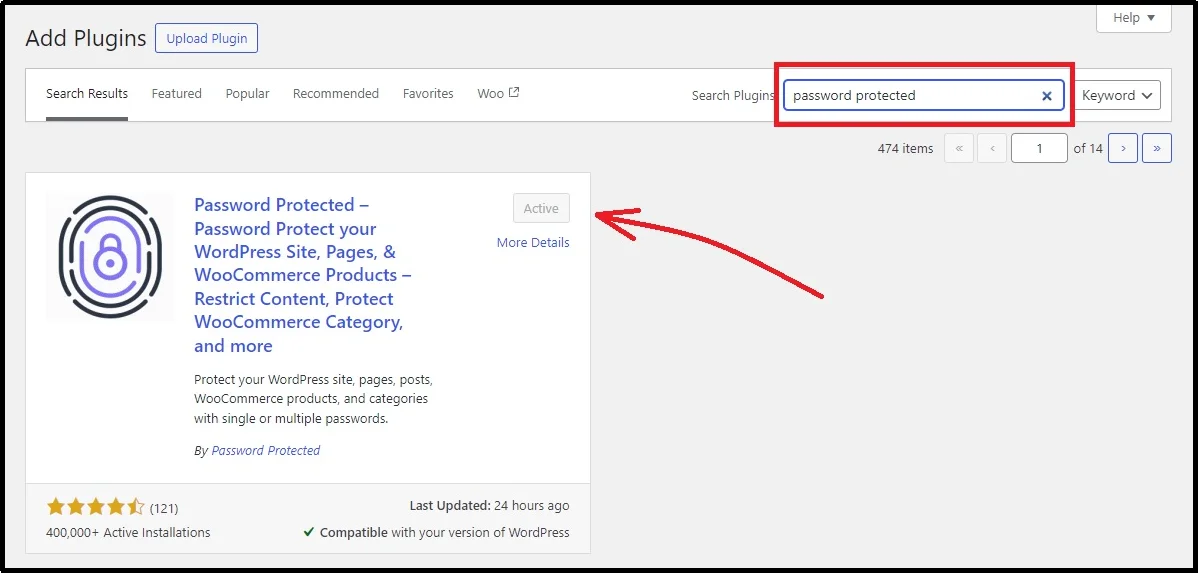
Since the feature we will use is exclusive to the premium version, you must install the premium version as well. For that, navigate to the Password Protected official website and purchase a plan that fits your requirements.
- You will receive a welcome email with the premium plugin’s ZIP file and a license key.
- Install the ZIP file on your device.
- Navigate back to your admin dashboard → Add Plugins → Select Upload Plugin from the top left-hand side.
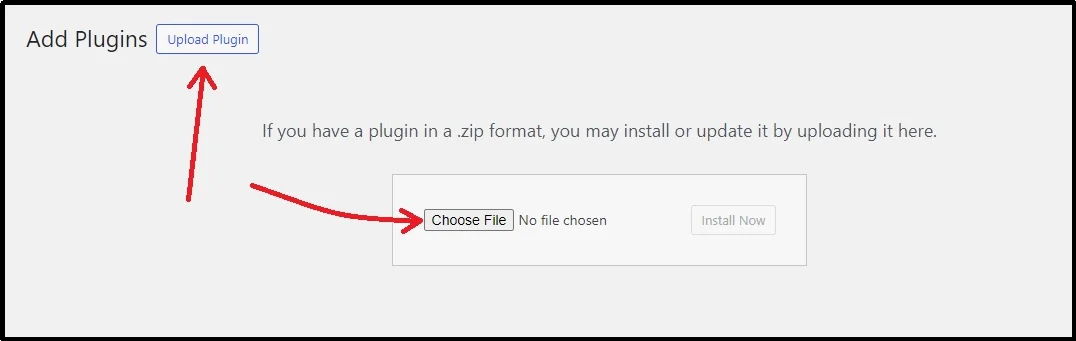
- Browse and select where you installed the plugin.
- Activate and install.
- Enter the license key, and you are good to go with the premium version!
Once you have the premium versions activated, we can proceed with the password protection.
- Navigate to your admin dashboard → Password Protected settings → Content Protection tab → Post Type Protection subtab.
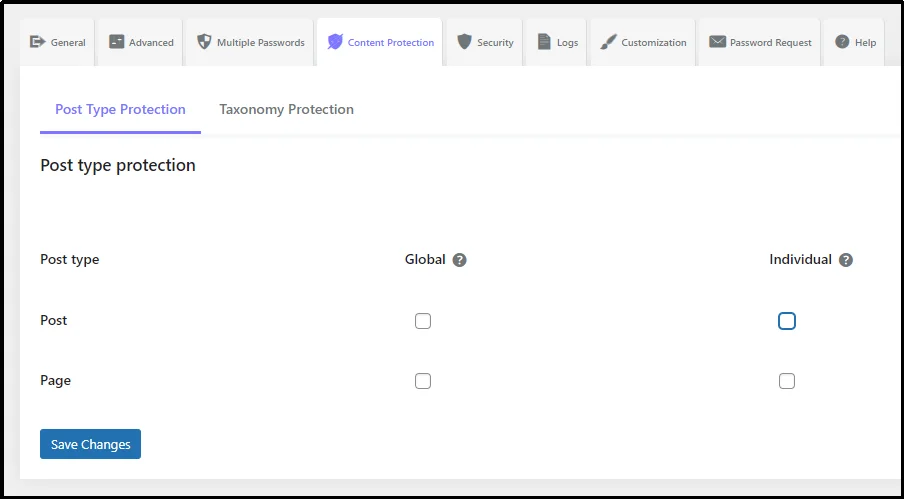
- Select whether you want to protect a page or a post. To add multiple passwords on a single page or post, simply check the respective box in the individual column and save changes. We will go with the page—the process is identical for both.
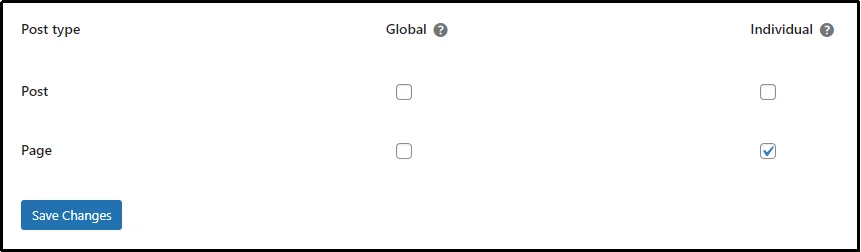
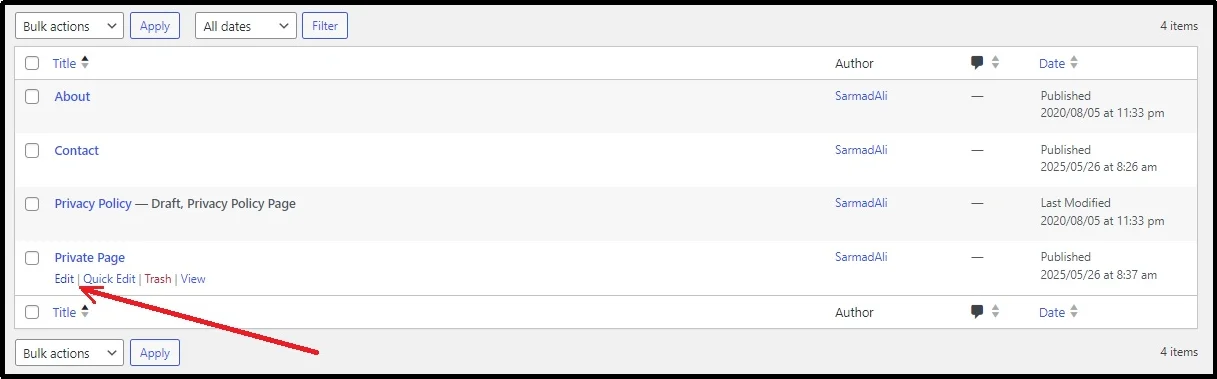
- Afterward, navigate to all pages, and edit the page you want to add multiple passwords to.
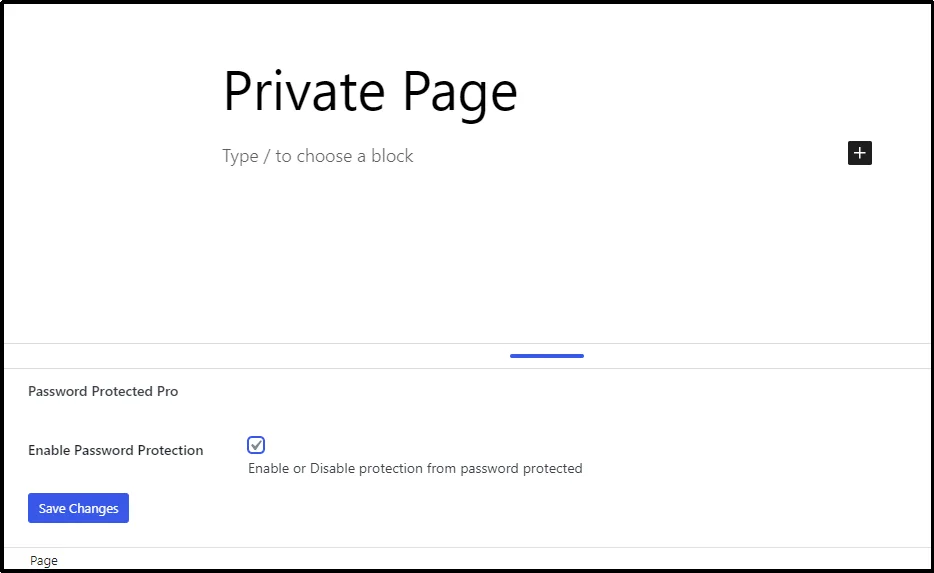
- Scroll down to the plugin’s section and enable Password Protection by checking the Enable Password Protection box at the bottom of the screen.
- You will see further password settings, including password, usage limit (the number of times you want the password to work; the value will be unrestricted if left blank), expiry (a selected date after which the password will be inactive), and status.
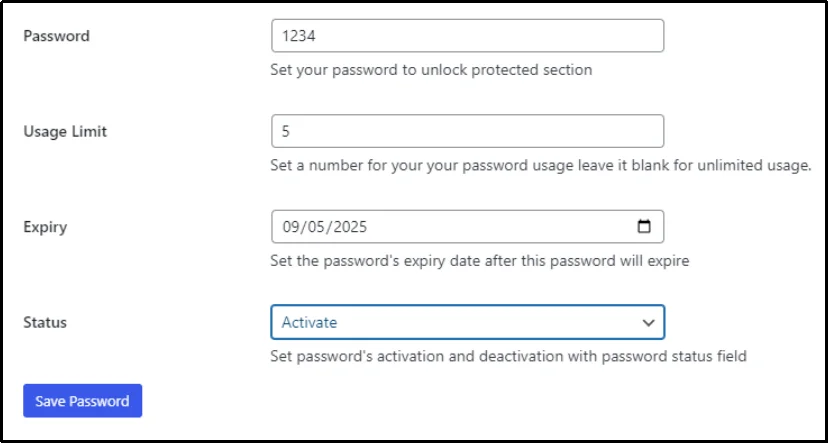
- Set it up according to your requirements and click Save Password.
- Once the password is saved, the input fields will reset, allowing you to set up another password.
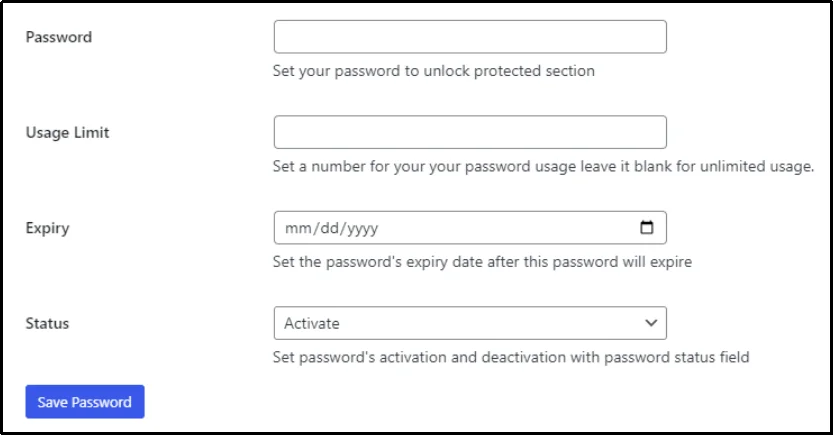
- Repeat the process for multiple passwords.
You can manage passwords by scrolling down to the end of the page.

The process is the same for posts.
Simply check the individual box in the settings, navigate to the post you want to add multiple passwords to, and you should be able to add as many passwords as needed.
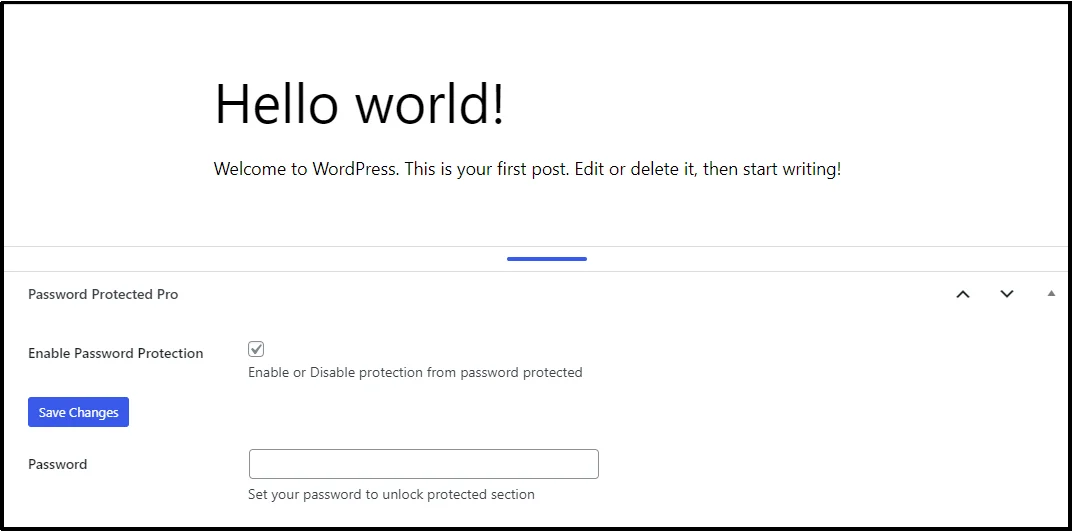
Unlike .htaccess, this approach requires no server-level configuration. Everything is handled through WordPress, making it both safer and more user-friendly. For most site owners, this method is the practical choice because it strikes a balance between security and accessibility while reducing the likelihood of costly errors.
Well, here is a catch: if the user’s password expires, they may struggle to contact you to renew it.
To prevent this inconvenience, you can enable the Request Password feature, which adds a button on the password-protected screen that, upon being pressed, sends a request to the admin.
Visitors who click it will be prompted to enter their email address. This request is then logged in your WordPress dashboard, where you can review, approve, or reject it.
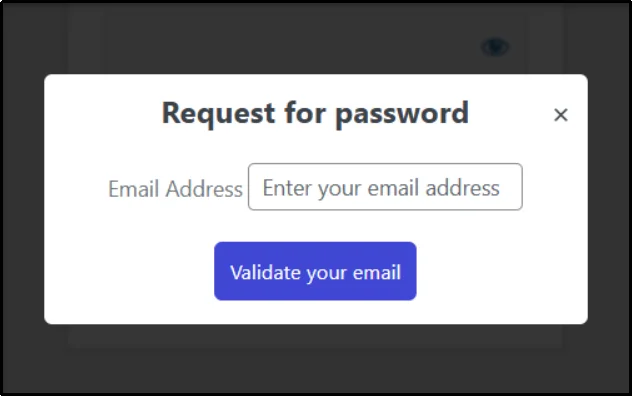
When you approve a request, the plugin automatically generates a unique password and emails it to the visitor.
To enable the feature, navigate to the Password Request tab → Request Password subtab → check the Enable Password Requests checkbox → Configure settings → Finally, save changes.
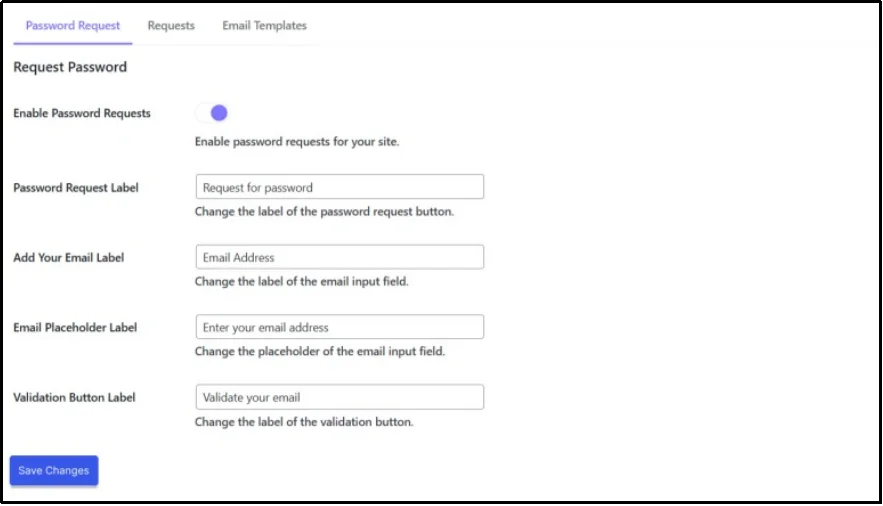
You can also customize the email templates with smart placeholders, ensuring your messages feel professional without requiring manual edits every time from the Email Template subtab.
For detailed documentation, please refer here.
Get Much More With Password Protected Pro!
While the Request Password feature is one of the highlights of Password Protected Pro, it’s far from the only benefit you’ll unlock. The premium version takes WordPress content protection to the next level with advanced tools designed for site owners who want both security and convenience.
Here are a few features of what you will be getting:
- Protect the Admin Area: Secure your WordPress login page (wp-admin) to prevent unauthorized access to your site’s backend.
- Detailed Activity Logs: Gain valuable insights by tracking when passwords were used to access protected content, helping you monitor user activity.
- Password Expiration: Set a time limit for passwords, automatically expiring them after a certain period to enhance security and simplify password management.
- Priority Support and Updates: Get unlimited future updates and 24/7 priority support to ensure your site protection is always up-to-date and reliable.
- And much more: Head to our features page for complete details!
Final Words
Adding multiple passwords to a single WordPress page offers flexibility and better content management. Whether you’re working with clients, running a membership site, or simply sharing resources with different groups, assigning each group its own password is a practical way to maintain control.
We’ve explored two methods in this guide. The first, using .htaccess, is powerful but comes with technical risks. One wrong edit can take your site offline, and managing encrypted passwords manually is not always ideal. It’s a developer-friendly approach, but not the smoothest for everyday WordPress users.
The second method, utilizing the Password Protected plugin’s Request Password feature, provides a modern and user-friendly solution. Instead of hardcoding passwords, you can approve requests directly inside your WordPress dashboard.
If you want the balance of ease, security, and control, the plugin method is by far the better choice. It not only protects your content but also improves the experience for your visitors, ensuring you don’t lose valuable leads, clients, or members. Ready to make password management effortless? Get started with Password Protected Premium today and unlock the Request Password feature and many more to keep your site secure and your visitors engaged.