

If you’ve ever opened your WordPress dashboard or WooCommerce product list and gotten mad by seeing the Uncategorized label, we are in this together. It’s one of the most frustrating elements of WordPress: every post or product without a category automatically gets dumped into the Uncategorized category. This can also confuse visitors and weaken your site’s SEO structure.
As WordPress requires a default category, and WooCommerce inherits this behavior for products, that means you can’t simply delete the uncategorized category in WordPress directly.
In this guide, we’ll walk you through:
- Why Uncategorized exists in the first place
- How to change default category in WordPress
- WooCommerce Product Category Cleanup
- Troubleshooting tips (why uncategorized category keeps appearing in WordPress)
By the end, you’ll have a clean, professional category structure that improves both user experience and SEO.
Why Uncategorized Exists in WordPress & WooCommerce
We collectively agree that the uncategorized category is unappealing, but do we know why it exists? Mostly don’t. To help you understand the real reason, we have broken this down into two parts: WordPress default category and WooCommerce product category, as each has different mechanisms.
WordPress Default Category Explained
WordPress is built around a taxonomy system that organizes content into 2 things: categories and tags. Each post must belong somewhere; that’s why WordPress requires a default category. The default category is set to Uncategorized.
Whenever you publish a post without manually assigning a category, WordPress automatically places it under “Uncategorized.”
Key points to remember:
- Uncategorized is not a bug.
- You cannot delete it until you assign a new default category.
- Changing WordPress default category settings allows you to bypass it entirely
WooCommerce Product Category Behavior
Just like WordPress’s taxonomy system, WooCommerce has extended it to products. Every product must belong to at least one category. Out of the box, WooCommerce inherits the Uncategorized category from WordPress and applies it to products without a category assigned.
This means:
- All new products without a category default to “Uncategorized.”
- You must change default product category in WooCommerce before deleting it
- Bulk editing helps with WooCommerce category cleanup
How to Remove “Uncategorized” in WordPress
Let’s be fair, removing uncategorized category permanently from WordPress and WooCommerce is not possible. You can either change the default category or just rename it.
Before moving forward, let’s install the Password Protected plugin.
To sum it up, you have to head to Password Protected pricing page and purchase any plan of your choice. You will get an email containing a ZIP file and its license. Go to your WordPress dashboard → Plugins → Add Plugin, and then upload the ZIP file. Activate it using the license key, and you are good to go.
Here are the three ways to “remove uncategorized in WordPress”:
Method 1: Change and Delete Uncategorized Category
This is the easiest way to remove Uncategorized category in WordPress:
- Go to Posts → Categories
- Add a New category of your choice.
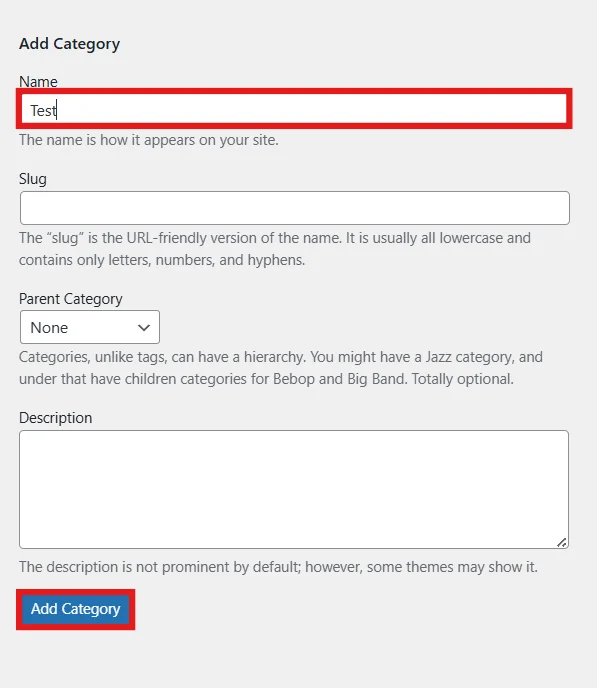
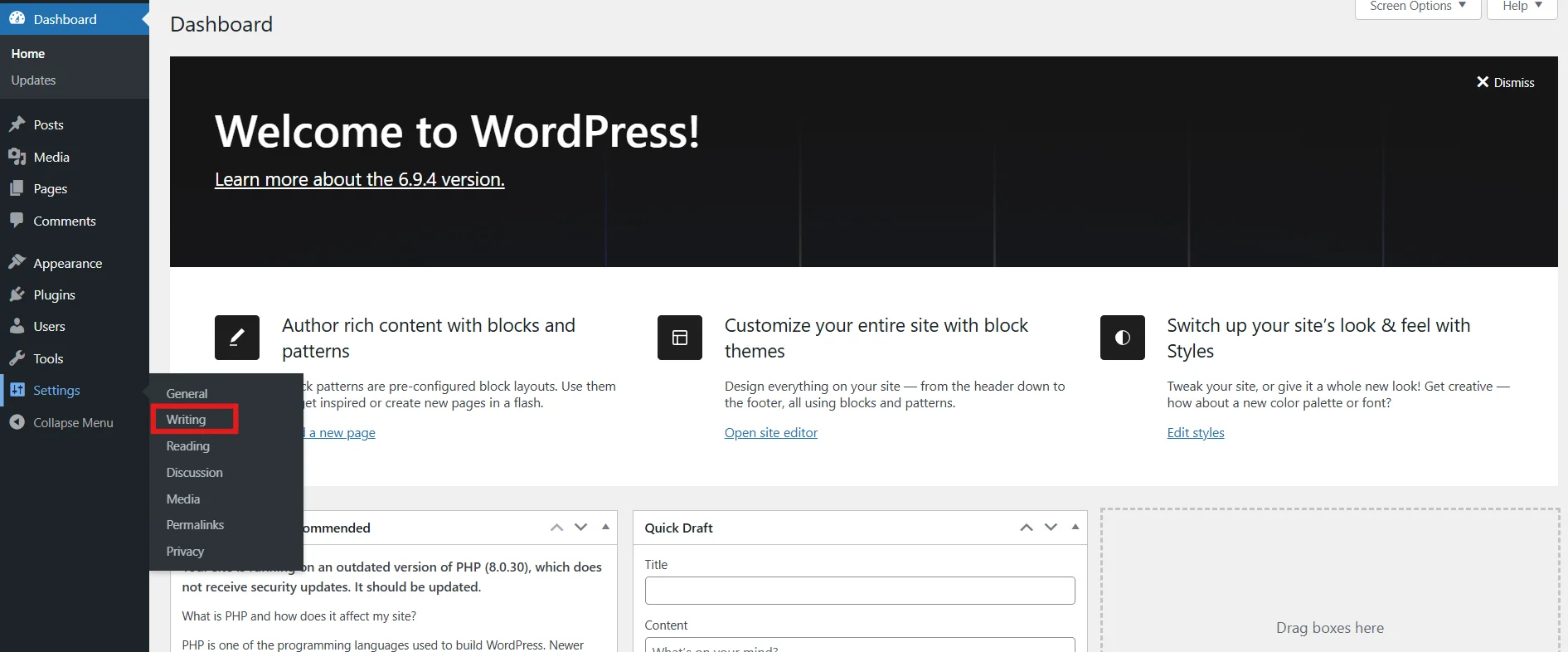
- Now once a new category is added, go to Settings → Writing.
- Change the Default Post Category to your new category.
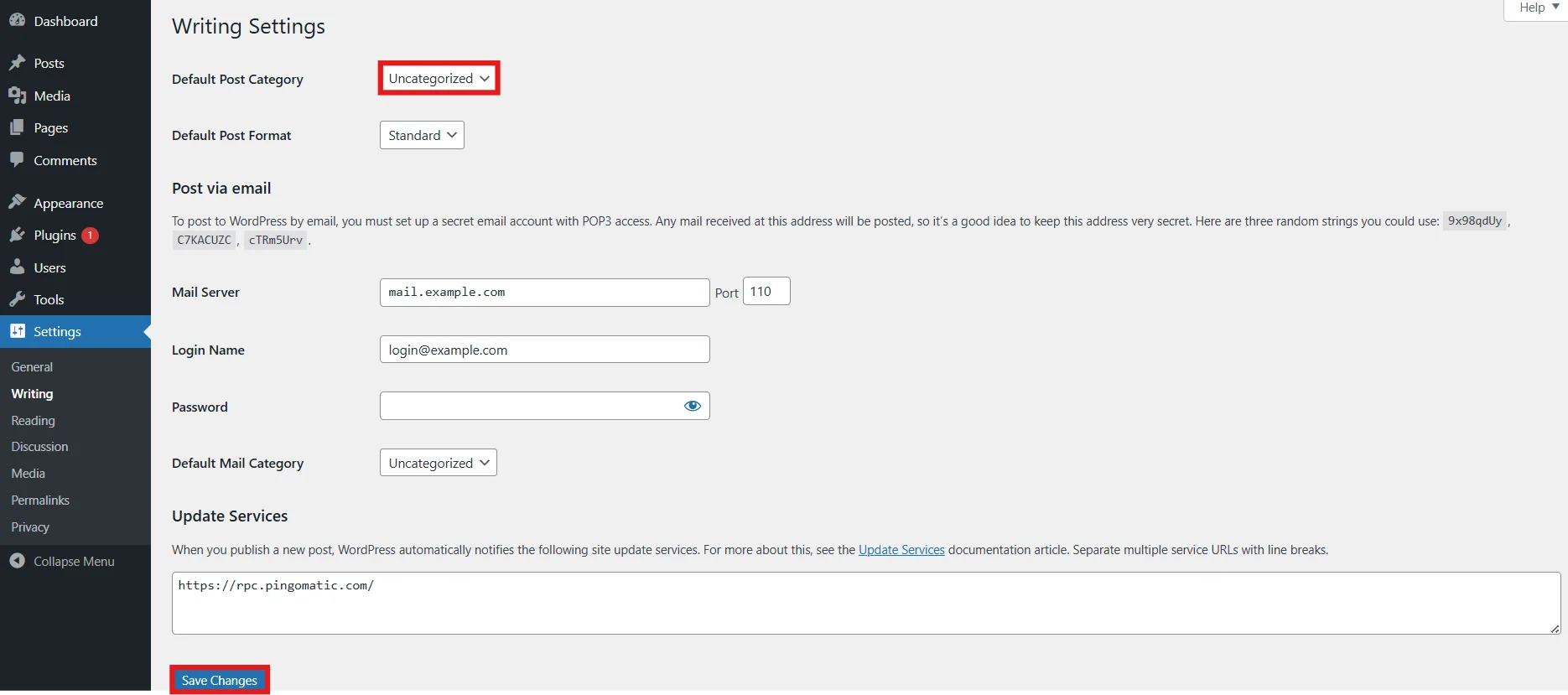
- Click on Save Settings. Then head to Post → Categories.
- Hover on Uncategorized and Click on Delete.
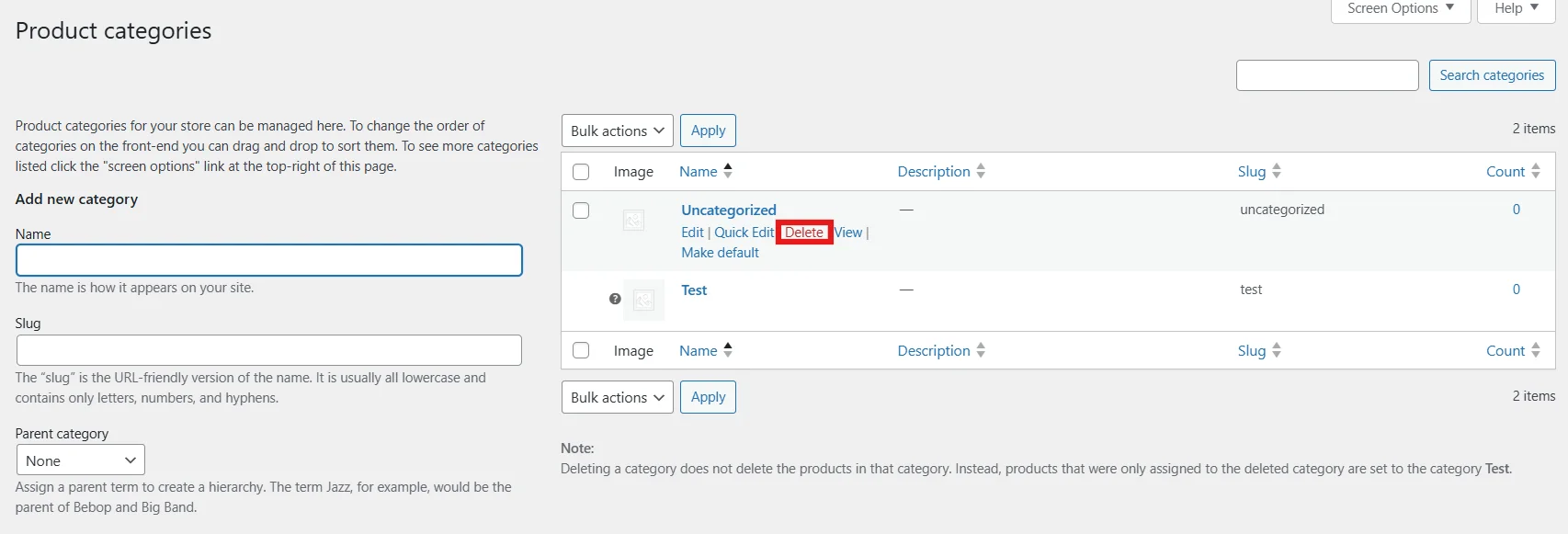
Way to go! You have successfully removed the uncategorized category.
Method 2: Password Protect Uncategorized Category
- Navigate to Password Protected → Content Protection.
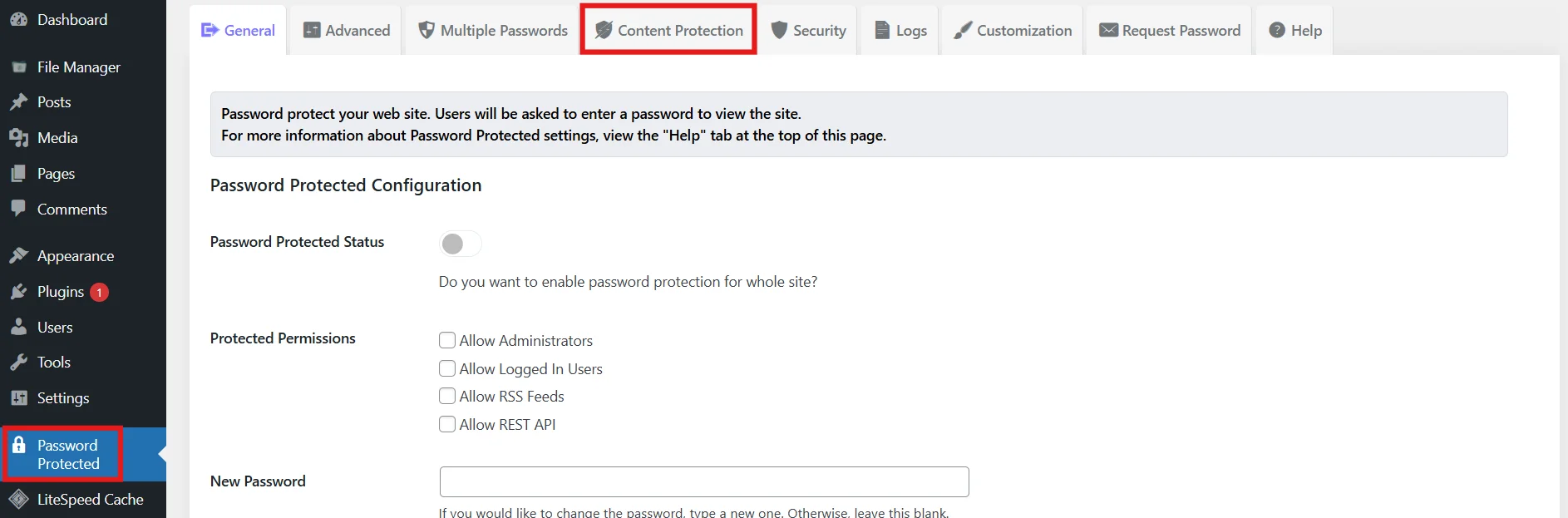
- Click on Taxonomy Protection Tab and enable protection for Categories.
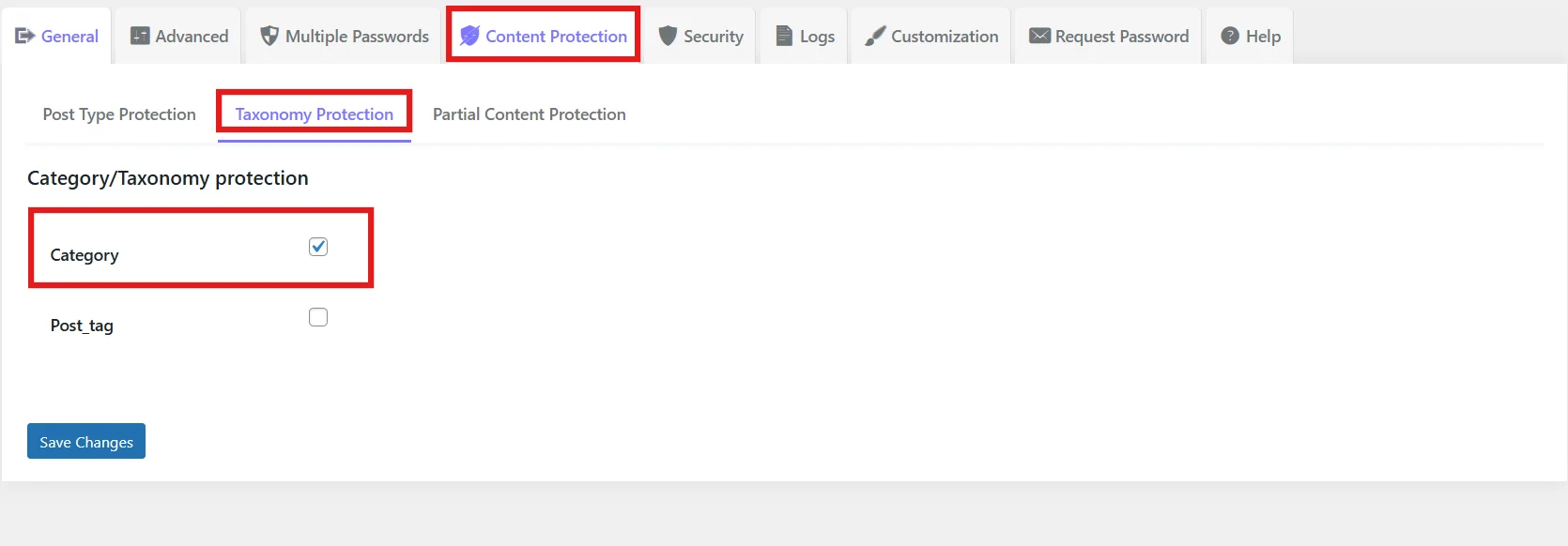
- Click on Save Changes.
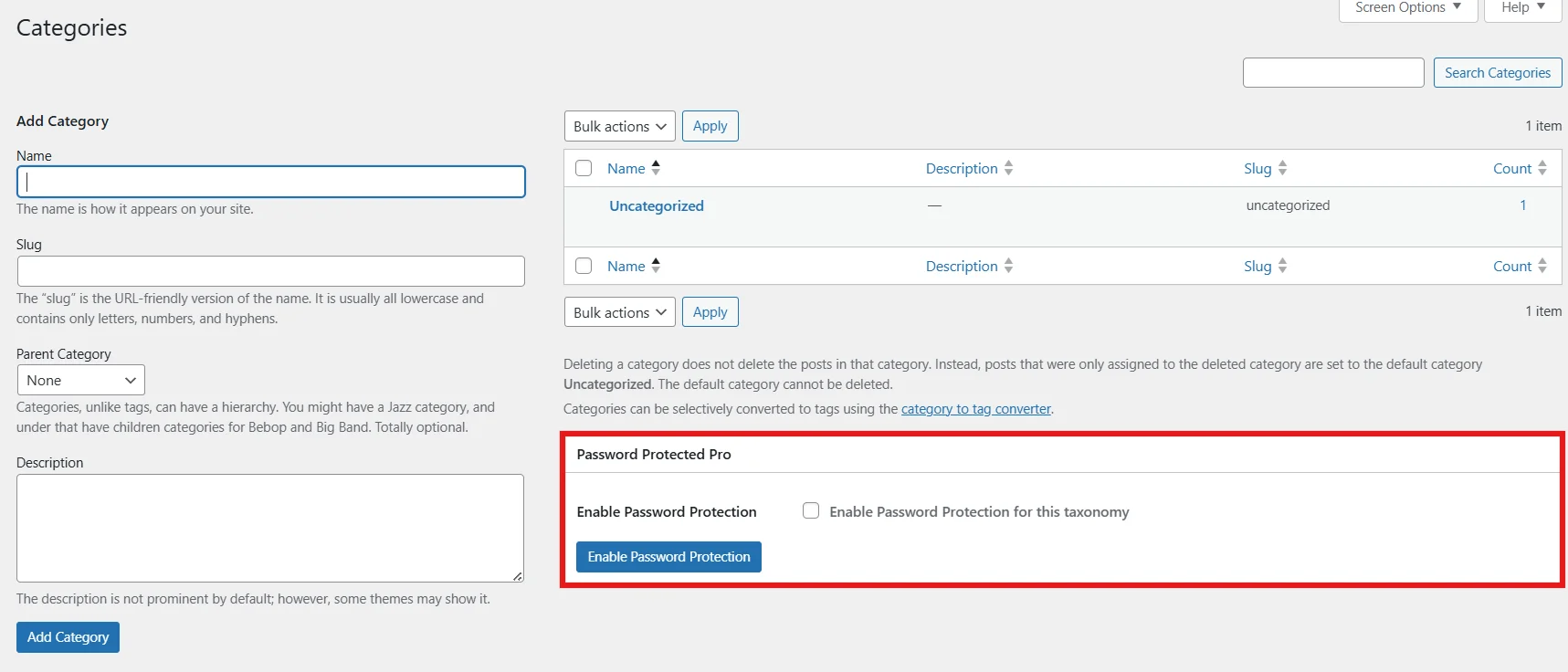
- Now go to Posts → Categories.
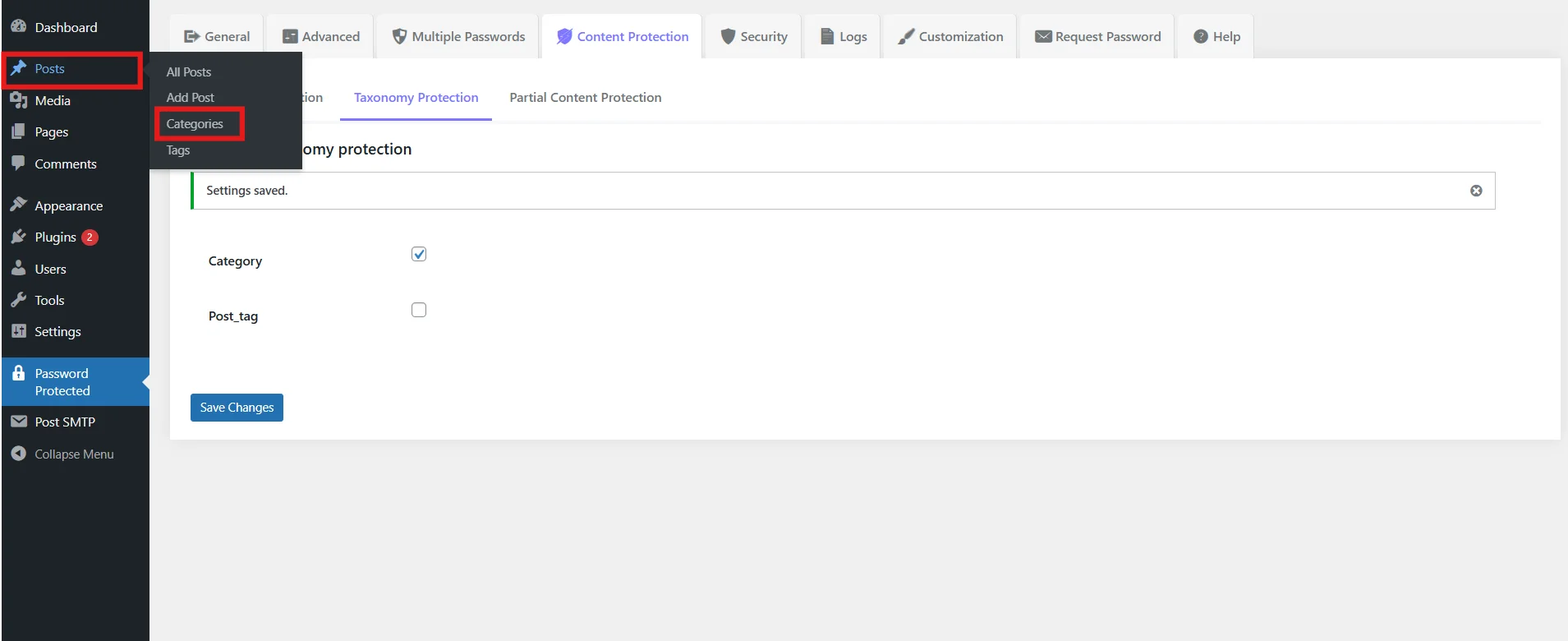
- Click on the Enable Password Protection checkbox and click on the Enable Password Protection button.
- Once enabled, you will see the extended form. Click on Select Category and then select Uncategorized.
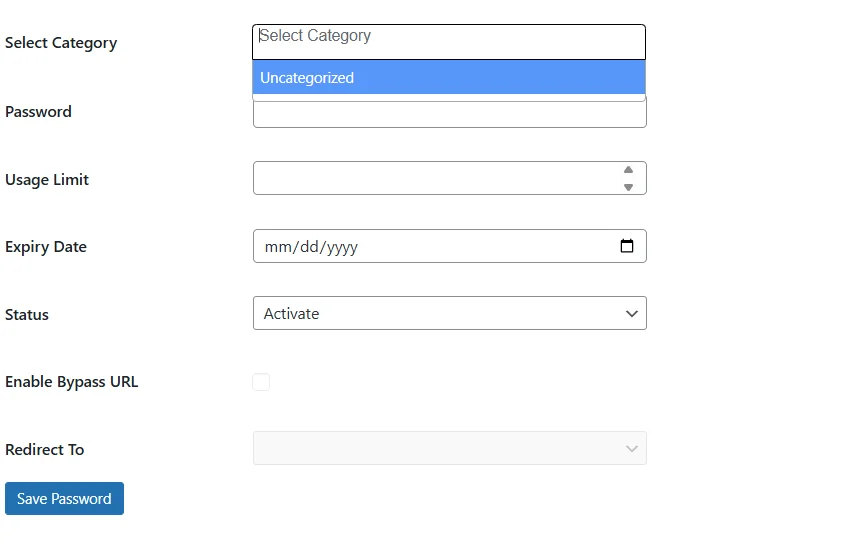
- Now enter a password, set a usage limit and expiry date, choose “Activate” status, and enable the Bypass URL and redirection options (based on your preference).
- Once you have finalized all the inputs, click on Save Password.

Now you are the only one who can access the uncategorized category using this password.
How to Remove “Uncategorized” in WooCommerce
Unlike WordPress, WooCommerce has different steps to “remove” the uncategorized category. What makes WooCommerce completely different is that you have product categories rather than ordinary post categories on WordPress.
Here’s how you can remove the uncategorized category in WooCommerce:
Method 1: Delete Uncategorized Product Category
- Go to Products → Categories.
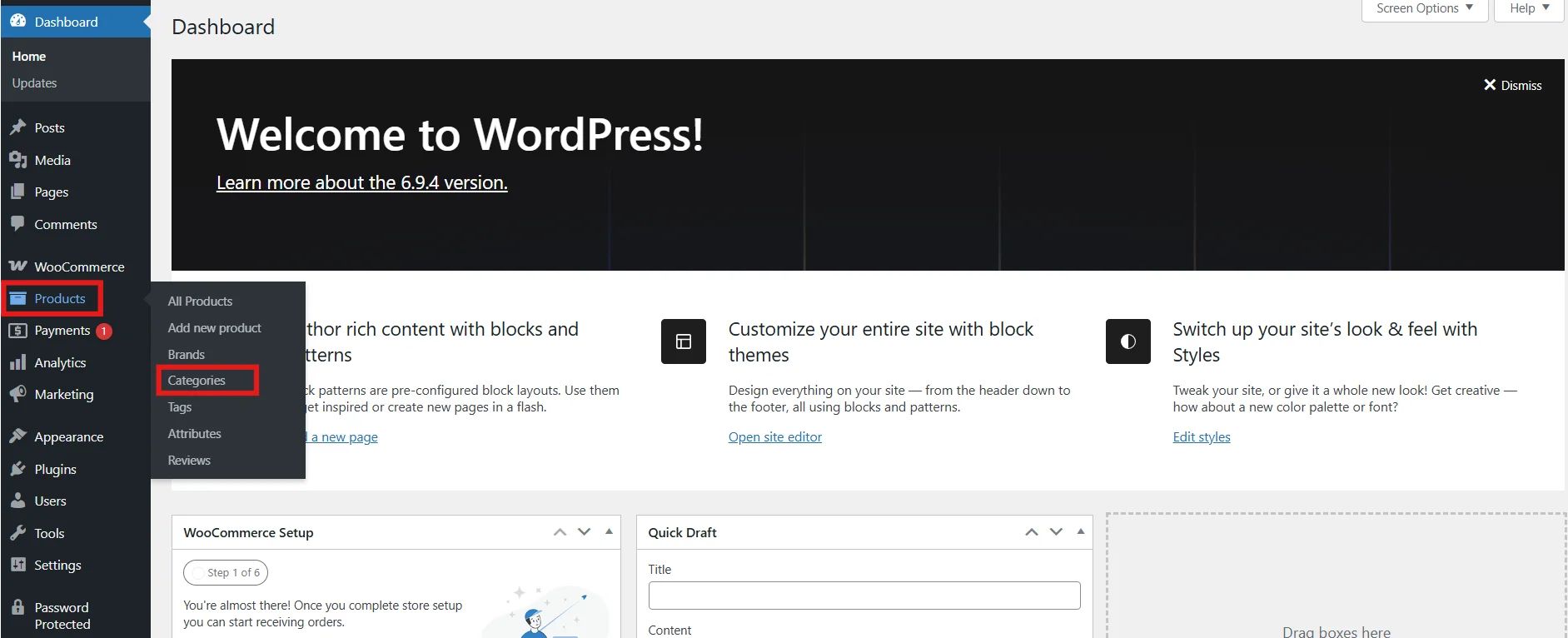
- Add a New Category.
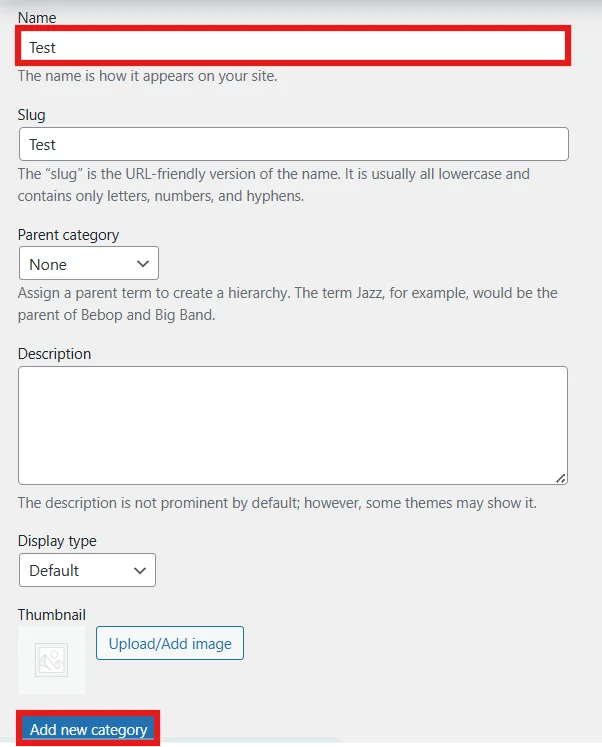
- Once a new category is added, hover on it and click Make Default (change default product category in WooCommerce).
This resolves the WooCommerce default category issue and helps remove uncategorized from WooCommerce products.
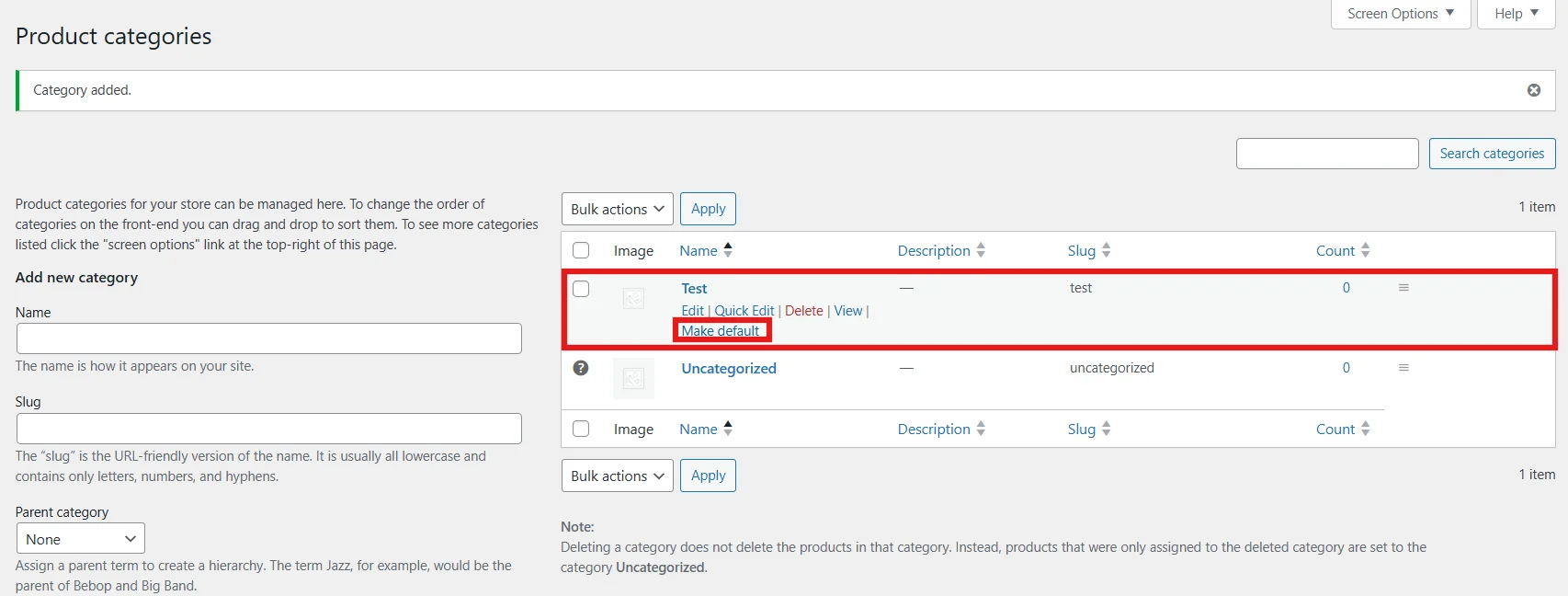
- Once you have remove default category in WooCommerce, the Uncategorized category can be deleted.
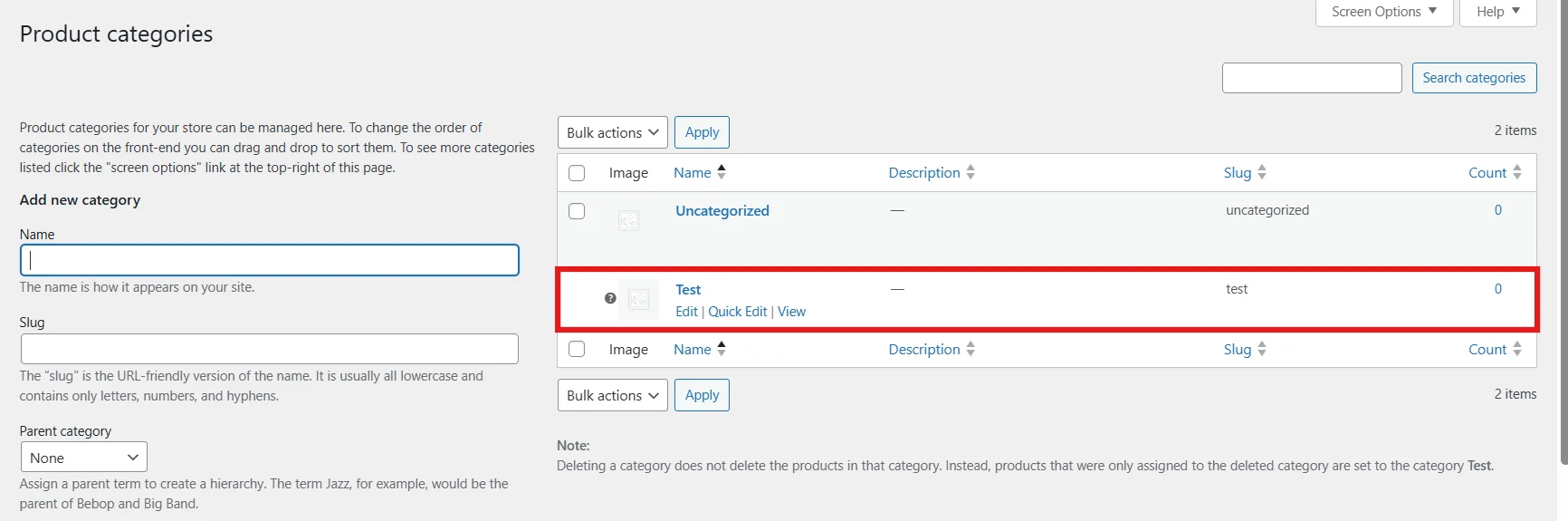
- Hover on Uncategorized, and Click on Delete.
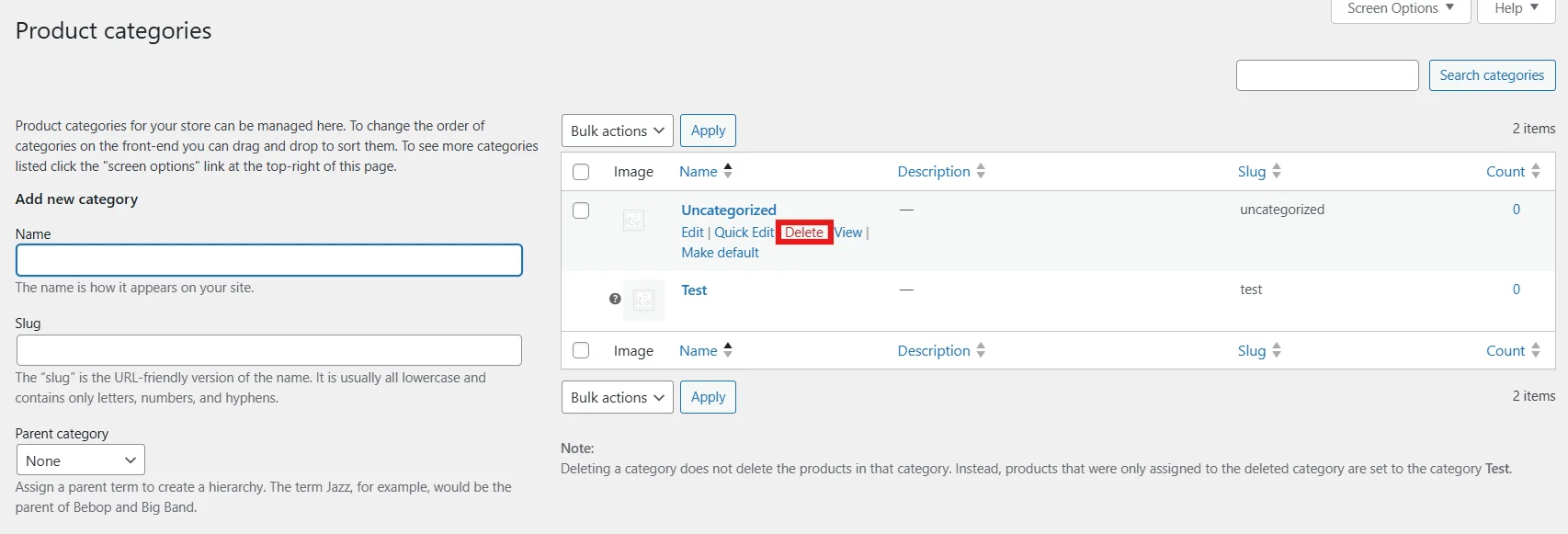
You have successfully removed the Uncategorized category in WooCommerce.
Method 2: Password Protect Uncategorized Product Category
- In your WordPress dashboard, go to Password Protected → Content Protection.
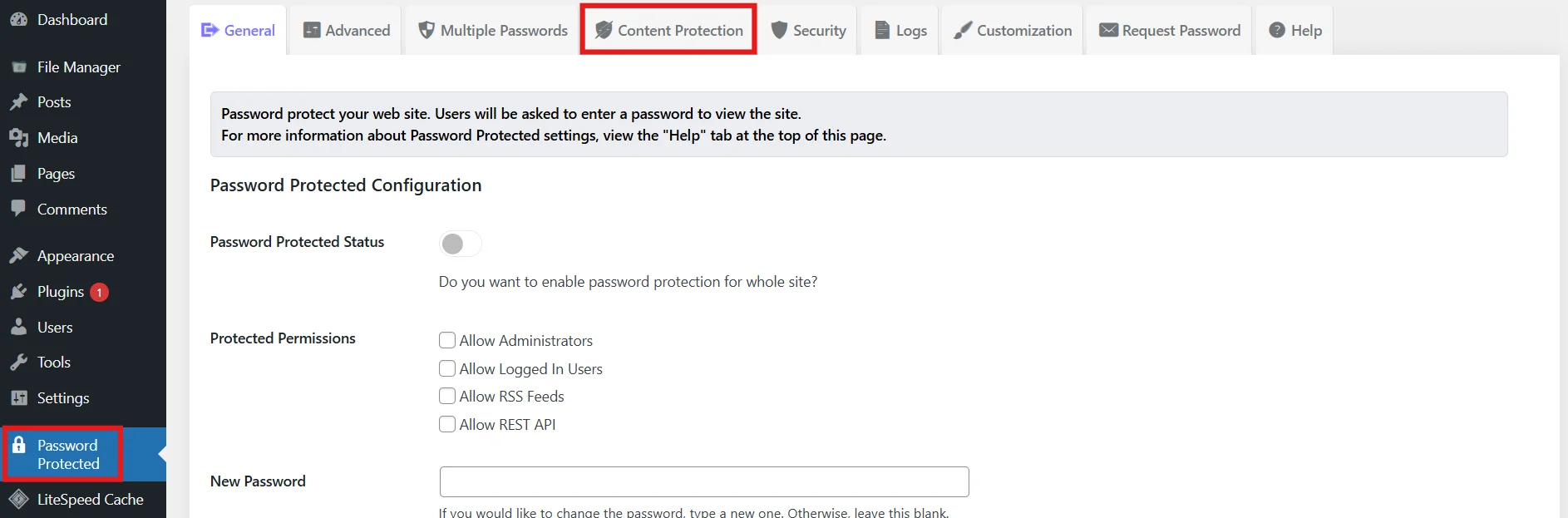
- Go to Taxonomy Protection Tab, and click on Product_Cat checkbox, then click on Save Changes.
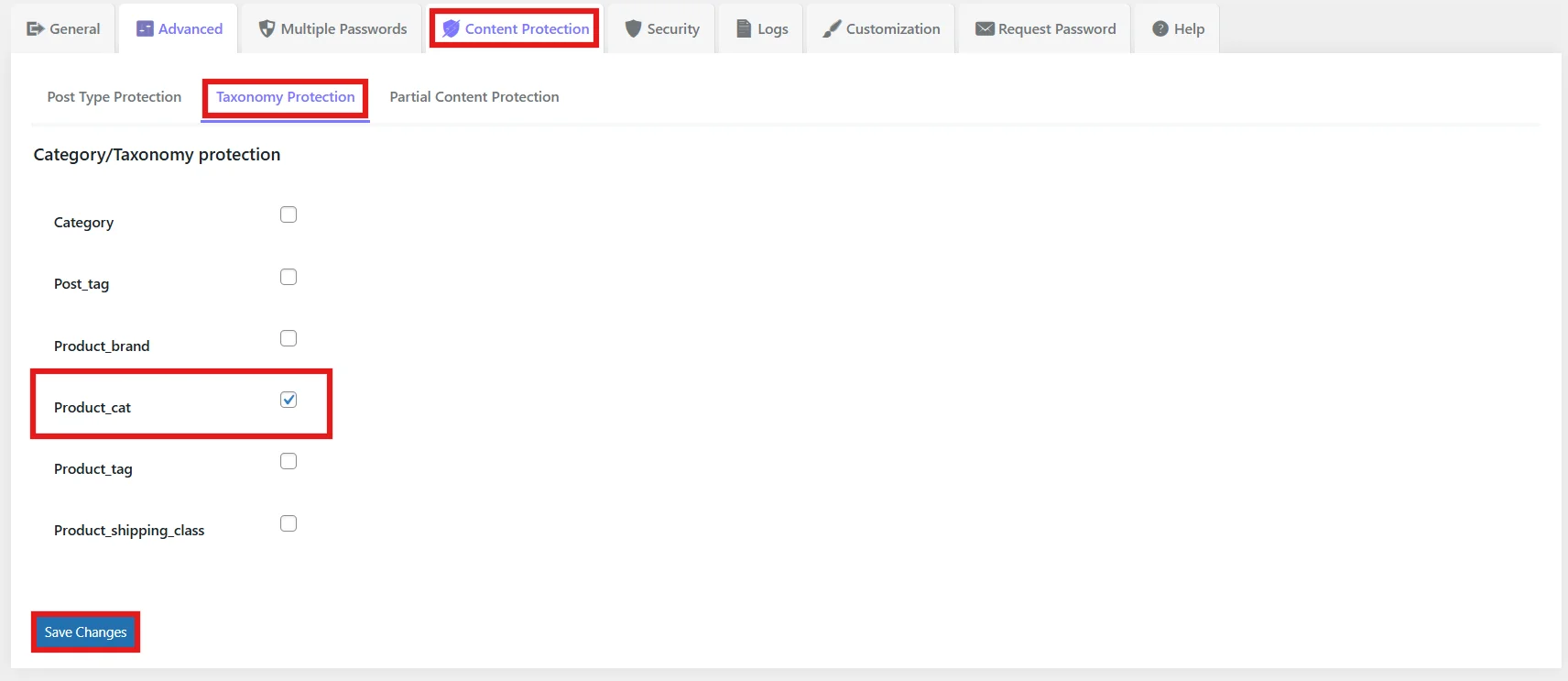
- Now go to Products → Categories.
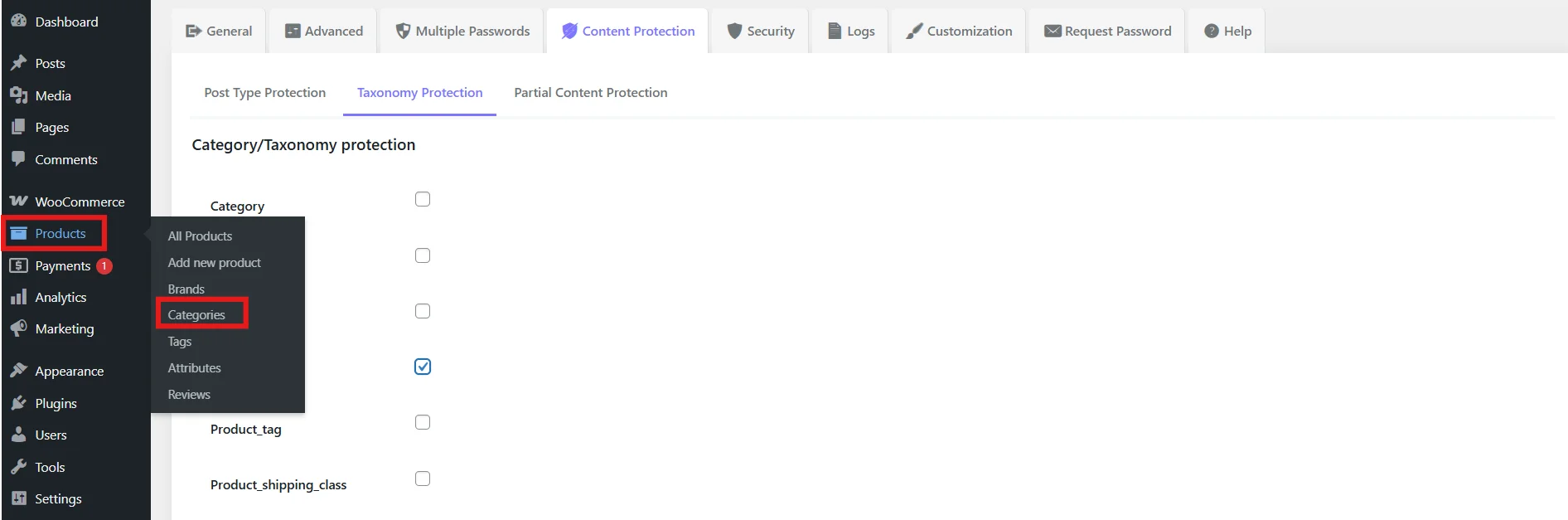
- You can see the new Password Protected Pro box appear. Now select the Enable Password Protection checkbox, then click on Enable Password Protection button.
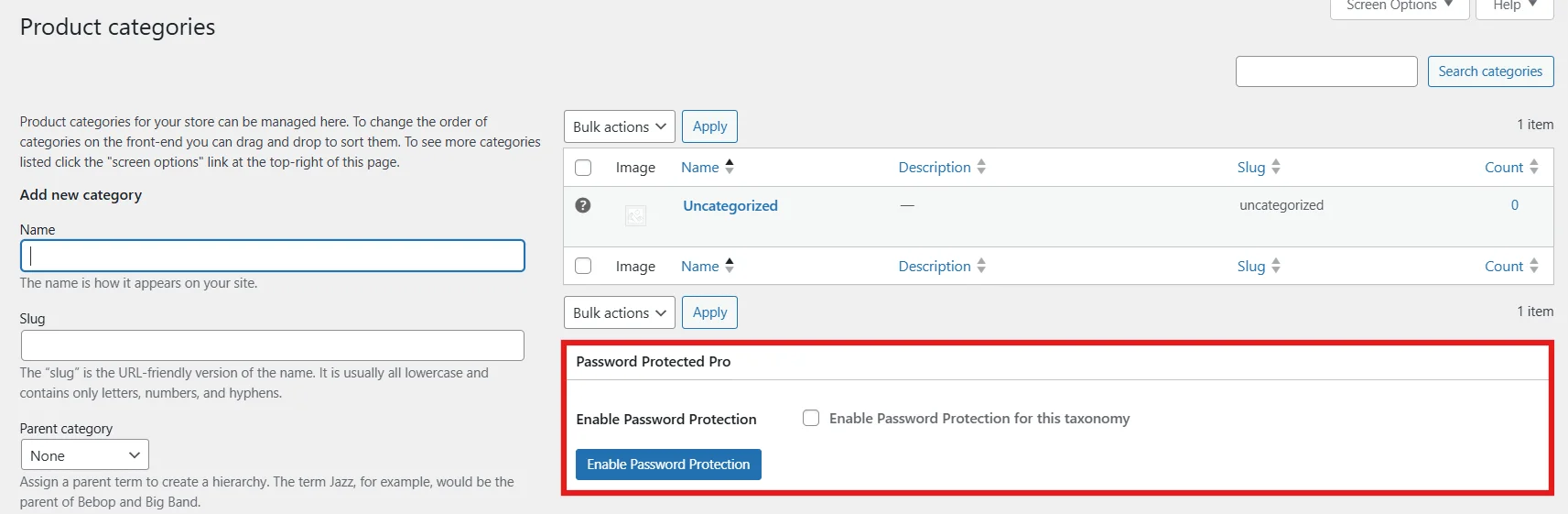
- Once enabled, you will now see the extended Password Protected Pro settings. Click on Select Product_cat, and then select Uncategorized.
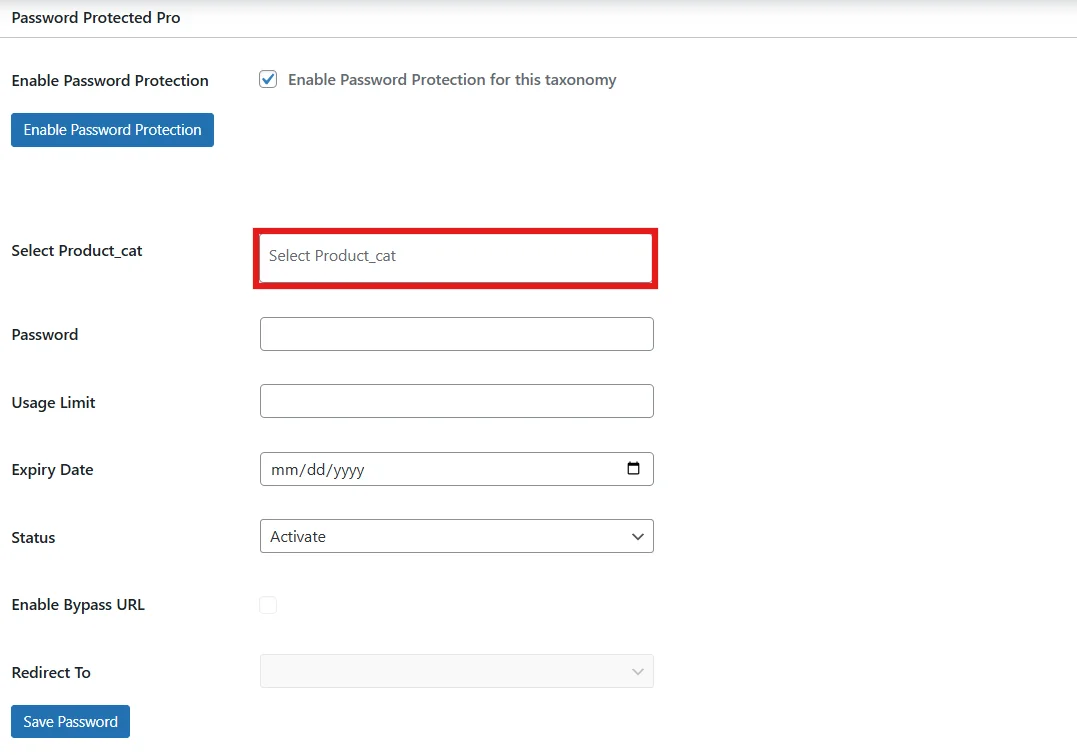
- Now you can enter any password, set usage limits, pick an expiry date, choose “Activate” status, and enable the Bypass URL and redirection options (based on your preference).
- Once all the details are filled in, click on Save Password.

Congratulations! You have successfully password protected uncategorized product category in WooCommerce. Only you have access to it now.
This is useful if you don’t want to fully delete uncategorized product category in WooCommerce.
Troubleshooting Common Issues
Even after changing the default category, some users find that “Uncategorized” refuses to disappear. Here are the most common problems and fixes:
Uncategorized keeps reappearing in WordPress
This happens when you haven’t updated WordPress default category settings. Double‑check that your preferred category is selected as the default.
Cannot delete uncategorized in WooCommerce
WooCommerce won’t let you delete the default product category. First, assign a new default category, then delete “Uncategorized.”
Products or posts still showing uncategorized
Use bulk edit to reassign them to meaningful categories. Only then can you safely remove “Uncategorized.”
Best Practices for Category Management
Cleaning up “Uncategorized” is just the first step. To keep your site organized and SEO‑friendly, follow these best practices:
- Use descriptive category names → Categories should reflect topics or product types clearly.
- Limit the number of categories → Too many categories dilute relevance. Stick to a logical structure.
- Assign every post/product thoughtfully → Avoid leaving content without a category.
- Review categories regularly → As your site grows, prune or merge categories to maintain clarity.
- Think SEO → Categories can rank in search engines, so treat them like landing pages with optimized titles and descriptions.
Did You Successfully Remove Uncategorized Category?
If you went through this article, you should have learned how to change the category in WordPress or WooCommerce, assign posts/products to different default categories, and rename or delete the Uncategorized category.
By now, the uncategorized category should be gone from your posts or product listings. This will eventually benefit your site in terms of professionalism, navigation, and SEO benefit.
Password Protected Pro helps you lock down unwanted access and present only what you want your visitors to see, and in this case, the Uncategorized category.
Grab Password Protected Pro and keep your WordPress site truly under your control.
FAQs
Can I permanently delete “Uncategorized” in WordPress?
Not directly. WordPress requires a default category, so “Uncategorized” cannot be deleted until you assign another category as the default. Once you set a new default in Settings → Writing, you can safely rename or remove “Uncategorized”.
Why does WordPress keep adding “Uncategorized”?
Because WordPress automatically assigns posts to the default category if no category is chosen. If “Uncategorized” is still the default, any new post without a category will end up there. Changing the default category prevents this from happening.
Is renaming better than deleting?
Yes, in many cases, renaming is simpler. By renaming “Uncategorized” to something meaningful (like “General” or “News”), you avoid technical issues and keep your taxonomy clean. Deleting is possible only after you’ve reassigned the default category, but renaming is often faster and safer.
Does WooCommerce require a default product category?
Yes. WooCommerce inherits WordPress’s taxonomy rules, so every product must belong to at least one category. That’s why “Uncategorized” exists by default. You can change the default product category to one relevant to your store, then delete or rename “Uncategorized” once all products have been reassigned.