

Are you worried about bots attempting to break into your password-protected WordPress content? Keeping private pages, client portals, and restricted areas secure is a real challenge for site owners.
Unfortunately, automated bots frequently try to bypass basic password protection. When successful, they can expose private content to unauthorized users. Adding an extra layer of verification is essential in today’s threat landscape, and this is exactly where hCaptcha comes in.
hCaptcha is a privacy-focused CAPTCHA service that verifies real human visitors and blocks automated bots. In this guide, you’ll learn what hCaptcha is and how to use it to secure WordPress password forms effectively.
Let’s get started.
What is hCaptcha?
hCaptcha is a widely used security service designed to protect websites from bots, spam, and automated abuse. CAPTCHA stands for “Completely Automated Public Turing test to tell Computers and Humans Apart,” and hCaptcha is built on this concept.
In simple terms, hCaptcha verifies that a real human—not an automated script—is attempting to access your content. It does this by asking users to complete simple tasks that are easy for people but difficult for machines.
These challenges often involve identifying objects in images—such as selecting all squares that contain a traffic light. If you complete the challenge correctly, hCaptcha confirms you are a human and allows you to proceed.
One of hCaptcha’s biggest advantages is its strong focus on user privacy. It collects less user data and does not track users across different websites, unlike some competing services.
By using hCaptcha, you add a powerful, privacy-respecting layer of defense against automated attacks.
hCaptcha is often compared with Google reCAPTCHA, but the two differ significantly in terms of privacy, data usage, and business model.
👉 Learn more about the difference in our reCAPTCHA vs hCaptcha comparison article.
Why Add hCaptcha to WordPress Password Forms?
Adding hCaptcha to your WordPress password forms is a simple yet highly effective way to strengthen site security. It specifically prevents automated tools from trying to guess your password repeatedly.
This integration helps stop brute-force attacks, where bots rapidly try thousands of password combinations until one works.
By requiring the user to pass an hCaptcha challenge, you ensure the person entering the password is a real human. Since bots cannot reliably solve these challenges, they are blocked before they can even attempt password entry.
It adds an essential layer of security, making it much harder for unwanted visitors to access your protected content. This gives you peace of mind knowing your private pages are protected against automated threats and unauthorized access.
How to Secure WordPress Forms Using hCaptcha?
To add hCaptcha to WordPress password forms, you’ll need a plugin that natively supports CAPTCHA integration. A standard WordPress installation does not include this option. You need a password protection plugin that is built to allow hCaptcha integration. This is key to taking your bot protection to the next level.
One of the most reliable solutions for this is the Password Protected plugin. It is a powerful solution that focuses entirely on securing your content with simple, yet effective controls.
By using the Password Protected plugin, you gain more than just hCaptcha support—you unlock advanced access control for your entire site.
For instance, the plugin allows you to protect your entire site with a single master password, making it easy to manage access. It also includes features like whitelisting specific IP addresses or user roles, so your team can skip the password screen.
The Password Protected plugin is the most straightforward way to secure your sensitive content and integrate advanced features like hCaptcha to stop brute-force attacks.
Why Choose Password Protected Plugin?
As discussed, the Password Protected plugin offers much more than just a powerful hCaptcha integration. This is a comprehensive tool designed to give you total control over who sees your WordPress content.
The plugin offers a wide range of practical features designed to simplify access control and strengthen site security. This allows you to protect your site in a way that best suits your needs:
- Protect Your Whole Site with a Single Password: Lock down your whole website—including the homepage—using a single master password. Ideal for staging sites and private client projects.
- Set Password Expiration: You can set passwords to expire after a certain number of uses or a specific amount of time. This adds another layer of security.
- Whitelisting by IP Address: You can allow specific IP addresses to bypass the password form entirely. This is great for letting your team or trusted partners access the site instantly.
- Whitelisting by User Role: Give instant access to users with specific roles, like Administrators or Editors, so they do not have to enter a password.
- Protect Specific Posts or Pages: You have the option to apply password protection only to certain pages or posts, leaving the rest of your site public.
- Custom Login Screen: You can change the look of the password entry form to match your website’s design. This ensures a professional and consistent user experience.
And much more! Check out the complete features list.
Secure WordPress Password Forms with hCaptcha in 3 Easy Steps
If you are currently using a different plugin to password-protect your posts or pages, it’s best to disable it first to avoid conflicts or unexpected behavior. Using two separate password protection tools can often lead to plugin conflicts and errors, causing your site to break or security to fail.
Once that is done, follow these simple steps to integrate hCaptcha using the Password Protected plugin.
Step 1: Install and Activate Password Protected Pro
The first step is to get the plugin installed on your WordPress site.
- Go to your WordPress admin dashboard.
- Navigate to Plugins and then click on Add Plugin.
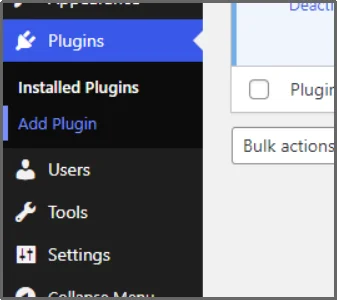
- In the search bar, type “Password Protected” and press Enter.

- Find the plugin in the search results and click the Install Now button.
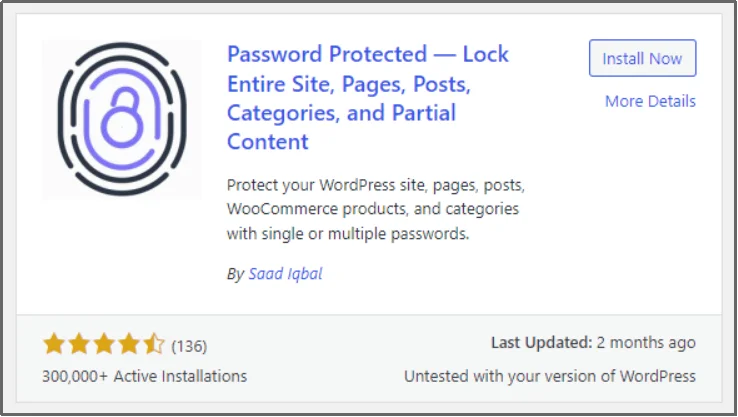
- Once the installation is complete, click the Activate button.
The hCaptcha integration is a premium feature of the plugin. To get the hCaptcha feature and other extra benefits like password expiration, you need to activate the Password Protected premium. Here’s how to do so:
- Navigate to the Password Protected pricing page and purchase a suitable plan.
- Once you complete your purchase, you will receive a file and a license key.
- Go back to the Plugins section in your dashboard and click Add New again.
- Click the Upload Plugin button at the top of the page.
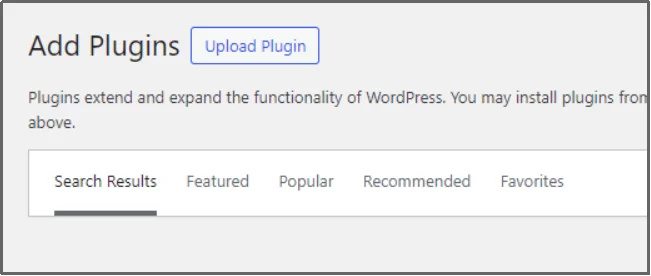
- Browse and upload the plugin file you downloaded and click Install Now.
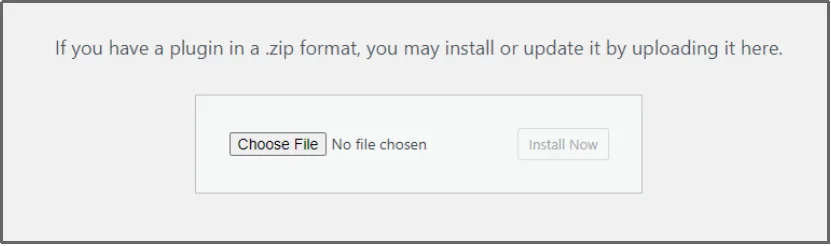
- Finally, use the Activate Plugin for activation.
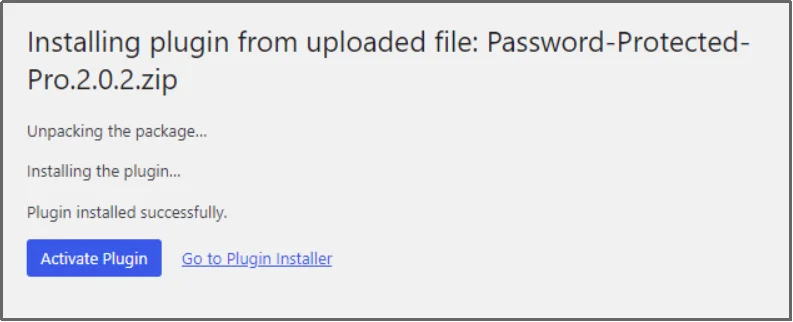
- Enter the license key in the respective box, and hit ‘Activate License →’
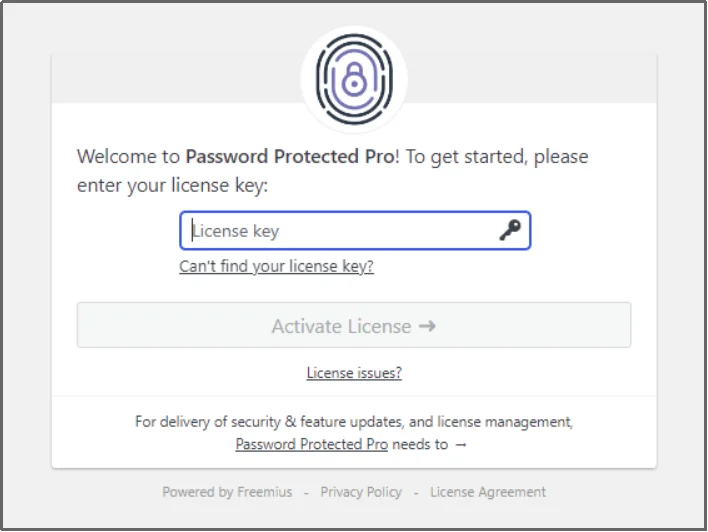
Once activated, you’ll unlock hCaptcha support along with other premium security features, including password expiration and advanced access rules.
Step 2: Configure hCaptcha API Keys
Now that you have the premium plugin, you need to connect it to the hCaptcha service.
- Go to the official hCaptcha website and sign up for a free account.
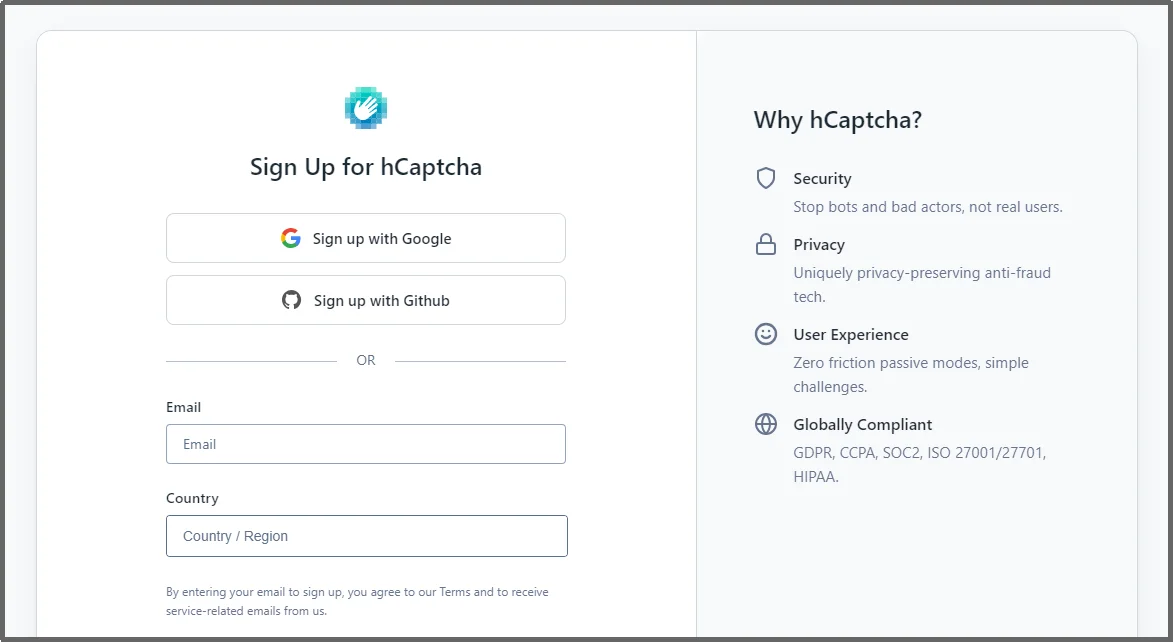
- Get your unique Site Key and Secret Key. These keys securely connect your WordPress site with the hCaptcha service. You can follow the instructions on the site, which start with registering your domain.
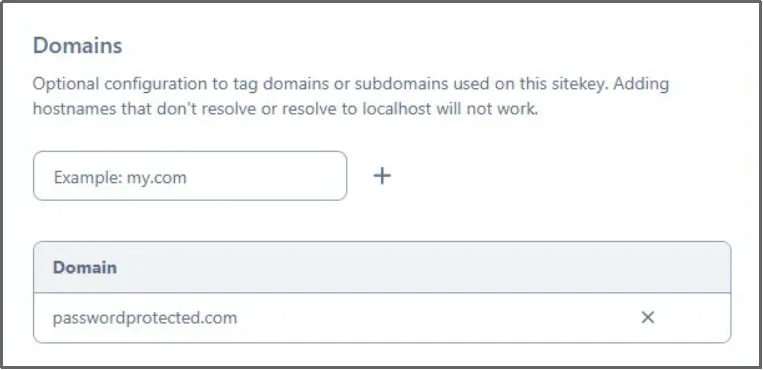
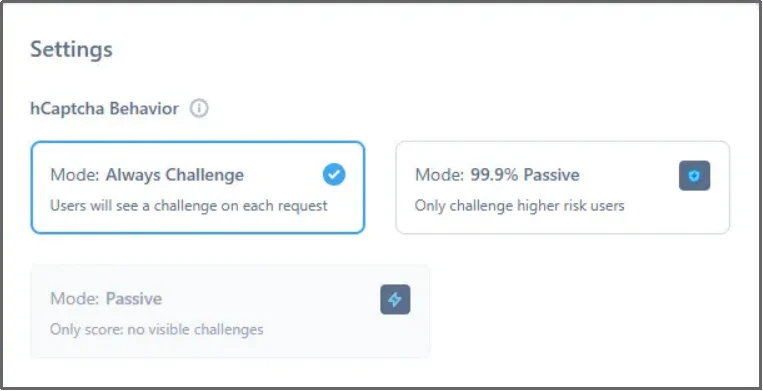
- Select hCaptcha behavior settings.
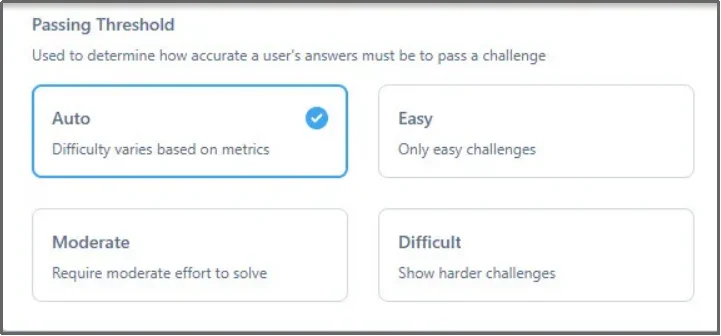
- Select the passing threshold—or how strict you want your bot security.
- Follow the instructions until you get the confidential keys, or check out our docs page for detailed documentation.
- In your WordPress dashboard, navigate to Settings and then click on Password Protected.
- Open the Security tab and switch to the Captcha sub-tab.
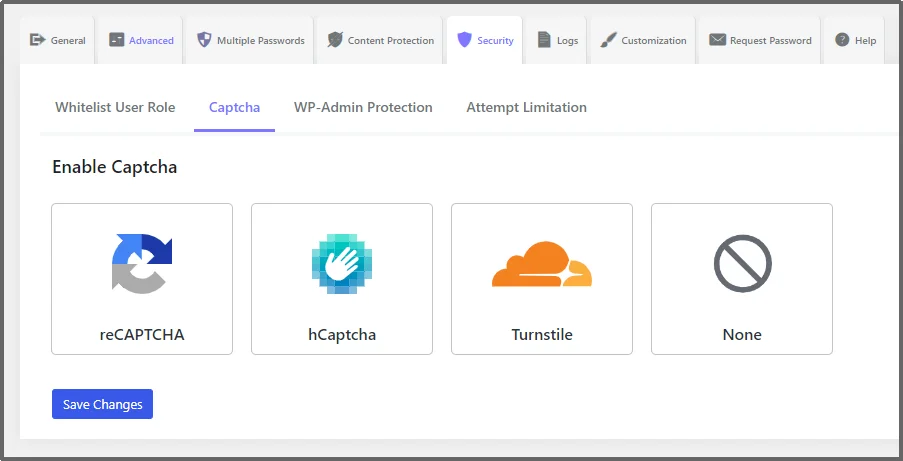
- Select hCaptcha to reveal further options.
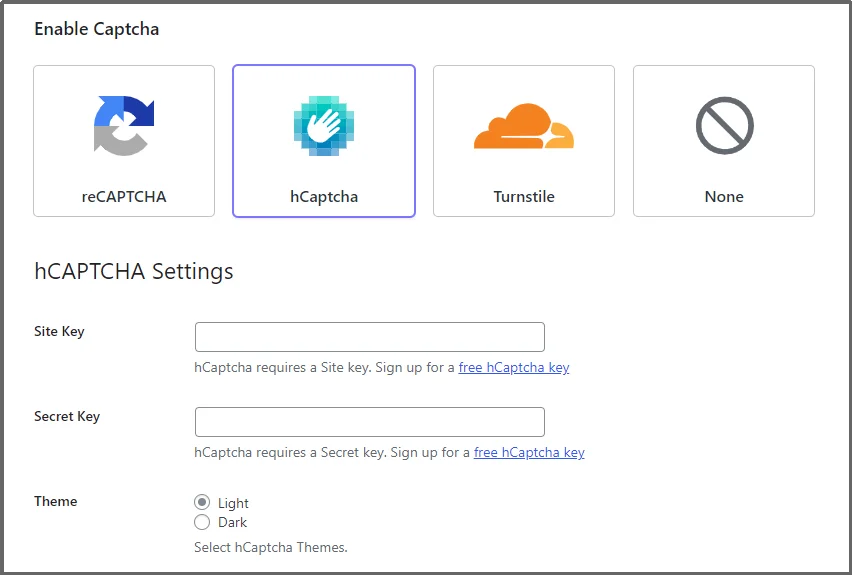
- Enter the Site Key and Secret Key that you received from the hCaptcha website into the respective fields in the plugin’s settings.
- Select a theme from Light or Dark.
- Click Save Changes to preserve changes.
Step 3: Protect Your Post/Page with Password Protected
Now it’s time to test your setup.
- Navigate to the Password Protected and protect the post or the page that you want to secure with hCaptcha.
- You can do so in the Content Protection tab. Learn to do so:
If you are on Elementor, learn to do so on your favorite page builder:
- How to Password Protected Posts and Pages in Elementor
- How to Partially Protect Post and Pages in Elementor
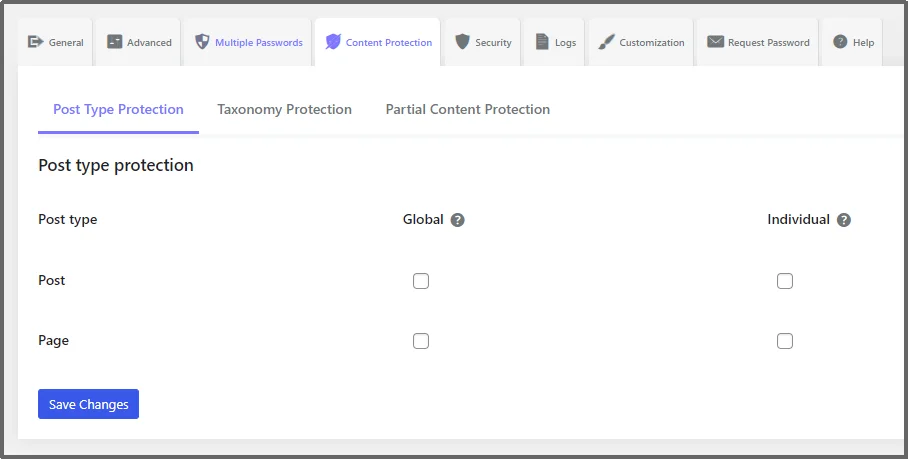
That’s about it. You have successfully added the hCaptcha. Since the service is enabled, the hCaptcha will automatically appear on all password forms.
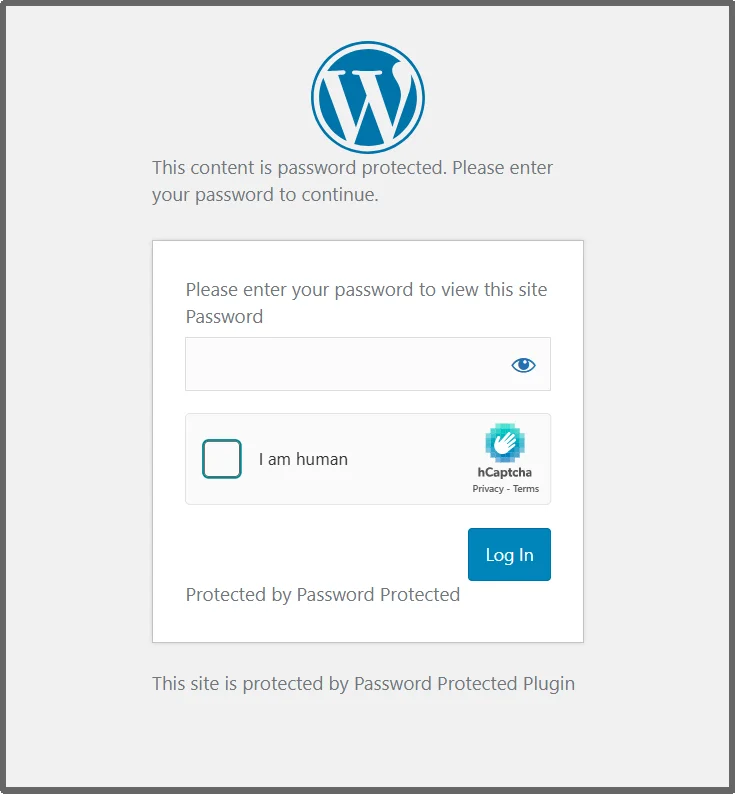
Click the I am human box, and you will get a human verification test.

See! Your password forms are now protected by the powerful hCaptcha service, effectively blocking automated bots!
Level Up Your Security Today
You have seen how easy it is to significantly boost the security of your password-protected WordPress content. Integrating hCaptcha into your WordPress password forms adds a powerful defense against bots, brute-force attacks, and automated abuse.
The Password Protected plugin offers the simplest and most feature-rich way to achieve this. It seamlessly brings advanced bot protection (hCaptcha) together with essential access control features. This includes site-wide locking, whitelisting for trusted users, and custom password pages.
Don’t leave your private content vulnerable to automated attacks. Choose the plugin that gives you peace of mind and complete security control. Ready to take your WordPress security to the next level and stop bots before they reach your content? Go for the Password Protected Pro for all the amazing features.