


If you want to restrict WooCommerce category access by password, you are in the right place.
Restricting WooCommerce categories can be beneficial for multiple purposes, which we will discuss later in this article. But before that, since you are here, let’s explore the two options we have.
We can either do it using WooCommerce’s built-in restrict product option or using a plugin.
You might be thinking which one is better. That’s one of the burning questions we will answer in this article, along with several others, including if you can set a different password for each category.
Let’s jump right in!
Why You Might Want to Password Protect WooCommerce Categories
Password protecting categories can be a strategic plan on several conditions, such as:
- Exclusive access or discounts. Password protecting categories works tremendously to provide exclusive access to a certain group or a specific individual. Setting up a password and only sharing it with the intended users can help allow exclusive discounts or personalized plans.
- Segmentation. Category-specific passwords can also assist with splitting the audience into two or more groups. For example, you can create specific categories for retailers and consumers.
- Prevents bot checkout. Bots roam around the internet, placing products in the cart. This practice is often done by competitors to deplete your inventory, forcing the “out of stock” issue, even when the product is, in fact, available.
- Helps with testing or prelaunch. Before launching the product chain, you may want to test it or make it public for your team or beta testers. In that case, you can easily password-protect categories and share the password with the required individuals only.
- Members-only or subscription-based content. If you run a membership or subscription-based store, you can lock certain categories behind a paywall—perfect for digital goods, downloadable content, or member perks.
- Hide categories. Password protection can also be a better substitute for temporarily hiding a category from the general audience.
- Offers customization. If you plan on using the plugin we are about to share, it offers full customization, enabling you to customize your password screen to match your brand’s aesthetics and design.
Password Protecting WooCommerce Categories: 2 Ways
Now, let’s jump right into what you came here for…
#1: Using WooCommerce’s Built-In Restriction Feature
First, let’s do it with WooCommerce’s built-in feature. Create a product in the category that you want to password protect.
Once done, name it, add a description, and then tap the tiny underlined “Edit” button next to the visibility.
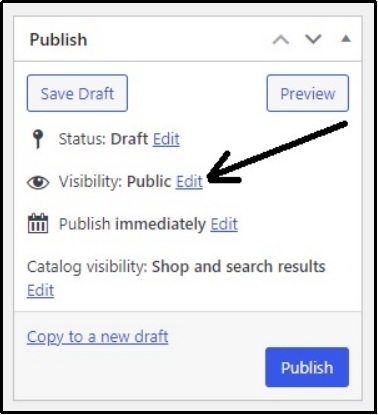
Clicking it will reveal other options, such as password protection and an input box enabling you to set the password.
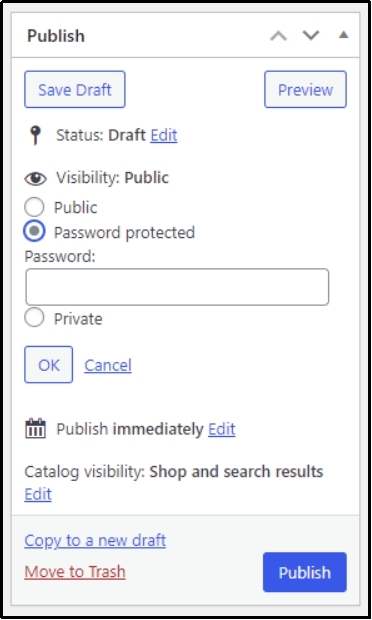
Afterward, select “OK” and publish the product. That should add a password to not the entire category, but the specific “Product.” Now, technically, you can password protect an entire category by adding a password screen on each product in the category you want to protect.
This approach is fairly a big waste of time if you run a gigantic store with thousands of products. However, if you want to go with it, get on with the work, and we hope you will be done by the end of the week if you are fast enough.
For a faster and more actionable way, you can use Password Protected: a plugin designed specifically to enhance the security of your WordPress site, and you can effortlessly password protect categories, products, and much more.
This plugin can do much more than something that can be described in a few sentences, but that’s not the point here. Let’s see how you can use it to password-protect categories.
#2: Using Password Protected
For the easier alternative, go to your WordPress >> Plugins >> Add New Plugin.
Using the search bar, search for Password Protected.
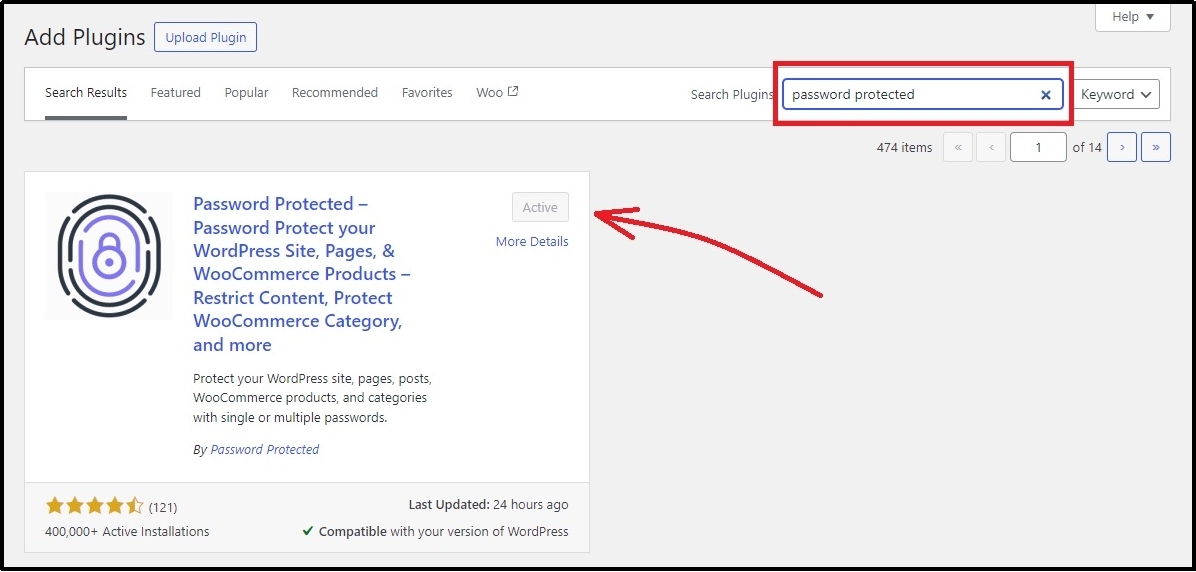
Install and activate the plugin.
Afterward, go to the plugin’s settings and toggle the Password Protected Status on and save progress using the “Save Changes” button.
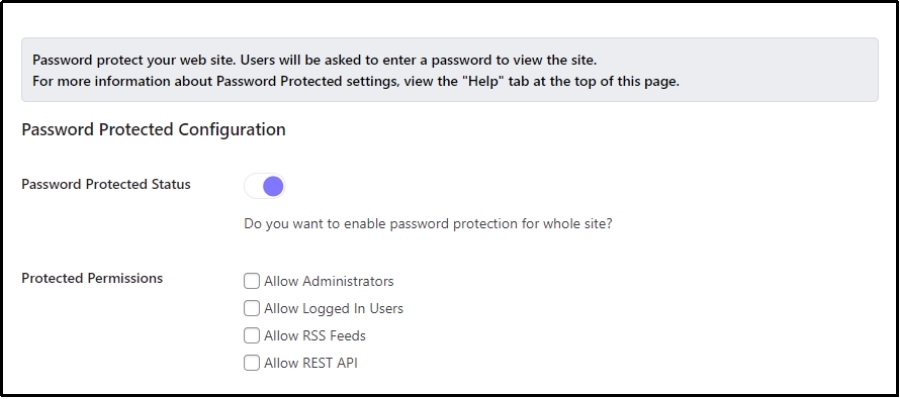
Now head to the Content Protection tab >> Taxonomy Protection subtab and check the box next to the Category and click the Save Changes button.

That should enable password protection.
Now, head back to categories and scroll down to find an additional screen like this.
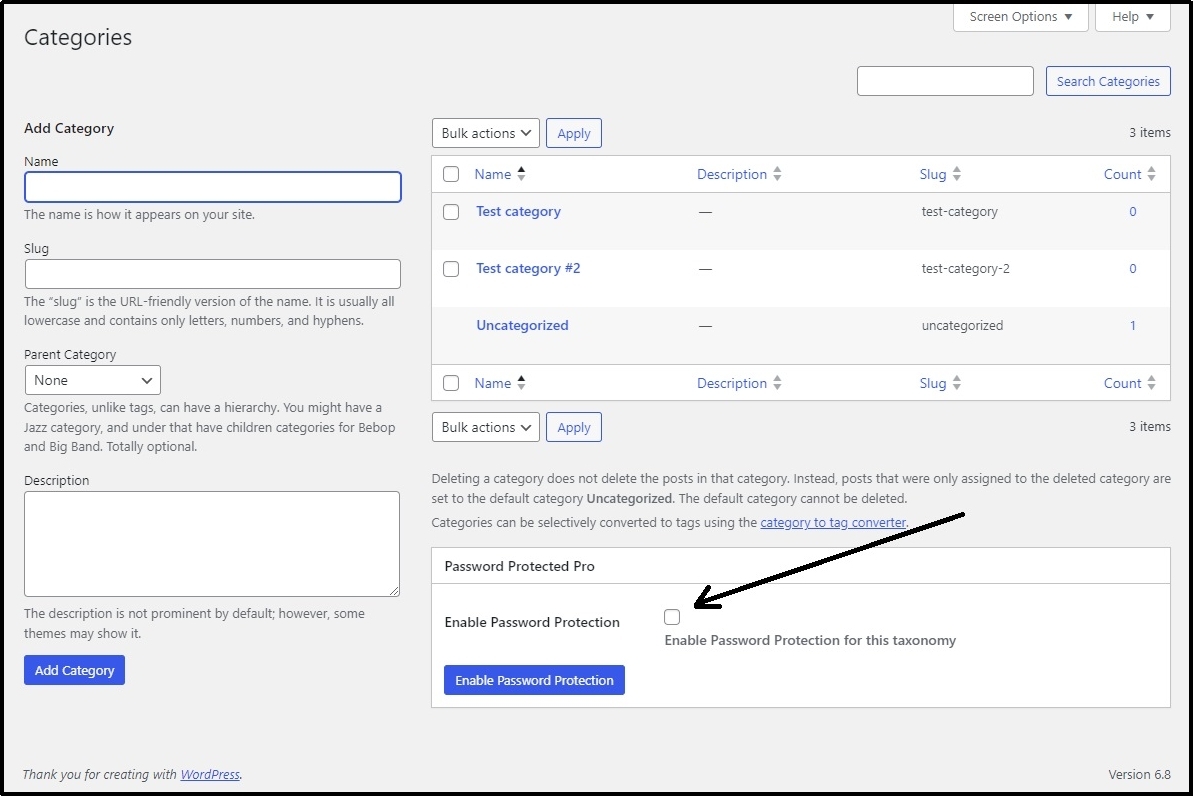
Tick the “Enable Password Protection for this taxonomy” checkbox and press the “Enable Password Protection” button.
This will reveal further options, such as Select Category, Password, Usage Limit, Expiry Date, and Status.
These are pretty self-explanatory. Select the category that you want to password protect using the drop-down, set a password and usage limit for it, and use Save Password to save progress.
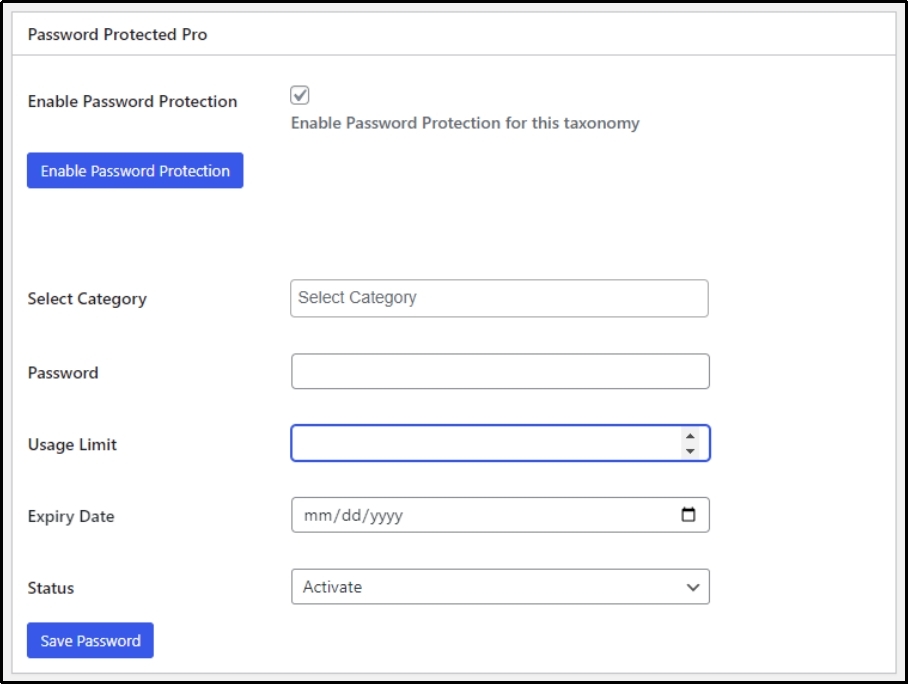
That’s how you password protect WooCommerce categories.
There’s More To Password Protected!
Password Protected is more than just protecting WooCommerce categories. It also offers complete WordPress protection. Enhance security by adding an additional password-protected screen before granting access.
This also enables you to keep your site protected in times of maintenance.
WordPress security made effortless with Password Protected.
Frequently Asked Questions
How do I hide specific categories in WooCommerce?
You can hide specific categories using a plugin, such as Password Protected. It enables you to protect specific WooCommerce categories individually or in bulk, allowing you to set either different passwords for each or use one for all categories.
Can I protect only specific products without protecting the entire category?
Yes, you can! With Password Protected, you can specifically protect WooCommerce products instead of locking the entire category. This enables you to run special discounts or offers on specific products.
How do users enter the password to access protected categories?
Once you enable the Password Protection and set a password from the plugin’s settings, a password screen will appear upon clicking on the protected category. On the screen, you will see an input box where you can enter the password to go through.